Unallocated space is a part of your disk that doesn’t belong to any partition, so Windows can’t store files on it. You often see it in Disk Management after cloning a drive to a bigger SSD, after deleting a partition, or on a new disk. You can use it in two ways: add it to an existing partition with Extend Volume, or turn it into a new drive with New Simple Volume. The steps are the same in Windows 10 and Windows 11.
In this article
How to open Disk Management
You need administrator rights. Use one of these ways:
- Press Win + R, type
diskmgmt.mscand click OK. - Right-click This PC (My Computer), click Manage and choose Disk Management.
- Type Computer Management in the search box on the taskbar, right-click Computer Management and select Run as administrator > Yes. When Computer Management opens, go to Storage > Disk Management.
In Disk Management, unallocated space is shown as a black bar with the label Unallocated.
Method 1: Add unallocated space to an existing partition (Extend Volume)
Use this method when you want to make an existing drive, for example C:, bigger.
Step 1: Open Disk Management
Open Disk Management with one of the ways above.
Step 2: Select Extend Volume
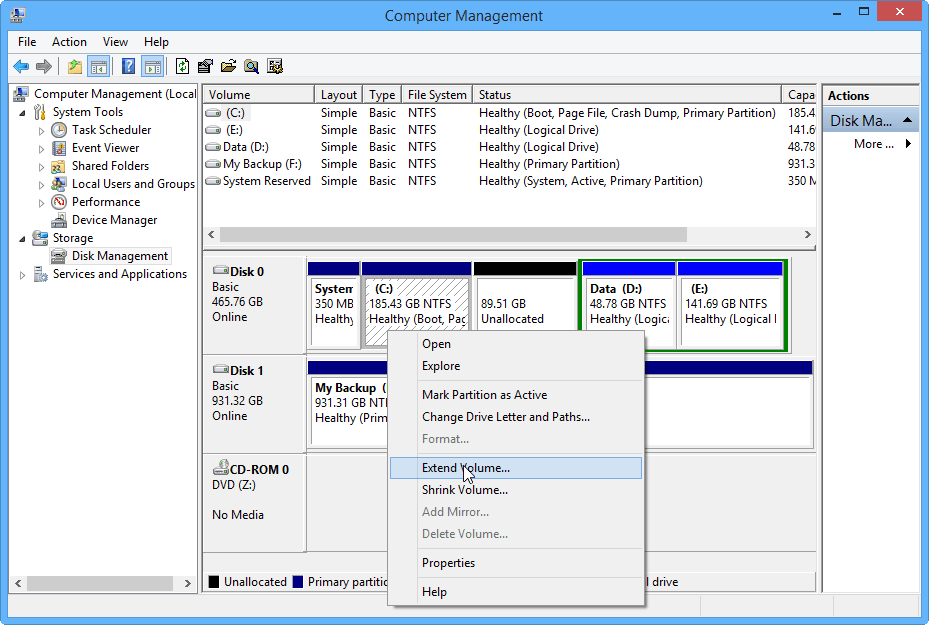
Right-click the partition that sits directly to the left of the unallocated space and select Extend Volume.
Step 3: Start the wizard
The Extend Volume Wizard opens. Click Next.
Step 4: Choose how much space to add
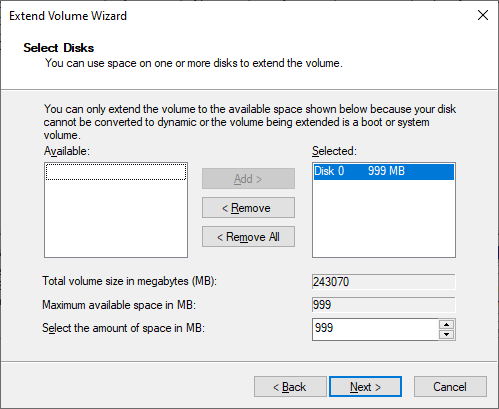
On the Select Disks page, the wizard selects all the available space by default. You can only extend the volume up to the available space shown in the window. If you want to keep some unallocated space for another partition, type a smaller number in Select the amount of space in MB. If you’re not sure, keep the default settings and click Next.
Step 5: Finish
Click Finish. The unallocated space is gone, because it is now part of the partition next to it.
Why is Extend Volume grayed out?
Disk Management can’t merge just any unallocated space into a partition. Very often, when you right-click a partition, Extend Volume is grayed out, like this:
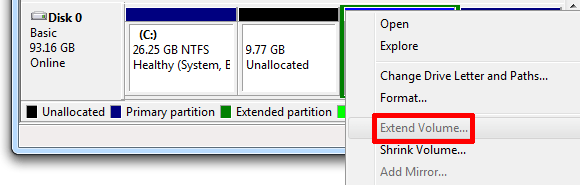
According to Microsoft, you can only extend a partition when:
- The unallocated space is directly after (to the right of) the partition you want to extend. If another partition sits between them, for example a recovery partition, you can’t extend it.
- The unallocated space is on the same disk.
- The partition is formatted with NTFS (or ReFS).
- Disk Management runs with administrator rights.
If the free space is not next to your partition, create a new partition in it instead (Method 2 below), or use a third-party partition tool that can move partitions without deleting your data. This happens a lot after cloning a drive. See how to fix an SSD that shows the wrong size after cloning.
Method 2: Create a new volume from unallocated space (New Simple Volume)
Use this method when you want a new, separate drive (for example D: or E:).
- Right-click the unallocated space.
- Choose New Simple Volume. The New Simple Volume Wizard appears.
- Click Next.
- Set the size of the new volume in the Simple volume size in MB box. By default it uses all the unallocated space, which is what most people want. If you choose a smaller size, the rest of the space stays unallocated.
- Click Next.
- Choose a drive letter for the new volume. My advice is to keep the letter that Windows suggests. You can also mount the drive as a folder on an NTFS volume, or do neither.
- Click Next.
- Make sure Format this volume with the following settings is selected.
- Make sure the file system is NTFS.
- Click Next.
- Click Finish to create the new volume. Windows now formats it. Larger drives take longer, and you can follow the progress in the Status column of Disk Management. The drive gets its new letter after formatting.
- When it’s done, close Disk Management.
The new drive appears in File Explorer under This PC, and you can use it right away.
Note: The new volume may have a little less capacity than you expected. The missing space is overhead used by the formatting process.