Do you want Google Chrome in dark colors? Chrome has a built-in dark mode on Windows, Mac, Android, iPhone and iPad. On a computer you can turn it on directly in Chrome, or let Chrome follow the dark mode of your operating system. Here are the steps for every device.
Update (October 2026): This guide was first written in 2021 and is now updated. Chrome has dark mode built in on every device today, so you no longer need experimental flags on Android or the Invert colors trick on iPhone.
In this article
The quick way on a computer: Customize Chrome
On Windows, Mac and Chromebook you can switch Chrome to dark mode without changing any system setting:
- Open a new tab in Chrome.
- Click Customize Chrome in the bottom-right corner of the New Tab page.
- Under Appearance, choose Dark. Choose Device if you want Chrome to follow the light or dark mode of your computer.
If you prefer to switch your whole system to dark mode, use the steps for your operating system below.
Chrome dark mode for Windows 10
- Click Start, search for Settings and open it.
- Choose Personalization, then click Colors in the left pane.
- Under Choose your color, select Dark. Or select Custom and scroll down to Choose your default app mode.
- Set Choose your default app mode to Dark. All apps with a native dark mode, including Chrome, change color right away. You don’t need to restart your browser.
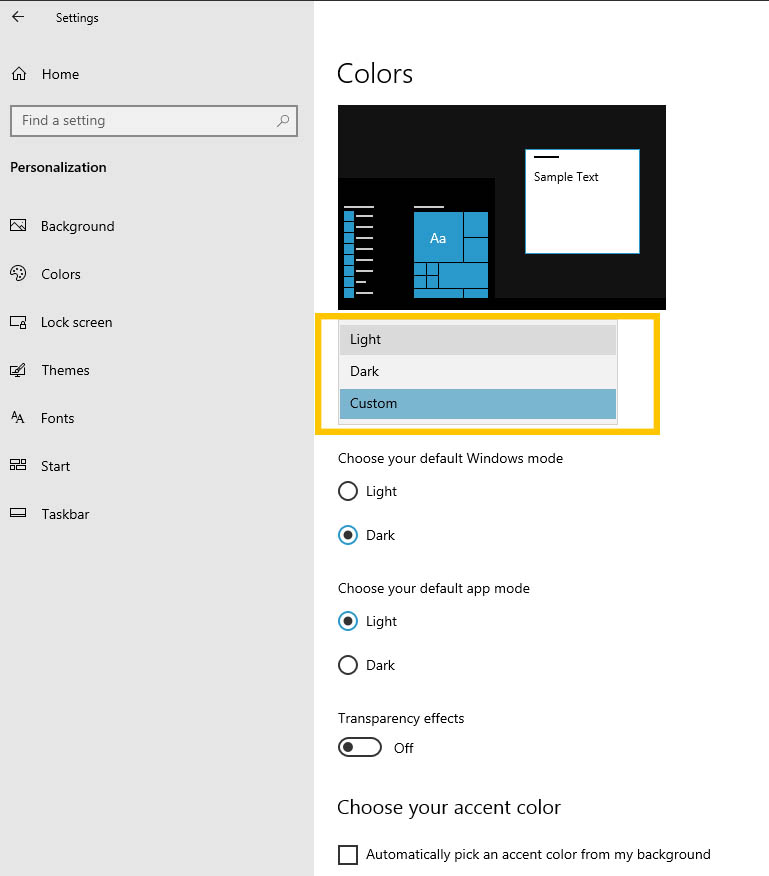
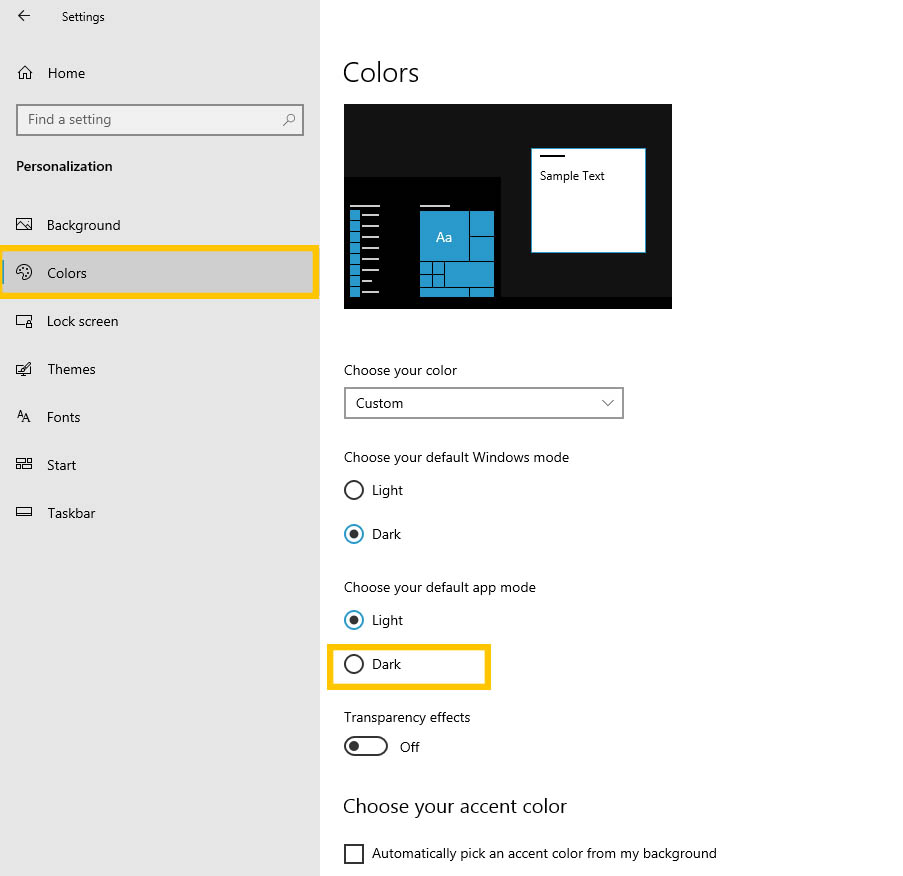
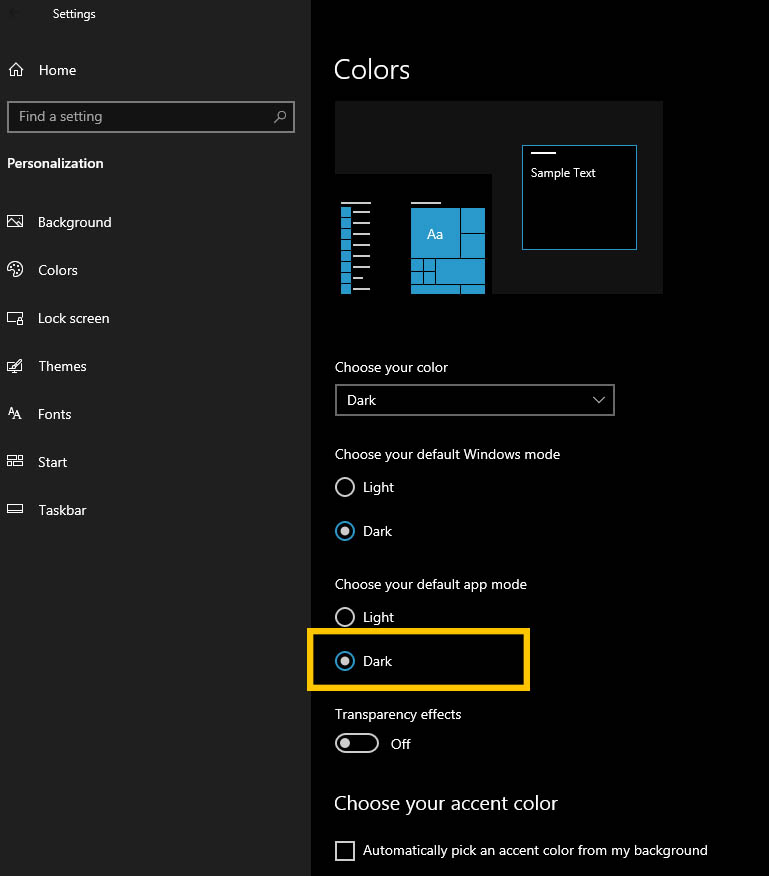
On Windows 11: go to Settings > Personalization > Colors and set Choose your mode to Dark.
Tip: If Chrome stays light, open Customize Chrome (see above) and check that Appearance is set to Device or Dark.
Chrome dark mode for macOS
- Open System Preferences, click General and find Appearance. On macOS Ventura and later, open the Apple menu > System Settings > Appearance.
- Select Dark. As on Windows, all apps with a native dark mode, including Chrome, change automatically.
Chrome dark mode for Android
- Open the Chrome app.
- Tap the More menu (three dots) at the top right.
- Tap Settings > Theme.
- Choose Dark. Or choose System default: Chrome then uses the dark theme when Battery Saver is on or when your phone is set to dark mode.
In older versions of Chrome, dark mode on Android was an experimental feature in chrome://flags, with two flags called “Android web contents dark mode” and “Android Chrome UI dark mode”. You don’t need those flags anymore: the Theme setting replaces them.
Make websites dark too (optional)
Chrome’s dark theme makes your homepage, toolbar, settings and some other pages dark. Websites only turn dark if they have their own dark design. To force a dark look on all websites, you can try an experimental flag:
- Type chrome://flags in the address bar and press Enter.
- In the Search flags box, type dark.
- If you see Auto Dark Mode for Web Contents, set it to Enabled.
- Click Relaunch to restart Chrome.
Note: This flag is experimental. Chrome changes the colors of each site automatically, so some design elements may look a little strange. Set the flag back to Default if you don’t like it.
Chrome dark mode for iPad or iPhone
Chrome for iPhone and iPad follows the Dark Mode setting of your device:
- Open Settings and tap Display & Brightness.
- Select Dark.
- Open Chrome. It now uses dark colors.
If you want to darken everything on the screen, including websites and pictures, you can also use the Invert feature: open Settings > Accessibility > Display & Text Size. Turn on Smart Invert to invert everything except images, or Classic Invert to invert the colors of everything on your screen. On older iOS versions this option was in Settings > General > Accessibility > Display Accommodations.