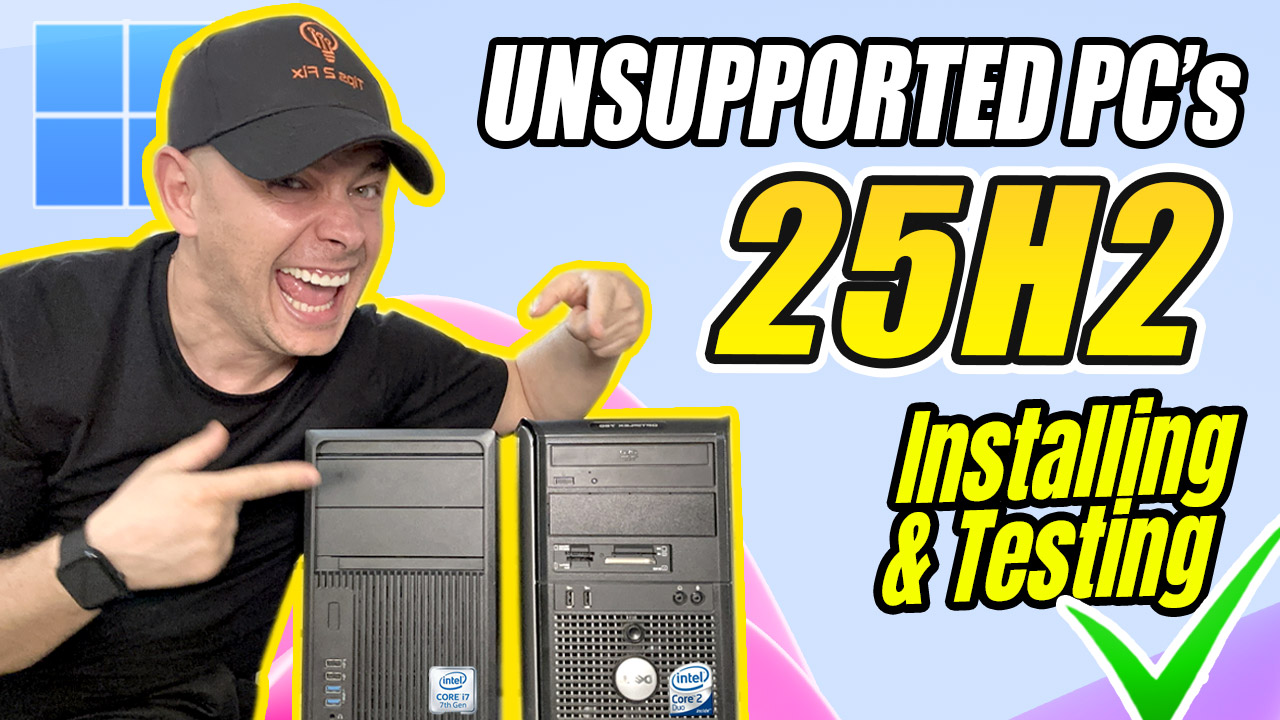
When Windows 11 launched in 2021, Microsoft published a support article called Ways to install Windows 11. It listed every official way to install Windows 11, and it even included a registry key that let you upgrade a PC with an unsupported CPU or only TPM 1.2. Below I summarize Microsoft’s steps as they were published then. In the video above, I show how to install Windows 11 on an unsupported PC.
Update (October 2026): Microsoft rewrote this article on February 4, 2025. It now only covers PCs that meet the Windows 11 requirements, the registry workaround below is no longer listed, and Microsoft says that if you installed Windows 11 on a device that doesn’t meet the requirements, it recommends rolling back to Windows 10. Windows 10 itself stopped getting updates on October 14, 2025. For a current method on unsupported PCs, see How to Install Windows 11 26H2 on Unsupported PC or the FlyBy11 method.
Note: To upgrade to Windows 11, Microsoft says a device should meet the Windows 11 minimum system requirements. Some Windows 10 features aren’t available in Windows 11, and some Windows 11 features and apps need more than the minimum requirements. See Windows 11 specs, features, and computer requirements.
In this article
Before You Begin
Make sure the device you want to install Windows 11 on meets the minimum system requirements. If the device runs Windows 10, Microsoft recommends checking the requirements with the PC Health Check app.
Microsoft does not recommend installing Windows 11 on a device that doesn’t meet the requirements. For more info, see Installing Windows 11 on devices that don’t meet minimum system requirements.
Method 1: Windows Update in Settings (Recommended)
If you’re upgrading from Windows 10, Microsoft recommends waiting until Windows Update tells you that the upgrade is ready for your device. To check, select Start > Settings > Update & Security > Windows Update > Check for updates.
For known issues that might affect your device, you can also check the Windows release health hub.
Other Ways to Install Windows 11 (Not Recommended Unless Support Tells You To)
Method 2: Upgrade with the Installation Assistant
Microsoft recommends waiting until your device has been offered the Windows 11 upgrade before you use the Installation Assistant. When you’re ready, you can find it on the Windows 11 software download page.
Method 3: Create Windows 11 Installation Media
On the Windows 11 software download page, select Create tool now and follow the instructions to install Windows 11.
Warning: Microsoft recommends against installing Windows 11 on a device that doesn’t meet the Windows 11 minimum system requirements. In 2021, Microsoft wrote that if you still choose to do it, and you acknowledge and understand the risks, you can create the following registry value. It bypasses the check for TPM 2.0 (at least TPM 1.2 is still required) and for the CPU family and model.
| Registry key | HKEY_LOCAL_MACHINE\SYSTEM\Setup\MoSetup |
| Name | AllowUpgradesWithUnsupportedTPMOrCPU |
| Type | REG_DWORD |
| Value | 1 |
You can create it in Registry Editor, or with this single command in an administrator Command Prompt:
reg add "HKLM\SYSTEM\Setup\MoSetup" /v AllowUpgradesWithUnsupportedTPMOrCPU /t REG_DWORD /d 1 /fNote from Microsoft: Serious problems might occur if you modify the registry incorrectly by using Registry Editor or by using another method. These problems might require that you reinstall the operating system. Microsoft cannot guarantee that these problems can be solved. Modify the registry at your own risk.
With installation media, there are two installation paths:
- Upgrade by launching Setup from the media while Windows 10 is running. You can choose:
- Full Upgrade: keeps personal files (including drivers), apps and Windows settings. This is the default, and it’s the one the Installation Assistant uses.
- Keep Data Only: keeps personal files (including drivers) only, not apps and not Windows settings.
- Clean Install: installs Windows 11 and keeps nothing from the Windows 10 installation. For more info, see Give your PC a Fresh Start.
- Boot from the media to launch Setup. This path is a clean install and does not keep your previous files or settings. For more info, see Give your PC a Fresh Start.
Important: Check that your device meets the minimum system requirements before you boot from media. Booting from media lets you install Windows 11 with only TPM 1.2 (instead of the required TPM 2.0), and it does not check whether your processor is on the approved CPU list.
Method 4: Create an Image Install
Use DISM or third-party tools to apply an existing Windows 11 image directly to the disk.
Important: An image install of Windows 11 does not check these requirements: TPM 2.0 (at least TPM 1.2 is required) and the CPU family and model.
Read Microsoft’s Original Article
This summary is based on Microsoft’s support article. Read the current version here:
Original Post By MicrosoftChanged your mind after upgrading? See How to Go Back to the Previous Version of Windows.