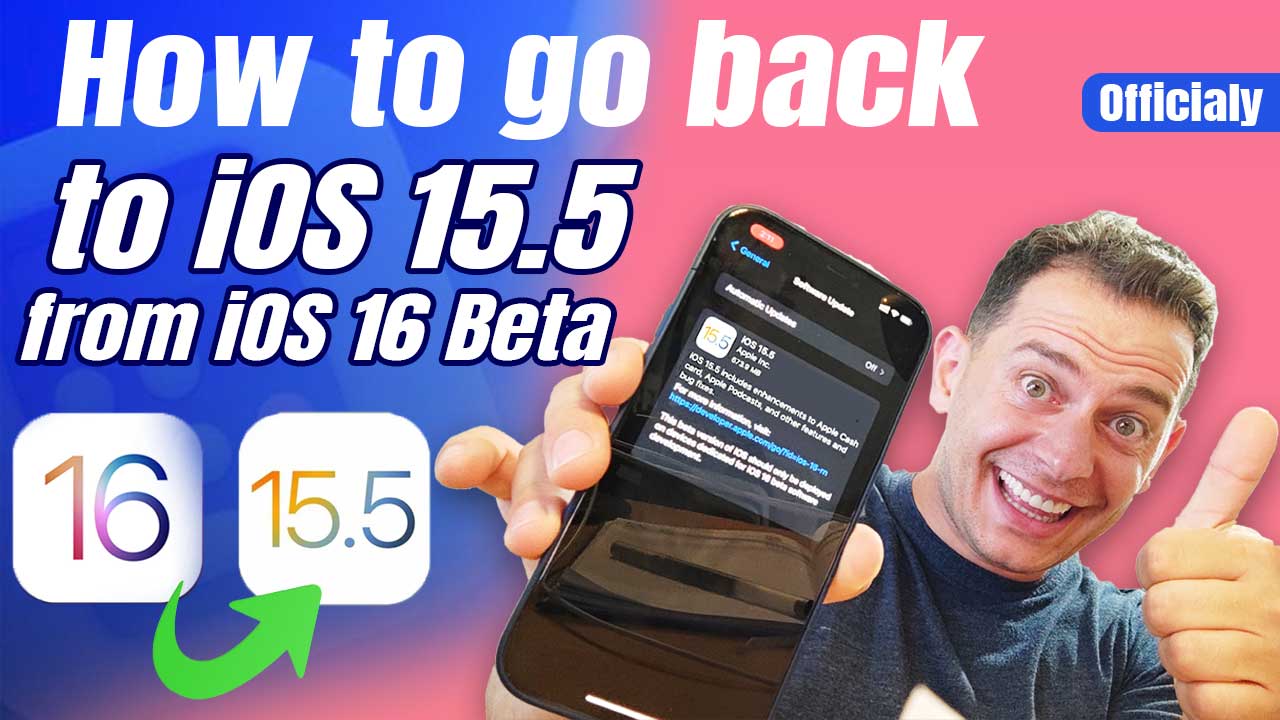
Did you install the iOS 16 beta and now want to go back to iOS 15? There are two ways to leave the beta. Method 1 keeps all your data but keeps you on iOS 16. Method 2 really takes you back to iOS 15, but it erases your iPhone, and you get your data back only from a backup you made before you installed the beta.
Update (October 2026): This guide was written in June 2022, during the iOS 16 beta. Apple only lets you install iOS versions that it still signs, and iOS 15 is no longer signed for iPhones that can run iOS 16. Today, a restore installs the latest public iOS version instead of iOS 15. The same steps still work if you want to leave any newer iOS beta. You can check which versions are still signed for your iPhone on ipsw.me.
In this article
Before you start
Step 1. Back up your iPhone
Back up your iPhone to iCloud and also make a full backup on your computer with Finder (Mac) or iTunes (Windows).
Important: A backup made while you are on the iOS 16 beta cannot be restored to iOS 15. To get your data back after the downgrade, you need an older backup that you made on iOS 15 before you installed the beta. Data that syncs with iCloud, such as iCloud Photos, Contacts and Notes, comes back when you sign in again.
Step 2. Turn off Find My iPhone
Turn off Find My iPhone before you use Finder or iTunes to restore or downgrade iOS. If you forget, Finder or iTunes will ask you to turn it off before it erases the iPhone.
Open the Settings app, tap your name at the top, tap Find My > Find My iPhone and turn it off. You need your Apple ID password.
Method 1: Leave the beta without losing data
This method does not erase anything, but you stay on iOS 16 until Apple releases the next official update.
- Open Settings > General > VPN & Device Management.
- Tap the iOS 16 Beta Software Profile.
- Tap Remove Profile, enter your passcode and tap Remove.
- When the next official iOS version is available, install it from Settings > General > Software Update.
Note: On iOS 16.4 and later, there is no profile. Go to Settings > General > Software Update > Beta Updates and select Off.
Method 2: Downgrade iOS 16 beta to iOS 15 with Finder or iTunes
This method erases your iPhone and installs the public (non-beta) version again.
Step 3. Download the corresponding IPSW file
An IPSW file is the official iOS firmware file for your exact iPhone model. Download the file for the iOS version you want and save it on your computer. On ipsw.me, you can also see which versions Apple still signs. Only signed versions can be installed.
Step 4. Restore the iPhone with Finder or iTunes
- Update your Mac to the latest macOS, or install the latest iTunes or Apple Devices app on Windows.
- Connect your iPhone to the computer with a cable and select it in Finder or iTunes.
- Hold the Option key (Mac) or the Shift key (Windows) and click Restore iPhone.
- Select the IPSW file you downloaded and confirm. Your iPhone is erased and the selected iOS version is installed.
- Wait until the restore is finished. If asked, sign in with your Apple ID to remove Activation Lock.
No IPSW file? You can also use recovery mode. Connect the iPhone, then on iPhone 8 and later press and quickly release volume up, press and quickly release volume down, and press and hold the side button until you see the recovery mode screen. In Finder or iTunes, click Restore. This erases the iPhone and installs the current public version of iOS.
Step 5. Restore your iOS 15 backup
When the restore is finished, set up your iPhone from the archived backup that you made on iOS 15 before you installed the beta. In Finder or iTunes, click Restore Backup and select that backup.
Related guide
Want to try the beta again later? See How to install the iOS 16 beta profile.