This tip is for anyone with an old Apple iMac that has a forgotten firmware password. It works on older models (around 2009 or older).
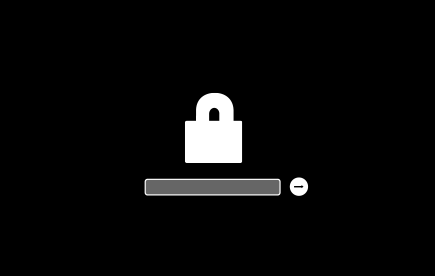
If your iMac powers on and shows a padlock icon that asks for a password, it has a firmware password lock. On these older Macs, you can remove the firmware password by changing the memory configuration and then resetting the PRAM.
In this article
How to Remove the Firmware Password (Older iMac)
- Open the RAM slots at the bottom of the iMac.
- Remove one RAM stick, so the hardware configuration is different.
- Power on the iMac and immediately press and hold Option + Command + P + R to start a PRAM reset.
- Within a few seconds you should hear the Apple boot chime.
- Keep holding the same four keys until you hear the boot chime three more times.
- Release the keys and turn off the iMac.
- Reinstall the RAM stick you removed earlier.
- Boot the computer normally. The firmware password should be gone.
Enjoy your old, much-loved Apple iMac.
Note: This method only works on older Macs. On newer Intel Macs and on Macs with Apple silicon, you cannot bypass a firmware password this way. If this does not work for you, follow Apple’s official guidance below.
Apple’s Official Firmware Password Guidance
The steps below come from Apple and apply to Intel-based Macs.
How to Turn On a Firmware Password
- Start up from macOS Recovery.
- When the utilities window appears, click Utilities in the menu bar, then choose Startup Security Utility or Firmware Password Utility.
- Click Turn On Firmware Password.
- Enter a firmware password in the fields, then click Set Password. Remember this password.
- Quit the utility, then choose Apple menu > Restart.
Your Mac asks for the firmware password only when you try to start up from a storage device other than the one selected in Startup Disk settings, or when you start up from macOS Recovery. Enter the firmware password when you see the lock and password field:

How to Turn Off a Firmware Password
- Start up from macOS Recovery. During startup you are prompted to enter the firmware password.
- When the utilities window appears, click Utilities in the menu bar, then choose Startup Security Utility or Firmware Password Utility.
- Click Turn Off Firmware Password.
- Enter the firmware password again when prompted.
- Quit the utility, then choose Apple menu > Restart.
If You Forgot Your Firmware Password
If you cannot remember your firmware password, schedule an in-person service appointment with an Apple Store or Apple Authorized Service Provider. Bring your Mac to the appointment, along with your original receipt or invoice as proof of purchase.
Source: Apple Support: Set a firmware password on your Mac.
Need more Mac fixes? See my guides on fixing a MacBook Pro black screen and a Mac that will not turn on after sleep mode.