If you own an older PC, such as a Dell OptiPlex with a Core 2 Duo or Core 2 Quad processor, you may have struggled to install Windows 11. Many older processors do not support the SSE4.2 and POPCNT instructions, which Windows 11 24H2 and newer versions require. With a few tweaks, you can still run Windows 11 version 23H2 on this hardware.
In this guide I walk you through the same steps I show in the video: checking the CPU, getting Windows 11 23H2, upgrading from Windows 10 without losing files, doing a clean install, and the cheap hardware upgrades that make the biggest difference.
Update (October 2026): Windows 11 23H2 Home and Pro reached end of support on November 11, 2025, so they no longer receive security updates. Windows 10 support ended on October 14, 2025. On processors without SSE4.2 and POPCNT, 23H2 is still the newest Windows 11 version that runs, so keep this in mind before you use such a PC online every day.
In this article
- My test PC
- Step 1: Check if your CPU supports SSE4.2
- Step 2: Download Windows 11 23H2
- Option A: Upgrade from Windows 10 and keep your files
- Option B: Clean install from a USB drive
- Cheap hardware upgrades that make a big difference
- What happens if you try Windows 11 24H2 on these CPUs?
- After the installation
- Tips for better performance
- Summary
My test PC
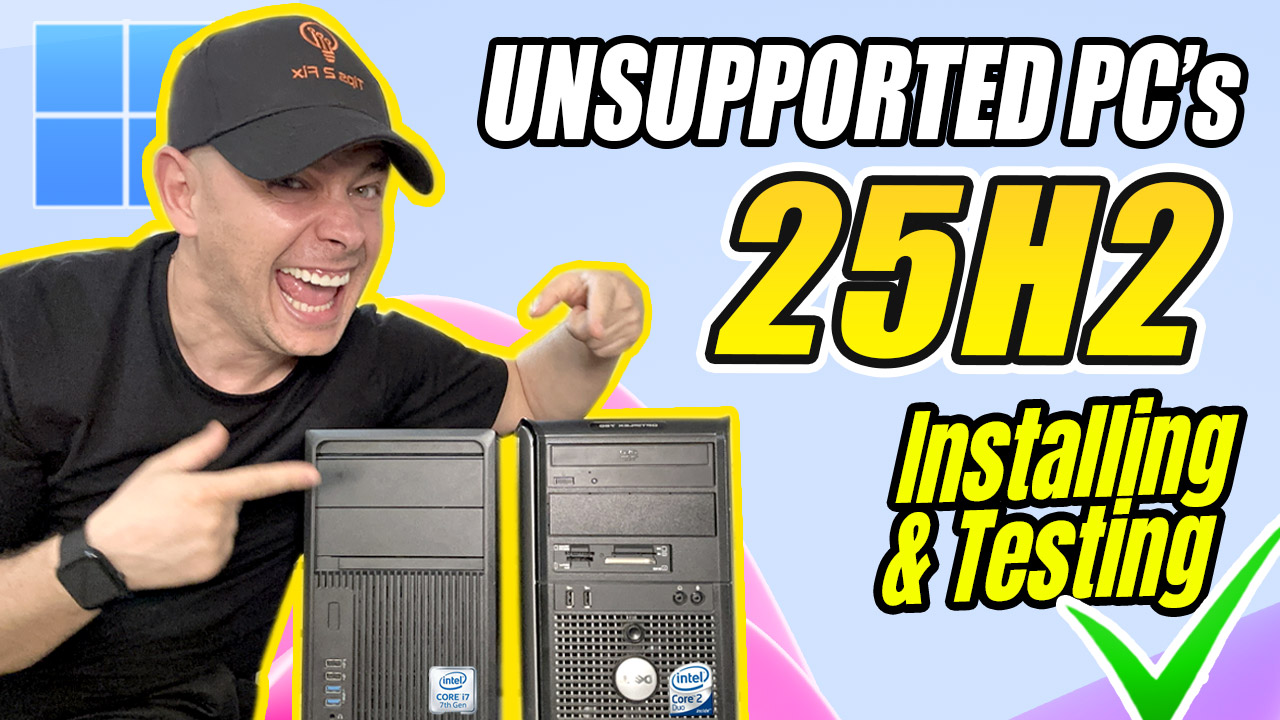
- Computer: Dell OptiPlex 780 with a Core 2 Duo E7500 (2.93 GHz), 8 GB of RAM and Windows 10 Pro.
- Problem: the processor supports SSE4.1 but not SSE4.2, so it cannot run Windows 11 24H2.
- PC Health Check result: no TPM 2.0, Secure Boot not enabled, and the processor is not supported.
This system is old, but it is a good example of how older hardware can still be useful. Before you start, it is important to know what your processor can and cannot do.
Step 1: Check if your CPU supports SSE4.2
- Download and install CPU-Z (free).
- Open CPU-Z and look at the Instructions line on the CPU tab.
- If the list stops at SSE4.1 and you don’t see SSE4.2, your CPU cannot run Windows 11 24H2 or newer. You can also search for your CPU model online to check its instruction sets.
Knowing this helps you pick the right Windows 11 version. On these CPUs, the right choice is Windows 11 23H2.
Step 2: Download Windows 11 23H2
The official Media Creation Tool only gives you the latest version of Windows 11, which will not work on these processors. In the video I used AveYo’s MediaCreationTool.bat, a free script that lets you choose an older version.
- Download the script from GitHub and extract it.
- Right-click MediaCreationTool.bat and select Run as administrator.
- Select 23H2 from the list of versions.
- Choose Auto ISO.
The script downloads the files directly from Microsoft and creates a Windows 11 23H2 ISO in the same language and edition as your current Windows. When it says it is done, press any key to close it.
Option A: Upgrade from Windows 10 and keep your files
This is the easiest method. Your files, apps and activation stay in place.
Prepare the ISO
- Install 7-Zip.
- Right-click the ISO file and extract it to a folder on your desktop. I extract it instead of mounting it, because in my tests a mounted ISO made the installation slower and caused problems.
- Open the extracted folder, go to the
sourcesfolder and find the filesetupprep.exe.
Start the setup and bypass the compatibility checks
- Open Command Prompt as administrator (search for cmd, right-click it and choose Run as administrator).
- Copy the path of the
sourcesfolder from the File Explorer address bar. - Type
cd, a space, then right-click to paste the path, and press Enter. - Run this command:
setupprep.exe /product serverWindows Setup starts automatically. This method skips requirements such as TPM 2.0, Secure Boot and the supported CPU list.
- On Change how Setup downloads updates, choose Not right now and click Next.
- Accept the license terms.
- Choose to keep your files and settings and click Next.
- Click Install.
Note: The setup window says “Windows Server”. Don’t worry, it installs Windows 11. In my case I got Windows 11 Pro, the same edition I had before.
The PC restarts a few times. On my OptiPlex I did not have to change anything in the BIOS (the disk was MBR). If your Windows 10 was activated, Windows 11 stays activated after the upgrade.
Option B: Clean install from a USB drive
Create a bootable USB drive with Rufus
- Download Rufus (version 4.6 or later).
- Insert a USB flash drive. Everything on it will be erased.
- In Rufus, select the Windows 11 23H2 ISO you downloaded.
- Set Partition scheme to MBR. Older PCs like this one use Legacy BIOS and cannot boot the USB drive otherwise.
- Click Start. In the Windows User Experience window, enable these options:
- Remove requirement for 4GB+ RAM, Secure Boot and TPM 2.0
- Remove requirement for an online Microsoft account
- Create a local account with username
- Set regional options to the same values as this user’s
- Disable data collection
- Disable BitLocker automatic device encryption
- Click OK and wait until the USB drive is ready.
Boot from the USB drive
- Restart the PC and press F12 to open the boot menu (on Dell PCs).
- Choose your USB device and press Enter.
Install Windows 11
- Choose your language and the Windows edition you want.
- Delete the existing partitions if you want a full clean install. Warning: this erases everything on the drive, so back up your files first.
- Select the unallocated space and let the installation finish without interruptions.
A clean install gives the best performance and removes old files and software that could slow the system down.
If the PC gets stuck while booting after the installation, open the BIOS (F2, Delete or Esc, depending on your PC). Set the boot mode to Legacy and the SATA mode to AHCI, then save and restart.
Cheap hardware upgrades that make a big difference
I paid about $50 for all of these parts:
- Processor: I replaced the Core 2 Duo E7500 with a Core 2 Quad Q9650 (3.0 GHz, 4 cores), the best processor this motherboard supports. CPU usage during updates dropped a lot. Note that the Q9650 also stops at SSE4.1, so it cannot run 24H2 either.
- RAM: I went from 8 GB to 16 GB (4 x 4 GB DDR3). Use modules with the same frequency. After changing the RAM, the PC may show a warning at startup. Press F1 to continue.
- SSD: Replace the hard drive (HDD) with an SSD. This is the single biggest upgrade for an old PC: boot times and app loading become much faster.
What happens if you try Windows 11 24H2 on these CPUs?
At the end of the video I tried to upgrade the Core 2 Quad to 24H2 with the same setupprep.exe /product server method. Setup ran and the PC restarted several times, but Windows rolled back to 23H2. Without SSE4.2 and POPCNT, 24H2 simply does not run, so stay on 23H2.
After the installation
- Check your Windows version in Settings > System > About. It should say 23H2.
- Open Windows Update and install all available updates.
Tips for better performance
- Replace your HDD with an SSD: the most important upgrade for any old PC.
- Consider an M.2 NVMe SSD: if your motherboard supports it, you can add one with a PCIe adapter for even faster speeds. Many older PCs cannot boot from NVMe, so check your BIOS first.
- Install a clean version of Windows 11: add an
autounattend.xmlanswer file to the Rufus USB drive. Windows then installs without bloatware and extra Microsoft apps. I explain this in How to Install Windows 11 using Autounattend.xml.
Summary
With these steps you can install and run Windows 11 on older PCs that lack SSE4.2 and POPCNT support. Version 23H2 is not the newest, but it runs well on this hardware, and a faster processor, more RAM and an SSD make the experience much better. Watch the full video above for every step.
Tell me in the comments which processor and how much RAM you have, and how Windows 11 runs on your old PC.