Are you trying to erase a USB drive on your Mac, but you get this error as soon as you insert it?
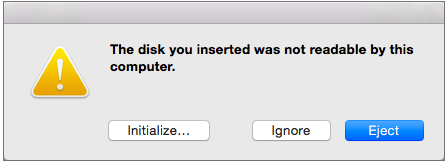
This often happens when the USB drive was used as a Windows or Linux bootable drive (for example, formatted as FAT32 with a special boot layout) that macOS can’t read properly.
When you then try to erase it in Disk Utility, the USB drive is greyed out. First Aid doesn’t work, you can’t repair it, and you can’t mount or unmount it. You get the “Erase process has failed” error, and the details change depending on the format you choose.
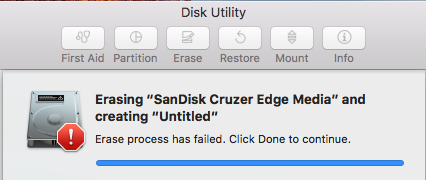
I got messages like “Could not modify partition map” and “Couldn’t unmount disk”. Other people see messages like “Couldn’t open device”.
In this article
Quick check before you use Terminal
In Disk Utility, click View > Show All Devices. Then select the top-level USB device in the sidebar (the drive itself, not the volume under it) and click Erase again. If it still fails, use the Terminal method below.
Erase an external USB or hard drive that keeps failing in Disk Utility
Thankfully, I fixed it quickly with a few Terminal commands.
Warning: Be extremely careful. If you type the wrong disk identifier, you could erase your Mac’s internal drive. Erasing also deletes everything on the USB drive.
Step 1: Find your USB drive
- Open Terminal (press Command + Space, type Terminal and press Return).
- Run this command:
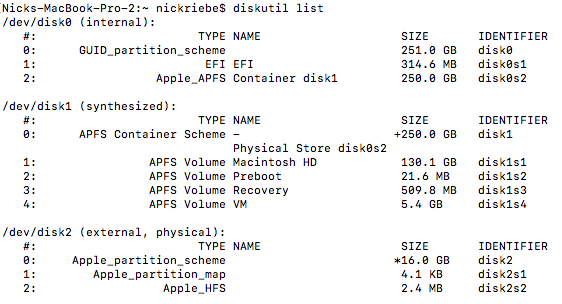
diskutil list- Find the external drive in the list. It is marked (external, physical), and its size matches your USB drive. In my example it is
/dev/disk2.
Step 2: Force unmount the drive
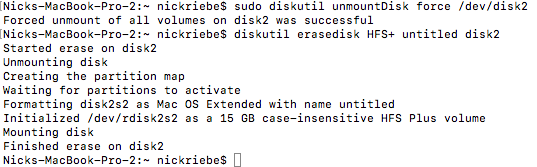
Type this very carefully and replace disk2 with your own disk identifier (sudo might not be necessary):
sudo diskutil unmountDisk force /dev/disk2Step 3: Erase the drive
Now run this command:
diskutil eraseDisk {format type} {desired name} {disk identifier}{format type}is the format you want, for example HFS+ (Mac only) or MS-DOS (FAT, also works on Windows).{desired name}is the name you want for the disk. You can easily change it later by formatting again in Disk Utility. For MS-DOS, use a short name in capital letters.{disk identifier}is the ID of your disk from Step 1. DO NOT MESS THIS UP.
For example, this command erases disk2 as HFS+ with the name “untitled”, as in my screenshot below:
diskutil eraseDisk HFS+ untitled disk2Result: Finished erase!
That’s it. Your USB drive works again, and you can format it any way you like in Disk Utility.
Did you lose files you still need? Read how to recover deleted photos from a USB drive before you write new data to it. For another Disk Utility problem, see how to fix the “Data can’t be unlocked” error for Macintosh HD.