Does Windows show “Some settings are managed by your organization” on your own PC, or does your computer behave strangely after you changed something in the Group Policy Editor? Resetting the Group Policy settings to default can fix both problems. Below are two ways to reset all Group Policy settings in Windows 10. Both also work in Windows 11.
In this article
Before you start
- You need to be signed in with an administrator account.
- Method 1 uses the Local Group Policy Editor (gpedit.msc). It is included in Windows Pro, Enterprise and Education, but not in Windows Home. On Home, use Method 2.
- If your PC belongs to a company or school and its IT department manages it, the message is normal. The IT department sets those policies and they will come back after a reset, so contact your IT admin instead.
Method 1: Reset Group Policy settings in the Local Group Policy Editor
Use this method if you want to see which policies were changed and reset them one by one.
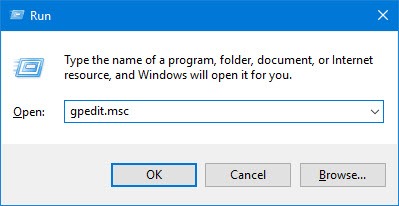
- Press Windows + R, type
gpedit.mscand press Enter to open the Local Group Policy Editor. - Go to Local Computer Policy > Computer Configuration > Administrative Templates > All Settings.
- In the right pane, click the State column header to sort the policies. The Enabled and Disabled policies now appear at the top.
- Double-click each policy that is Enabled or Disabled, select Not Configured and click OK.
- Go to Local Computer Policy > User Configuration > Administrative Templates > All Settings and do the same.
- Restart your computer, or open Command Prompt as administrator and run
gpupdate /forceto apply the changes.
By default, every policy in the Group Policy Editor is set to Not Configured, so this brings all of them back to default. To reset only one policy, find it in the Group Policy Editor and set it to Not Configured in the same way.
Method 2: Reset all Group Policy settings with Command Prompt
If you don’t know which policies were changed, use Command Prompt. Deleting the Group Policy folders resets all local Group Policy settings to default at once.
- Click Start, type cmd, right-click Command Prompt and click Run as administrator.
- Type the three commands below one at a time and press Enter after each one.
RD /S /Q "%WinDir%\System32\GroupPolicy"
RD /S /Q "%WinDir%\System32\GroupPolicyUsers"
gpupdate /force
The first two commands delete the folders where Windows stores the local Group Policy settings for the computer and for users. The last one applies the change right away. Instead of running gpupdate /force, you can also restart your computer.
Note: If Command Prompt says The system cannot find the file specified, that folder doesn’t exist on your PC. That’s fine, there was simply nothing to delete.

Check the result
Open Settings again. If the message came from local Group Policy settings, “Some settings are managed by your organization” should be gone now. You can also watch the fix in the video at the top of this post.
Is Windows Defender also blocked on your PC? See how to fix Windows Defender that won’t turn on in Windows 10.