

This is the easiest way I have found to install Windows 11 on an unsupported PC. It is an in-place upgrade that keeps your files, settings and apps, and it does not need any bypass tool. The trick is to start Windows Setup with the setupprep.exe /product server command, which skips the TPM, Secure Boot, CPU and RAM checks.
In this article
Before You Start
- Confirm your PC is unsupported with the PC Health Check app (download it below). My processor does not meet Microsoft’s minimum requirements, and this method still works.
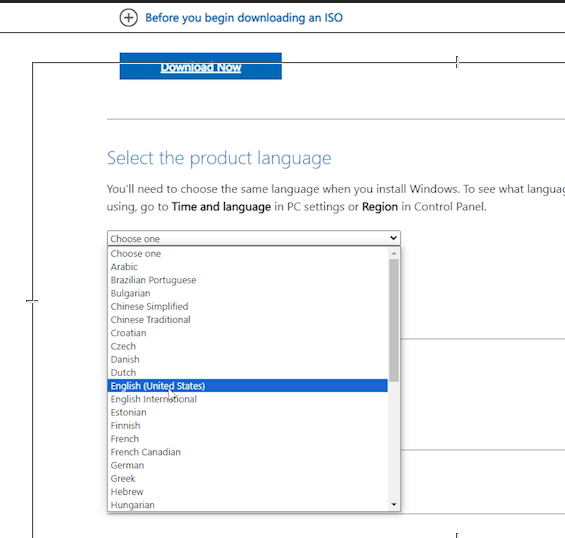
- Download the Windows 11 ISO in the same language that is already installed on your PC. If the language does not match, the “Keep files and settings” option will be greyed out.
- Back up anything important first.
Steps to Install Windows 11 on an Unsupported PC
- Download the Windows 11 ISO for your language (see the Microsoft download button below).
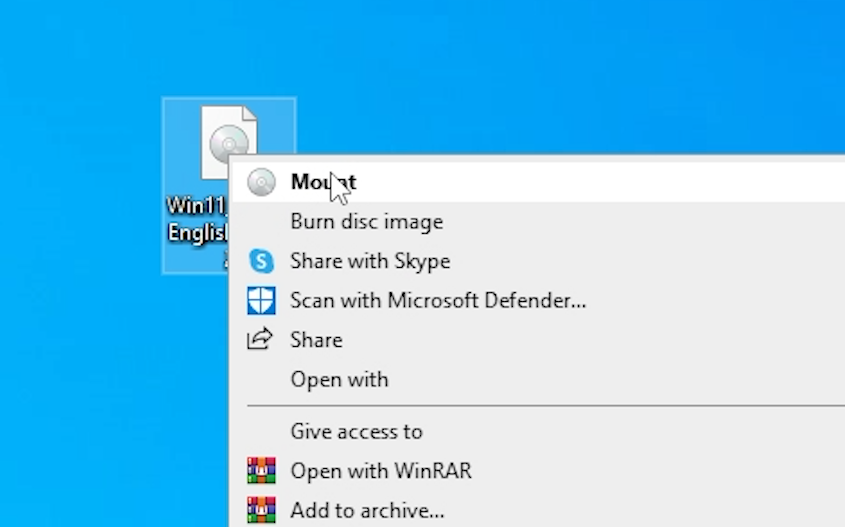
- Mount the ISO (right-click the file and choose Mount), or extract it to a folder with 7-Zip.
- On your Windows 10 PC, open Start, search for CMD and open Command Prompt.
- Switch to your mounted or extracted drive and go into its sources folder. Use your own drive letter (here it is F:):
F:
cd F:\sources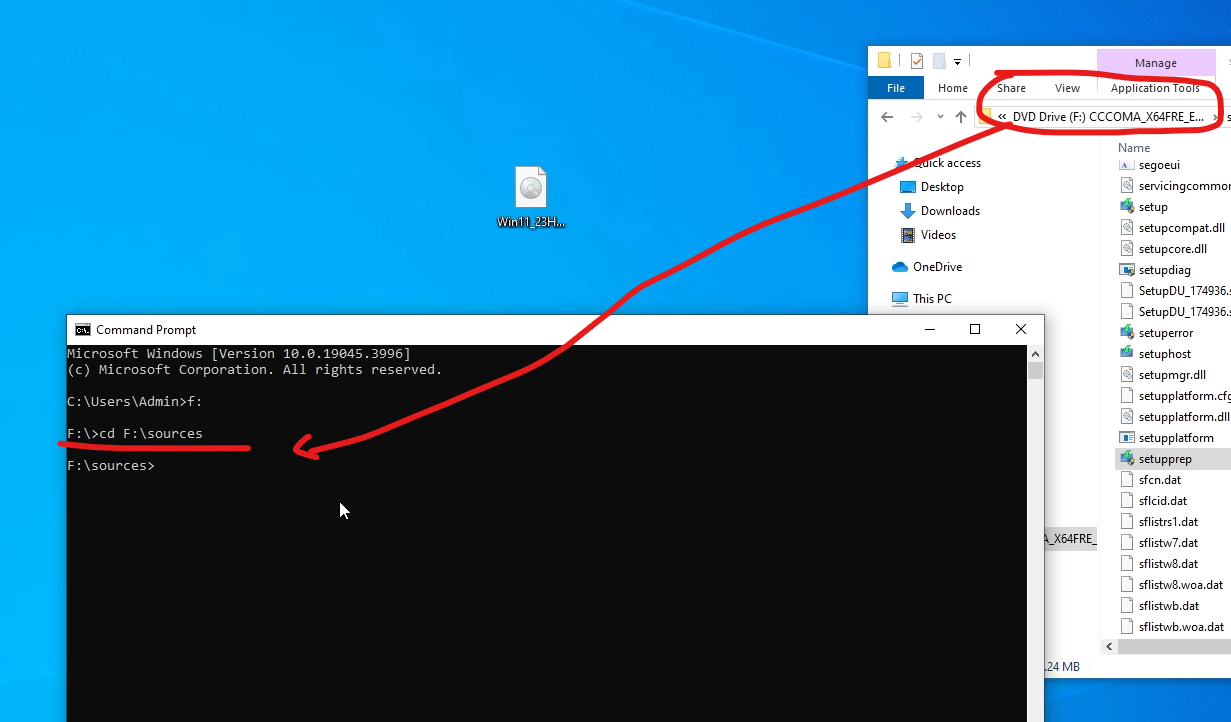
- Run this command to start Setup in a way that skips the hardware checks:
setupprep.exe /product server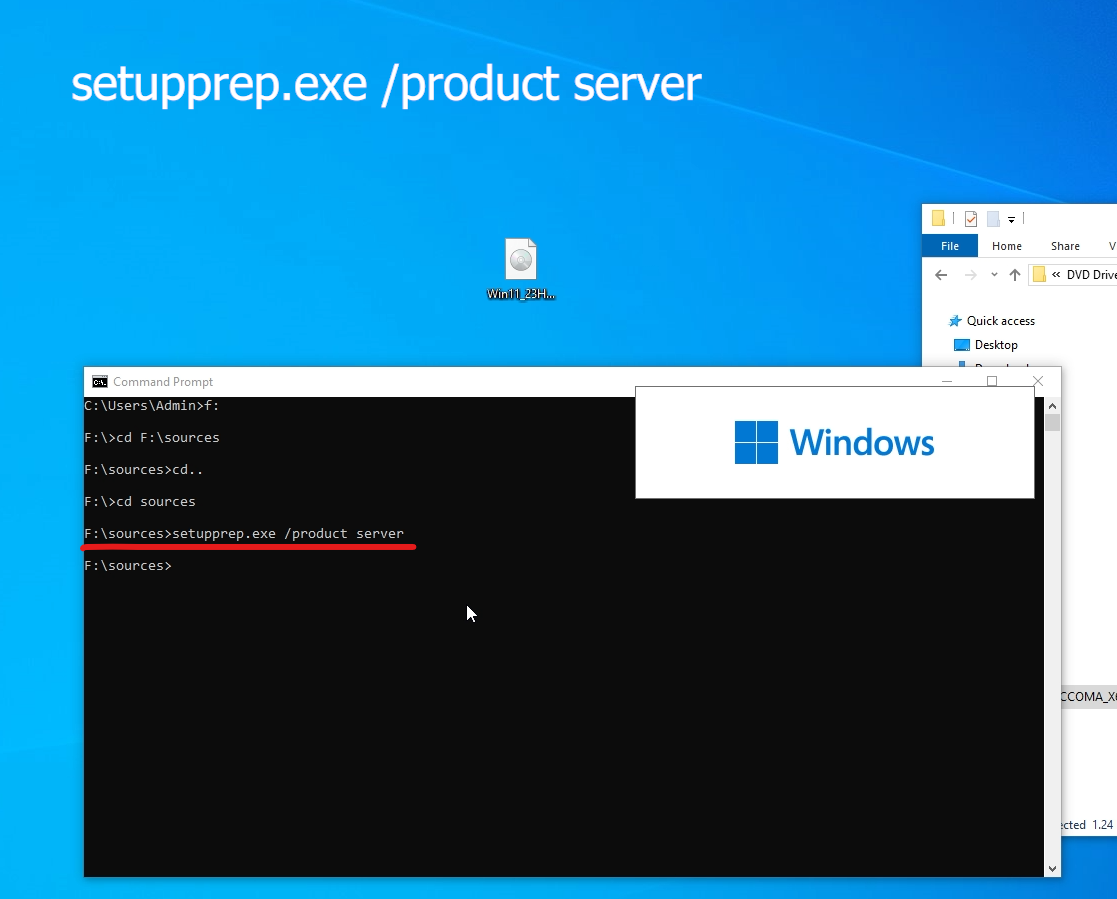
- Setup starts and may say “Install Windows Server”. That is normal with this method. Click through, accept the terms, and when you reach the options choose Keep files and settings, then click Next and install.
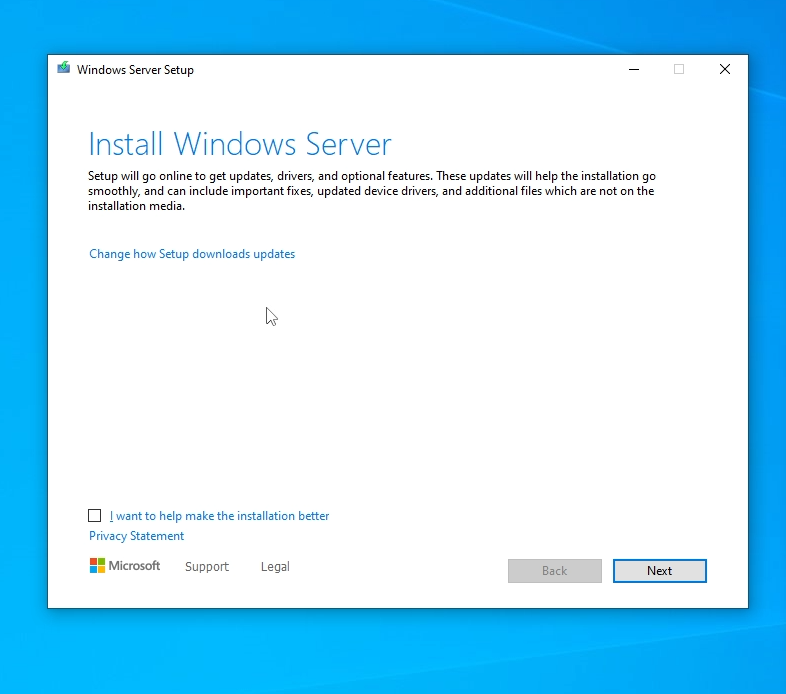
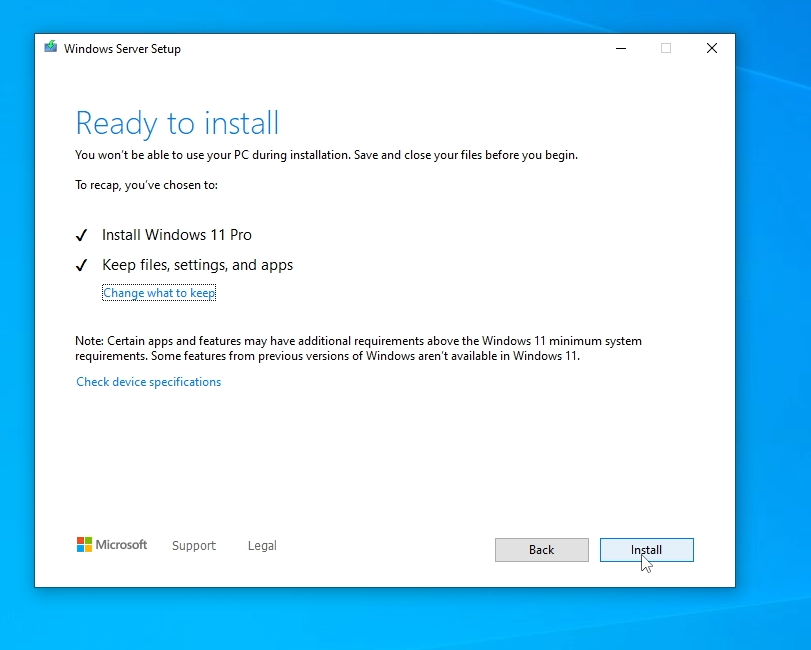
Your PC restarts a few times, and then you are on Windows 11. Enjoy Windows 11 on your old computer.
Troubleshooting
“Keep files and settings” is greyed out: your Windows 11 ISO language does not match your installed Windows. Download the ISO again in the same language and try once more.
You get an error during installation: do not install from the mounted drive. Extract the ISO to a folder first with 7-Zip (or WinRAR), then open the extracted sources folder in Command Prompt and run the same command. Installing from an extracted folder is more reliable.
Downloads
Download the Windows 11 ISO (Official) Download PC Health CheckMicrosoft’s own page confirms there are ways to install Windows 11 on an unsupported PC:
Read the Official Microsoft Guide


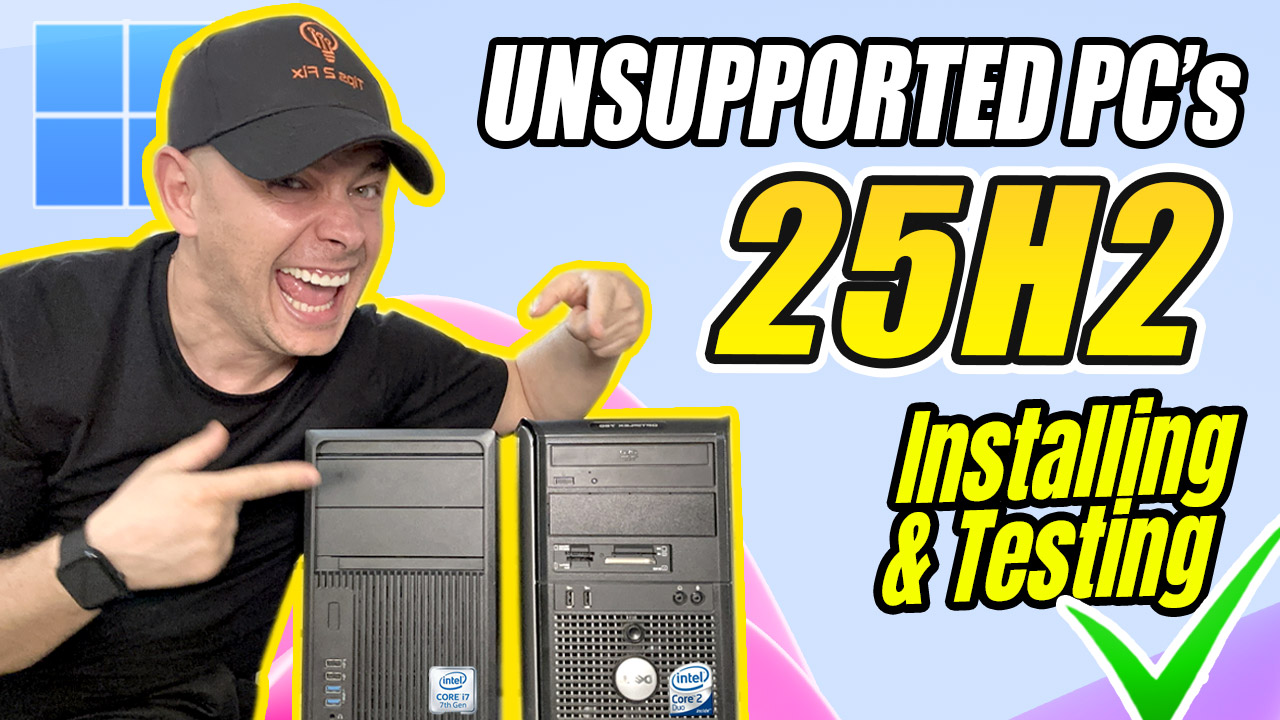
[…] 🚀 10 Tips to Do Right After Installing Windows 11 (IMMEDIATELY) ➤ https://youtu.be/VzfKzGXBLho🚀Finally! How to install Windows 11 LTSC Made for Old Computers ➤ https://youtu.be/DGHV69pGYf4👉 Copy CMD Command Here: https://staging.tips2fix.com/how-to-install-windows-11-on-unsupported-pcs-new-easiest-method-2024 […]
What will happen with the Windows 11 installed on unsupported devices after the Windows 12 comes out in October 2025? I heard that MS will make those computers unbootable. True?
Does this install the bloatware as well with it?
Is there a way to upgrade from Windows 10 to Windows 11, preserve your current settings/files/apps but prevent bloatware being installed?