If you are the only person who uses your computer, you can skip the login screen. In this guide I show you how to remove the login password and the sign-in PIN on Windows 10, step by step with screenshots.
Update (October 2026): Windows 10 support ended on October 14, 2025. The netplwiz method below works the same way on Windows 11.
In this article
How to remove the Windows 10 login password
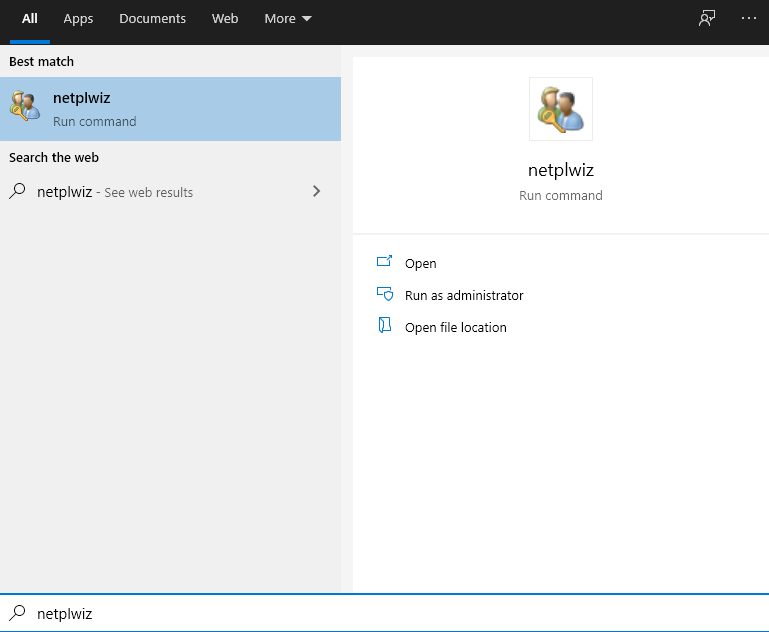
Step 1. Click the Start menu and type netplwiz. The top result is a program with the same name: click it to open it.
Step 2. In the User Accounts window, select your user first. Then untick (uncheck) the box Users must enter a user name and password to use this computer.
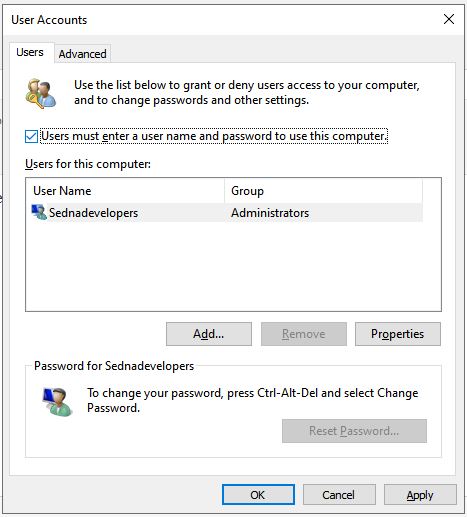
Step 3. Click Apply.
Step 4. When Windows asks, type your password twice to confirm the change.
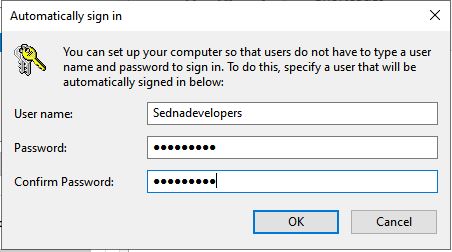
Step 5. Click OK, then OK once more. From now on, Windows signs you in automatically without asking for your password.
Warning: When the password is no longer asked, anyone with access to your computer can use it and open your documents, photos and other data. This can be a security risk.
To turn the password back on later, run netplwiz again, tick the box Users must enter a user name and password to use this computer and click OK.
Note: If you do not see this checkbox, open Settings > Accounts > Sign-in options and turn off Require Windows Hello sign-in for Microsoft accounts (on Windows 11: For improved security, only allow Windows Hello sign-in for Microsoft accounts on this device). Then open netplwiz again.
How to remove the Windows 10 login PIN
Step 1. Open Settings and click Accounts.
Step 2. Select Sign-in options.
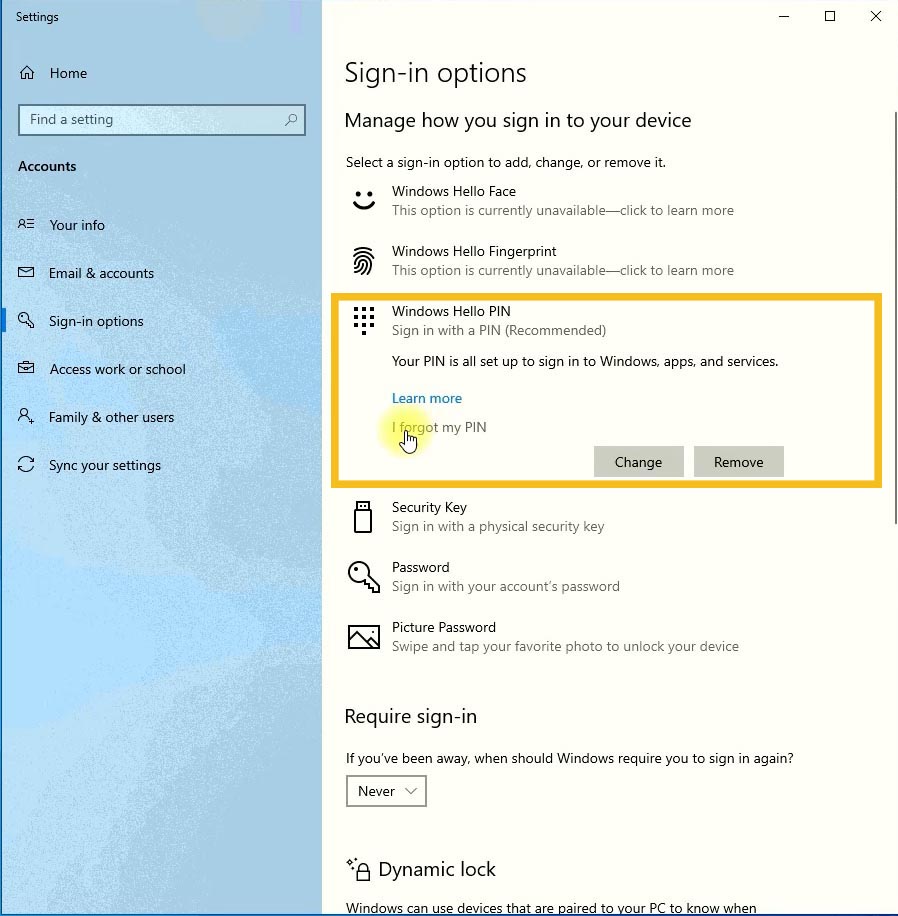
Step 3. Find Windows Hello PIN. Because you already created a PIN, you will see the option I forgot my PIN. Click it.
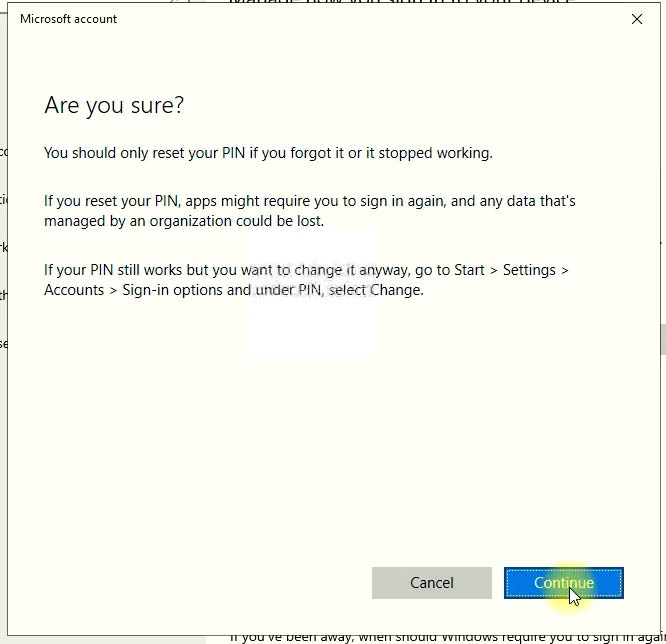
Step 4. Click Continue.
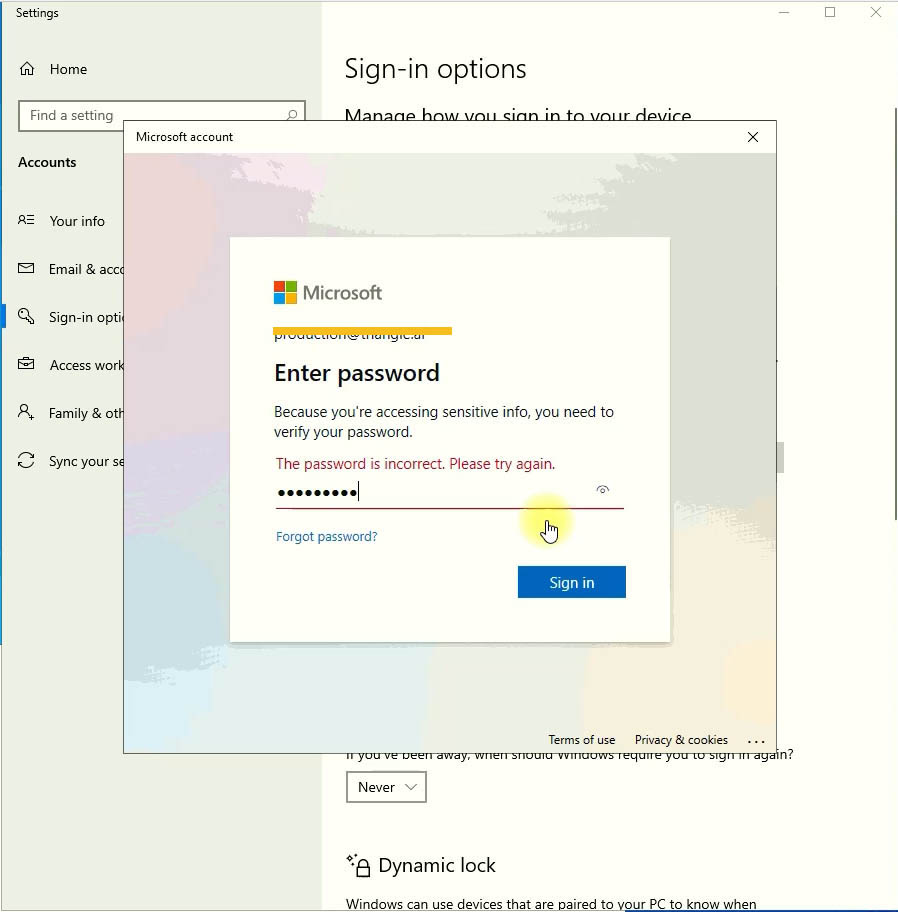
Step 5. If Windows asks for your Microsoft account password (when you use your PC with a Microsoft account), enter it to confirm.
Step 6. Next you see the Set up a PIN window (if Windows did not ask for a password, you see it right after Step 4):
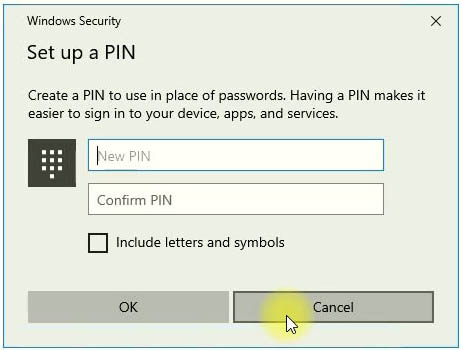
Step 7. Do not enter a new PIN. Just click Cancel, and your PIN is removed.
Tip: In the same place you may also see a Remove button under Windows Hello PIN. If it is available, click it and confirm with your password. That removes the PIN too.
Watch the video
Here is also the video tutorial I made. Follow all the steps I do in the video, and you will be able to disable the login password and PIN on all versions of Windows 10.
Forgot your password instead? Read how to reset a forgotten Windows password.
Don’t forget to subscribe to Tips2Fix on YouTube SUBSCRIBE
God bless you!