In this video I show you how to skip the Microsoft account and set up Windows 11 with a local (offline) account instead. You don’t need any tricks or CMD commands. You only need to choose the right options during the first setup.
In this article
Before you start
- Windows edition: this method works on Windows 11 Pro (and the Enterprise and Education editions). Windows 11 Home does not show the “Set up for work or school” option.
- Internet: in the video my laptop was connected to the internet during setup. That is fine, because this method still creates a local account.
Warning: On a new laptop, Windows setup may download and install a BIOS (firmware) update. In the video, my Dell laptop did exactly this. Never turn off the computer while a firmware update is running, because it can damage the BIOS and the laptop may not start anymore.
How to set up Windows 11 with a local account
Start the first setup as usual: choose your country and keyboard, connect to the internet, accept the license terms and name your PC. After the restart, continue with these steps.
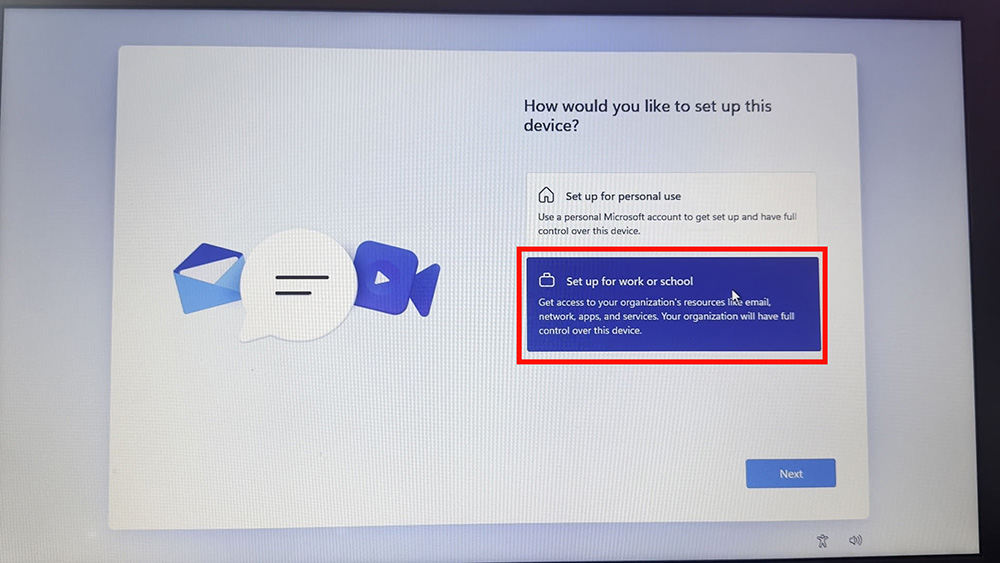
Step 1: Choose “Set up for work or school”
On the How would you like to set up this device? screen, select Set up for work or school and click Next.
Step 2: Open “Sign-in options”
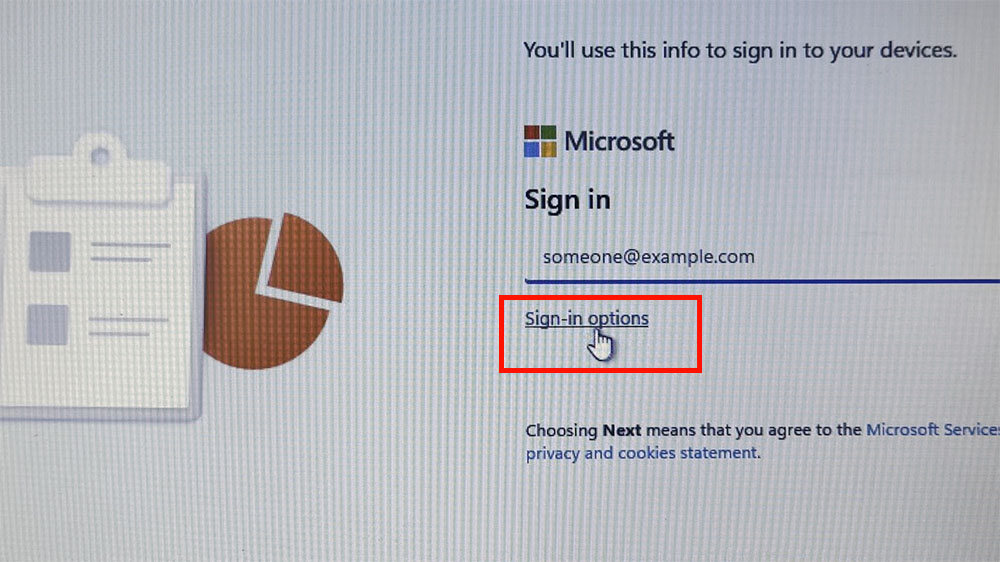
On the next screen, Windows asks you to sign in with a work or school account. Don’t type anything. Click Sign-in options below the box.
Step 3: Choose “Domain join instead”
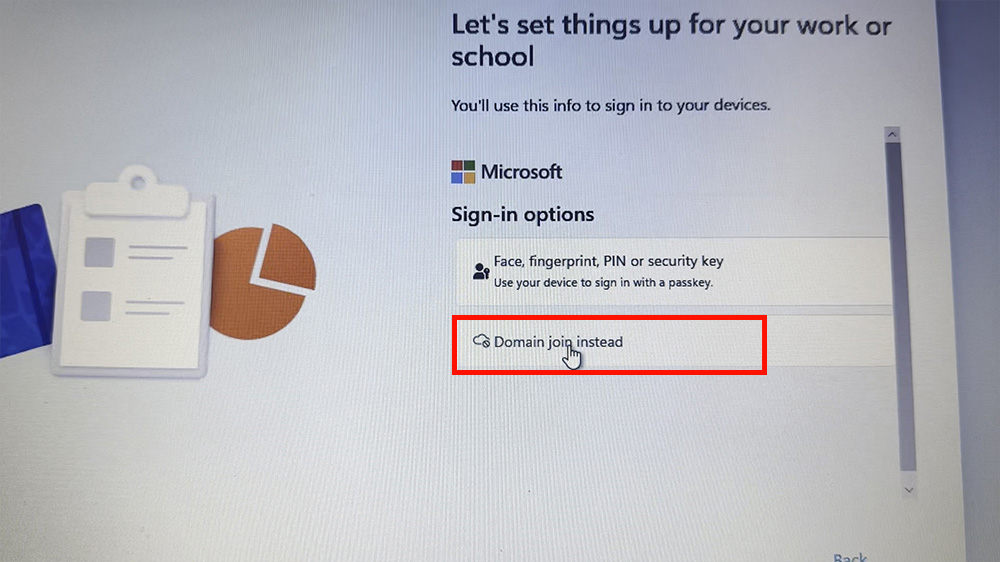
Select Domain join instead. This option creates a local (offline) account, which works without an internet account.
Step 4: Create your local account
- Type a name for your account and click Next.
- Type a password, or leave the field empty if you don’t want a password, and click Next. If you set a password, Windows also asks you to choose three security questions.
- On the privacy settings screen, turn off what you don’t want (I turned off advertising) and click Accept.
Windows finishes the setup, which can take a few minutes. That’s it: Windows 11 is ready with a local account, and no Microsoft account was needed.
If this method does not work for you
- You have Windows 11 Home: try the method in How to set up Windows 11 without a Microsoft account (Enable Local Account).
- The options are missing on a new Windows build: Microsoft has been removing local account workarounds from Windows 11 setup. Read Microsoft blocked local accounts: how to bring them back.
- You already set up Windows with a Microsoft account: you can still add a local account later. Follow How to create an offline account on Windows 11.
If you have any questions or problems, write me a comment below.