

Software Update on your Mac does not show the macOS version you want? This often happens on older Macs, which cannot run the newest macOS. You can still download the current or a previous version of macOS directly from Apple. In this guide you will find Apple’s official download links and the steps to install macOS, and in the video I upgrade an old MacBook to the latest version it supports.
In this article
Before you start
- Apple recommends using the latest macOS that is compatible with your Mac. macOS updates help keep your computer secure, stable and compatible, and they include the latest features and built-in apps.
- Back up your Mac before you install a new macOS.
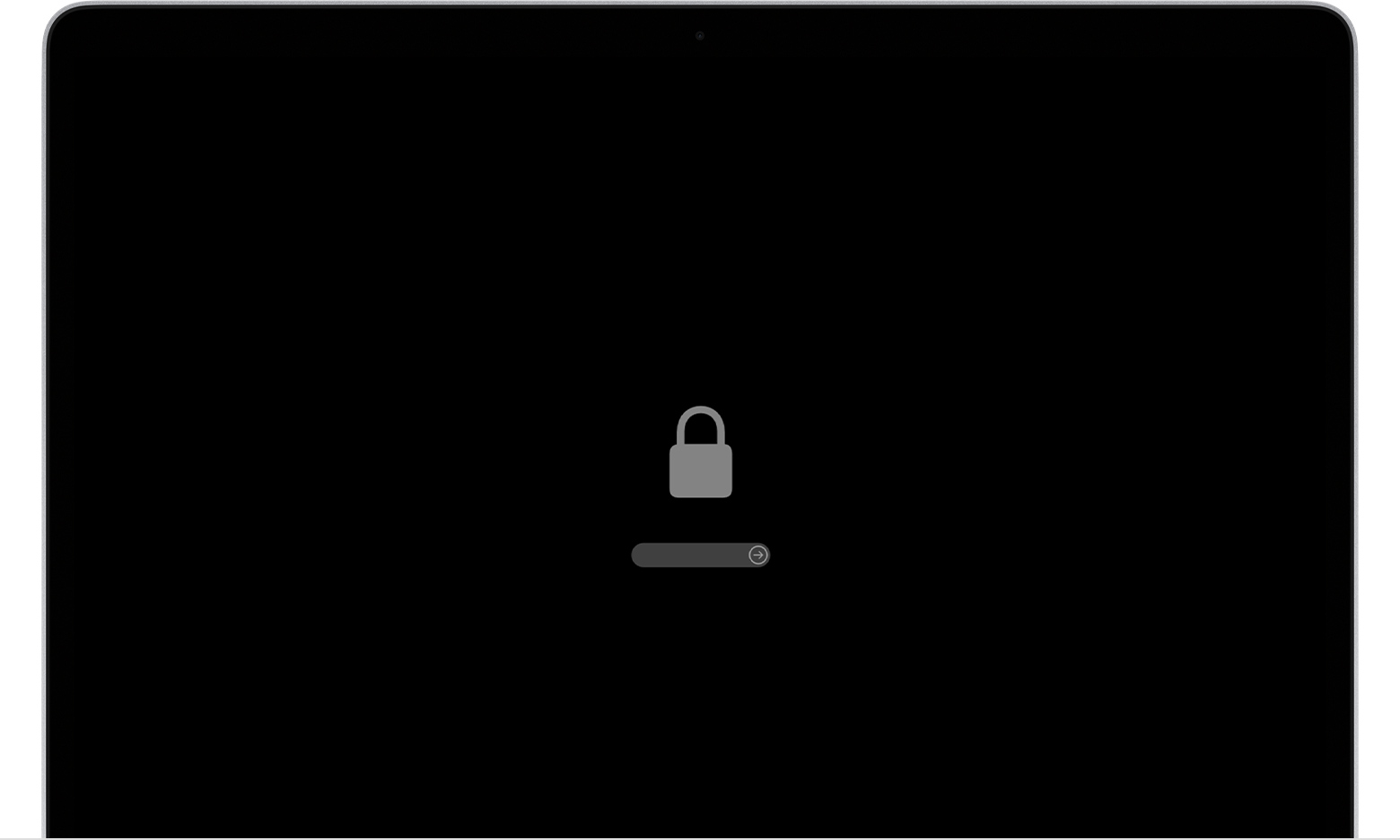
- During the installation, do not put your Mac to sleep or close its lid. Your Mac restarts, and it may show a progress bar or a blank screen several times.
- Check which macOS your Mac is using now, and check which versions it supports in the compatibility list below.
Method 1: Use Software Update (fastest)
Software Update is the fastest and easiest way to get macOS updates. It only shows updates that are compatible with your Mac, and it can use less storage space than the other methods. Apple explains it here:
Apple: How to update to a later macOS version
If the version you want does not appear in Software Update, use the App Store links below.
Method 2: Download macOS from the App Store
When you use the App Store or your browser instead of Software Update, your Mac may need more storage space to download macOS and complete the installation. Click a button to open the App Store page of the macOS version you need:
Then install it like this:
- Click the button for the macOS you need. The App Store page for that version opens.
- In the App Store, click Get to start downloading the macOS installer. If Software Update opens and asks if you want to download macOS, allow the download.
- When the download to your Applications folder is finished, the installer opens automatically. Follow the onscreen instructions to install macOS, or quit the installer to keep it in the Applications folder for later.
Note: If the macOS is not compatible with your Mac, the App Store may dim the Get button or say that the macOS is not compatible with this device. If a link does not open correctly, try again in Safari.
Mac App Store links (text version)
The same links as plain text, with Apple’s list of compatible computers (or the technical specifications for older versions):
| macOS version | App Store link | Compatible Macs |
|---|---|---|
| macOS Sequoia 15 | App Store | Compatible computers |
| macOS Sonoma 14 | App Store | Compatible computers |
| macOS Ventura 13 | App Store | Compatible computers |
| macOS Monterey 12 | App Store | Compatible computers |
| macOS Big Sur 11 | App Store | Compatible computers |
| macOS Catalina 10.15 | App Store | Compatible computers |
| macOS Mojave 10.14 | App Store | Technical specifications |
| macOS High Sierra 10.13 | App Store | Technical specifications |
| macOS Sierra 10.12 | App Store | Technical specifications |
Method 3: Older versions as a disk image (web browser)
For macOS 10.12 Sierra, OS X 10.11 El Capitan, 10.10 Yosemite, 10.8 Mountain Lion and 10.7 Lion, Apple offers direct disk image (.dmg) downloads. You find the links in the “Download via web browser” section of Apple’s page. OS X 10.9 Mavericks is not on Apple’s list.
- Download the disk image. By default, Safari saves it to your Downloads folder.
- Double-click the .dmg file to open it, then double-click the .pkg file inside.
- Follow the onscreen instructions. This puts the macOS installer in your Applications folder.
- Open the Applications folder, double-click the installer named Install [Version Name] and follow the instructions.
Method 4: Download the installer with Terminal
On a Mac with macOS Catalina 10.15 or later, you can also download a full macOS installer with Terminal. This works for macOS versions that are compatible with your Mac, and not earlier than the version that came with it.
- Open Terminal (in Applications > Utilities).
- To see which versions are available for your Mac, type this command and press Return:
softwareupdate --list-full-installers- Download the version you want. Replace
[number]with a version number from the list:
softwareupdate --fetch-full-installer --full-installer-version [number]- When Terminal says the install finished successfully, open the Applications folder and double-click the installer named Install [Version Name]. If Terminal says “update not found”, that version is not available for your Mac.
Apple: How to download and install macOS
Find out which macOS your Mac is using

Which Mac models are compatible?
These are the latest macOS versions and the computers that can use them. You can also find out which macOS your Mac is using now.
- macOS 27 Golden Gate is compatible with these computers
- macOS Tahoe 26 is compatible with these computers
- macOS Sequoia 15 is compatible with these computers
- macOS Sonoma 14 is compatible with these computers
- macOS Ventura 13 is compatible with these computers
- macOS Monterey 12 is compatible with these computers
- macOS Big Sur 11 is compatible with these computers
- macOS Catalina 10.15 is compatible with these computers
Update (October 2026): Apple’s download page has no App Store links for macOS Tahoe 26 and macOS 27. For these versions, use Software Update (Method 1) or Terminal (Method 4).
Use a bootable installer
A bootable installer is useful if you want to install macOS on several computers without downloading the installer each time, or when you cannot install with macOS Recovery or the other methods.
To get an installer for a bootable installer, download it from a compatible Mac with the App Store or a web browser. Apple now says that the Mac you use for an App Store download must be using macOS Mojave 10.14 or later.
How to create a bootable installer for macOS
If Disk Utility gives you an error while you prepare a disk, see how to fix “Erase Process Has Failed” in Disk Utility.
All sources are from Apple’s website: How to download and install macOS.

Hi my name is Olushola from Nigeria,pls I have an old Mac 2010 Yosemite on it macox 10.10 but I want to use serato 3.0 stems on it pls how do upgrade the Mac to be compatible with the software pls, urgently treated.
Thanks
DJ HABBOOS
Hi Olushola, I’m afraid no macOS upgrade will get Serato 3.0 with Stems working on a 2010 Mac. Serato 3 needs a processor with AVX instructions, which Macs only have from 2011 onward, and the installer won’t run without it. You can still take that Mac up to macOS High Sierra 10.13 (the link is in the post), the newest version Apple supports on most 2010 models, but for Stems you’ll need a newer Mac, ideally one with Apple Silicon.