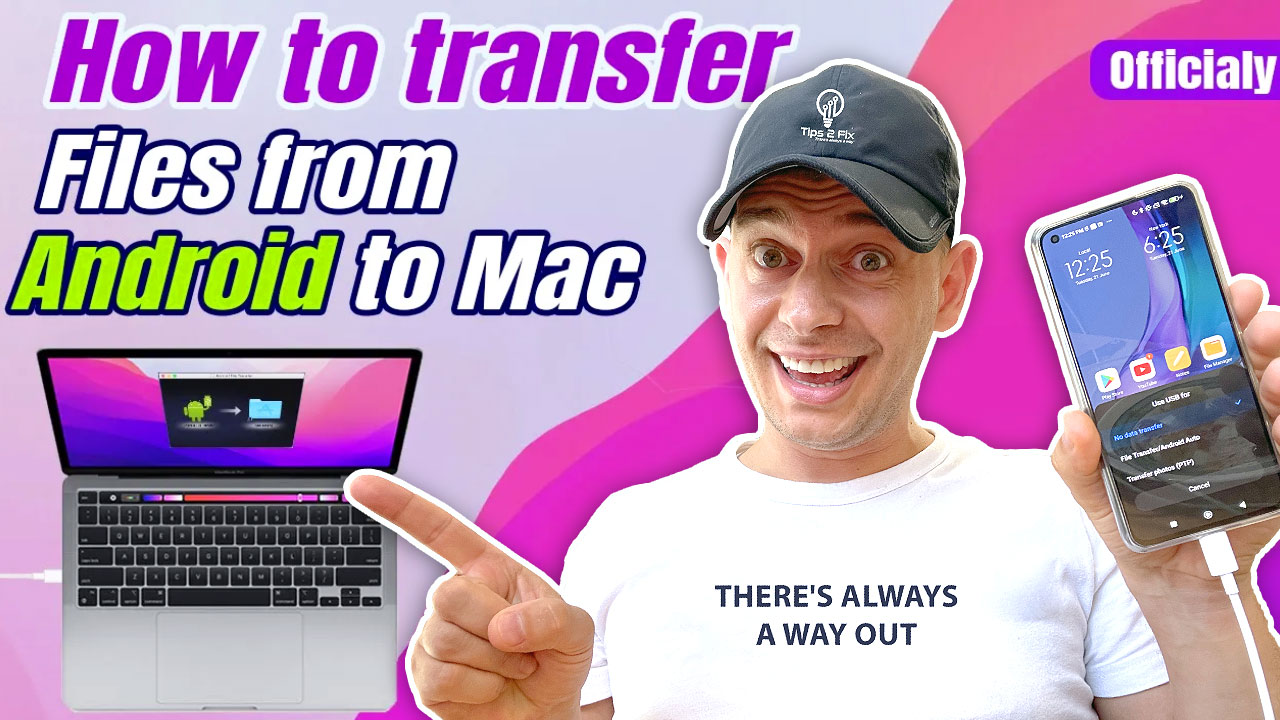
Are you moving from an Android phone to an iPhone and want to keep your WhatsApp chats? WhatsApp has an official and free way to do it with Apple’s Move to iOS app. In this guide I show you what you need, the exact steps, and what to do if the transfer does not work.
Update (October 2026): I updated this guide with the current requirements from the WhatsApp Help Center. The specific WhatsApp version numbers from 2022 are gone: you now simply need the latest WhatsApp version on both phones.
In this article
What you can and can’t transfer
You can transfer your account info, profile photo, chats, Channel updates, chat history, media and settings. Chats include individual chats, group chats and communities.
You can’t transfer your call history, your display name, or media you received in WhatsApp Channels. Peer-to-peer payment messages are not transferred either.
Note: This transfer does not work with the WhatsApp Business app.
What do you need?
- Android 5 (Lollipop, SDK 21) or newer on your Android phone
- iOS 15.5 or newer on your iPhone
- The Move to iOS app installed on your Android phone (other data transfer apps are not supported and can cause problems)
- The latest WhatsApp version on both phones (from Google Play and the App Store)
- The same phone number on your new iPhone as on your old phone
- An iPhone that is factory new or reset to factory settings. It has to be in setup mode to pair with the Move to iOS app. If you have already set up and used your iPhone, you have to erase it first.
- Both phones connected to a power source
- Both phones on the same Wi-Fi network, or your Android phone connected to your iPhone’s hotspot
Get Move to iOS on Google Play
How to move WhatsApp chats from Android to iPhone
- Open the Move to iOS app on your Android phone and follow the on-screen prompts.
- Your iPhone shows a code. When asked, enter this code on your Android phone.
- Tap Continue and follow the on-screen prompts.
- On the Transfer Data screen, select WhatsApp.
- Tap Start on your Android phone and wait while WhatsApp prepares the data for export. When the data is ready, you are signed out of WhatsApp on your Android phone.
- Tap Next to go back to the Move to iOS app.
- Tap Continue to transfer the data to your iPhone. Wait until Move to iOS confirms that the transfer is complete.
- Install the latest version of WhatsApp from the App Store on your iPhone.
- Open WhatsApp and log in with the same phone number you used on your old phone.
- Tap Start when asked, and let the process finish.
- Finish activating your new iPhone. Your chats are waiting for you.
Note: Opening Files and selecting the WhatsApp folder in the Move to iOS app is not supported for this migration. Select WhatsApp on the Transfer Data screen as shown above.
What happens to your data?
- The transferred data does not go to cloud storage until you create an iCloud backup on your iPhone.
- WhatsApp can’t see the data you transfer.
- Your Android phone keeps your data until you delete WhatsApp or wipe the phone.
Can’t move your chats from Android to iPhone?
These are the most common problems and fixes, based on the WhatsApp article Can’t move chats from an Android device to an iPhone.
Check the basics first
Both phones must be plugged in and on the same Wi-Fi. Your iPhone must be new or freshly reset, and you must use the same phone number on both phones. Android 5 or newer, iOS 15.5 or newer, and the Move to iOS app are required.
WhatsApp is already active on your iPhone, or you skipped the import
You can only move your chats before you activate WhatsApp on your iPhone. The transfer runs as part of the iPhone setup, so it only works on an iPhone that is new or freshly reset. To get your old chat history back:
- Make sure your old chats are still in WhatsApp on your Android phone.
- Back up anything you want to keep from your iPhone, then reset it to factory settings. Warning: this erases everything on the iPhone, not just WhatsApp.
- If needed, reinstall WhatsApp on your Android phone and restore your chat history.
- Start a new transfer with the Move to iOS app on your Android phone.
Warning: If your old chats are no longer on your Android phone, don’t reset your iPhone and don’t uninstall WhatsApp from your Android phone. You could lose the chat history for good. Restore it from a backup instead.
Note: It is not possible to merge your new chats with your old history.
Your iPhone has a different phone number
You can’t move your WhatsApp data to a new phone number. But you can change your phone number on your old Android phone first, and then move to your new iPhone. Learn how to change your WhatsApp number in this WhatsApp article.
Error messages
- “Something went wrong”: your chat history may be corrupted. You can choose Retry or Skip Import.
- “An unknown error occurred. Please try again later”: restart both phones and try again.
Move to iOS force quits or fails
If you have problems with the Move to iOS app itself, contact Apple Support.
Can I transfer my WhatsApp call history?
No. Your WhatsApp call history can’t be transferred from an Android phone to an iPhone.
More WhatsApp help: fix “No valid QR code detected” in WhatsApp and how to set up two WhatsApp accounts on iPhone and Android.
Source: WhatsApp Help Center