A local account (also called an offline account) lets someone sign in to your PC without a Microsoft account. You can create one for anyone who uses your PC often. In this guide I show you how to create a local user account in Windows 11, how to turn it into an administrator account, and a faster way to do both with Command Prompt.
Microsoft recommends a Microsoft account for everyone who uses a PC, because it gives you access to your apps, files and Microsoft services on all your devices. A local account works without it.
If needed, a local account can have administrator permissions. But whenever possible, it’s better to create a standard local user account.
Important: Choose a password you can remember and keep it safe. Microsoft doesn’t know your local account password, so it can’t recover it for you if you forget or lose it.
In this article
How to create a local user account
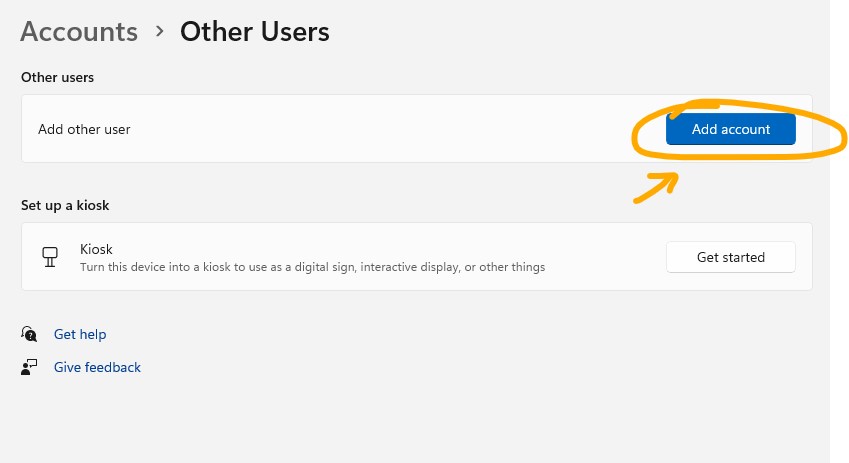
- Select Start > Settings > Accounts > Other users. In some versions of Windows you’ll see Family & other users instead.
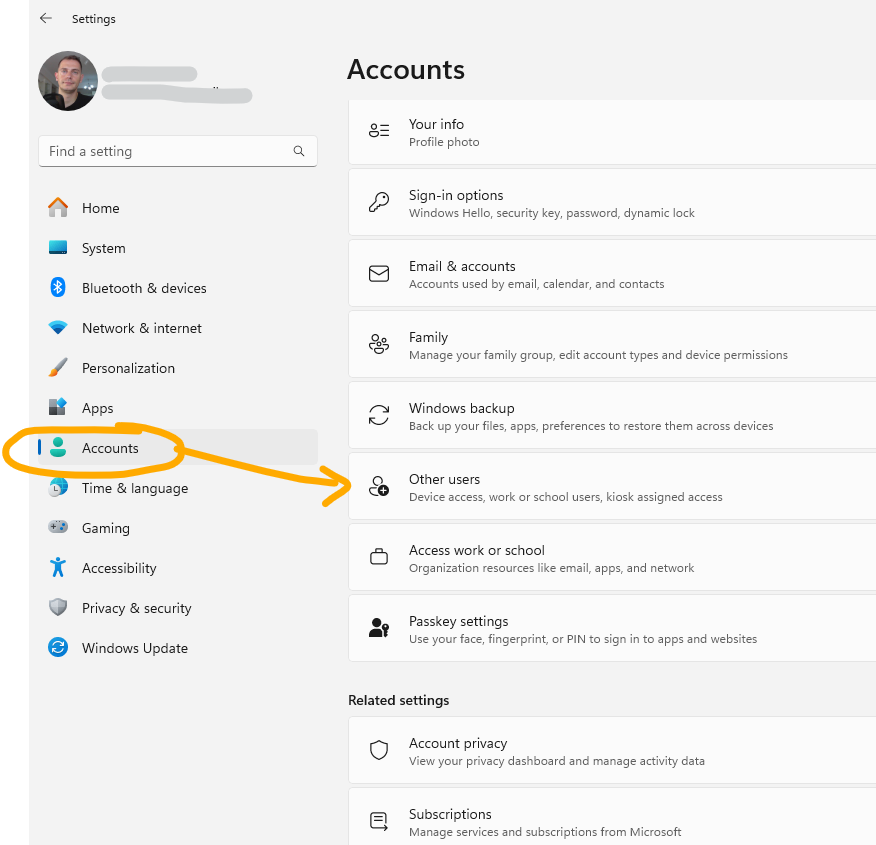
- Next to Add other user, select Add account.
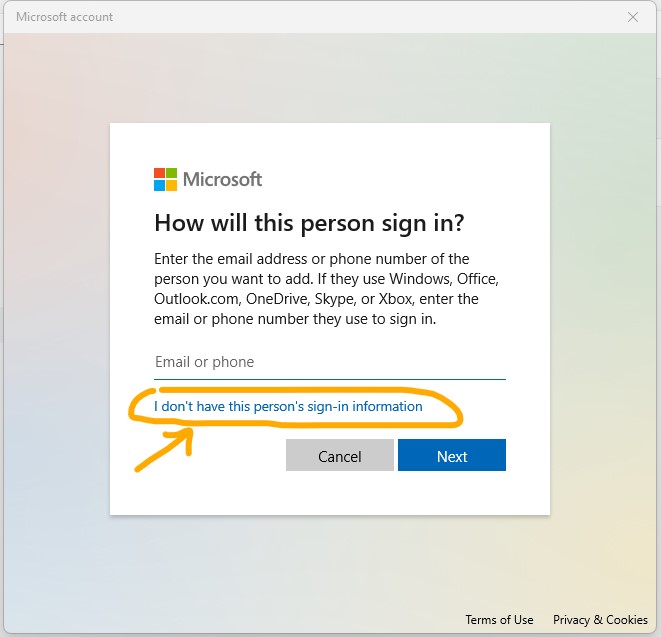
- Select I don’t have this person’s sign-in information.
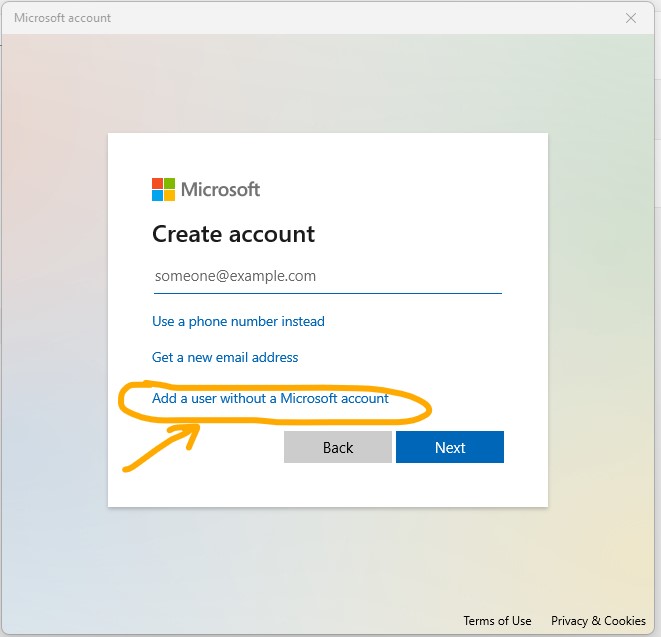
- On the next page, select Add a user without a Microsoft account.
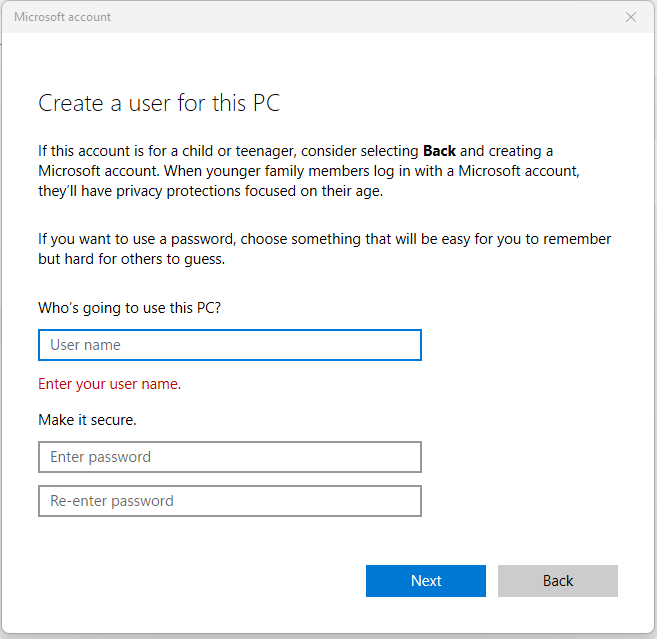
- Enter a user name and a password (twice). If you set a password, Windows also asks you to choose security questions. Then select Next.
Tip: If you’re reading this on your Windows PC, this link opens the right page in Settings directly: Open Settings and create another account.
How to change a local account to an administrator account
- Select Start > Settings > Accounts > Other users (or Family & other users).
- Select the account owner name (you should see “Local account” below the name), then select Change account type.
- Under Account type, select Administrator, and then select OK.
- Sign in with the new administrator account.
Note: If you choose an account that shows an email address or doesn’t say “Local account”, you’re giving administrator permissions to a Microsoft account, not to a local account.
Faster: create a local account with Command Prompt
If you prefer commands, you can do the same in a few seconds.
- Open Command Prompt as administrator: search for cmd and select Run as administrator.
- Create the account with the command below. Replace
JohnandMyPassword123with your own user name and password.
net user John MyPassword123 /add- To make the new account an administrator, run this command:
net localgroup Administrators John /addOn Windows in another language, the Administrators group can have a translated name. Run net localgroup to see the exact name on your PC. Accounts created this way have no security questions, so keep the password somewhere safe.
Related guides
- Setting up a new PC without a Microsoft account? See Microsoft blocked local accounts: how to bring them back.
- How to remove the Windows 11 login password