

Can Windows 11 25H2 still run on older, unsupported computers? To find out, I ran a full hands-on test of the 25H2 beta on two machines: one with an old Intel Core 2 Duo processor and one with a 7th generation Intel Core i7. The results show both the limits and the possibilities of 25H2.
This is not speculation. It is a real-world test with clear steps and honest results. All tools and download links are in the Tools and Scripts Used section below.
Update (October 2026): This post documents my test of the 25H2 beta from April 2025. Windows 11 25H2 has since been officially released, and Windows 11 26H2 is now available too. For the current version, see How to Install Windows 11 26H2 on Unsupported PC.
In this article
Test 1: Core 2 Duo, a 15-Year-Old PC
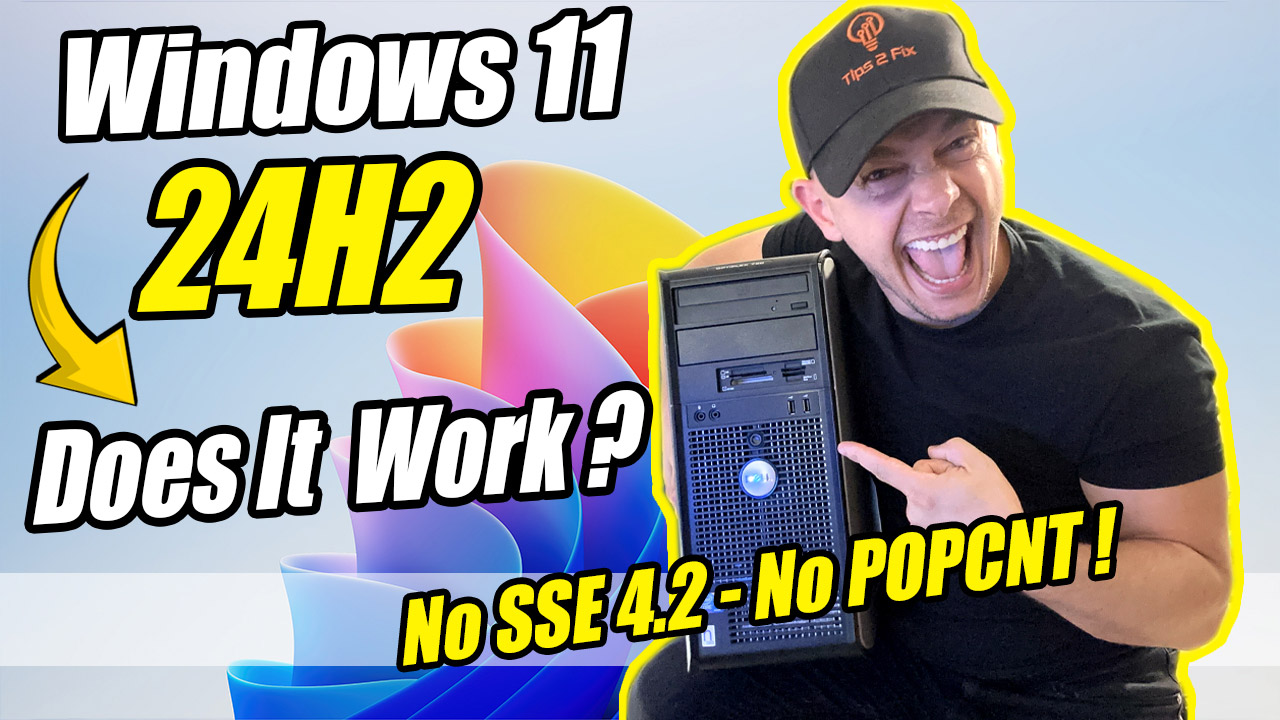
The first machine had a Core 2 Duo processor, which is more than a decade old. These CPUs lack two instructions that Windows 11 now requires: SSE4.2 and POPCNT.
I started with the familiar setup /product server method, which helped bypass the TPM and Secure Boot checks in the past. This time, however, the installer showed a new error:
“This PC’s processor does not support critical feature: POPCNT”
“SSE4.2 is not supported”
I tried known bypass tools, registry tweaks, and even clean installs with Rufus and modified ISOs, but I hit a hard stop every time. The requirement is built into the Windows kernel itself, so setup cannot continue on a CPU without these instructions.
Result: Installation failed on the Core 2 Duo, and no bypass method worked.
Test 2: 7th Gen Intel Core i7, Unsupported but Working
The second test system had a 7th generation Intel Core i7-7700K. This CPU is not on Microsoft’s supported list for Windows 11, but it does support both SSE4.2 and POPCNT. I confirmed this with CPU-Z and Microsoft’s PC Health Check.
Then I converted the system drive from MBR to GPT, ran an updated bypass script from GitHub called BW11, and started the upgrade.
The result? Success. The system installed the Windows 11 25H2 developer preview without any issue, and all files, apps and settings were kept.
I verified the version by checking the system folders, which confirmed the GE 25H2 build.
Result: Installation successful on the 7th gen Intel PC using the updated methods.
Test Results at a Glance
| Feature | Core 2 Duo | Intel Core i7 (7th Gen) |
|---|---|---|
| SSE4.2 support | No | Yes |
| POPCNT support | No | Yes |
| TPM 2.0 required | No (bypassed) | No (bypassed) |
| Secure Boot required | No (bypassed) | No (bypassed) |
| Final result | Failed | Success |
Why SSE4.2 and POPCNT Matter More Than Ever
Since Windows 11 24H2, and still in 25H2, Windows requires SSE4.2 and POPCNT support at the kernel level. This means you cannot bypass this requirement by editing a registry key or skipping a check during setup, as you can with TPM 2.0 and Secure Boot. Without these CPU instructions, the installation stops immediately.
Older processors such as the Core 2 Duo, the Core 2 Quad and many older AMD chips cannot run 24H2 or 25H2.
What You Can Do If You Have an Old PC
If your PC lacks SSE4.2 or POPCNT, these are your best options:
- Keep using Windows 11 23H2, which still works well on many unsupported systems. See how to run Windows 11 on older PCs without SSE 4.2 and POPCNT.
- Consider Tiny11 or a similar lightweight build based on an older version.
- Switch to a Linux system made for Windows users, such as Zorin OS (dual boot on older PCs).
Update (October 2026): Windows 11 23H2 Home and Pro stopped receiving security updates on November 11, 2025, and Windows 10 support ended on October 14, 2025. Staying on 23H2 still works, but the PC no longer gets security fixes.
Tools and Scripts Used
Windows 11 25H2 Insider Preview ISO
I tested the 25H2 preview from the Windows Insider Program.
Windows InsiderSetup Script with the “product server” Switch
- Inside the extracted Windows 11 ISO folder (where setup.exe is), create a new text file named setup.bat.
- Open the file and paste the following code:
setup /product server- Save the file and close it.
- Double-click setup.bat to start the installation.
Or download my ready-made file:
Download Setup.batBW11 Bypass Script (GitHub)
BW11 must be run as administrator. It adds registry keys that bypass the CPU, storage, RAM, TPM and Secure Boot checks, allows upgrades with an unsupported TPM or CPU, and adds keys meant to skip the internet and Microsoft account requirement during setup. It cannot add SSE4.2 or POPCNT support.
Download BW11.batRufus for Bootable USB Creation
Rufus WebsiteMBR2GPT: Convert the System Drive
You can convert the drive from MBR to GPT in Command Prompt (as administrator), without reinstalling Windows. First validate the disk, then convert it:
mbr2gpt /validate /allowFullOSmbr2gpt /convert /allowFullOSWarning: Back up your data before converting. After the conversion, switch your BIOS from Legacy/CSM to UEFI mode, otherwise Windows will not boot.
CPU-Z for Hardware Feature Detection
In CPU-Z, check the Instructions field: it must list SSE4.2. POPCNT support comes with SSE4.2 on Intel CPUs.
CPUZ WebsiteCheck Your Windows Language (CMD Command)
Before you download an ISO for an in-place upgrade, check which language your Windows uses, so you can download the same language:
dism /online /get-intlFinal Thoughts
Windows 11 25H2 keeps hardware restrictions that go beyond TPM and Secure Boot. With SSE4.2 and POPCNT required at the kernel level, many older systems have reached the end of the road.
However, if your PC supports these instructions, even if it is not on Microsoft’s official list, you can still upgrade with the right preparation. The 7th gen Intel system is a great example of that.
For those stuck on older hardware, 23H2 remains a stable and fast alternative, but remember that 23H2 Home and Pro no longer get security updates.

Have you tried Flyby11? the first thing that it does is check for POPCNT and SSE 4.2 support. I have three systems running 24H2. They all support POPCNT and SSE4.2. I will test them when 25H2 is released. The systems are Intel(R) Core(TM) i3-3220T CPU @ 2.80GHz, Intel(R) Core(TM) i3-7100 CPU @ 3.90GHz, and Intel(R) Core(TM) i7-2600 CPU @ 3.40GHz. They are all running 24H2 OS build 26100.4061, even the i7 2nd gen Mid 2011 iMac 12.2.
Good to see your results, Barry. Flyby11 (it’s called Flyoobe now) is a solid tool, and that POPCNT and SSE4.2 check is the one that really matters since 24H2. All three of your CPUs have both, and 25H2 and 26H2 are only enablement packages on top of 24H2, so those machines can move up with a single restart. If Windows Update doesn’t offer it, the fast update method in my 26H2 guide does the job: https://staging.tips2fix.com/how-to-install-windows-11-26h2-on-unsupported-pc/
Your Processor will support windows 11 24h2