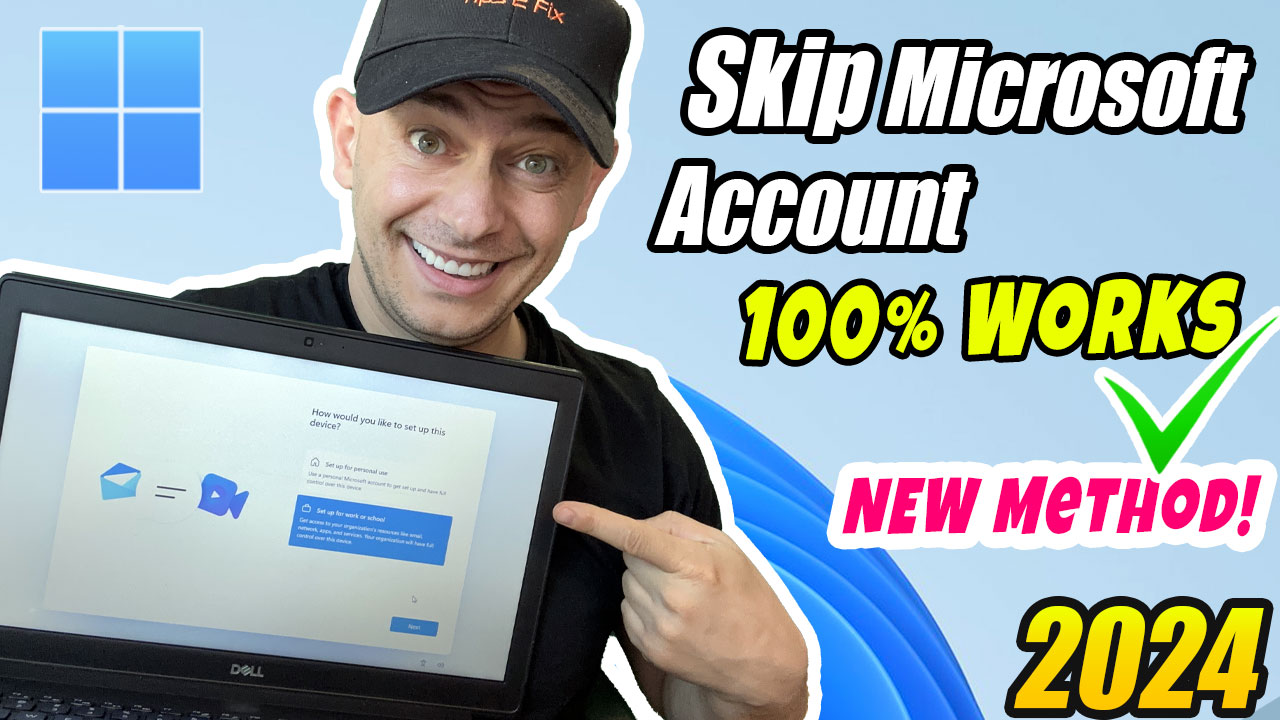
During Windows 11 setup, the screen can force you to sign in with a Microsoft account, with no visible option for a local (offline) account. This guide shows the trick that was used in 2023 to get past that screen and create a local account. The video at the top of this page shows every step.
Update (October 2026): The oobe\bypassnro command below worked on Windows 11 22H2 and 23H2, but Microsoft has since removed it on current builds. For the method that works today, read my newer guide: Microsoft BLOCKED Local Accounts: Here’s How to Bring Them Back.
How to Create a Local Account (2023 Method)
When setup reaches the screen that asks you to sign in with a Microsoft account:
- Open a Command Prompt: press Shift + F10 (on many laptops, Fn + Shift + F10).
- Open Network Connections to disconnect from the internet:
ncpa.cpl - In the Network Connections window, right-click your Wi-Fi or LAN adapter and choose Disable. Close the window.
- Back in Command Prompt, run this command:
oobe\bypassnro - The PC restarts and setup starts again, now with the option to create a local account.
- Go through the first screens again. When you reach the network step, choose I don’t have internet.
- Click Continue with limited setup. This is the option that was hidden before.
- Enter a user name for your local account and, if you want, a password.
- Name your computer and finish the setup.
That’s it. You are now running Windows 11 with a local account, without a Microsoft account.
Note: A Microsoft account does give you extra features, such as settings sync and Find My Device. You can always add one later in Settings > Accounts.
Already finished setup and want to switch to a local account? See How to Create an Offline Account on Windows 11. For the official setup without the trick, read How to Set Up Windows 11 Without a Microsoft Account (Official).
If you have questions, leave a comment below. Don’t forget to subscribe to the Tips2Fix YouTube channel for more tutorials.