

Update (October 2026): I wrote this guide in March 2024, when Windows 11 24H2 was still an Insider preview (build 26080). Microsoft released the final version of 24H2 on October 1, 2024, and updates for 24H2 Home and Pro ended on October 13, 2026. If you want a version that still gets updates on an unsupported PC, follow my newer guide: How to Install Windows 11 26H2 on Unsupported PC.
In this guide I upgrade a PC that Microsoft calls “unsupported” (it has a 7th-generation processor) from Windows 11 23H2 to the 24H2 preview, build 26080. I use the official ISO file from the Windows Insider Program and keep all my files and apps. I show two methods: Bypasser, which is the easiest, and a CMD command.
Warning: Canary and Dev Channel builds are preview versions that Microsoft publishes for developers and Windows fans who want to test new builds as early as possible. They are not stable releases. If you don’t have time to deal with bugs and errors, don’t install them. Wait for the stable release instead.
In this article
Before you start
- Back up your important files.
- Download the ISO in the same language as your current Windows. If the languages don’t match, the option to keep your files and apps is greyed out. See why Keep personal files and apps is greyed out.
- Your PC needs at least 4 GB of RAM and 64 GB of storage.
- This method works even if TPM 2.0 is not enabled or your PC only has TPM 1.2.
- Windows 11 24H2 needs a processor that supports the SSE4.2 and POPCNT instructions. Very old CPUs without them can’t run 24H2, even with a bypass. More about this in how to run Windows 11 on older PCs without SSE 4.2 and POPCNT.
If you want to see why Microsoft says your PC is unsupported, run the PC Health Check app and click Check now.
Step 1: Download the Windows 11 24H2 Insider ISO
To download Canary or Dev Channel builds, you need to join the Windows Insider Program. It’s free. You only need a Microsoft account and you have to sign in. If you use Outlook.com, Microsoft Teams or Microsoft 365 apps like Word, Excel and PowerPoint, you already have one.
Download ISO: Official Windows Insider Preview Website
- Open the Windows Insider Preview Downloads page and sign in with your Microsoft account.
- Scroll down to Select edition and choose a Canary Channel or Dev Channel build. When I made the video, both channels had build 26080.
- Click Confirm.
- Select the product language. Choose the same language as your current Windows (I used English International), then click Confirm.
- Click 64-bit Download.
Example:
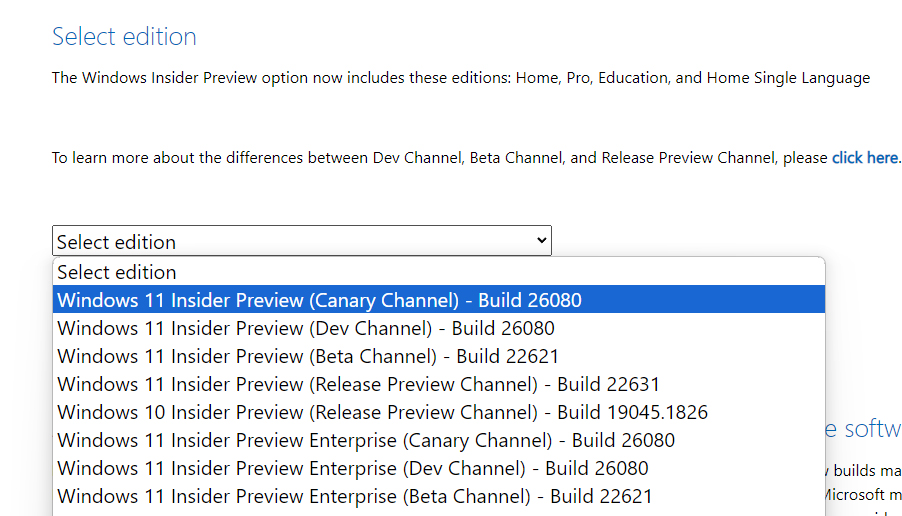
Optional: the build 26080 files from the video
These are the original, untouched build 26080 files that I used in the video. They are old now, so it’s better to sign in to the Windows Insider Preview website as shown above and download the latest build from there.
Step 2: Extract the ISO file
Right-click the ISO file and extract it to a folder, for example on your desktop. To extract an ISO you need an archive tool such as 7-Zip or WinRAR. You can also double-click the ISO to mount it. Both ways work; I prefer extracting because it’s faster for me.
If you run setup.exe now without a bypass, setup stops with a message that your processor isn’t supported. That’s why you need one of the two methods below.
Method 1: Upgrade with Bypasser (easiest)
Bypasser is AveYo’s free “Skip TPM Check on Dynamic Update” script. It lets Windows Setup skip the hardware checks, and you don’t have to join the Insider Program on your PC.
- Download Bypasser and extract the ZIP file.
- Right-click Bypasser Windows 11 23H2.cmd and click Run as administrator. If Windows SmartScreen shows a warning, click More info > Run anyway.
- Press Enter if the window waits for input. When it shows INSTALLED, the bypass is active.
- Go back to the folder with the extracted ISO and double-click setup.exe.
- When setup offers to download updates, choose not to. Downloading updates during setup is where most people get stuck. You can also disconnect from the internet while setup runs.
- Click Accept to accept the license terms.
- Make sure your files and apps will be kept, then click Install. Your PC restarts a few times during the upgrade.
Note: Bypasser works like a switch. Run it once to install the bypass (it shows INSTALLED). Run it again to remove it (it shows REMOVED).
Method 2: Upgrade with a CMD command
This is the CMD method from my earlier unsupported-PC guide. It works, but with Insider builds, setup may ask you to join the Windows Insider Program before it continues.
- Click Start, type cmd, right-click Command Prompt and click Run as administrator.
- Open the extracted ISO folder, go into the sources folder and copy its path from the address bar.
- In Command Prompt, type
cd /dand a space, paste the path and press Enter. - Type
setupprep.exe /product serverand press Enter. - Setup opens with the title Install Windows Server. Don’t worry: it installs Windows 11, not Windows Server.
- Choose not to download updates (or disconnect from the internet).
- Choose to keep your files, settings and apps.
- If setup stops at What needs your attention and asks you to join the Windows Insider Program, open Settings > Windows Update > Windows Insider Program, click Get started and link your Microsoft account. Restart your PC when Windows asks.
- Open Command Prompt as administrator again, go to the sources folder and run
setupprep.exe /product serveragain. Setup continues from where it left off.
In my test, after joining the Insider Program, installing from Windows Update showed “Update failed”, but running setup again from the ISO folder worked. This is why I recommend Method 1.
Check the result
After the upgrade, press Win + R, type winver and press Enter. You should see Windows 11 version 24H2. On my unsupported PC, Windows Update kept working normally after the upgrade.
Clean install from USB: download Rufus
If you prefer a clean installation from a USB drive instead of an upgrade, create the USB drive with Rufus. When you click Start, Rufus offers to remove the TPM 2.0, Secure Boot and 4 GB RAM requirements. A clean install erases the drive you install to, so back up your files first.
Rufus Website (Latest Version)
You can watch both methods step by step in the video at the top of this post.



bonjour
sa ne fonctionne pas pour moi
Bonjour Jean, désolé pour le retard. Ce tutoriel utilisait une préversion de 24H2 qui est dépassée aujourd’hui. Suivez plutôt mon guide à jour, avec un outil qui vérifie votre PC avant de modifier quoi que ce soit : https://staging.tips2fix.com/how-to-install-windows-11-26h2-on-unsupported-pc/ Si ça bloque encore, indiquez-moi le message d’erreur exact et le modèle de votre processeur.