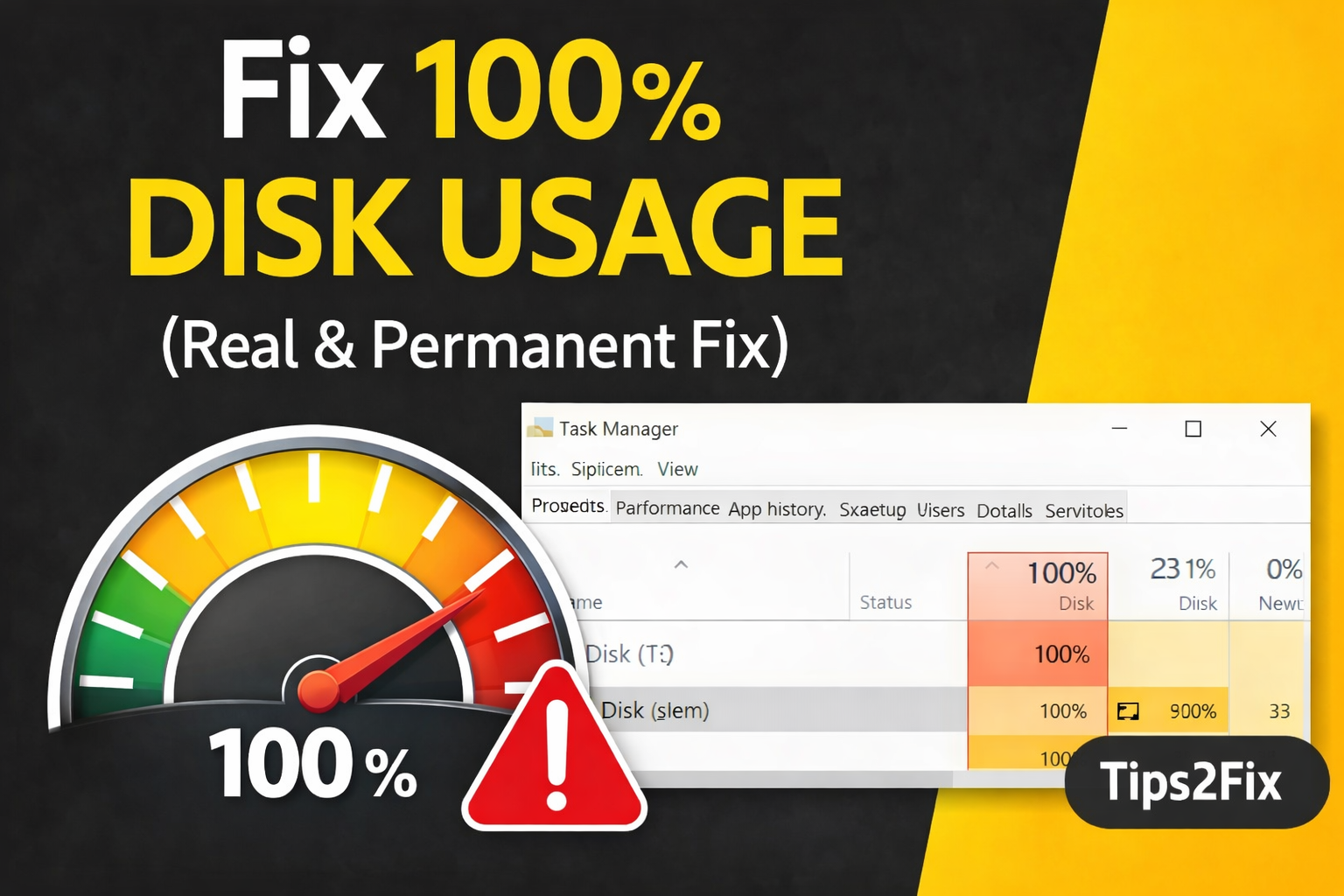
If Task Manager shows Disk at 100% and your PC is extremely slow, you are not alone. This problem is very common, especially on PCs with a hard disk drive (HDD), and random tricks rarely fix it. Below is the real, proven solution, step by step.
In this article
Why Does 100% Disk Usage Happen?
The most common causes are:
- A slow or old HDD (mechanical hard drive)
- The SysMain (Superfetch) and Windows Search services
- Wrong or outdated SATA / storage drivers
- A failing disk (SMART errors)
- Windows Update running or stuck in the background
Step 1: Disable SysMain (Main Fix)
SysMain (formerly Superfetch) is a Windows service that tries to make apps open faster by loading the programs you use often into memory in advance.
On many computers, especially those with a traditional HDD, this causes constant disk activity and leads to 100% disk usage.
Disabling SysMain is completely safe. It does not break Windows, and it does not affect updates, security or system stability. At worst, some apps open a fraction of a second slower, but in most cases the system becomes smoother, quieter and more responsive.
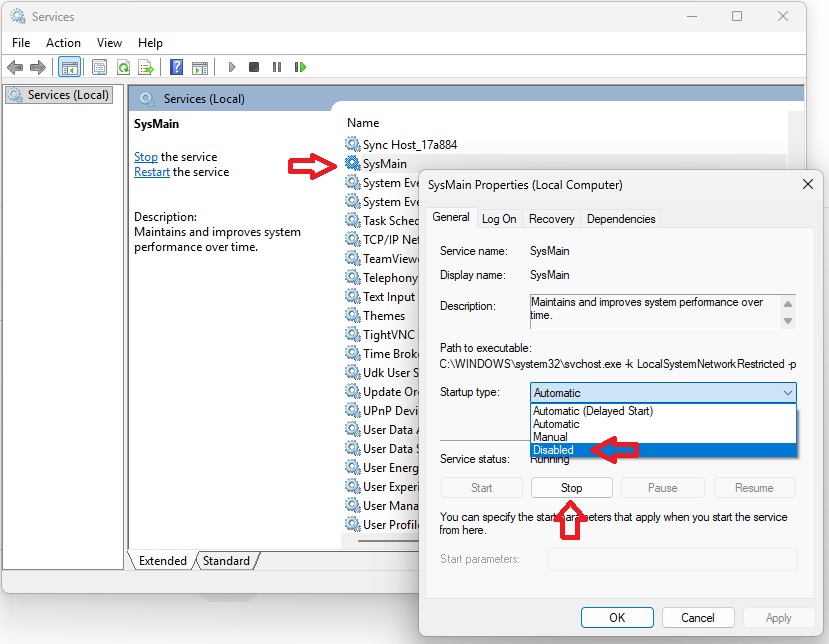
Method 1: Using Services (recommended)
- Press Win + R.
- Type
services.mscand press Enter. - Find SysMain in the list.
- Double-click it.
- Click Stop.
- Set Startup type to Disabled.
- Click Apply, then OK.
- Restart your PC.
Method 2: Using Command Prompt (admin)
- Press Win + X and open Command Prompt (Admin) or Terminal (Admin).
- Run these commands one by one:
sc stop "SysMain"
sc config "SysMain" start= disabled
Note: Keep the space after start=. Without it, the command fails.
- Restart Windows.
Note: Disabling SysMain is safe and does not damage Windows.
Step 2: Disable Windows Search
Windows Search can index your files non-stop and push disk usage to 100%.
How to disable it
- Open
services.msc. - Find Windows Search and double-click it.
- Click Stop.
- Set Startup type to Disabled, then click Apply and OK.
Note: Search in the Start menu and File Explorer still works, but it can be slower without the index.
Step 3: Disable Startup Apps
- Press Ctrl + Shift + Esc to open Task Manager.
- Go to the Startup tab (Startup apps in Windows 11).
- Right-click the apps you don’t need at startup and select Disable.
Step 4: Check Disk Health (SMART)
If your disk has physical problems, no tweak will fix it for good.
- Use CrystalDiskInfo (free). You can also get it from the official CrystalDiskInfo website.
- If the health status shows Caution or Bad, replace the disk as soon as possible, and back up your files first.
Step 5: HDD or SSD?
- If you use an HDD, this problem is extremely common.
- The best long-term solution is to upgrade to an SSD. The performance boost is huge. Here is how to replace a laptop hard drive with an SSD without reinstalling Windows.
Other Things to Check
- Windows Update: if an update is installing in the background, disk usage can stay high until it finishes. Open Settings > Windows Update, let it finish and restart your PC.
- Storage drivers: install the latest SATA / storage driver from your PC or motherboard maker’s website.
Summary (Proven Fix)
- Disable SysMain
- Disable Windows Search
- Disable startup apps
- Check the disk health (SMART)
- Consider an upgrade to an SSD
This method really works, it is not a YouTube myth. If the problem continues, there is a very high chance that your hard drive is failing.
For more ways to make your PC faster, see my 15 tricks to speed up Windows 11.
Guide prepared by Tips2Fix: real solutions, no fake tricks.