If Task Manager shows Disk at 100% and your PC is extremely slow, you are not alone. This problem is very common, especially on PCs with a hard disk drive (HDD), and random tricks rarely fix it. Below is the real, proven solution, step by step.
In this article
Why Does 100% Disk Usage Happen?
The most common causes are:
- A slow or old HDD (mechanical hard drive)
- The SysMain (Superfetch) and Windows Search services
- Wrong or outdated SATA / storage drivers
- A failing disk (SMART errors)
- Windows Update running or stuck in the background
Step 1: Disable SysMain (Main Fix)
SysMain (formerly Superfetch) is a Windows service that tries to make apps open faster by loading the programs you use often into memory in advance.
On many computers, especially those with a traditional HDD, this causes constant disk activity and leads to 100% disk usage.
Disabling SysMain is completely safe. It does not break Windows, and it does not affect updates, security or system stability. At worst, some apps open a fraction of a second slower, but in most cases the system becomes smoother, quieter and more responsive.
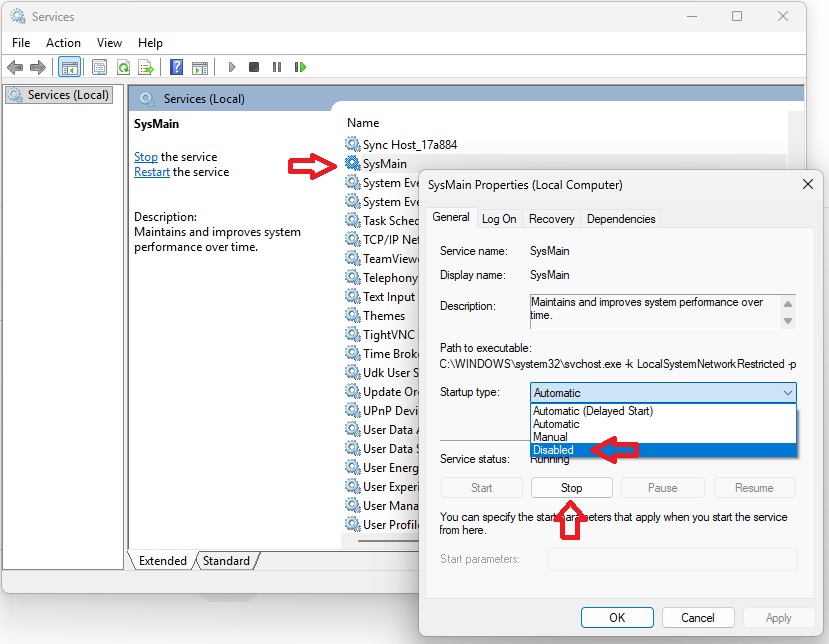
Method 1: Using Services (recommended)
- Press Win + R.
- Type
services.mscand press Enter. - Find SysMain in the list.
- Double-click it.
- Click Stop.
- Set Startup type to Disabled.
- Click Apply, then OK.
- Restart your PC.
Method 2: Using Command Prompt (admin)
- Press Win + X and open Command Prompt (Admin) or Terminal (Admin).
- Run these commands one by one:
sc stop "SysMain"
sc config "SysMain" start= disabled
Note: Keep the space after start=. Without it, the command fails.
- Restart Windows.
Note: Disabling SysMain is safe and does not damage Windows.
Step 2: Disable Windows Search
Windows Search can index your files non-stop and push disk usage to 100%.
How to disable it
- Open
services.msc. - Find Windows Search and double-click it.
- Click Stop.
- Set Startup type to Disabled, then click Apply and OK.
Note: Search in the Start menu and File Explorer still works, but it can be slower without the index.
Step 3: Disable Startup Apps
- Press Ctrl + Shift + Esc to open Task Manager.
- Go to the Startup tab (Startup apps in Windows 11).
- Right-click the apps you don’t need at startup and select Disable.
Step 4: Check Disk Health (SMART)
If your disk has physical problems, no tweak will fix it for good.
- Use CrystalDiskInfo (free). You can also get it from the official CrystalDiskInfo website.
- If the health status shows Caution or Bad, replace the disk as soon as possible, and back up your files first.
Step 5: HDD or SSD?
- If you use an HDD, this problem is extremely common.
- The best long-term solution is to upgrade to an SSD. The performance boost is huge. Here is how to replace a laptop hard drive with an SSD without reinstalling Windows.
Other Things to Check
- Windows Update: if an update is installing in the background, disk usage can stay high until it finishes. Open Settings > Windows Update, let it finish and restart your PC.
- Storage drivers: install the latest SATA / storage driver from your PC or motherboard maker’s website.
Summary (Proven Fix)
- Disable SysMain
- Disable Windows Search
- Disable startup apps
- Check the disk health (SMART)
- Consider an upgrade to an SSD
This method really works, it is not a YouTube myth. If the problem continues, there is a very high chance that your hard drive is failing.
For more ways to make your PC faster, see my 15 tricks to speed up Windows 11.
Curious whether the native NVMe driver makes an SSD faster? I tested it: the Windows 11 NVMe registry trick, with benchmarks.
Guide prepared by Tips2Fix: real solutions, no fake tricks.