

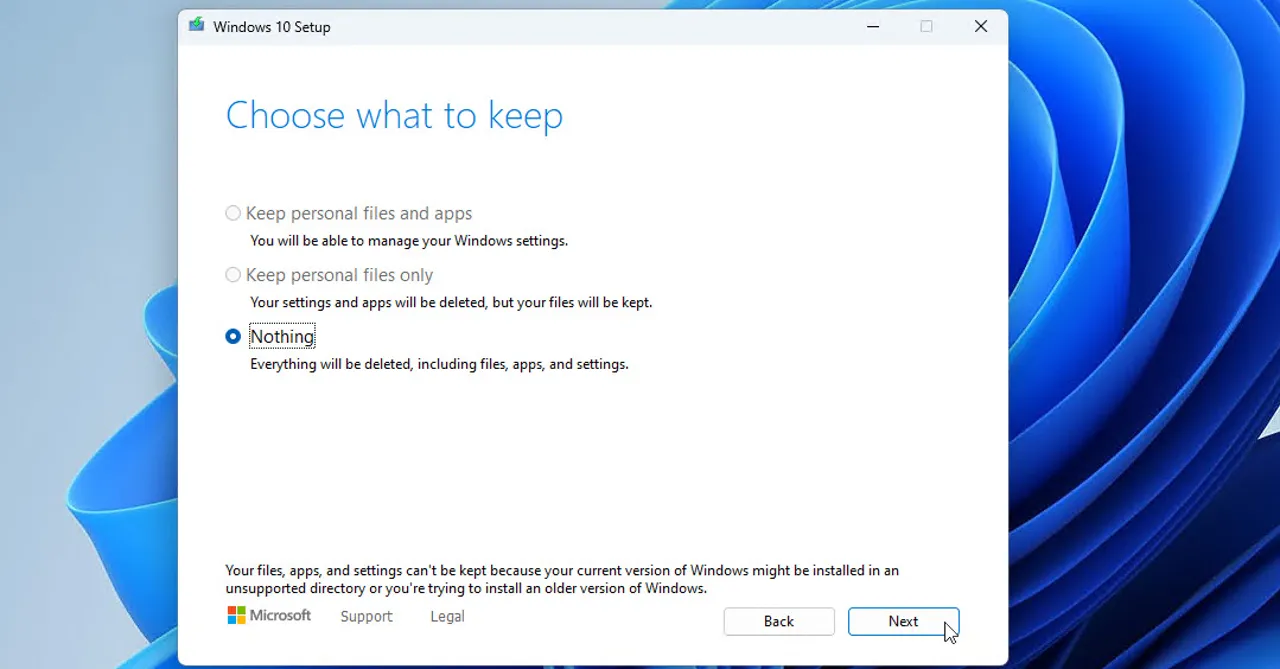
When you run Windows Setup to upgrade or repair Windows 10 or Windows 11, the option Keep personal files and apps can be greyed out. Setup then only offers to install Windows without your files and apps. This guide explains why that happens and shows the fixes that work, so you can upgrade without losing your data.
In this article
- Why is Keep personal files and apps greyed out?
- Before you start
- How to fix Keep personal files and apps greyed out
- 1. Check your system language
- 2. Update your drivers
- 3. Change the system locale in Control Panel
- 4. Download the Windows version that matches your system language
- 5. Remove additional non-English languages
- 6. Disable or uninstall your antivirus
- 7. Check the Program Files paths in the registry
- 8. Check the location of your user folder
- 9. Change your product key or edition
Why is Keep personal files and apps greyed out?
If you see the message You can’t keep Windows settings, personal files, and apps, Windows Setup cannot keep your data during this installation. If you continue anyway, you will lose your files, apps and settings.
Many people see this message when they try a repair install (an in-place upgrade) to fix a damaged Windows, for example when default apps are missing or Windows Update does not show up. The most common causes are:
- Language mismatch: the display language of your Windows is different from the language of the ISO. This is the most common cause, and it can be as simple as your language settings.
- Setup started from a USB drive or DVD: if you boot the PC from the installation media, Setup can only do a clean install. To keep your files, start
setup.exefrom inside Windows. - Different edition or architecture: for example, Windows Pro installed but a Home key or ISO, or 32-bit Windows with a 64-bit ISO. The ISO must also be the same version as, or newer than, the Windows you have now.
- Moved folders: the Program Files folder or your user folder was moved to another drive.
- Drivers or antivirus: outdated or corrupted drivers (often the graphics driver) and some antivirus programs can also cause this problem, so update your drivers before you upgrade.
Variations of this error
Readers have reported the same problem in a few different forms:
- Keep personal files and apps greyed out: the option to keep personal files and apps is disabled while upgrading to a new version of Windows. One of the solutions below should fix it.
- You can’t keep Windows settings, personal files, and apps because of your current version, an unsupported directory or a different language: in most cases, these messages are related to your system language or locale.
- You can’t keep Windows settings (registry): this message can appear if you moved your Program Files folder or your user account folder. You can fix it with a few changes in the registry.
Before you start
- Back up your important files to an external drive or cloud storage. If something goes wrong during the upgrade, you will still have them.
- Use an administrator account.
- Start the upgrade from inside Windows: right-click the ISO file, choose Mount, then double-click setup.exe. Do not boot the PC from the USB drive for the upgrade itself.
How to fix Keep personal files and apps greyed out
1. Check your system language
-
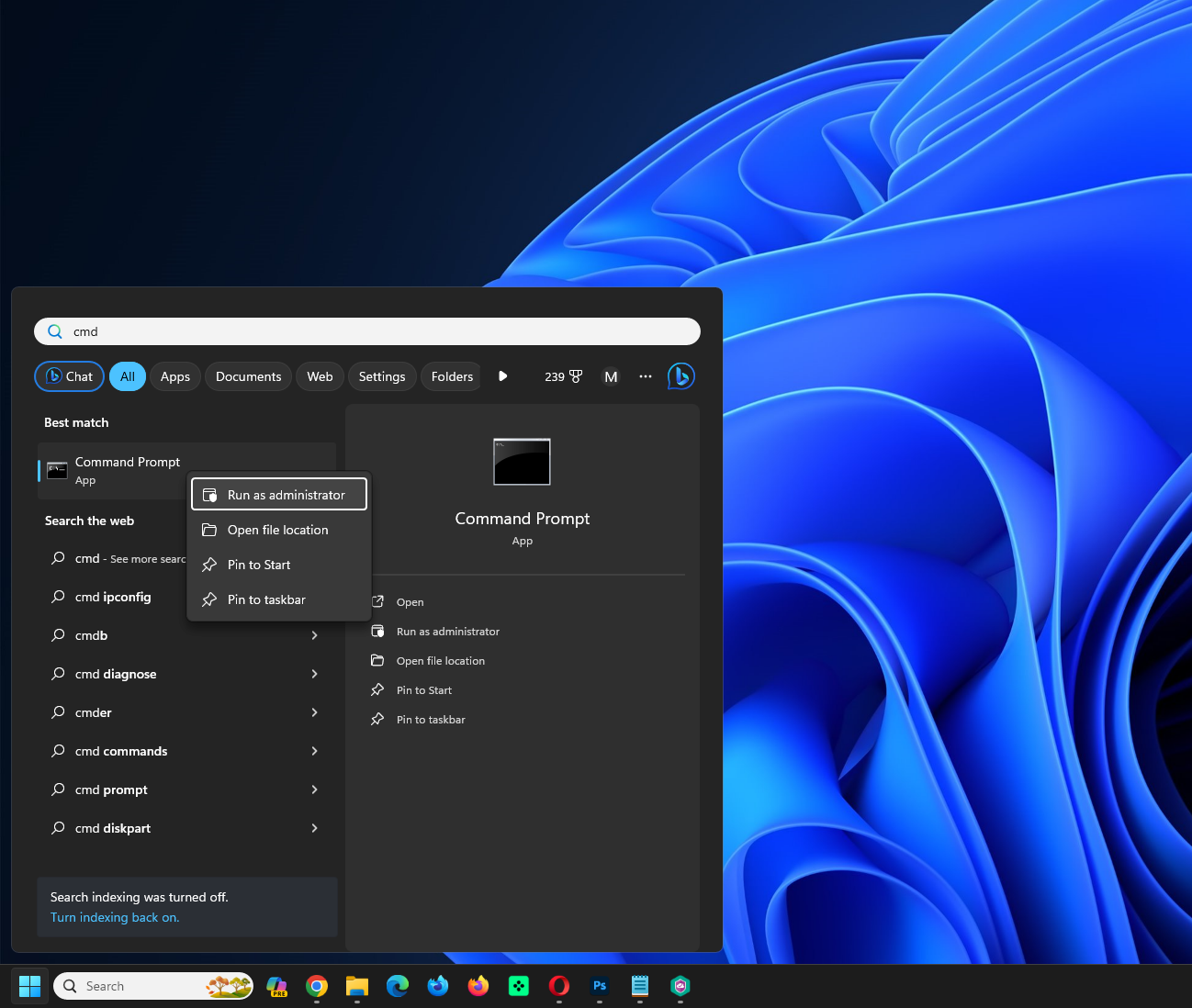
Click the Start button, type cmd and select Run as administrator to open Command Prompt with full privileges.
-
Type the following command and press Enter:
DISM /online /get-intl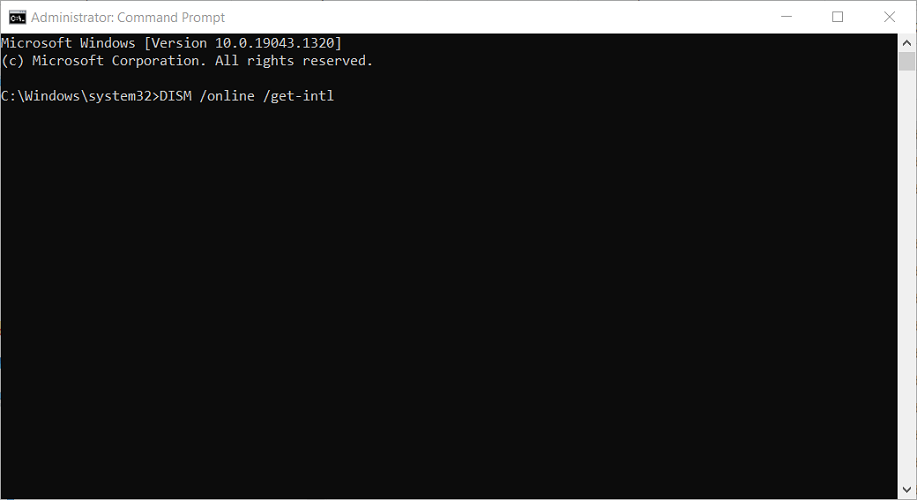
-
Look at the Default system UI language line. This is the language of your Windows. Compare it with the language of your Windows ISO.
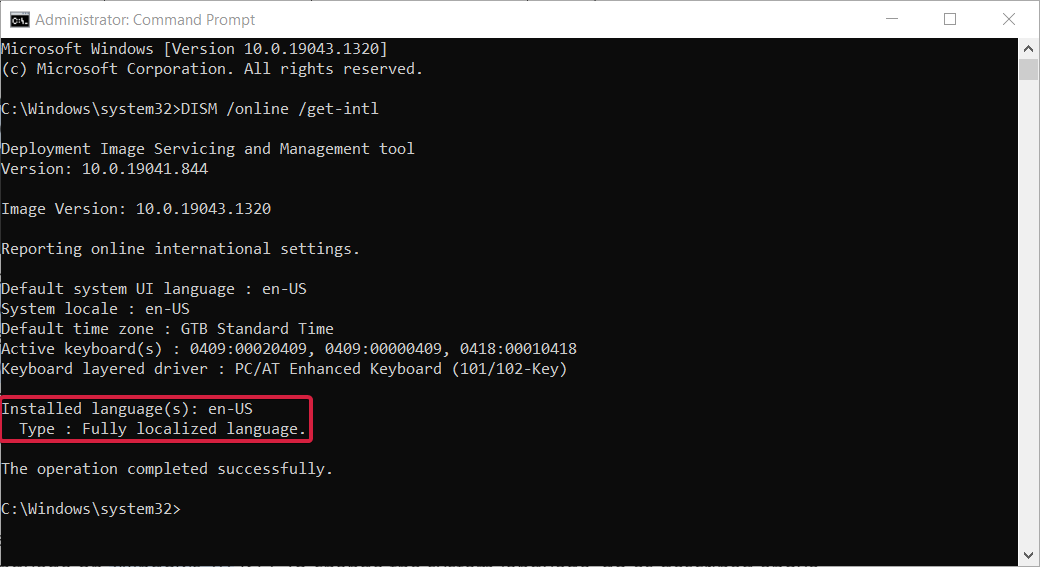
- If the languages are different, insert your Windows installation DVD or bootable USB drive and boot your computer from it.
-
Choose the Repair your computer option.
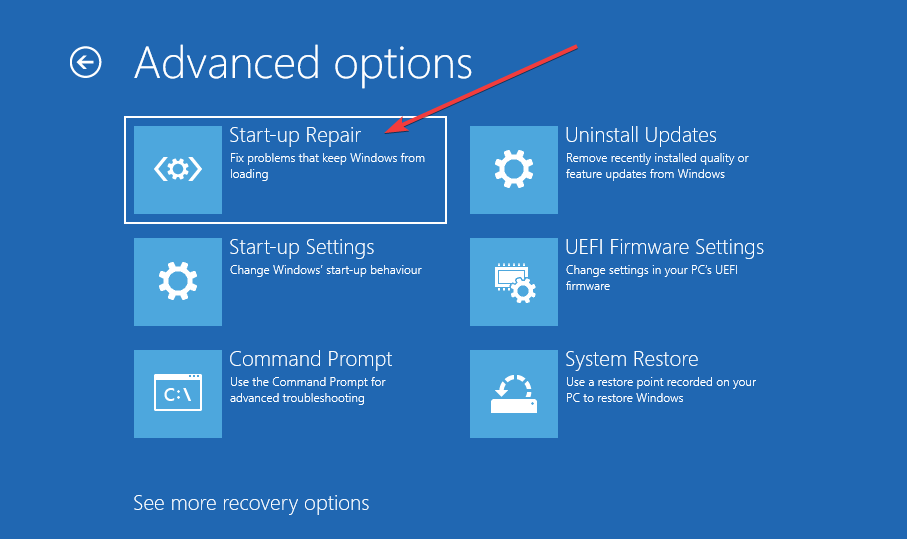
-
Select Troubleshoot.
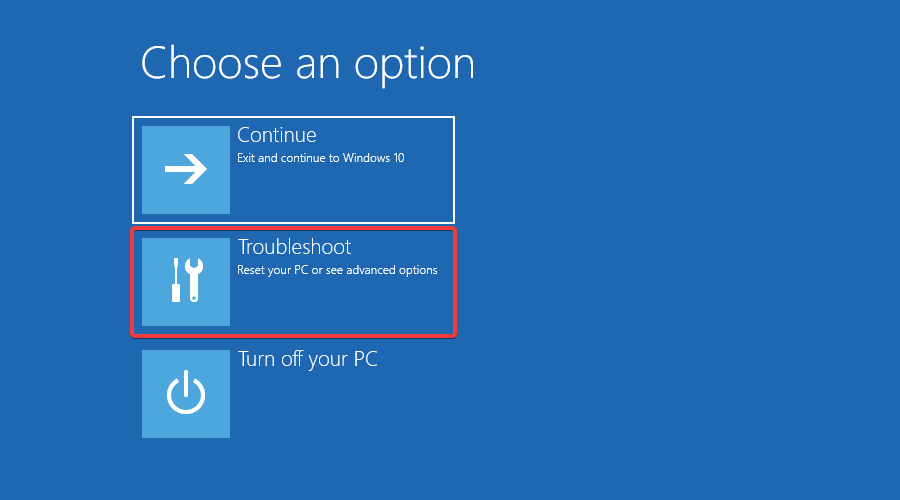
-
Click Advanced options.
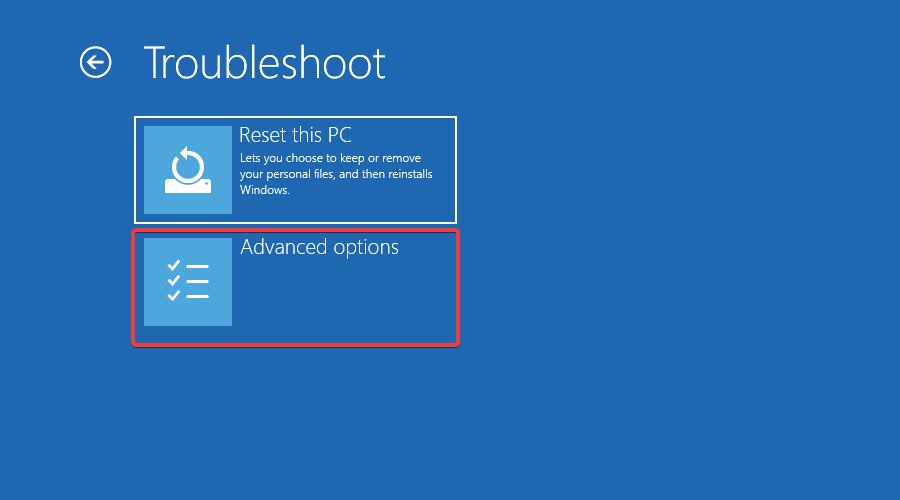
-
Select Command Prompt.
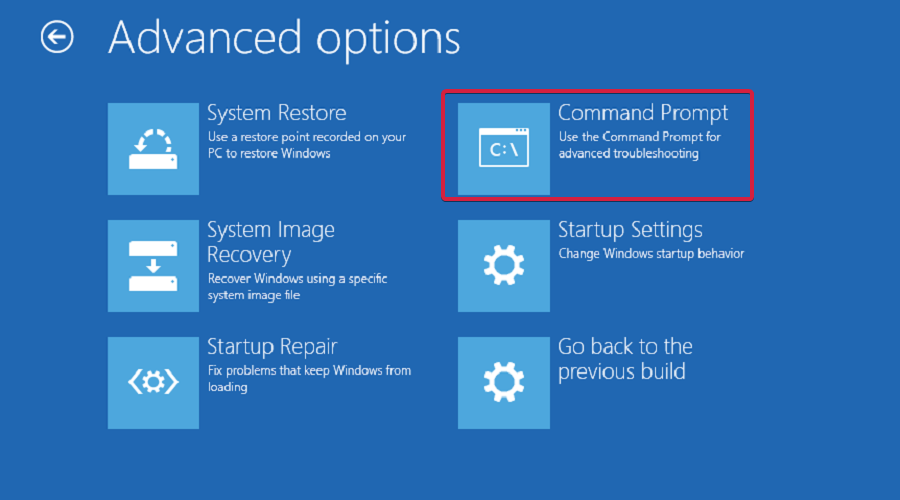
-
When Command Prompt opens, type the following command and press Enter:
DISM /image:C:\ /set-uilang:en-US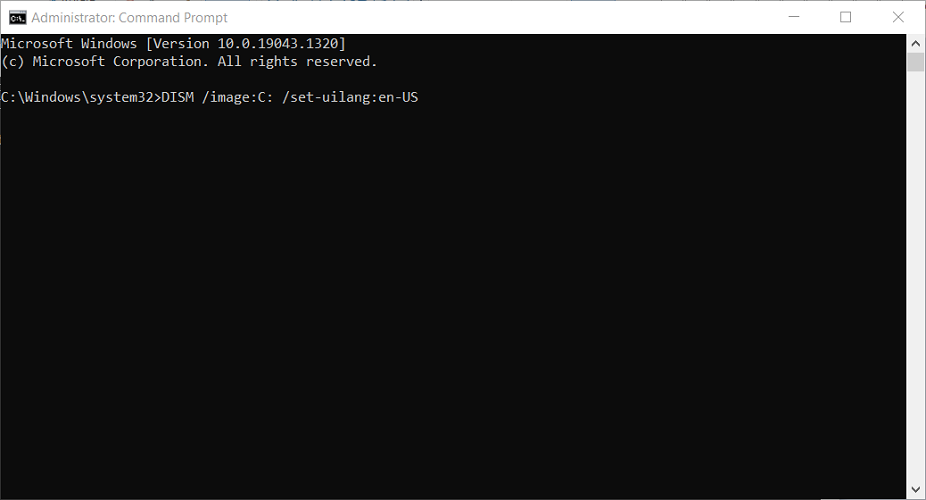
- Restart the PC, start Windows normally and run setup.exe again. The option to keep your files and apps should now be available.
This command sets the system language to English (United States). If your ISO uses another language, replace en-US with the language code of your ISO (for example de-DE or fr-FR), so the two match. The language must already be installed in your Windows.
Note: in the recovery Command Prompt, your Windows drive does not always have the letter C. Type dir C:\ and check that you see the Windows folder. If you do not, try dir D:\ and use that letter in the DISM command.
2. Update your drivers
Several users reported that this error was caused by outdated drivers, most often an old graphics card driver. Update your graphics driver to the latest version first. Other drivers can cause the same problem, so make sure all your drivers are up to date before you try to upgrade.
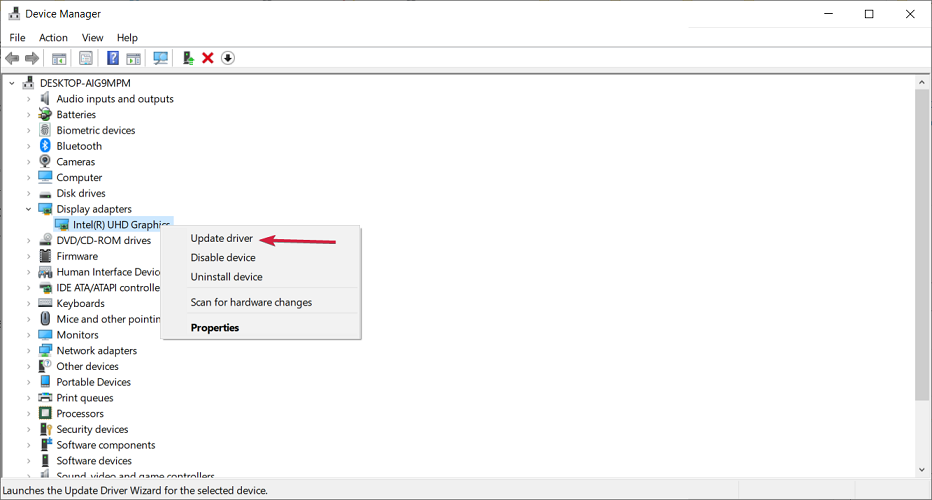
- Right-click the Start button and select Device Manager.
-
Expand Display adapters, right-click your graphics card and select Update driver.
-
Choose Search automatically for drivers.
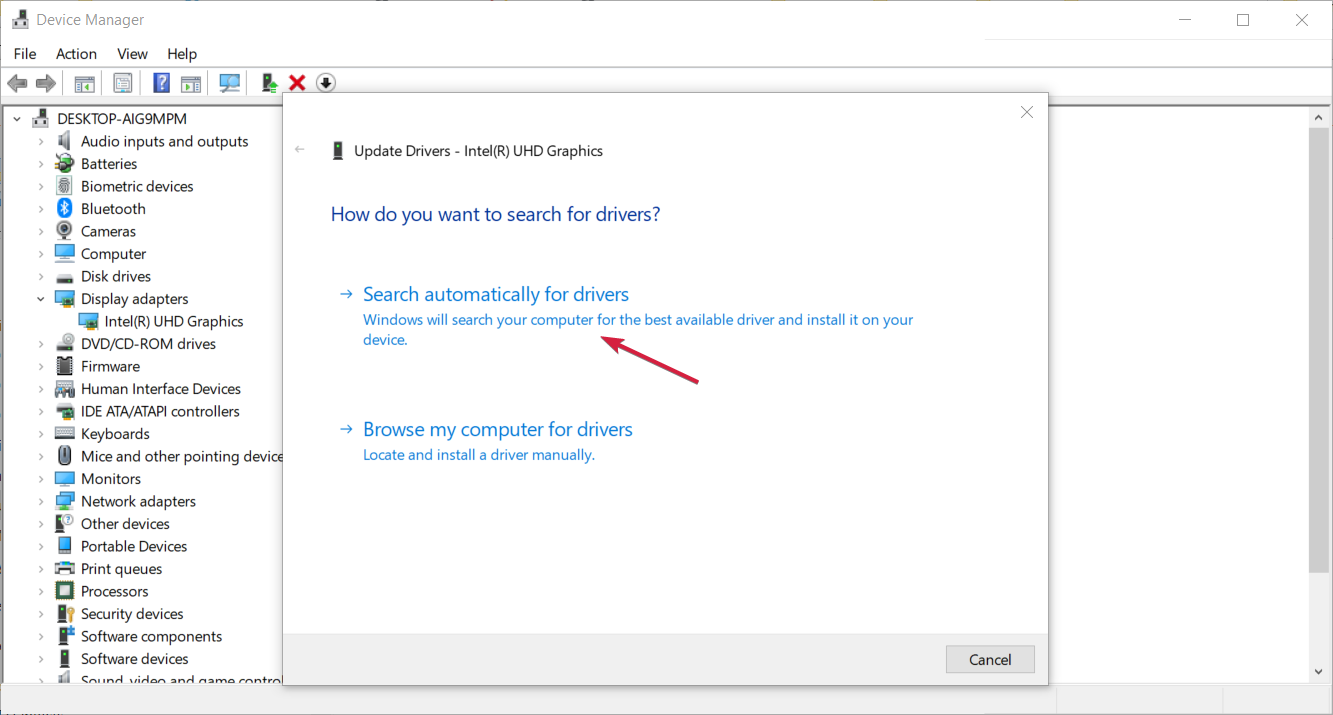
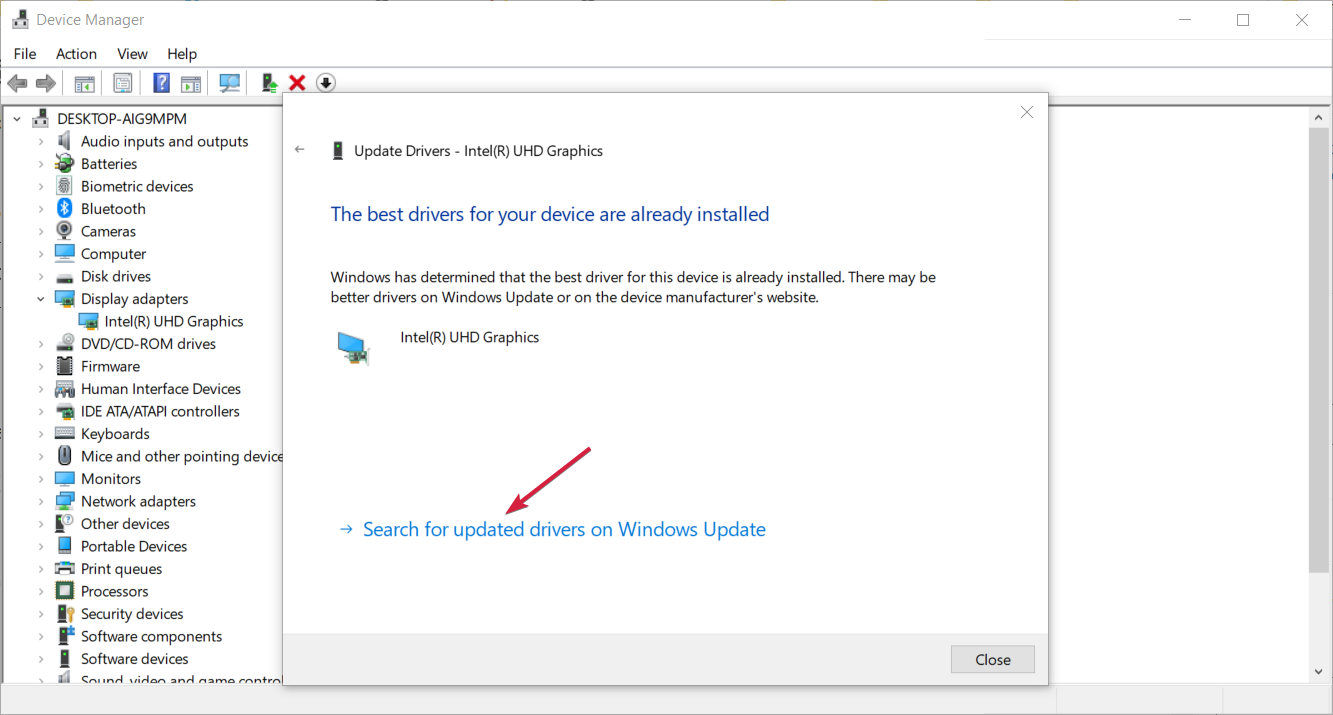
- If Windows finds a newer driver, it installs it and asks you to restart. If it does not, click Search for updated drivers on Windows Update.
-
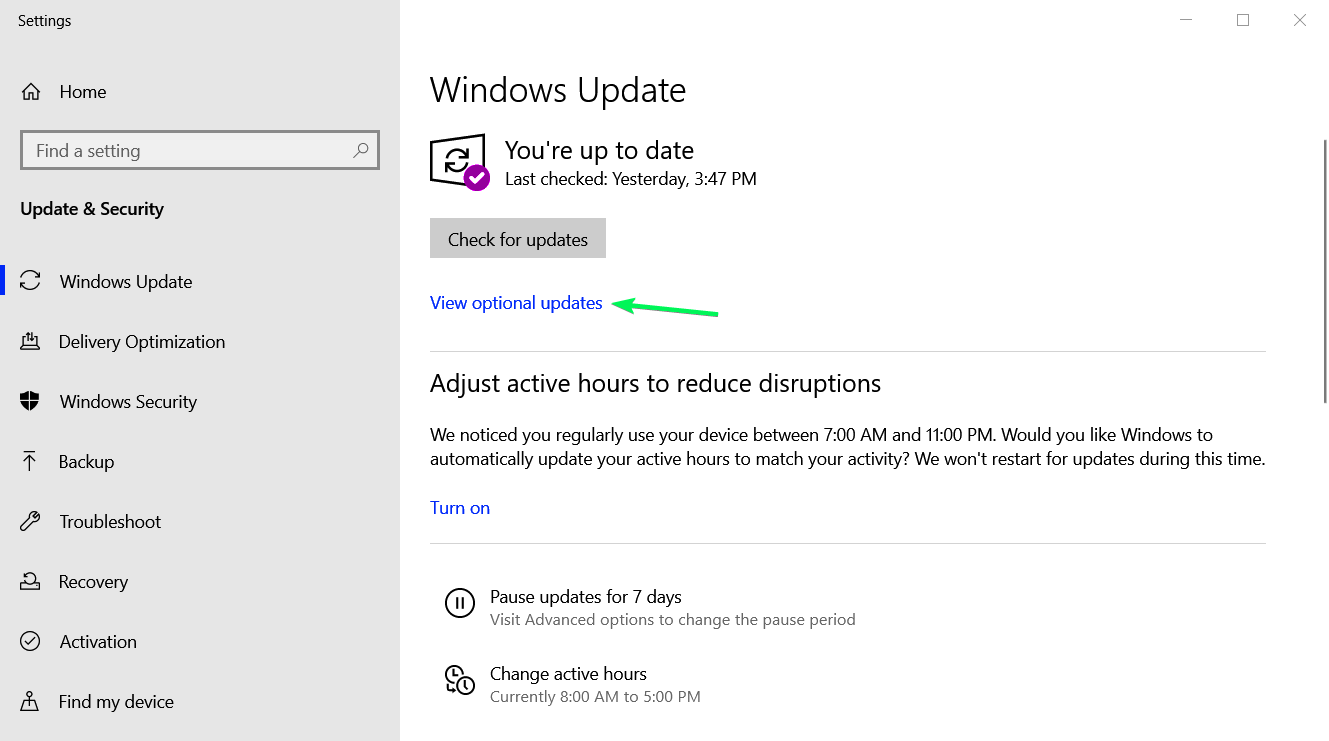
Windows Update opens. Click Check for updates.
-
If no new updates are found, click View optional updates.
-
Expand Driver updates, tick any updates for your graphics card and click Download and install.
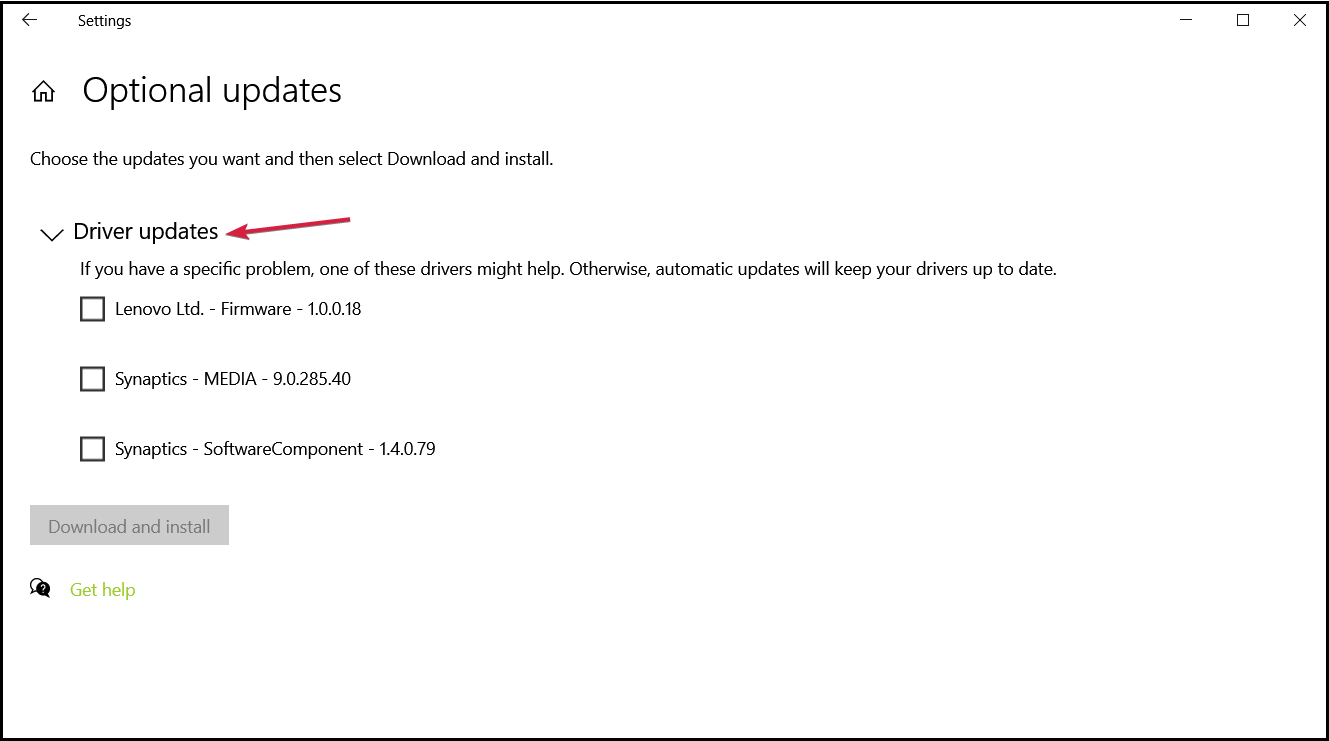
The screenshots show Windows 10. On Windows 11, optional driver updates are in Settings > Windows Update > Advanced options > Optional updates.
3. Change the system locale in Control Panel
-
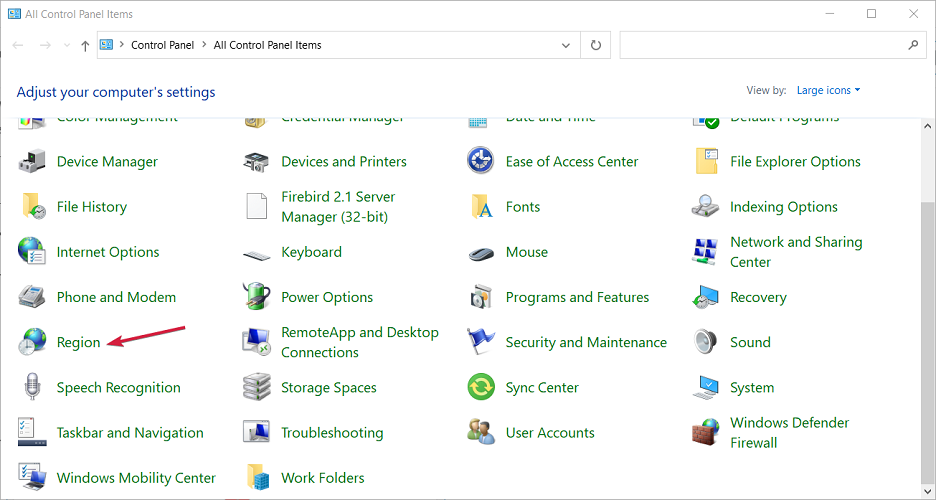
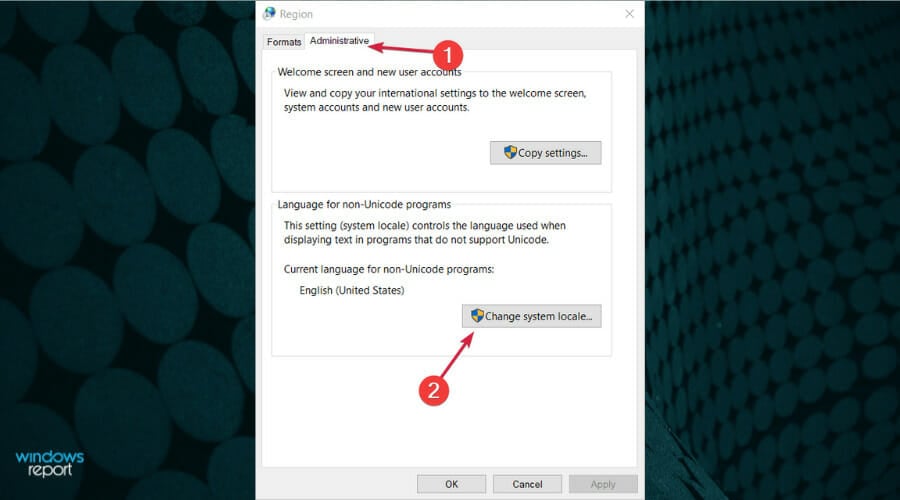
Open Control Panel and go to Region.
-
Go to the Administrative tab and click Change system locale.
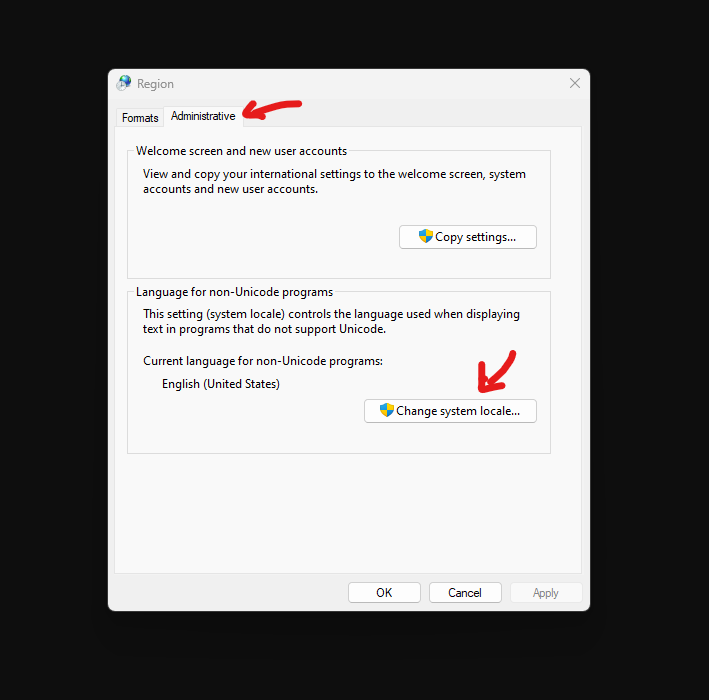
- Set Current system locale to English (United States) and click OK.
- Click Apply and OK in the Region window.
- Restart your computer and try the upgrade again.
4. Download the Windows version that matches your system language
The You can’t keep Windows settings, personal files, and apps message appears when the language of your current Windows does not match the language of your ISO file. The methods above change your system language, but you can also keep your language and download a matching ISO instead.
Download the Media Creation Tool for Windows 10, or use the Windows 11 download page, and choose the same language as your current Windows from the list. If you need a direct ISO link, see my Windows 11 25H2 ISO download guide.
5. Remove additional non-English languages
If you still cannot keep your files, try removing any other installed languages. On Windows 11, go to Settings > Time & language > Language & region, click the three dots next to a language and choose Remove. On Windows 10, go to Settings > Time & Language > Language.
After you remove all languages except English, run the upgrade again. This is not the most elegant solution, but users report that it works.
6. Disable or uninstall your antivirus
Third-party antivirus software is important, but sometimes it interferes with Windows Setup and causes this error. Disable your antivirus completely and run the upgrade again. If the problem continues, uninstall the antivirus, upgrade Windows, and then install it again or switch to a different antivirus.
7. Check the Program Files paths in the registry
This message can also appear if you changed the location of the Program Files folder.
Warning: before you change anything, back up this key in Registry Editor with File > Export, so you can undo the change. Editing these values does not move your programs.
-
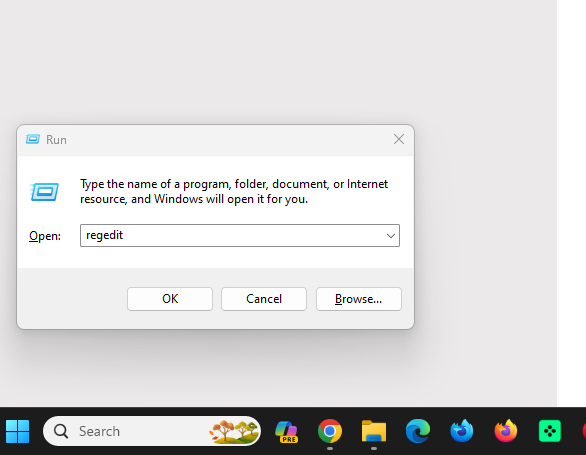
Press Windows + R, type regedit and press Enter or click OK.
-
In the left panel, go to this key (you can paste it into the address bar):
Computer\HKEY_LOCAL_MACHINE\SOFTWARE\Microsoft\Windows\CurrentVersion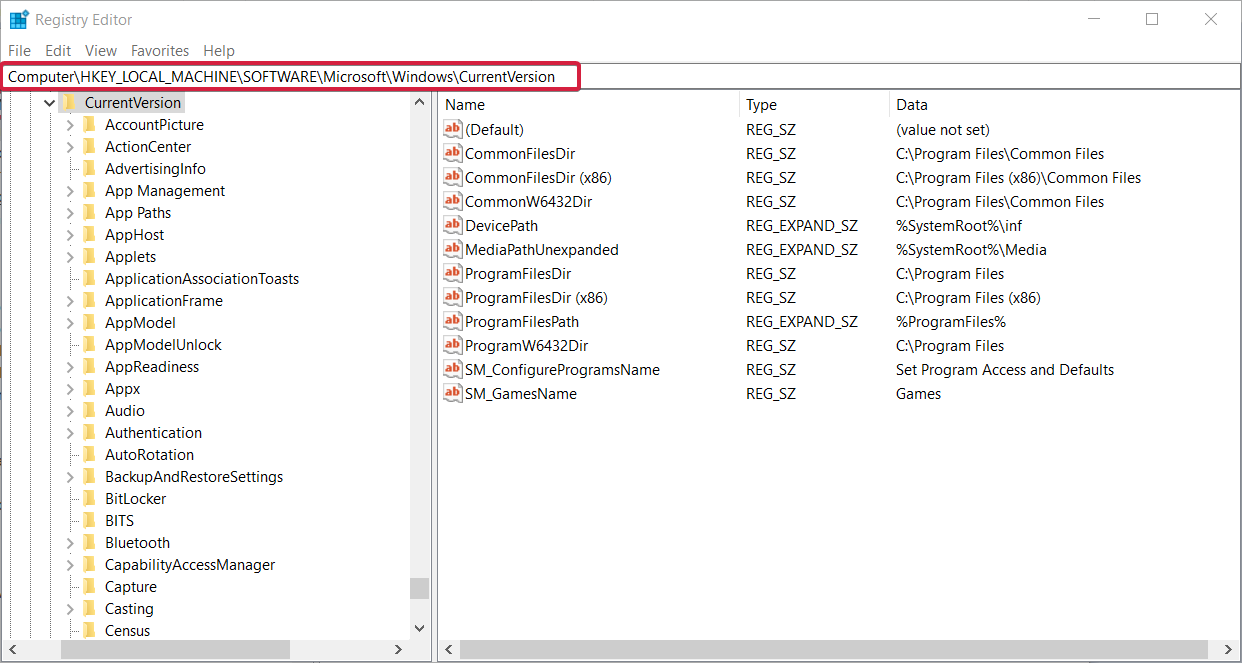
-
In the right panel, find ProgramFilesDir, ProgramFilesDir (x86), ProgramFilesPath and ProgramW6432Dir, and check their data. If any of them points to another drive (for example
D:\Program Files), open it and change the drive letter back to C.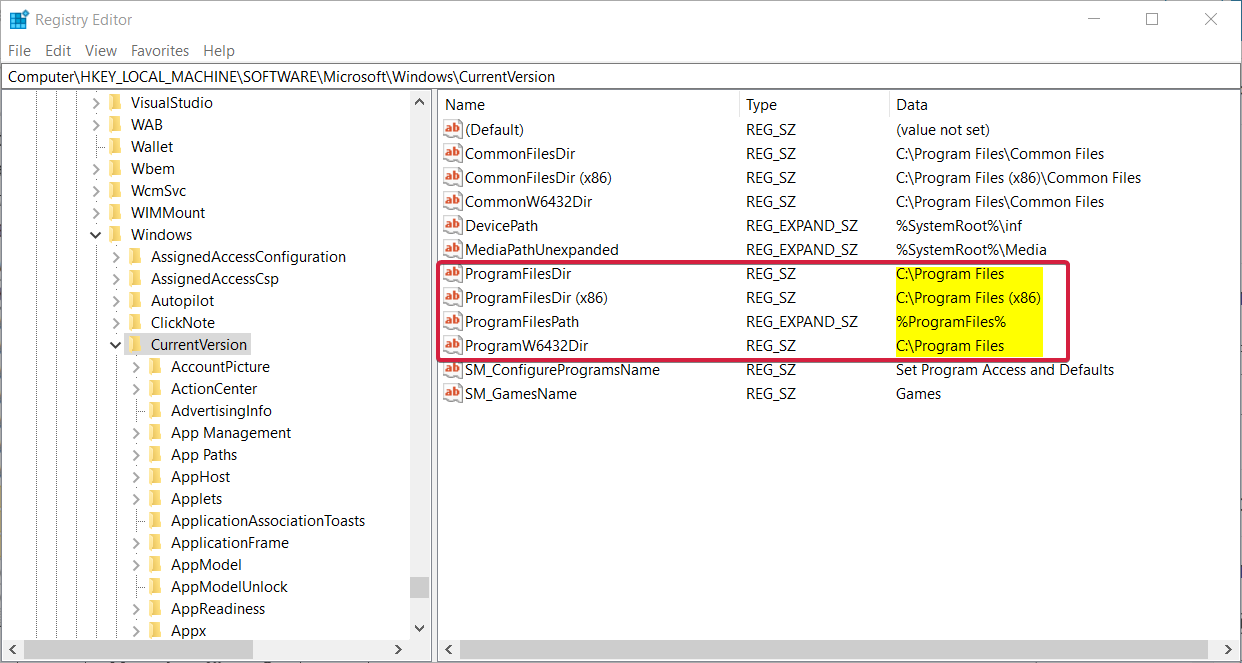
- Close Registry Editor and run the upgrade again.
8. Check the location of your user folder
Windows Setup needs your user account folder to back up your files during the upgrade. If this folder was moved to another location or is missing, you cannot upgrade and you will see this error.
To fix it, move your user account folder back to C:\Users. After that, you should be able to upgrade without problems.
9. Change your product key or edition
If your product key or edition does not match the edition you are installing, Setup cannot keep your files.
- Open Settings with Windows + I.
-
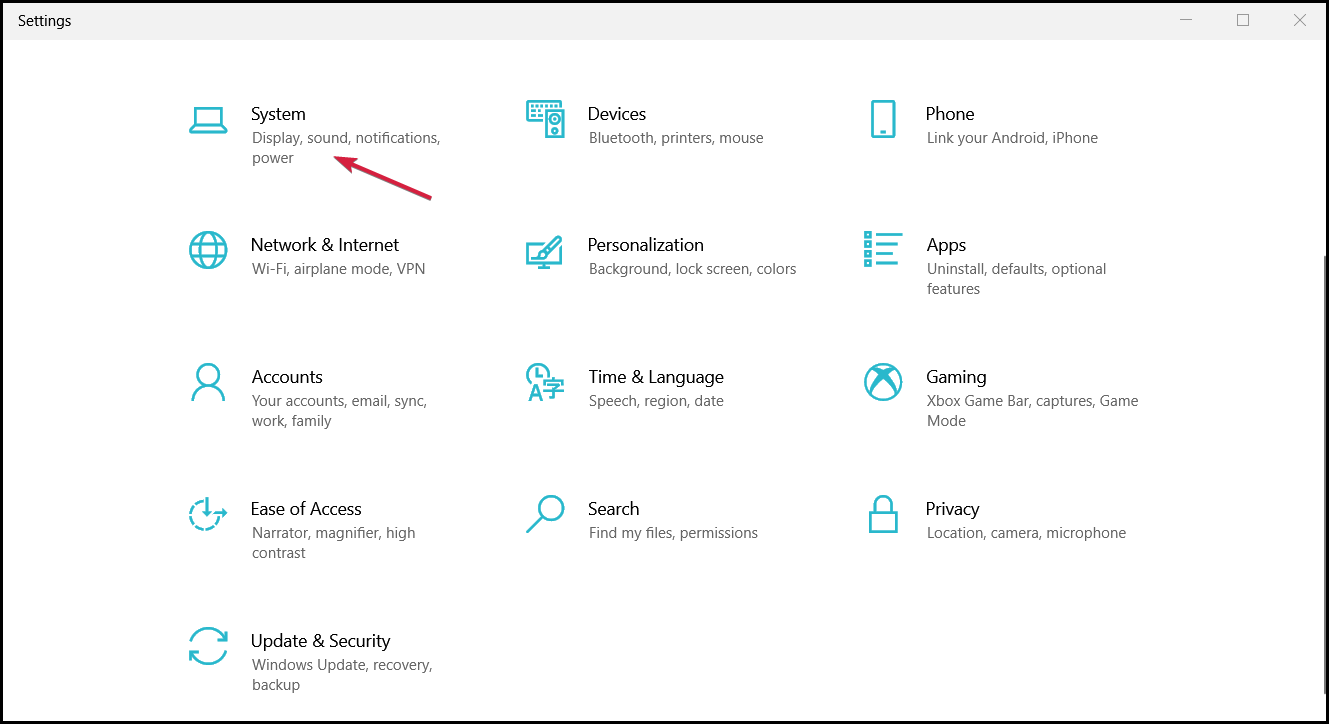
Go to System.
-
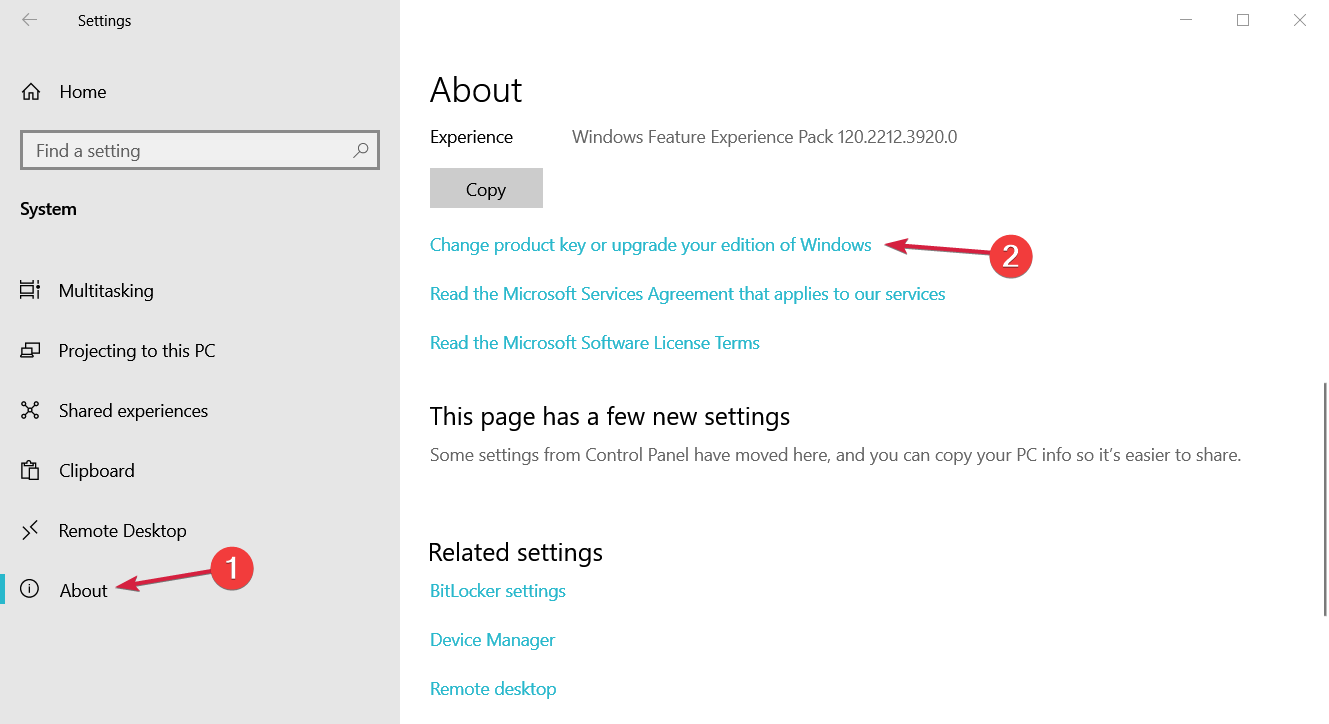
Click About in the menu on the left, then select Change product key or upgrade your edition of Windows.
- Click Change product key.
- Enter the product key for the edition of Windows you are upgrading to.
On Windows 11, you find this option in Settings > System > Activation > Change product key.
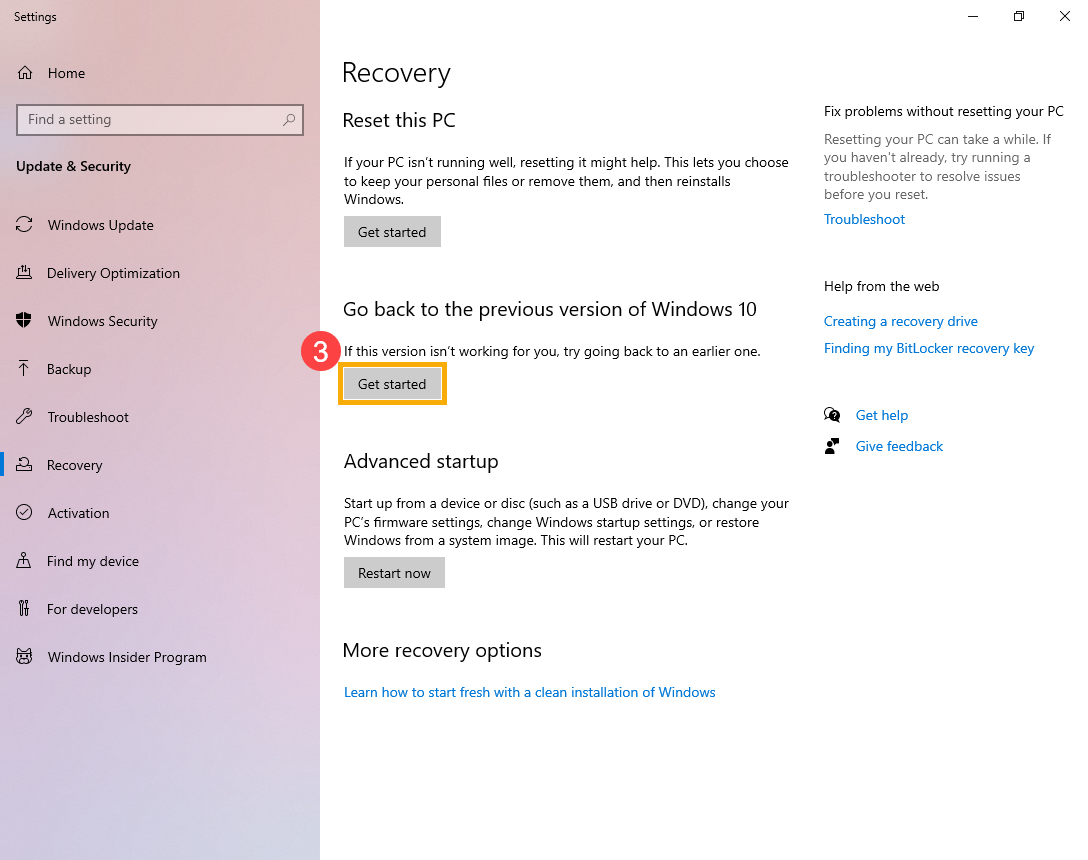
If the upgrade causes new problems, you can still return to your old Windows for a few days. See how to go back to the previous version of Windows.
Source: Windowsreport.com


[…] Картинка с сайта: tips2fix.com […]