

Replacing the old hard drive (HDD) in your laptop with an SSD makes it much faster, and you do not need to reinstall Windows. You clone the hard drive to the SSD, then swap the drives. In my test, the new SSD was almost four times faster than the old hard drive.
In this article
- Before you start: choose the right SSD
- Part 1: Connect the SSD to your computer
- Part 2: Test the speed of your hard drive with Parkdale
- Part 3: Clone the HDD to the SSD with EaseUS Todo Backup Free
- Part 4: Install the SSD after cloning
- Part 5: Test the speed of your laptop with the SSD
- Move Windows to SSD: FAQ
Before you start: choose the right SSD
When you buy a new SSD for a desktop computer or a laptop, make sure it fits. Desktop cases have room for almost any SSD, but laptop owners need to check which SSD type their laptop supports. The laptop manual has this information, or you can search Google for your exact laptop model.
In the video I replace a 500 GB Toshiba hard drive with a 480 GB Patriot Burst SSD (2.5-inch SATA). The SSD can be a little smaller than the hard drive, as long as all the data on the hard drive fits on it. Back up your important files before you start.
Tools you need
- SATA to USB cable: USB 3.0 to 2.5″ SATA III Hard Drive Adapter, External Converter for SSD/HDD Data Transfer (USB3S2SAT3CB)
- Screwdriver: Klein Tools 4-in-1 Electronics Pocket Screwdriver
- Two free programs: Parkdale to test the drive speed, and EaseUS Todo Backup to clone the drive (download links below).
The Amazon links are affiliate links.
Part 1: Connect the SSD to your computer
Connect the new SSD to your computer with the SATA to USB cable, as an external drive. This works for desktops and laptops, so you do not need to open your desktop case for this step.
If the SSD is brand new, Windows may ask you to initialize it as GPT or MBR. Do not skip this step. If you are not sure which one to choose, use the same style as your old drive: right-click Start, open Disk Management, right-click your old disk, choose Properties and check Partition style on the Volumes tab.
Part 2: Test the speed of your hard drive with Parkdale
Parkdale is a free tool that measures how fast a drive reads and writes. Test your old drive now, so you can compare it with the SSD later.
- Open Parkdale and stay on the Quick Access tab.
- Select your C: drive.
- Click Start and wait for the result.
- Write down the Seq. Read Speed and the Seq. Write Speed.
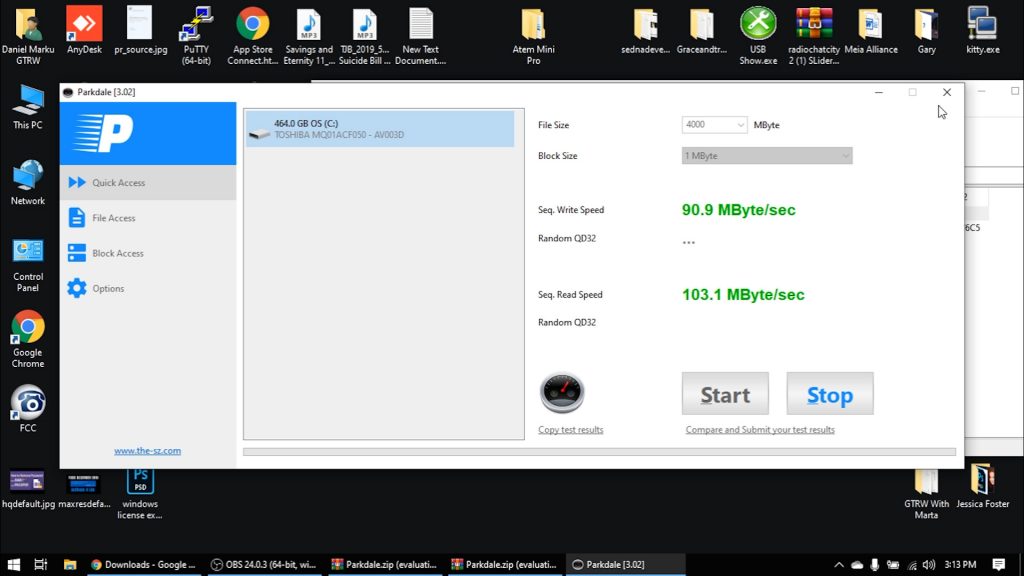
My old Toshiba hard drive reached 103.1 MB/s read and 90.9 MB/s write.
Part 3: Clone the HDD to the SSD with EaseUS Todo Backup Free
Download EaseUS Todo Backup Free
Update (October 2026): EaseUS now lists disk, partition and system cloning as a feature of the paid Home edition of Todo Backup, not of the Free edition. In the video I used Todo Backup Free 12.8, which still had the Clone option. If the Clone option asks you to upgrade, use the free Clonezilla instead. I show every step in my Clonezilla cloning guide.
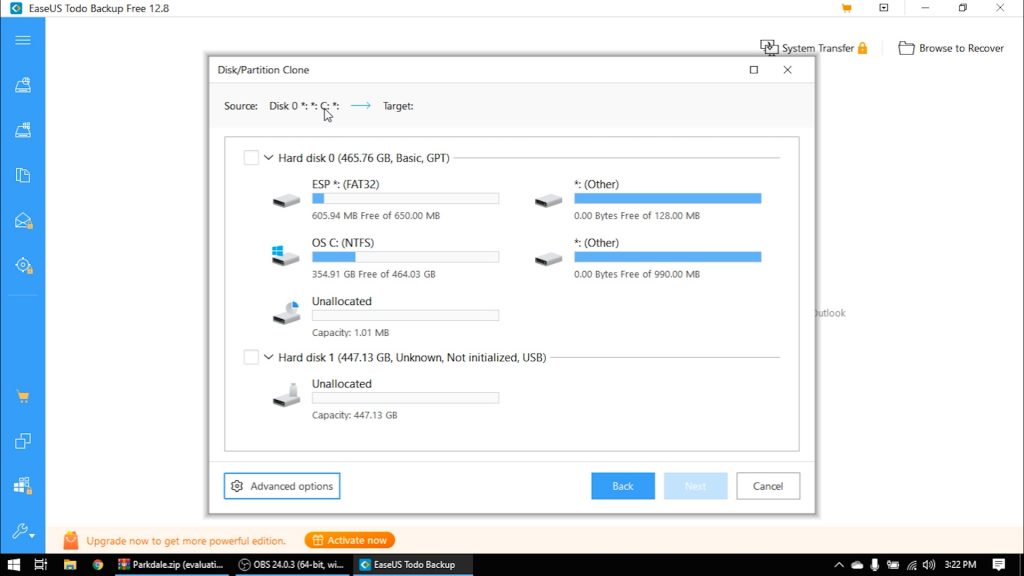
- Launch EaseUS Todo Backup and choose Clone.
- Choose the source disk you want to clone. Here, choose the HDD. Click Next.
- Choose the destination disk. Here, choose the SSD. For the best SSD performance after cloning, click Advanced options, tick Optimize for SSD and click OK. Then click Next.
- Check the preview of the disk layout and click Proceed. Cloning takes a while, depending on the size of the source disk.
Part 4: Install the SSD after cloning
For laptops
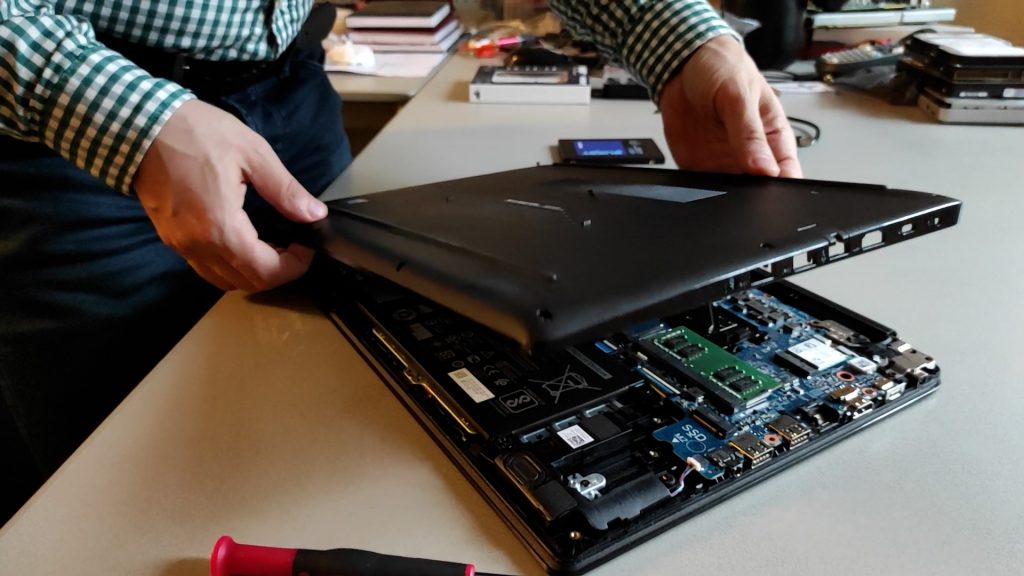
Most laptops have room for only one drive, so you remove the old HDD and put the cloned SSD in its place.
- Shut down the laptop completely.
- Disconnect all external connections, including the SSD and its USB cable.
- Open the back cover of the laptop with the screwdriver, then take out or disconnect the battery.
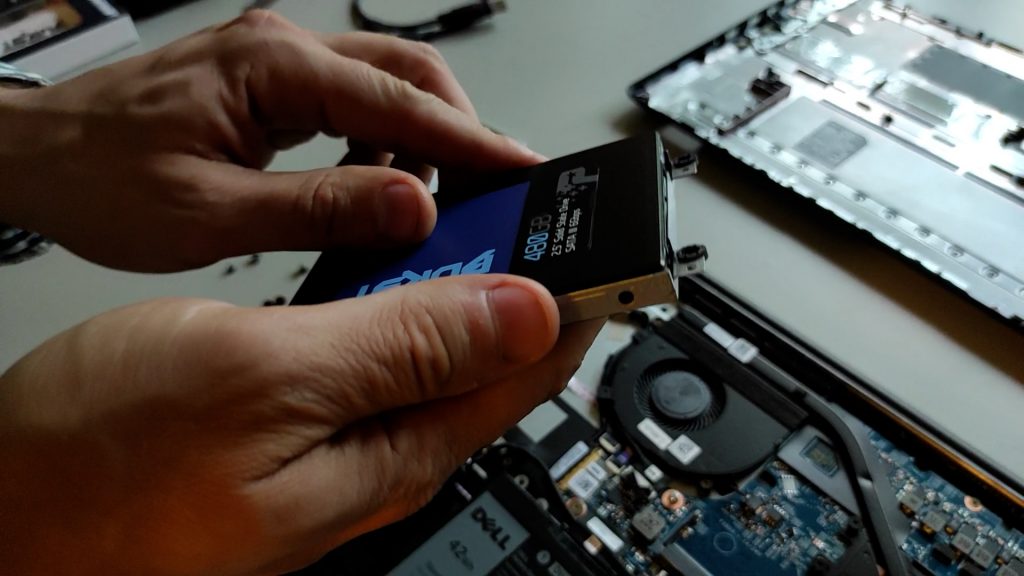
- Carefully take out the HDD. If it sits in a bracket, move the bracket to the SSD. Then fit the SSD in the same place.
- Close the back cover and start your laptop.
For desktops
It depends on what you want to do with the old HDD. You can leave it as it is, format it and use it as a storage drive, or remove it from your computer case. It is up to you.
Option 1: Keep the HDD as a second drive. Install the SSD next to it (see the steps below, without removing the HDD), then make sure your PC starts from the SSD. Select the SSD as the first boot drive in the BIOS or UEFI settings.
Option 2: Remove the HDD and install the SSD in its place.
- Unplug the power cord from the wall outlet.
- Unscrew and remove the side panel of your computer case.
- Place the SSD in its mounting bracket or in a removable bay, line it up with the holes underneath and screw it in.
- Connect a SATA data cable and a SATA power cable to the SSD.
- Put all the parts back in place and start your computer.
Part 5: Test the speed of your laptop with the SSD
Run the same Parkdale test again, this time on the SSD.
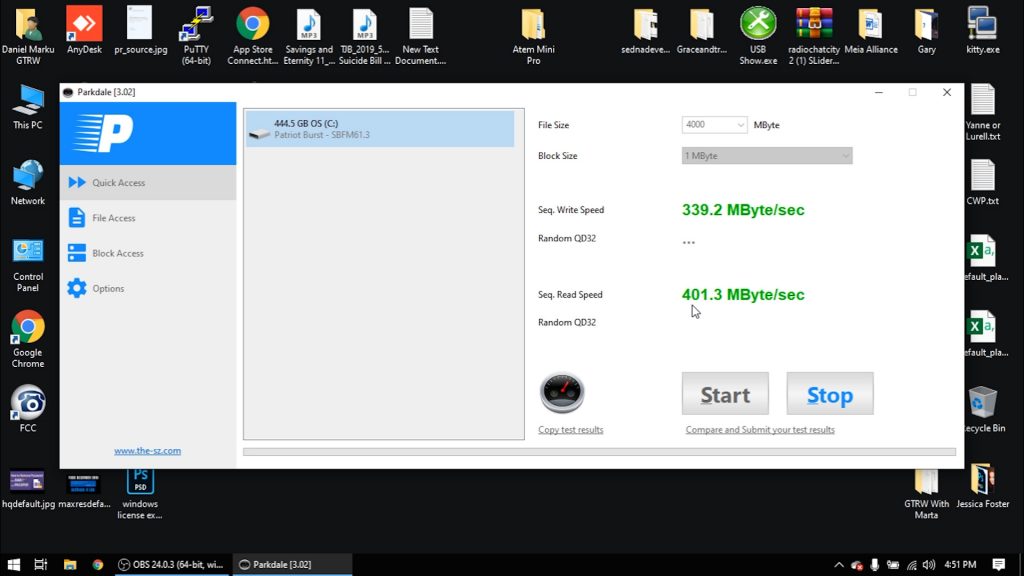
| Drive | Read speed | Write speed |
|---|---|---|
| Old HDD (Toshiba MQ01ACF050) | 103.1 MB/s | 90.9 MB/s |
| New SSD (Patriot Burst 480 GB) | 401.3 MB/s | 339.2 MB/s |
The SSD is almost four times faster than the old hard drive.
Move Windows to SSD: FAQ
What is transferred when I clone the drive?
When you clone the whole drive (or use the System Clone feature) to move Windows from the HDD to the SSD, you move all Windows installation files, your installed programs, downloads, user profile, system settings and personal data. You do not need to reinstall anything.
Can any laptop be upgraded to an SSD?
Check first whether your laptop can be upgraded. The laptop manual shows how to reach the drive and which replacement drive fits.
Why won’t my cloned SSD boot?
- The cloned SSD is not set as the boot drive. Select it in the BIOS or UEFI boot settings.
- The boot mode is wrong. If your motherboard boots in UEFI mode, the disk must be GPT, so you may need to convert MBR to GPT.
- The source disk had bad sectors or other damage, and the clone copied them to the new SSD.
- You can find more reasons in this article: cloned SSD won’t boot.
My new SSD shows the same size as my old drive
If your new SSD is bigger than the old HDD, the cloned drive can look as big as the old one, as if some GB were lost. The extra space is still there as unallocated space. Follow this guide to fix it:
How to use unallocated drive space in Windows 10
For another free method, see how to fix an SSD that shows the wrong size after cloning.
Watch the video tutorial carefully, and let me know in the comments how your laptop performs with the new SSD.






[…] How to Replace Laptop Hard Drive to SSD without Reinstalling Windows […]