

After upgrading to macOS Big Sur, some users see this message right after they log in to their Mac:
The disk “Macintosh HD – Data” can’t be unlocked. A problem was detected with the disk, which prevents it from being unlocked.
In this guide I explain why it happens and how to fix it: first by repairing the disk with First Aid, and if that does not help, by erasing the extra Data volume.
In this article
Why this happens
Users with this problem usually have two Data volumes. Starting with macOS Catalina, macOS keeps the system files on their own volume, Macintosh HD, while your user data lives on Macintosh HD – Data.
A similar problem with extra volumes, or volumes that could not be unlocked, also came up when people upgraded to Catalina. At that time, some users reported volumes like these:
- Macintosh HD
- Macintosh HD – Data
- Macintosh HD – Data – Data
For some reason, one of the Data volumes is redundant. For example, your two Data volumes may have the same size. To fix the problem, you need to remove the extra volume. Before you delete a whole volume, though, follow the steps below to keep your data safe and to make sure you remove the right one.
Check your volumes in Disk Utility
- Open Finder.
- In the menu bar at the top of the screen, click Go and select Utilities.
- Double-click Disk Utility to open it.
You will see a window like the one below. If the sidebar is hidden, click View > Show Sidebar.
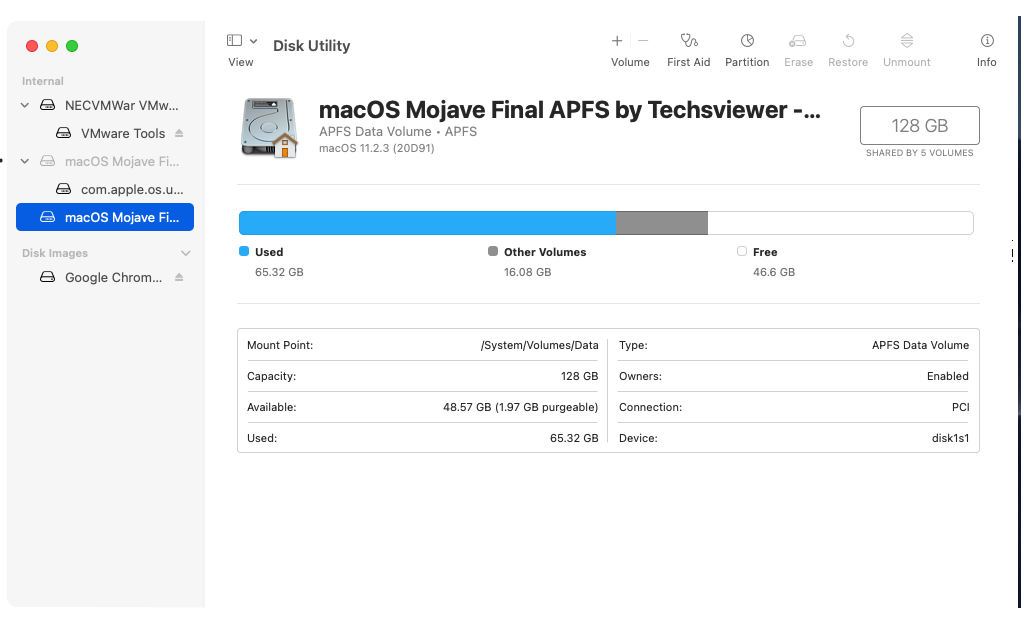
If everything is as it should be, you will see one volume named Macintosh HD and one named Macintosh HD – Data (unless you renamed your disk or changed its structure in the past).
Back up your Mac
Before you change anything, make sure you have a recent backup of your Mac. Apple explains how in Back up your Mac with Time Machine.
Use macOS Recovery to repair your disk
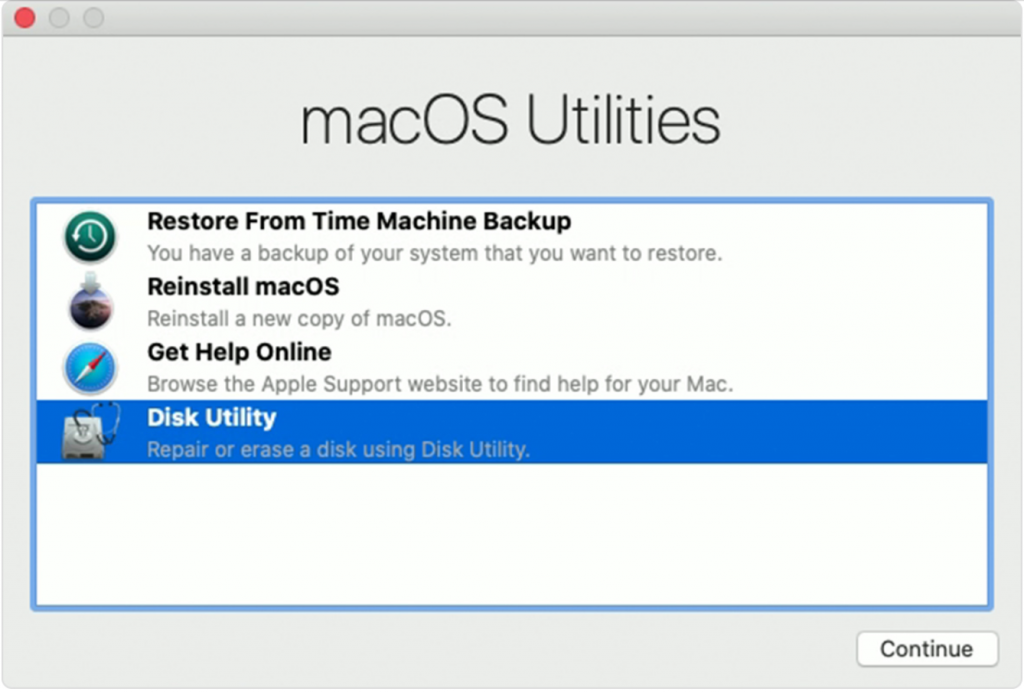
Checking your disk and its volumes for errors is the first thing to try when one of your volumes has a problem. Disk Utility may not fix this specific error, but it is the recommended place to start.
Start up in macOS Recovery
macOS Recovery can repair or erase disks, restore from Time Machine and reinstall macOS. Your Mac will restart, so keep these instructions open on another device.
On an Intel-based Mac:
- Shut down your Mac: open the Apple menu and select Shut Down.
- Turn on your Mac and immediately press and hold Command (⌘) and R. Release the keys when the Apple logo appears.
- If asked, enter the password of an administrator account.
If your Mac does not start in Recovery, try Internet Recovery. The steps are the same, but you press and hold three keys after turning on your Mac: Option, Command (⌘) and R.
On a Mac with Apple silicon (M1 or newer): shut down the Mac, then press and hold the power button until Loading startup options appears. Click Options, then click Continue. If asked, select a user and enter the password.
Run First Aid
- When startup is complete, the macOS Utilities window appears.
- Select Disk Utility and click Continue.
- Click View and select Show All Devices.
- Run First Aid on each volume: select a volume in the sidebar, such as Macintosh HD, then click the First Aid button
 . Repeat this for every volume (Macintosh HD – Data and any others).
 -
Run First Aid on each container.
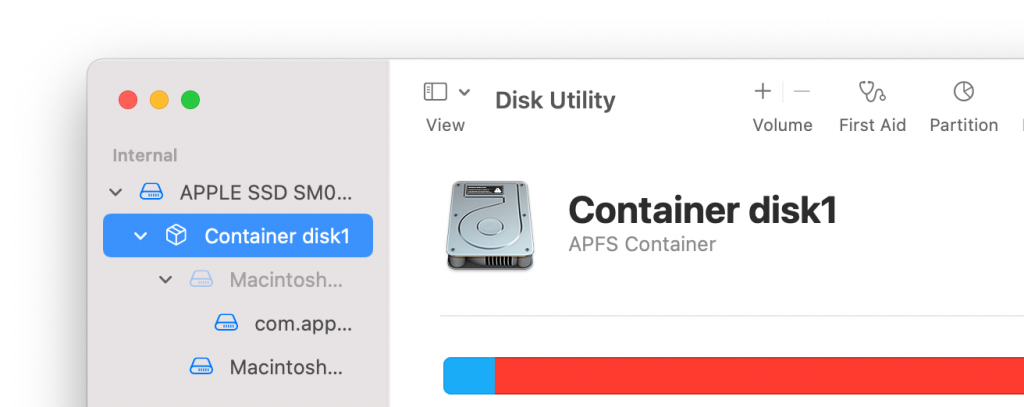
- Run First Aid on the storage device itself. It is the top item in the sidebar.
- If First Aid finds and repairs an error, run it again until it reports no errors.
- If Disk Utility cannot repair the disk, or First Aid fails, try once more.
- If you still have trouble, see Apple’s guide Repair a storage device in Disk Utility on Mac.
When First Aid is finished, restart your Mac normally and check if the problem is gone.
Erase the redundant volume
Warning: do not do this if you are not comfortable with this kind of task. If you erase a volume, you lose all the data on that volume.
A locked volume often cannot be unlocked. If you are sure about what you are doing, and you believe the locked “Macintosh HD – Data” volume is really not needed, you can erase that volume.
Note: one user who had this problem had two volumes named Macintosh HD – Data. One of them showed macOS 11 in its information and the other did not. The user deleted the volume without macOS 11 listed, and that solved the problem.
- If you are no longer in macOS Recovery, follow the steps above to start up in Recovery again.
- Select Disk Utility in the macOS Utilities window.
- Select the volume you want to erase in the sidebar.
- Click Erase in the toolbar at the top of the window, then confirm with Erase.
For more about erasing a disk or volume on a Mac, watch my video on how to erase (format) a disk on a Mac. If Disk Utility shows an error while erasing, see how to fix “Erase process has failed” in Disk Utility.
More help
If these steps did not work for you, or you did not feel comfortable doing them:
- Contact Apple Support for help.
- Read how other users solved it on Ask Different (Stack Exchange), in the Apple Community and on Reddit (r/MacOS).
- If you decide to reinstall macOS, see How To Reinstall Mac OS on Your Mac and How To Reset Your Macbook To Factory Settings. If you need the installer, see how to download macOS if you don’t see it in Software Update.





