

If you don’t have the admin password for a Windows PC, you can still reset Windows 10 or Windows 11 to factory settings. You can do it right from the sign-in screen, without signing in.
Warning: a reset reinstalls Windows. Remove everything deletes all your files, apps and settings. Keep my files keeps your personal files, but it still removes your installed apps and settings. If you can, back up your important files first.
Only forgot your password? Then you may not need to wipe the PC at all. First try my guide on how to reset a forgotten Windows password.
In this article
How to Factory Reset Windows from the Sign-In Screen
Step 1: Restart into the recovery menu
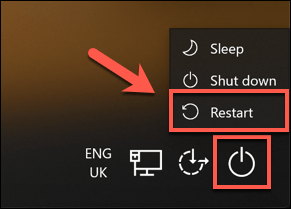
In the bottom-right corner of the sign-in screen, you will see buttons to change your network settings, open the accessibility options and turn off your PC.
- Hold down the Shift key on your keyboard.
- While you hold it, click the Power button and select Restart.
Step 2: Open Troubleshoot
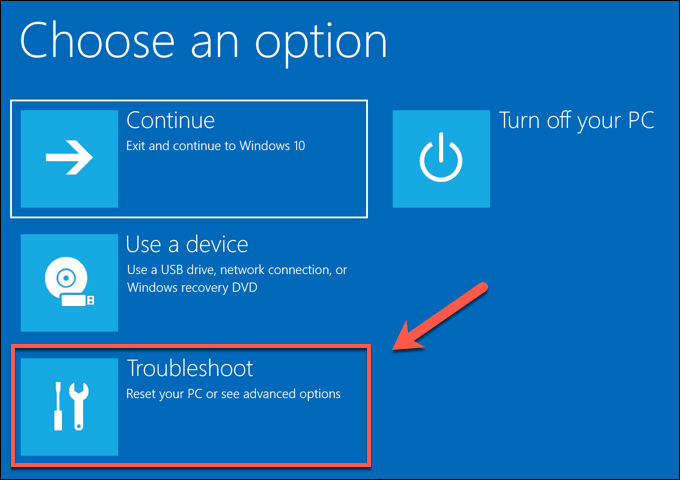
Windows restarts, but instead of loading normally, it shows the boot options menu. Click Troubleshoot.
Step 3: Choose Reset this PC
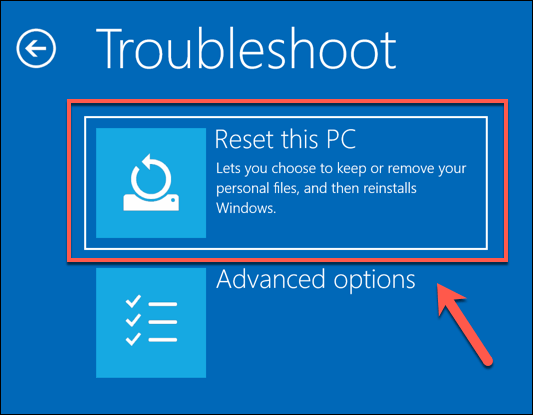
In the Troubleshoot menu, click Reset this PC.
Step 4: Keep your files or remove everything
To keep your personal files, click Keep my files. To reset Windows completely and remove all files and settings, click Remove everything.
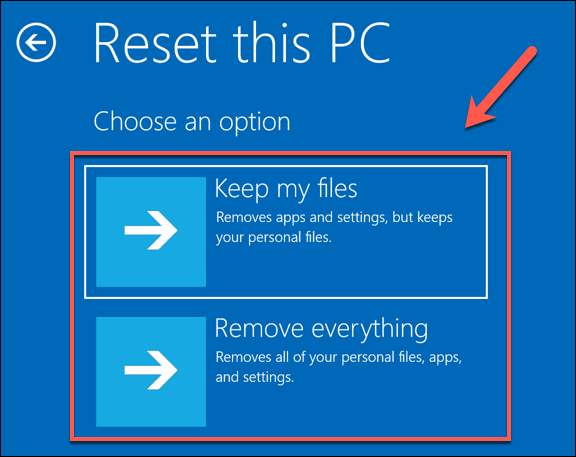
Tip: if Windows asks for an administrator password after you choose Keep my files, go back and choose Remove everything instead.
Step 5: Finish the reset
Follow the on-screen instructions to start the reset. Depending on your Windows version, you may see these choices:
- Cloud download or Local reinstall: Cloud download gets a fresh copy of Windows from Microsoft and needs an internet connection. Local reinstall uses the files already on your PC.
- Clean the drive: with Remove everything, Windows can also clean the drive. Choose the full clean option only if you are giving the PC away, because it takes much longer.
When the reset is complete, you can set up Windows with a new user account. The old admin password no longer matters.
Troubleshooting
- Windows asks for a BitLocker recovery key: your drive is encrypted, and you need the key to continue. Here is how to find your BitLocker recovery key.
- “Could not find the recovery environment” error: see how to fix “Could not find the recovery environment” in Windows 11.





