

You cloned your old drive to a new, bigger SSD, for example from 500 GB to 1 TB, but Windows still shows the old size. Half of your new disk seems to be lost. In this guide I show you how to fix it for free with MiniTool Partition Wizard Free: you extend the partition so it uses the full SSD, with no data loss and no reinstall.
Download MiniTool Partition Wizard Freeware
In this article
Why the cloned SSD shows the wrong size
Cloning software copies your partitions with their original size. On the new, bigger SSD the extra space stays empty as unallocated space, so File Explorer still shows the old size. This often happens after cloning with tools like Clonezilla, for example with my Clonezilla cloning tutorial. Nothing is broken: you only need to add the unallocated space to your partition.
Windows Disk Management and DiskPart can fix this only in some situations. For example, they can only extend a partition when the unallocated space is directly next to it, you may get error codes while shrinking or extending partitions, and they cannot extend FAT32 partitions. That is why I use MiniTool Partition Wizard. It can move, shrink, extend and resize partitions easily, and the features you need for this fix are free.
Step 1: Install MiniTool Partition Wizard Free (the trick)
Many people end up with a Pro trial instead of the free version, because of one option during the setup. Do it like this:
- Click the download button above. It downloads the free installer from MiniTool’s official server.
- Run the installer and choose your language.
- The installer offers the Free Edition and the Pro Edition. Do not click Try Pro Trial for Free. Click Continue installation for Free Edition instead.
- Untick any extra software you don’t need (in my case it offered MiniTool ShadowMaker) and click Next.
- Finish the installation. You now have the free version installed.
Step 2: Extend the partition to the full disk size
- Open MiniTool Partition Wizard. In the disk map, find your cloned SSD. You will see the unallocated space next to your partition (on my NVMe drive it was 240.8 GB).
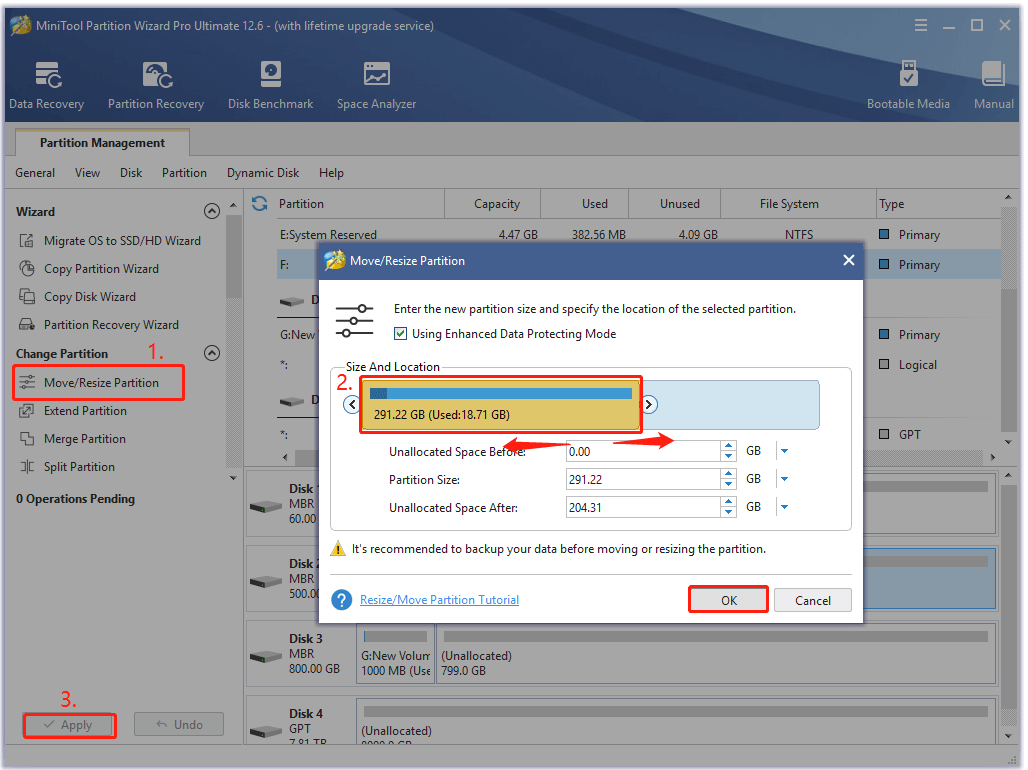
- Right-click the partition you want to extend (usually C:) and select Move/Resize Partition. You can also select it and click Move/Resize Partition in the left pane.
- In the pop-up window, drag the handle of the slider bar to the right until it takes all the unallocated space. You can also move the whole slider bar to change the position of the partition. Then click OK.
- Click Apply to run the change and confirm with Yes.
- When it is finished, open File Explorer and check the drive. It now shows the full size of the SSD.
Tips:
- If the unallocated space is not directly next to the partition you want to extend (for example, a recovery partition sits in between), use the Extend Partition feature instead. It is also free.
- To extend the C: drive without any boot problems, MiniTool recommends its bootable MiniTool Partition Wizard edition. Note that the bootable media builder is not included in the Free edition.
Disks larger than 2 TB
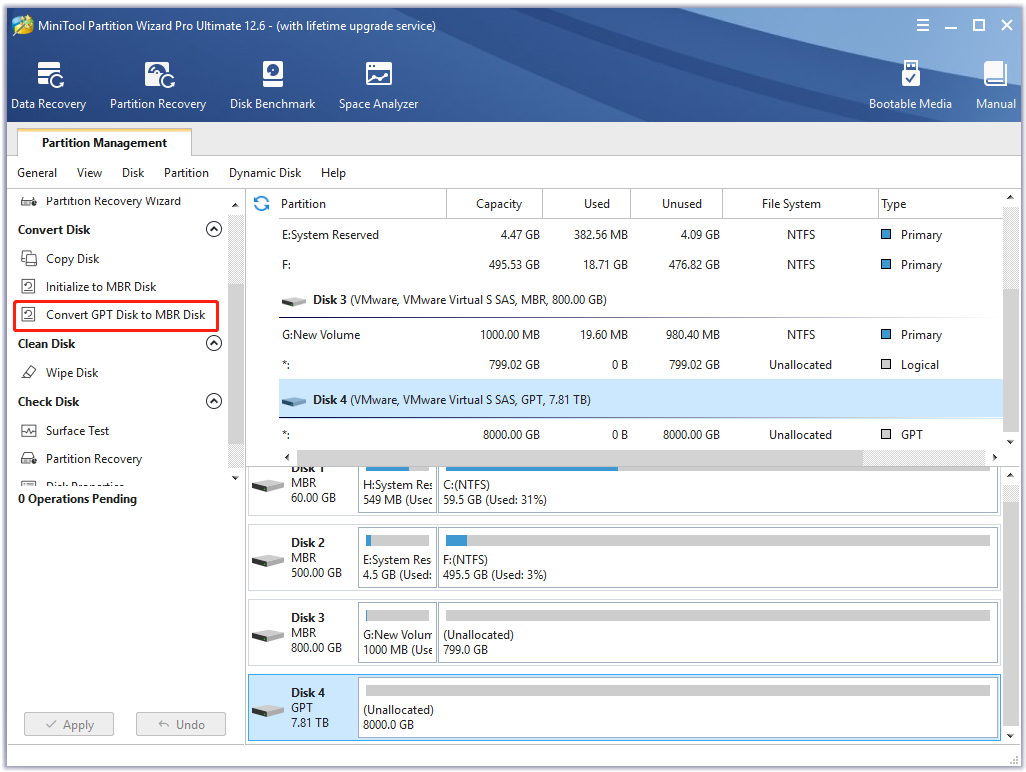
If you cloned an MBR disk to an SSD or HDD larger than 2 TB, Windows cannot use the space above 2 TB. In this case you first have to convert the disk from MBR to GPT without data loss, and then extend the partition beyond 2 TB. MiniTool Partition Wizard can do both.
Note: In MiniTool Partition Wizard Free you can convert a data disk to GPT, but converting the system disk (the disk with Windows) requires a paid edition.
How to avoid the wrong disk size next time
MiniTool recommends cloning with its Copy Disk feature, which copies all partitions to the larger SSD or HDD without the wrong-size problem.
Note: According to MiniTool’s edition comparison, copying a system disk (Copy Disk with Windows on it, or Migrate OS to SSD/HD) is not available in the Free edition. If you want to stay 100% free, clone with Clonezilla and then extend the partition as shown in Step 2.
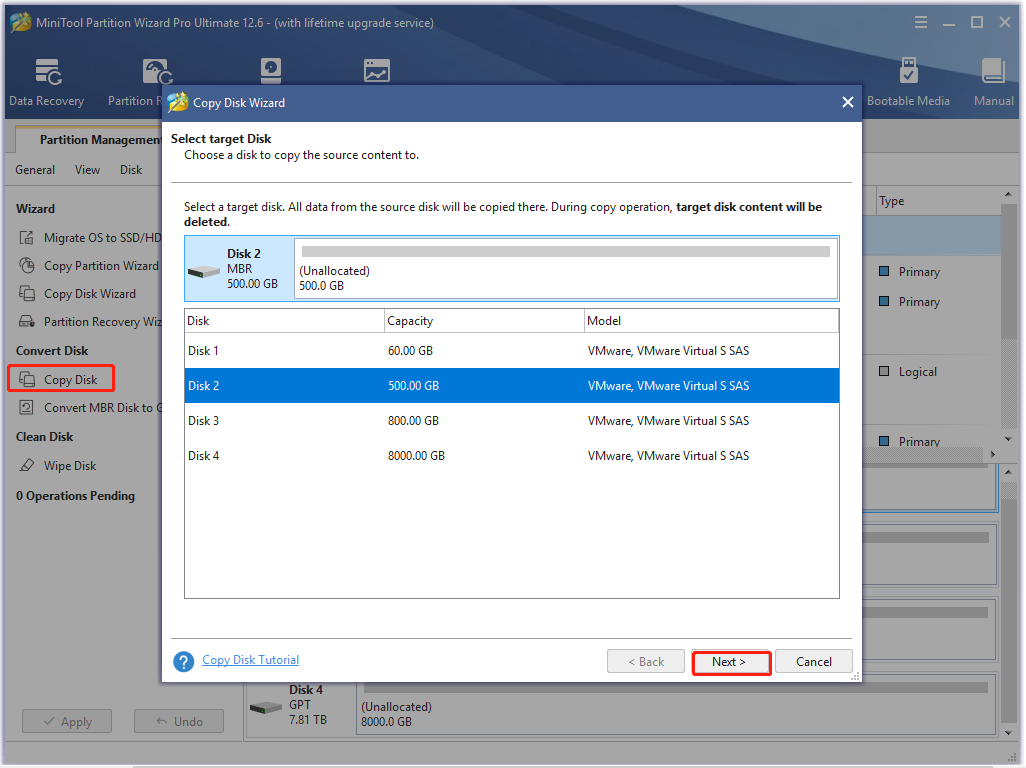
- In the main window, select the original disk in the disk map and click Copy Disk in the left action panel. Alternatively, select Migrate OS to SSD/HD Wizard to copy all partitions, or only the Windows partitions, to the new disk.
- In the pop-up window, select the target disk and click Next.
- Select the copy options you need and click Next. If you are using an MBR disk, you can keep the default options.
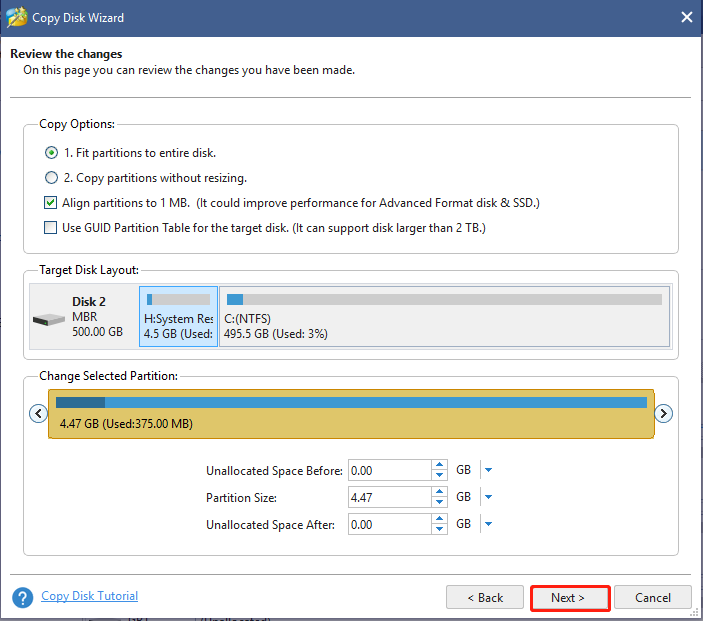
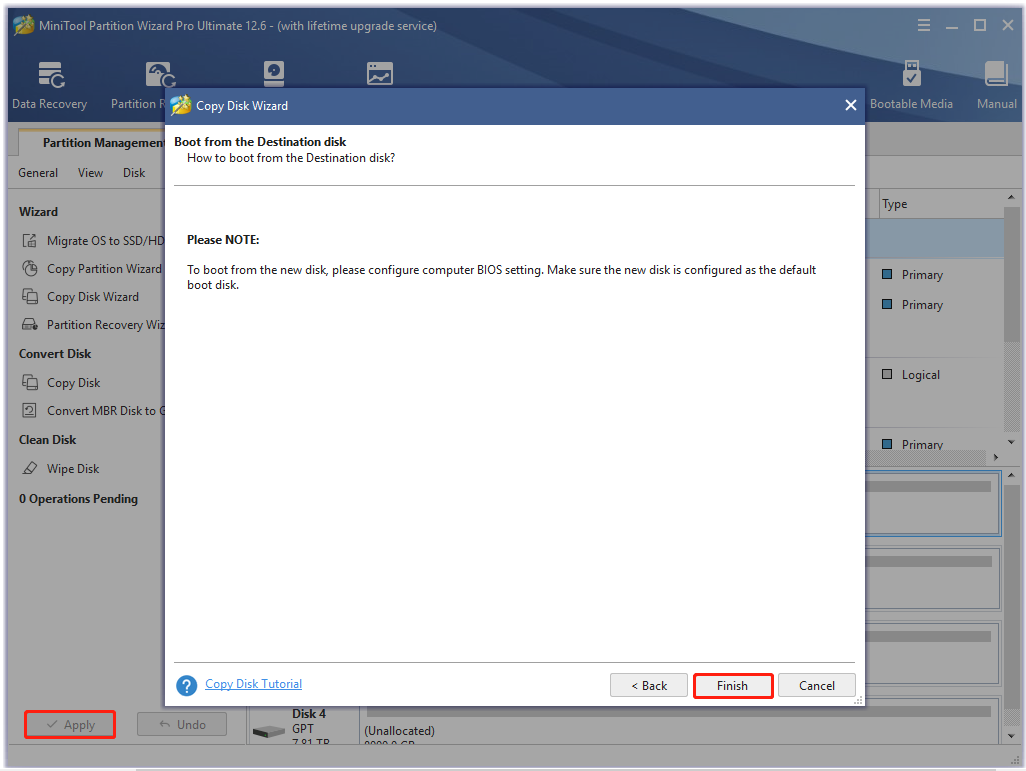
- Read the information, click Finish in the pop-up window, and then click Apply to run the pending operations.
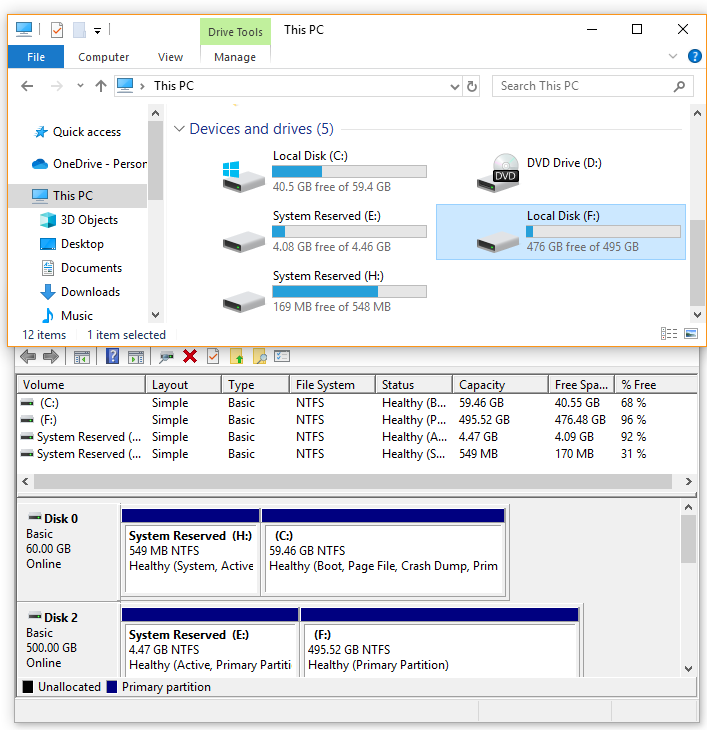
- Open File Explorer and Disk Management. The cloned drive now shows its full capacity, as in the screenshot below.
Related guides
- How to Use Unallocated Drive Space in Windows 10
- How to Clone Windows from SSD to NVMe M.2 using Clonezilla for Free
Source of the MiniTool steps and screenshots:





