

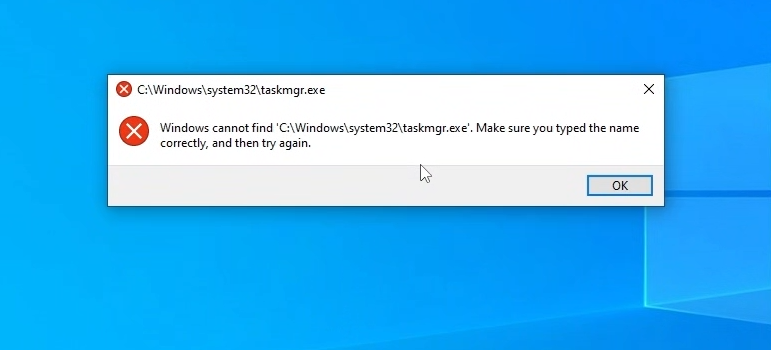
You try to open Task Manager, but nothing happens, it crashes, or you see a message like “Task Manager not responding”, “Task Manager has been disabled by your administrator” or “Windows cannot find ‘C:\Windows\system32\taskmgr.exe’. Make sure you typed the name correctly, and then try again.” This is a serious problem that needs fixing. In this guide, I show you three ways to get Task Manager working again in Windows 10 and Windows 11.
Tip: These blocks are often set by malware. After you fix Task Manager, run a full virus scan (see the end of this post).
In this article
Method 1: Delete the taskmgr.exe Key in the Registry
This fixes the “Windows cannot find taskmgr.exe” error. A program (often malware) can add a Debugger value for taskmgr.exe in the registry, which stops Task Manager from starting. In my case, its data was Hotkey Disabled.
- Press Windows + R, type
regeditand press Enter. Click Yes if User Account Control asks. - Go to this key (you can paste the path into the address bar of Registry Editor):
HKEY_LOCAL_MACHINE\SOFTWARE\Microsoft\Windows NT\CurrentVersion\Image File Execution Options\taskmgr.exe - Right-click the taskmgr.exe key, select Delete and confirm with Yes.
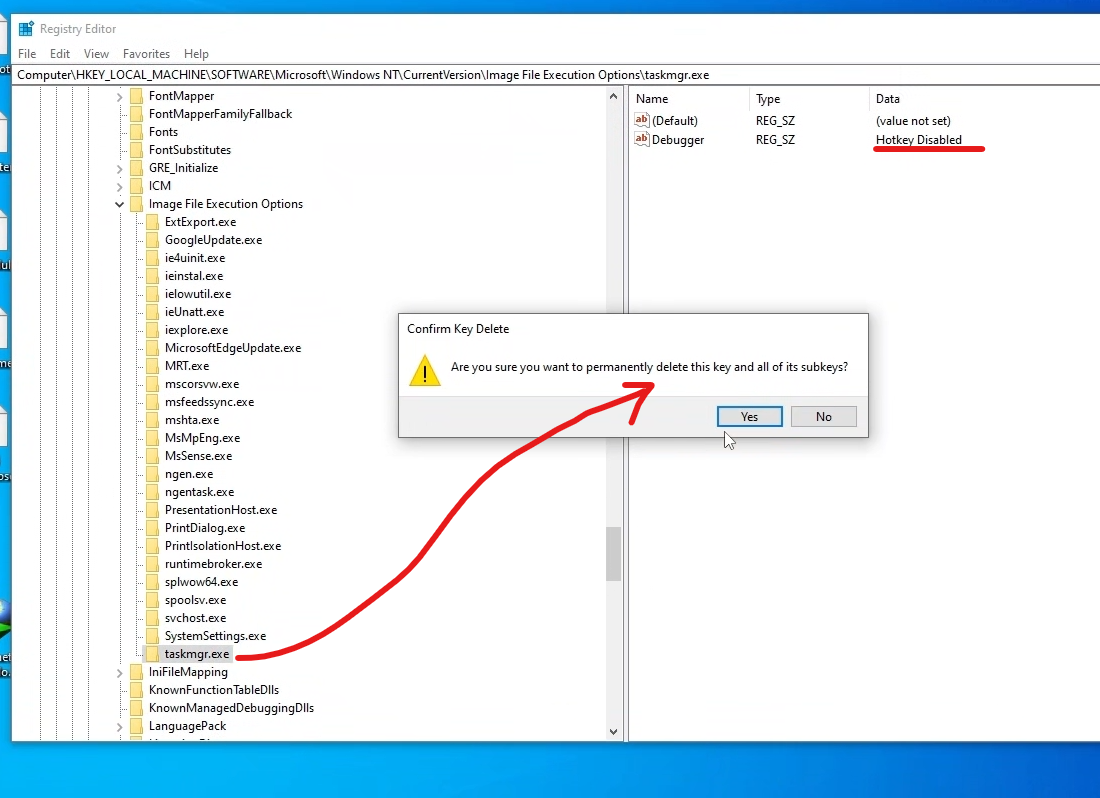
Now try to open Task Manager (Ctrl + Shift + Esc). It should work.
Warning: Delete only the taskmgr.exe key inside Image File Execution Options, not the whole Image File Execution Options key.
Method 2: Check the Group Policy Editor
Use this method if you see “Task Manager has been disabled by your administrator”.
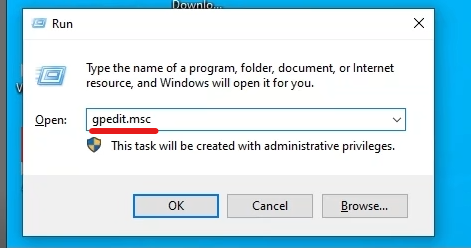
- Press Windows + R to open the Run box.
- Type gpedit.msc and press Enter.
- Go to User Configuration > Administrative Templates > System > Ctrl+Alt+Del Options.
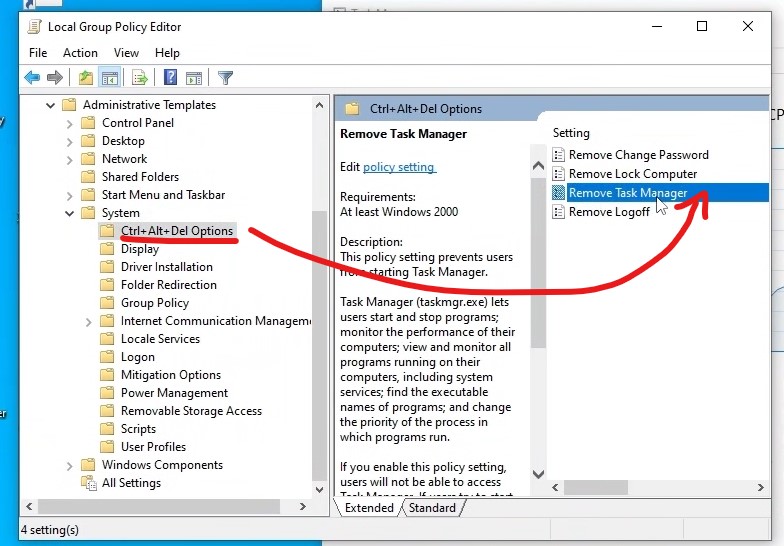
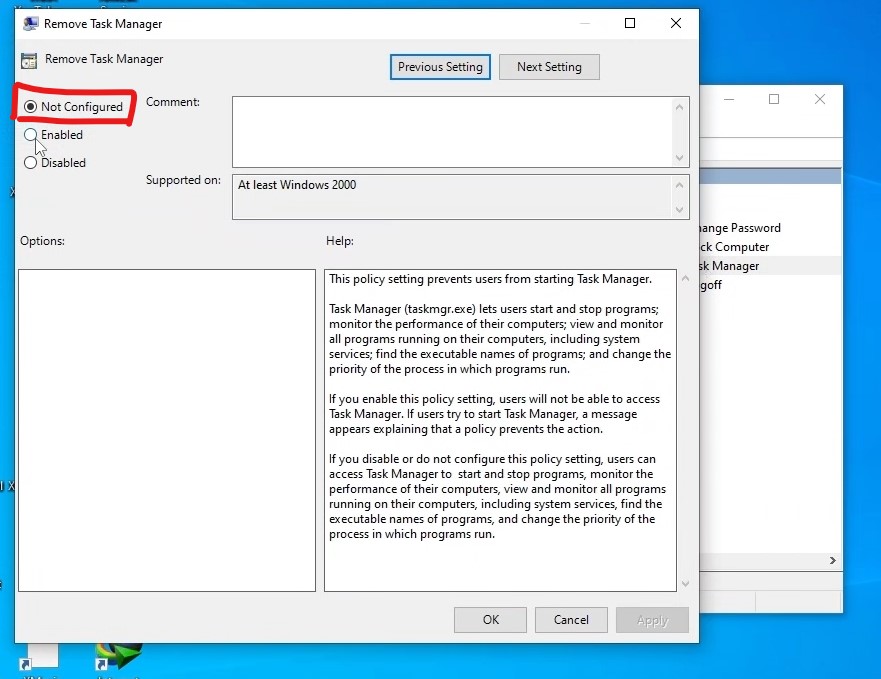
- Right-click the Remove Task Manager policy and select Edit.
- Select Not Configured or Disabled, then click OK.
Windows Home users: Windows 10 and 11 Home don’t include the Group Policy Editor. The same setting is stored in the registry as the value DisableTaskMgr. To remove it, run this command in Command Prompt:
reg delete "HKCU\Software\Microsoft\Windows\CurrentVersion\Policies\System" /v DisableTaskMgr /fIf the command says it can’t find the value, this setting is not what blocks your Task Manager.
Method 3: Re-Enable Task Manager with the Re-Enable Tool
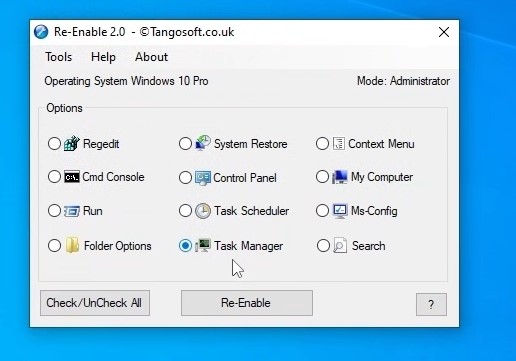
Re-Enable is a free third-party tool that can quickly turn system tools back on after a malware attack. Here’s how to use it:
- Download and open Re-Enable.
- Select the option next to Task Manager and click Re-Enable.
- Select Yes to restart your computer.
Done! Task Manager should open normally after the restart.
After the Fix: Scan Your PC for Malware
If something blocked Task Manager without your knowledge, run a full scan: open Windows Security > Virus & threat protection > Scan options, choose Full scan and click Scan now. If Microsoft Defender won’t turn on, see Unable to Turn On Windows Defender on Windows 10. For other Windows problems, FixWin11 can repair many common issues.





