Forgetting the password to your own Windows PC is stressful, but you can get back in. This guide shows three proven ways to reset a forgotten password on Windows 10 or Windows 11. Use them only on a computer that belongs to you or that you are allowed to manage. Follow the steps carefully and you will be back on your desktop.
Note: These methods reset a local Windows account. If you sign in with a Microsoft account, you do not need any of this. You can reset it online from any device on Microsoft’s official password reset page.
In this article
Method 1: Reset the Password With Utilman.exe and Command Prompt (Bootable USB)
This is the most technical method, but it works well. You use a bootable Windows USB drive to open Command Prompt at the login screen and reset the password from there.
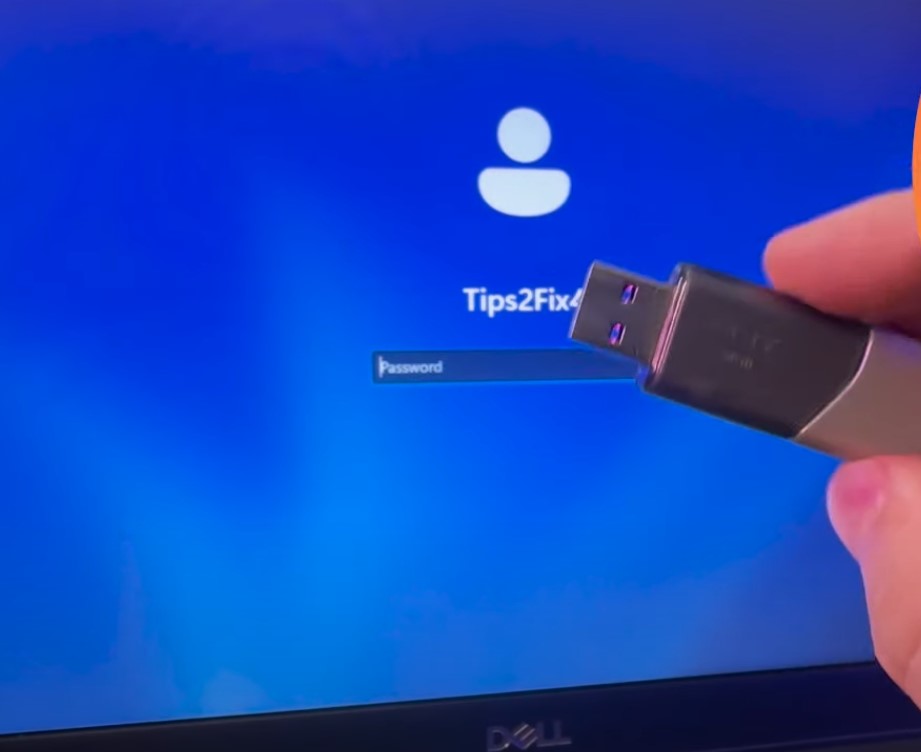
Step 1: Prepare a Bootable USB Drive
- Create a bootable USB drive for your Windows version (Windows 10 or Windows 11) with a tool like Rufus or the Media Creation Tool.
If you need help with this step, watch this video: https://youtu.be/3sMCYurRidY.
- Plug the bootable USB drive into the locked computer.
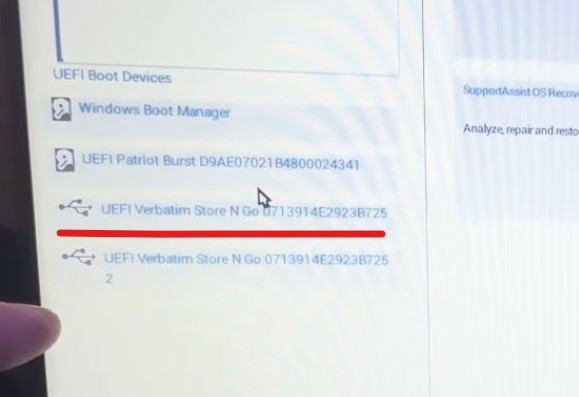
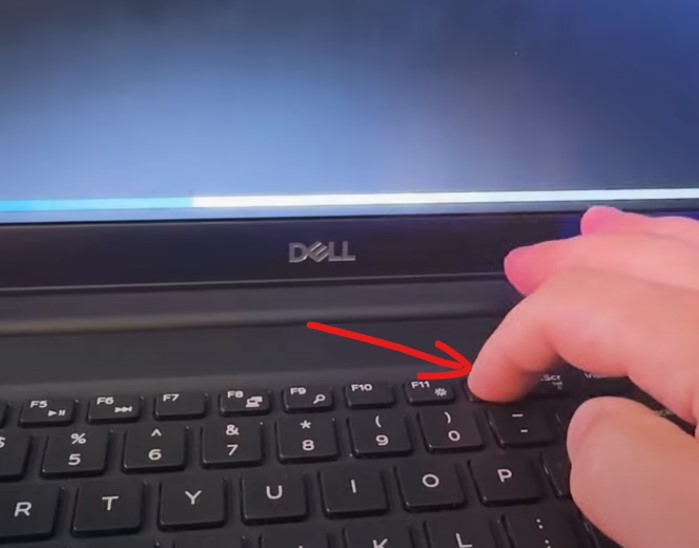
- Restart the computer and press the boot menu key (usually F12, F2 or Esc) to open the boot menu. Select the USB drive to boot from it.
Step 2: Replace Utilman.exe With Command Prompt
- When the Windows Setup screen appears, press
Shift + F10to open Command Prompt. If that does not work, hold theFnkey with the same combination. - Move the Utilman.exe file to the root of your C: drive so you can restore it later:
move c:\windows\system32\utilman.exe c:\ - Copy Command Prompt in place of Utilman.exe:
copy c:\windows\system32\cmd.exe c:\windows\system32\utilman.exe
Note: Your Windows drive letter inside Setup is not always C:. If these commands cannot find the files, check the other drive letters (often D:) with dir and use the one that holds the Windows folder.
Step 3: Reset the Password
- Remove the USB drive and restart the computer.
- At the login screen, click the Ease of Access button in the bottom-right corner. Because you replaced Utilman.exe, this now opens Command Prompt.
- Reset the password with this command:
net user [your_username] [new_password]Replace
[your_username]with your account name and[new_password]with the new password you want. If you are not sure of the exact user name, runnet useron its own first to list all accounts. - Close Command Prompt and log in with your new password.
Step 4: Restore the Original Utilman.exe
Put the Ease of Access tool back so the button works normally again. Once you are logged in, open Command Prompt as administrator and run:
copy c:\utilman.exe c:\windows\system32\utilman.exeThis restores the original Utilman.exe. You will need your bootable USB again for this step if Windows blocks the copy while running, so repeat it from Setup if needed.
Method 2: Use a Password Reset Disk
This method is simple and safe, but it only works if you created the reset disk before you forgot the password.
Step 1: Create a Password Reset Disk (Do This in Advance)
- Insert a USB drive into your computer while you still know your password.
- Open Control Panel > User Accounts > Create a password reset disk and follow the prompts.
- Keep the USB drive in a safe place. It will let you reset the password if you ever forget it.
Step 2: Use the Password Reset Disk
- If you forget your password, insert the reset disk.
- Click Reset password on the login screen and follow the prompts to set a new password.
- Log in with the new password.
Method 3: Use EaseUS Partition Master (The Easiest Method)
EaseUS Partition Master has a password reset tool that does not need advanced skills. You prepare a bootable USB on a second computer, then use it on the locked one.
Step 1: Install EaseUS Partition Master
- Download EaseUS Partition Master from the official website and install it on another computer that you can log in to.
- Open the software, go to Toolkit and select Password Reset. Follow the instructions to create a bootable USB drive.
Step 2: Boot the Locked Computer From the USB Drive
- Insert the bootable USB drive into the locked computer.
- Restart it and boot from the USB drive, the same way as in Method 1.
Step 3: Reset the Password
- The software shows a list of user accounts. Select the one you want to reset.
- Click Reset password and confirm. The tool clears the password for that account.
- Restart the computer, remove the USB drive and log in without a password. Then set a new password once you are inside.
Which Method Should You Use?
- Sign in with a Microsoft account: reset it online on Microsoft’s official password reset page.
- Comfortable with commands: use Method 1 (Utilman.exe and Command Prompt).
- You made a reset disk earlier: use Method 2.
- You want the simplest option: use Method 3 (EaseUS Partition Master).
If you would rather remove the password completely instead of resetting it, see my guide on how to remove a Windows 11 login password without software. If you also lost admin access, read how to factory reset Windows 10/11 without the admin password.