

Windows 11 24H2 is officially released as a stable version. It brings new features, security improvements and performance optimizations, but many people with unsupported PCs wonder if they can still upgrade. The good news: you can install Windows 11 24H2 on an unsupported computer. In this tutorial I show you how to do it with Microsoft’s own ISO and setup files only, with no third-party bypass tools or extra software.
Even if your computer does not meet the minimum system requirements, you will download the ISO file, start the setup with one CMD command and upgrade without losing your personal files, apps or settings.
Update (October 2026): Windows 11 24H2 Home and Pro reached the end of servicing on October 13, 2026, and Microsoft’s download page now offers a newer version. For the latest release, follow my newer guide: How to Install Windows 11 26H2 on Unsupported PC.
Download Windows 11 ISO (Microsoft)
In this article
- Why upgrade to Windows 11 24H2?
- Before you start
- Step 1: Check your Windows version and compatibility
- Step 2: Download the Windows 11 ISO file
- Step 3: Mount or extract the ISO file
- Step 4: Start the setup from CMD
- Step 5: Complete the installation
- What’s new in Windows 11 24H2?
- Rolling back or fixing performance problems
- FAQ
- Is the upgrade worth it?
Why upgrade to Windows 11 24H2?
Before we start, here is why this upgrade matters:
- Better security: the update includes the latest security patches to protect your data and your system.
- Better performance: optimizations improve speed and resource management, especially on modern hardware.
- New features: better multitasking, updated window management and a refreshed interface make daily use easier.
- Compatibility with new software: new apps and tools may require the latest version of Windows.
- Future updates: by updating, your system stays ready for future releases and improvements.
Before you start
- This method upgrades Windows 10 or an older version of Windows 11 to Windows 11 24H2, even on unsupported hardware.
- You need an administrator account.
- Back up your important files before any big Windows upgrade.
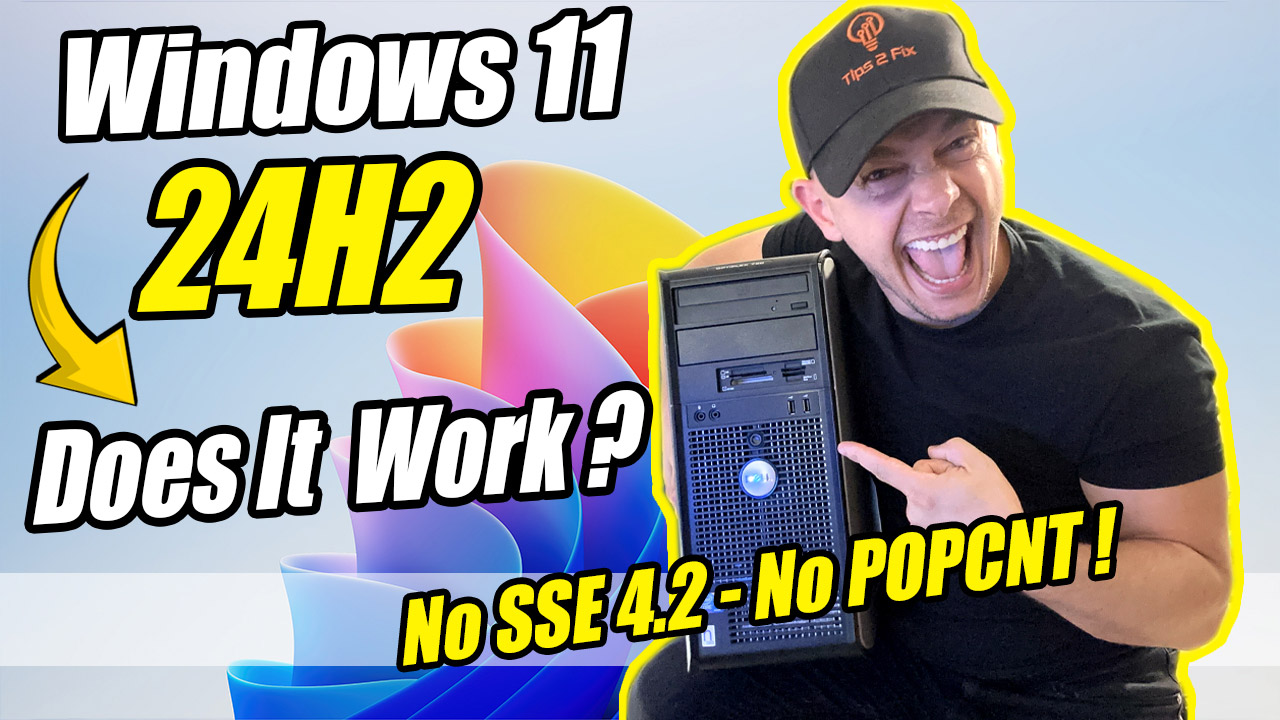
- Note: Windows 11 24H2 needs a processor that supports the SSE4.2 and POPCNT instructions. Very old CPUs without them cannot run 24H2, even with this method. See How to Run Windows 11 on Older PCs Without SSE 4.2 & POPCNT Support.
Step 1: Check your Windows version and compatibility
- Open Settings on your computer.
- Go to System > About and check which version of Windows you are running.
- If you are still on Windows 10 or an older version of Windows 11, it is time to upgrade.
- Optional: run the PC Health Check app to see if your PC meets the requirements. It will probably say that your PC is not supported, but we will skip that check in Step 4.
Step 2: Download the Windows 11 ISO file
Even if your PC is not supported, you can download the ISO file directly from Microsoft:
- Open the official Microsoft download page (or search Google for “Download Windows 11 ISO”).
- Scroll down to Download Windows 11 Disk Image (ISO), select the Windows 11 version and click Download.
- Choose your language, the same language as your current Windows (for example English or English International).
- Click Confirm and download the 64-bit ISO file to your PC.
Step 3: Mount or extract the ISO file
Now that you have the ISO file, you can either mount it or extract it:
- Option 1: Mount the ISO. Right-click the ISO file and select Mount. Windows opens it as a virtual drive with its own drive letter.
- Option 2: Extract the ISO. If mounting does not work, extract the ISO file with 7-Zip or WinRAR into a folder, and remember where you saved the files.
Step 4: Start the setup from CMD
For unsupported PCs, we start the installation from Command Prompt with a special setup option.
- Click Start, type cmd, right-click Command Prompt and choose Run as administrator.
- Go to the sources folder of the ISO. Use the commands for your option below.
- Type the setup command and press Enter to start the installation.
If you extracted the ISO (Option 2)
Go to the sources folder inside the folder where you extracted the ISO. In this example the files are in C:\Win11, so replace that part with your own folder path:
cd /d "C:\Win11\sources"Then start the setup:
setupprep.exe /product serverIf you mounted the ISO (Option 1)
Type the drive letter of the mounted ISO and press Enter. In my example it is E:, but yours may be D:, M: or another letter, so check it in File Explorer:
E:Go to the sources folder:
cd sourcesNow start the setup:
setupprep.exe /product serverThe installation of the latest Windows 11 version starts. Do not worry if the setup window says Windows Server. This is just another way to start the Windows 11 setup, and it skips the hardware requirement checks. It still installs Windows 11.
Step 5: Complete the installation
- Select Keep personal files and apps so nothing important is lost during the upgrade. If this option is greyed out, see why “Keep personal files and apps” is greyed out.
- Follow the on-screen prompts to finish the installation. It can take a while, depending on your PC’s hardware, and the PC restarts several times.
- When it is done, go to Settings > System > About and check that Windows 11 24H2 is running.
What’s new in Windows 11 24H2?
After the upgrade, these are some of the improvements you get:
- Better multitasking: new features make it easier to manage many windows and work across apps.
- Start menu improvements: better customization and quicker access to the apps you use most.
- Security upgrades: the latest security protocols and patches are built in.
- Refined visuals: smoother animations, a refreshed interface and small design changes.
Rolling back or fixing performance problems
If you are not happy with the performance after the upgrade, or you run into problems, you have two options:
- Optimize performance: follow my guide on how to speed up Windows 11, which also helps on older PCs.
- Roll back: you can return to Windows 10 or your previous Windows 11 version from Settings. Here is my tutorial: How to go back to the previous version of Windows.
FAQ
Will I lose my files and apps?
No, as long as you select Keep personal files and apps in the setup. Your files, apps and settings stay on the PC. A backup is still a good idea before any big upgrade.
Why does the setup say “Windows Server”?
Because the /product server option starts the setup in server mode, which skips the Windows 11 hardware checks. Only the setup screens say “Windows Server”. What gets installed is still Windows 11.
Does it work on old laptops?
Yes, as long as the processor supports SSE4.2 and POPCNT. Readers have upgraded a 2013 Samsung 700Z (from Windows 11 23H2) and a Dell Latitude E7470 with this method.
Is the upgrade worth it?
Upgrading to Windows 11 24H2 gives you better security, better performance and new features. Even if your PC does not meet the official requirements, this method lets you install the latest version of Windows and keep your system up to date.
If this guide helped you, subscribe to my YouTube channel, hit the like button and check out my other tutorials for more Windows 11 tips.
Tried on my 2013 samsung 700z with i5 duo from 23H2 & went flawlessly! Now for the HP420Z !
Many thanks for your great & clear instructions
Nice result, Andrew, thanks for reporting back! The HP will work the same way as long as its processor supports SSE4.2 and POPCNT, which Windows 11 has needed since 24H2 (CPU-Z shows SSE4.2 under Instructions). Core 2 Duo era chips don’t have it, so those stay on 23H2. Good luck with it!
I tried this on my Dell Latitude E7470 and it worked seamlessly. Thanks so much!
Glad it went smoothly on the E7470, Michael. It’s a good example of a laptop that runs Windows 11 well and only misses Microsoft’s official CPU list. One tip: 24H2 Home and Pro stopped getting security updates on October 13, 2026, so move it to 26H2 when you can. From 24H2 it’s a small enablement package and one restart: https://staging.tips2fix.com/how-to-install-windows-11-26h2-on-unsupported-pc/
… [Trackback]
[…] Read More: tips2fix.com/how-to-install-windows-11-24h2-on-unsupported-pcs/ […]