

Microsoft ended support for Windows 10 on October 14, 2025. Since then, regular security updates have stopped for most users. With Microsoft’s Extended Security Updates (ESU) program, you can keep your Windows 10 PC secure for longer, and in many cases you can do it for free. In this guide I explain who is eligible, the 3 official ways to enroll, and what to do if the Enroll now link does not show up.
Update (October 2026): Microsoft has extended the consumer ESU program. Its official ESU page now says you can enroll at any time until the program ends on October 12, 2027. If your PC is already enrolled, coverage continues automatically until that date, with no action needed. When I made this guide, the end date was October 13, 2026.
In this article
Why extend Windows 10 support?
- Many older PCs do not meet the official requirements for Windows 11 24H2 or 25H2.
- Windows 10 is still stable and reliable for daily work.
- Security updates are critical to protect your PC against new vulnerabilities.
If you are not ready to upgrade, or your computer does not support Windows 11, this tutorial is for you.
Requirements
According to Microsoft, your PC needs:
- Windows 10 version 22H2 (Home, Pro, Pro Education or Workstations).
- The latest Windows updates installed. Microsoft also lists the Windows 10 ESU Licensing Preparation Package (KB5126256) as required.
- A Microsoft account with administrator rights. It cannot be a child account.
ESU is not offered on PCs in kiosk mode, PCs joined to a domain or Microsoft Entra, or PCs managed by an MDM solution. In the European Economic Area (EEA), Microsoft says the enrollment options and timing may be different.
3 official ways to enroll in ESU
1. Free with Windows Backup
If you back up your PC settings to your Microsoft account with Windows Backup, you get extended security updates at no extra cost. The backup includes your settings, apps and preferences.
This is the easiest and most common free option.
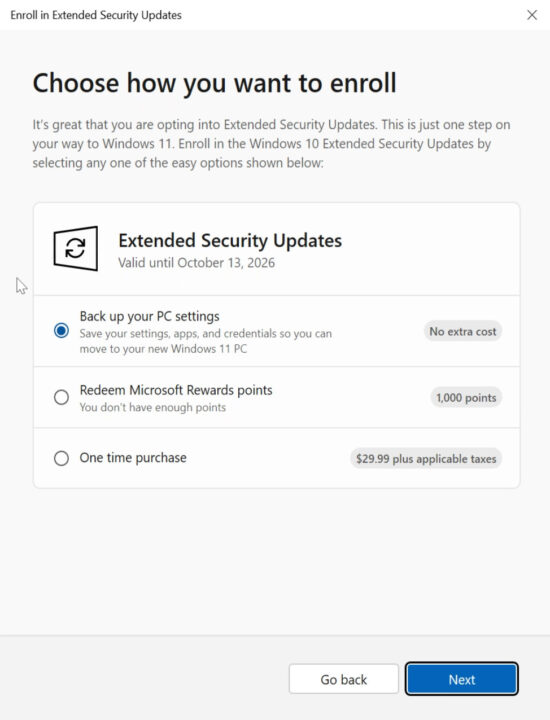
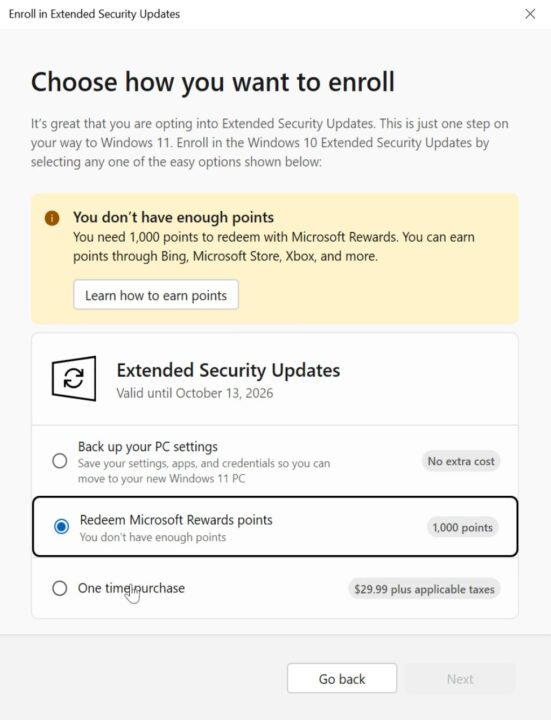
2. Use 1,000 Microsoft Rewards points
If you have 1,000 Microsoft Rewards points (earned with Xbox, the Microsoft Store, Bing and so on), you can redeem them to extend support. Check your balance on the Microsoft Rewards website.
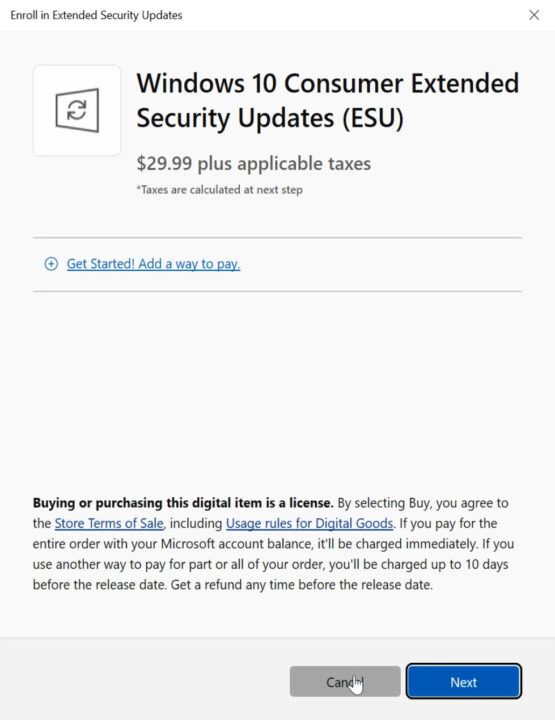
3. One-time purchase ($30)
If you do not want to back up your settings and you do not have enough points, you can buy ESU with a one-time payment of $30 (or the same amount in your local currency, plus tax).
This is the paid option, but it is a good choice if you prefer not to sync your data to Microsoft’s servers.
Tip: one ESU license works on up to 10 Windows 10 PCs that use the same Microsoft account.
Step-by-step guide to extend support
Step 1: Open Windows Update
Go to Start > Settings > Update & Security > Windows Update.
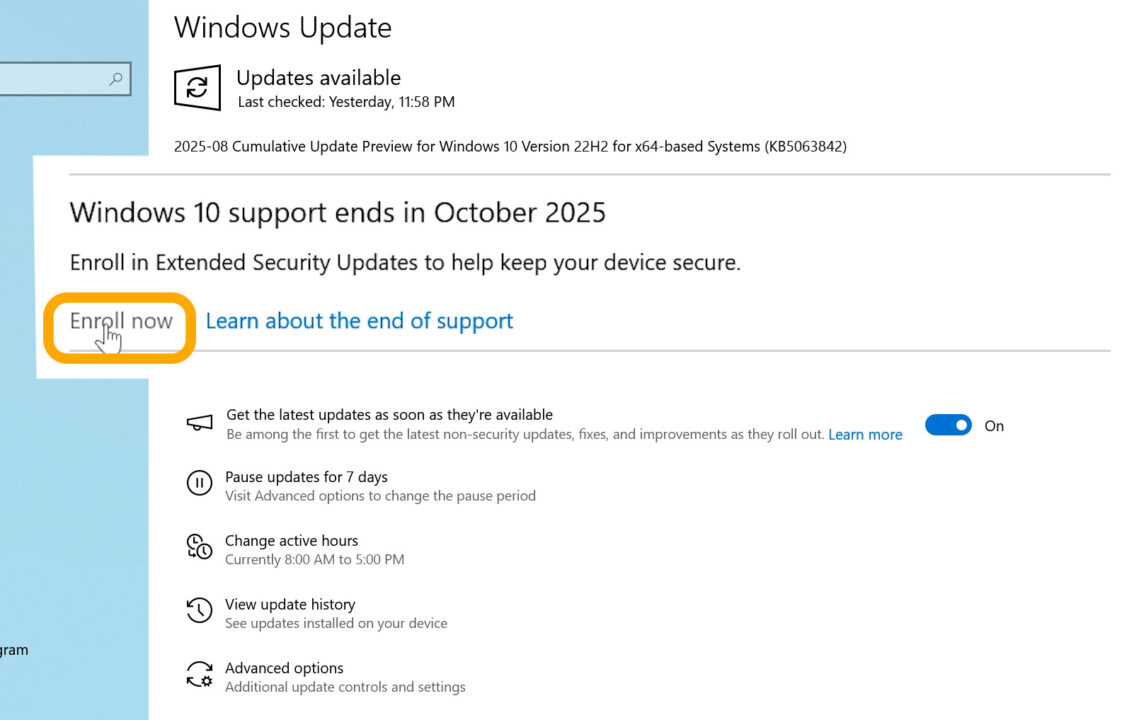
Step 2: Click Enroll now
If your PC is eligible, you see a message about extended security updates. When I made this guide, it said: “Windows 10 support ends in October 2025. Enroll in extended security updates to help keep your device secure.”
Click Enroll now.
If you do not see it, install all the latest Windows 10 updates and check again after a few days. If it still does not appear, use the fixes in the ESU enrollment not showing section below.
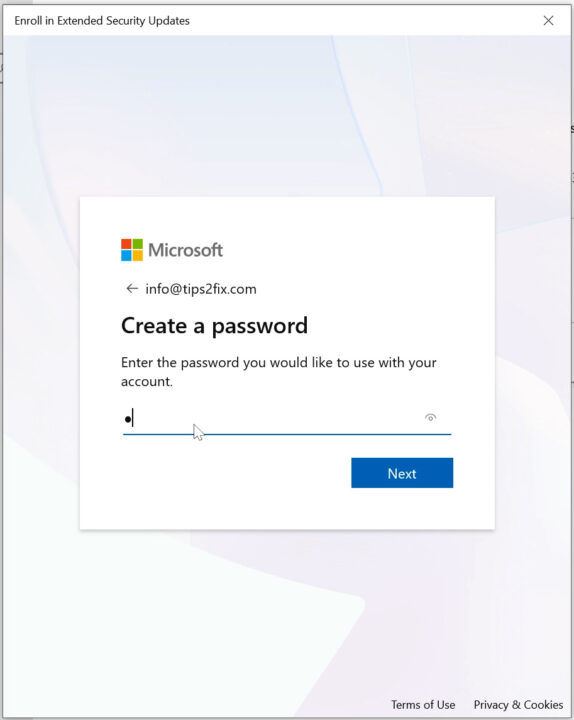
Step 3: Sign in with a Microsoft account
You must sign in with a Microsoft account, or create a new one. Follow the prompts to sign in or set up a new account.
Step 4: Choose your option
- Back up your PC settings: get ESU for free.
- Use 1,000 Rewards points: redeem them for ESU.
- Pay $30 one time: buy ESU.
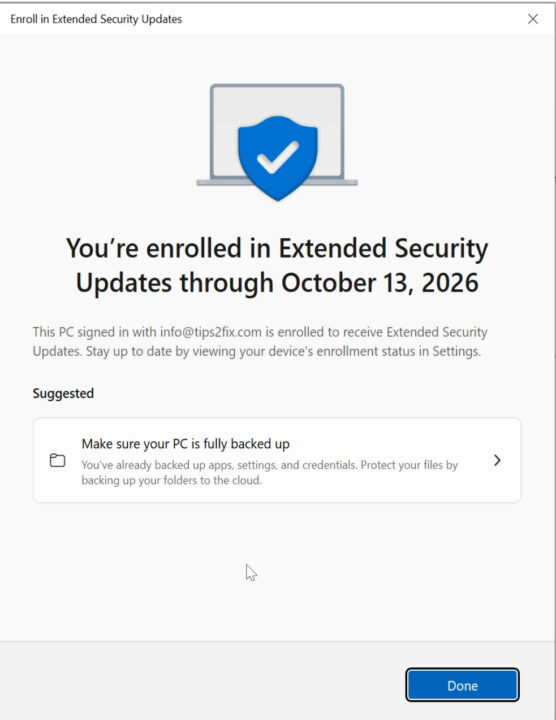
Step 5: Confirm enrollment
When the process is complete, you see a confirmation message. In 2025 it said:
“You are enrolled in Extended Security Updates through October 13, 2026.”
That’s it, your PC is protected. Thanks to Microsoft’s extension, enrolled PCs now keep getting security updates until October 12, 2027.
Troubleshooting
- You do not see the Enroll now link? Update Windows 10 fully and wait a few days. If it still does not show, try the fixes below.
- No Microsoft account? Create one for free during enrollment.
- You do not want to back up your PC? Use Rewards points or the $30 option.
Final thoughts
Extending Windows 10 security updates is a smart choice if:
- You use older hardware that does not support Windows 11.
- You are happy with the stability of Windows 10.
- You want more time before you upgrade.
With the free backup option, most users can extend support at no cost. If you prefer more control, Microsoft Rewards points or the one-time $30 purchase are the alternatives.
Do not wait too long: enroll now and stay protected until October 12, 2027. When you are ready to move on, see how to install Windows 11 26H2 on an unsupported PC, or read how to upgrade Windows 10 to LTSC without losing any data.
Windows 10 ESU enrollment not showing? Here’s the quick fix
When I made this guide, Microsoft was still rolling out the Consumer ESU feature step by step, so on many PCs the Enroll now link was switched off. If you still do not see it, first check the requirements above. Then you can try to force-enable the feature with one of the methods below, or use my ready-made script.
Quick method (may be enough)
-
Open Command Prompt as administrator. Make sure the “Connected User Experiences and Telemetry” (DiagTrack) service is not disabled:
sc.exe config DiagTrack start= auto sc.exe start DiagTrack -
Add the following registry value:
reg.exe add "HKLM\SYSTEM\CurrentControlSet\Policies\Microsoft\FeatureManagement\Overrides" /v 4011992206 /t REG_DWORD /d 2 /f - Restart your PC.
-
After the restart, run these two commands in Command Prompt:
cmd /c ClipESUConsumer.exe -evaluateEligibility
reg.exe query "HKCU\SOFTWARE\Microsoft\Windows NT\CurrentVersion\Windows\ConsumerESU"
- If you see a non-zero value, it worked.
- If you see 0x0 or nothing, continue with the full method.
Full method (if the quick one does not work)
-
Open Command Prompt as administrator and run:
reg.exe add "HKLM\SYSTEM\CurrentControlSet\Policies\Microsoft\FeatureManagement\Overrides" /v 4011992206 /t REG_DWORD /d 2 /f -
Open Windows PowerShell as administrator and run the following two blocks.
a) ReconcileFeatures:
$TN = "ReconcileFeatures"; $TP = "\Microsoft\Windows\Flighting\FeatureConfig\";
$null = Enable-ScheduledTask $TN $TP
Start-ScheduledTask $TN $TP
while ((Get-ScheduledTask $TN $TP).State.value__ -eq 4) {start-sleep -sec 1}; "Task Completed"
b) UsageDataFlushing:
$TN = "UsageDataFlushing"; $TP = "\Microsoft\Windows\Flighting\FeatureConfig\";
$null = Enable-ScheduledTask $TN $TP
Start-ScheduledTask $TN $TP
while ((Get-ScheduledTask $TN $TP).State.value__ -eq 4) {start-sleep -sec 1}; "Task Completed"
When each block is finished, you see Task Completed.
- Restart your PC.
-
Check eligibility again in Command Prompt as administrator:
cmd /c ClipESUConsumer.exe -evaluateEligibility
reg.exe query "HKCU\SOFTWARE\Microsoft\Windows NT\CurrentVersion\Windows\ConsumerESU"
- If the value is non-zero, Consumer ESU is enabled. Go back to Windows Update and look for Enroll now. If the link does not appear right away, restart once more.
- If it is still 0x0 or missing, ESU is not available for your PC yet. Check the requirements above and try again later.
Download my ESU tools script
The script does the same steps for you. Extract the ZIP file, right-click ConsumerESU_AllInOne.bat and choose Run as administrator. The menu offers: 1) the fast method, 2) the full method, 3) an eligibility check to use after the restart, 4) removing the registry change again, and 5) exit.
Download ESU-Tools Script


Hi
Thanks for this. Quick method didn’t work for me, long method did something because I get a longish result when I run the reg.exe query, however despite this the Enroll Now button still won’t show up in Windows Update.
Not sure what to do now? (I am in the Netherlands).
Thank you!
PS: Windows is not connected to a Microsoft account, it’s used locally, but I don’t think it should matter?
Hi Philip 👋
If the quick method didn’t work, but the long one gave you results (0xa or 0xd), it means the registry edit was applied correctly.
Try restarting the PC and checking Windows Update again the “Enroll” button usually appears after reboot.
If not, it’s fine the ESU should still activate automatically for updates.