If your WiFi signal is weak in some parts of your home, a WiFi range extender is a simple fix. In this guide you will learn, step by step, how to set up and fully configure a WiFi range extender with 3 different methods. It works with most brands, including TP-Link, Netgear, D-Link and others. In the screenshots I use a TP-Link RE200.
In this article
- What Is a WiFi Range Extender?
- Step 1: Plug In Your WiFi Extender
- Method 1: Set Up the Extender in a Browser (Laptop or PC)
- Method 2: Set Up the Extender with the Mobile App
- Method 3: Set Up the Extender with the WPS Button (Fastest)
- How to Connect to the Extended Network
- How to Reset the WiFi Range Extender
- Pro Tips
- Summary
What Is a WiFi Range Extender?
A WiFi extender boosts your wireless signal in areas your router cannot reach well.
Common situations:
- The router is on the first floor and the signal upstairs is weak
- Dead zones in bedrooms or offices
The extender repeats your WiFi signal and gives you a stronger connection in those areas.
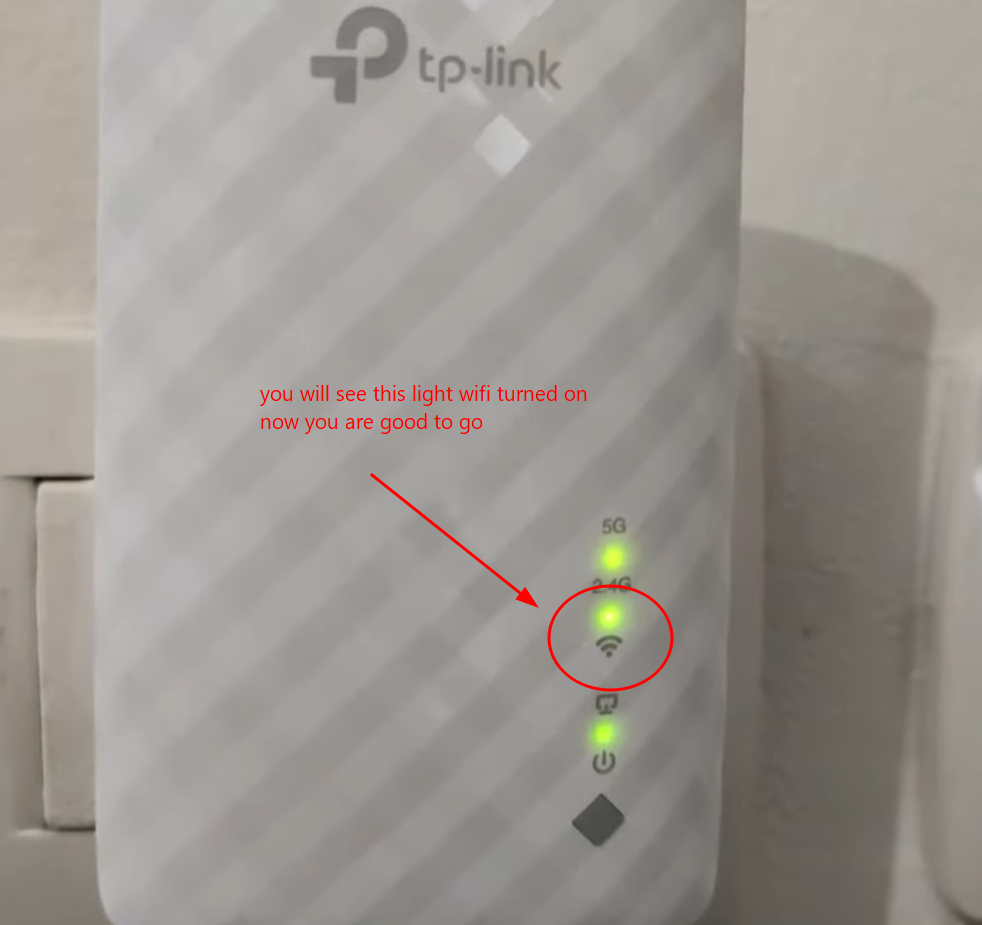
Step 1: Plug In Your WiFi Extender
- Plug the WiFi extender into a wall socket.
- Wait for the LED light to start blinking.
- This means the device is ready for setup.
Method 1: Set Up the Extender in a Browser (Laptop or PC)
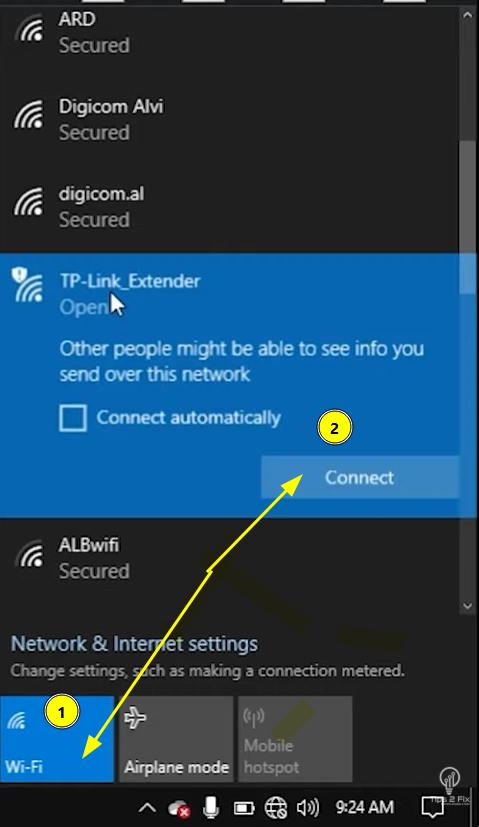
Step 1: Connect to the extender’s WiFi
- Open the WiFi settings on your laptop.
- Connect to the extender’s network (for example TP-Link_Extender).
Step 2: Open the setup page
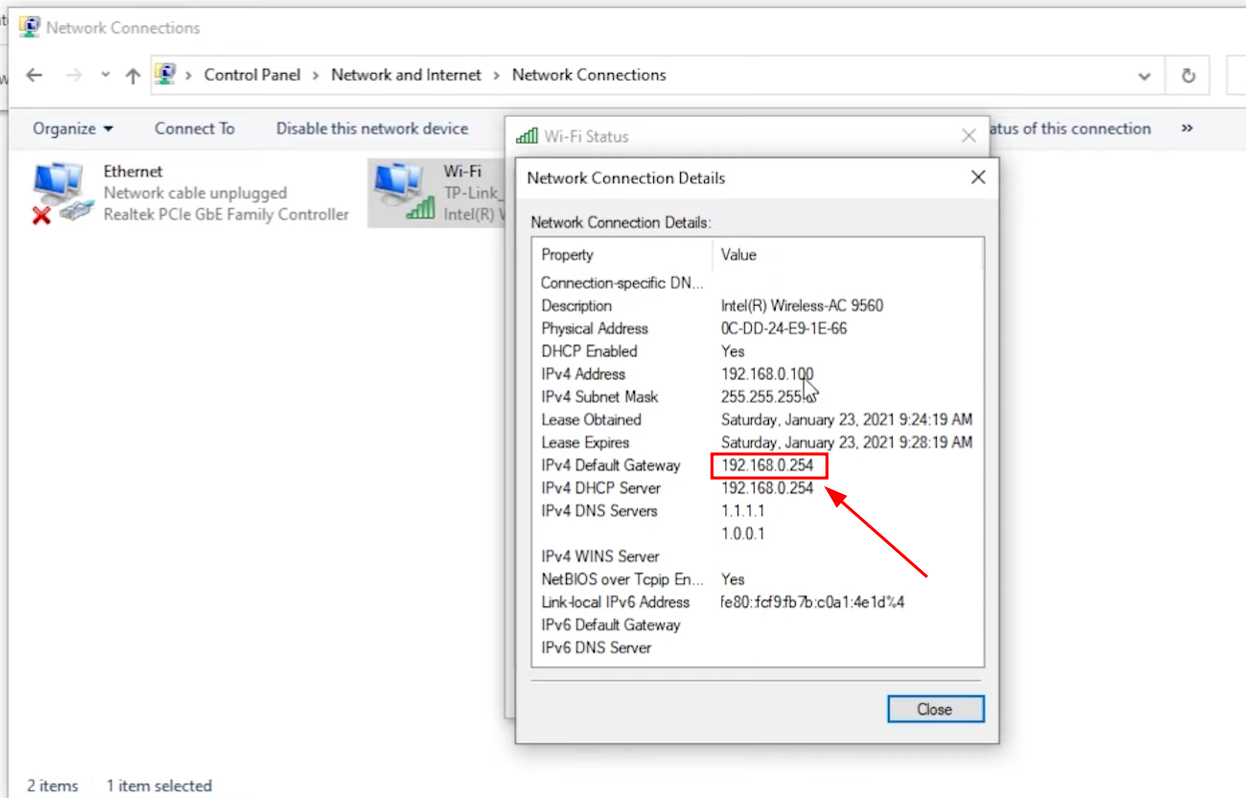
- Find the Default Gateway IP address in your network details. In Windows, open Control Panel > Network and Internet > Network Connections, double-click Wi-Fi, click Details and look at IPv4 Default Gateway.
- It is usually something like
192.168.0.254. - Open your browser, type this address in the address bar and press Enter.
Step 3: Create a login password
- Set a password for the extender’s admin panel.
- Click Start.
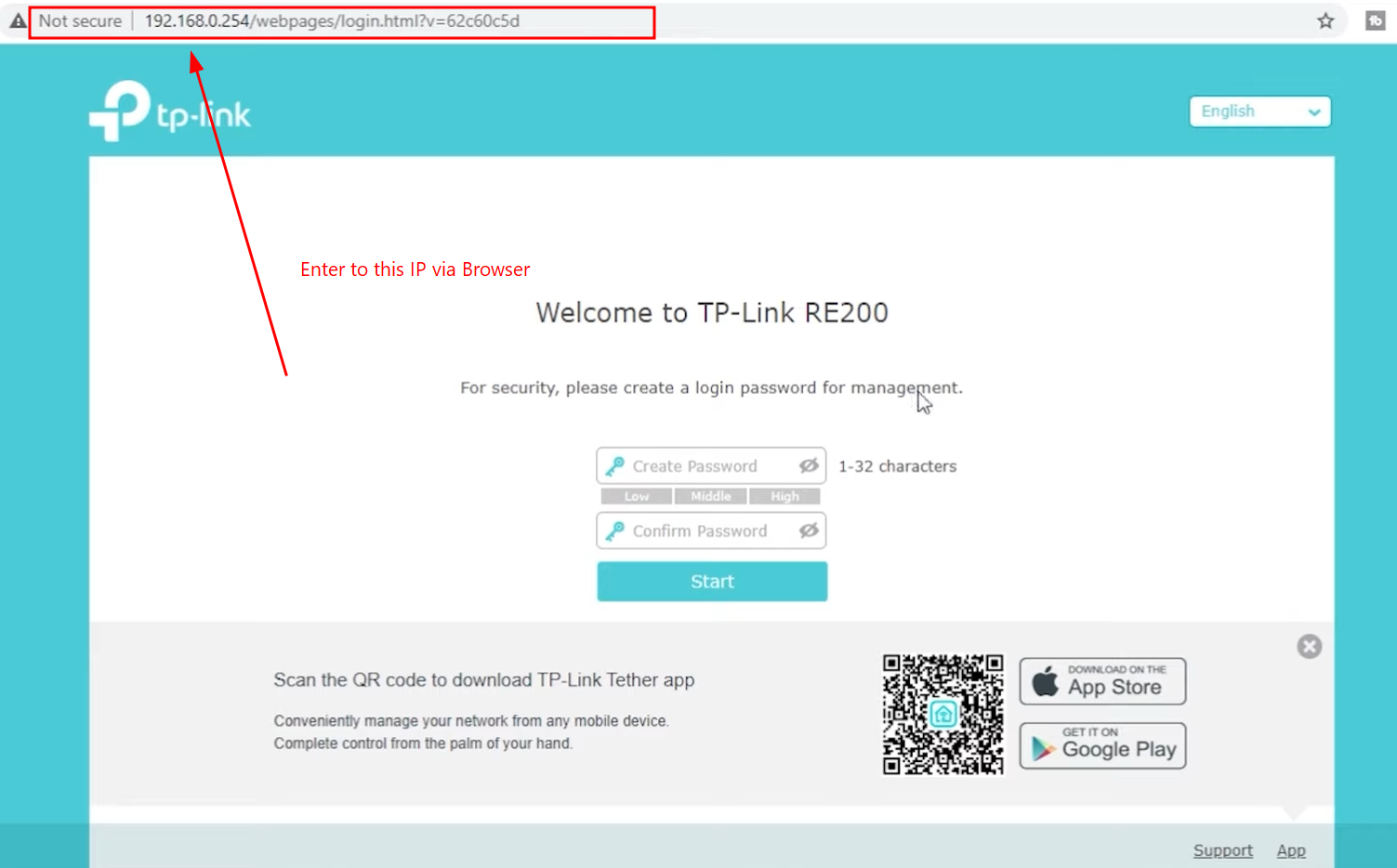
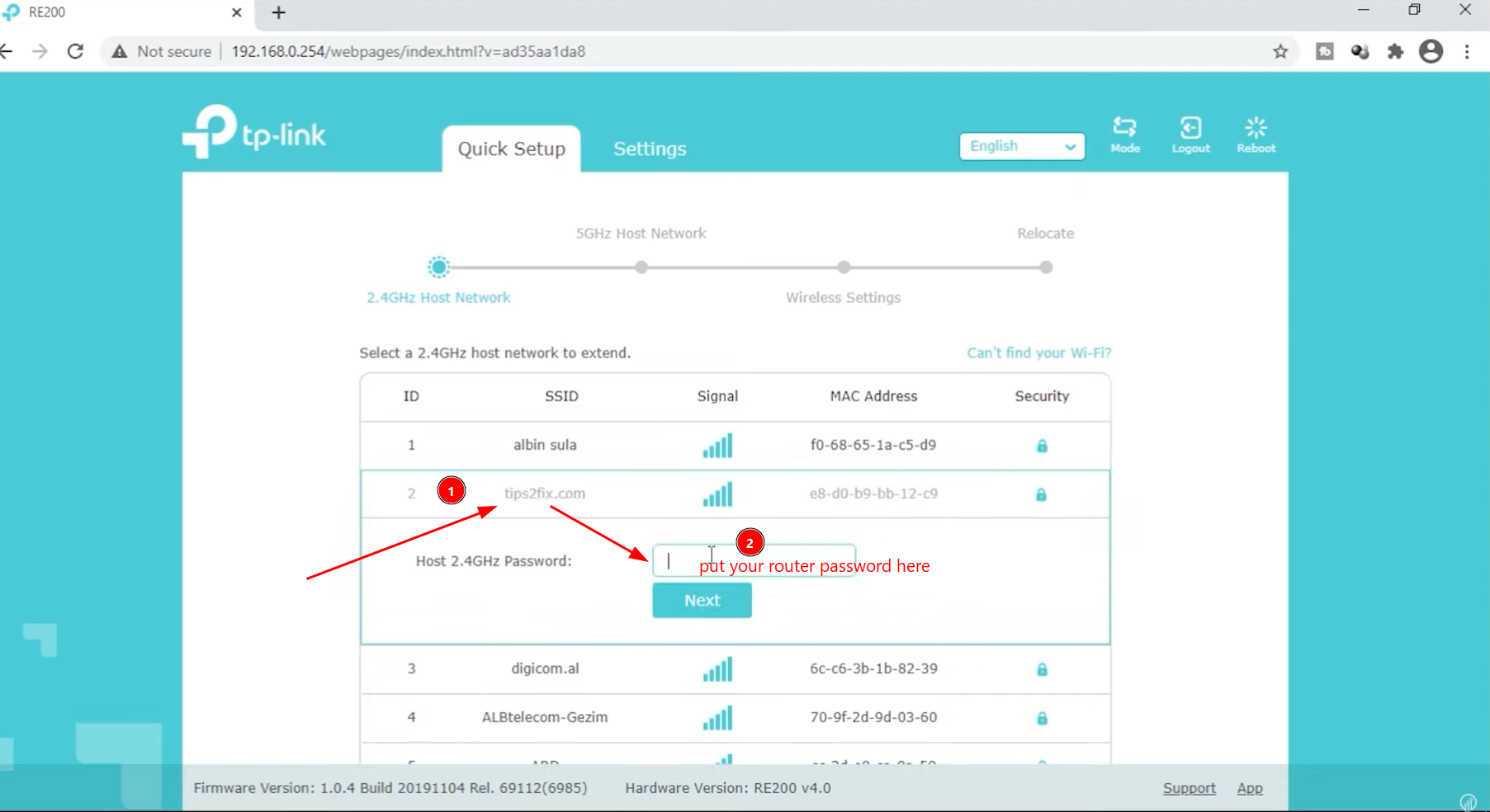
Step 4: Connect to your main WiFi
- Select your home WiFi network.
- Enter your WiFi password and click Next.
- Optional: also select your 5GHz network, if your router has one.
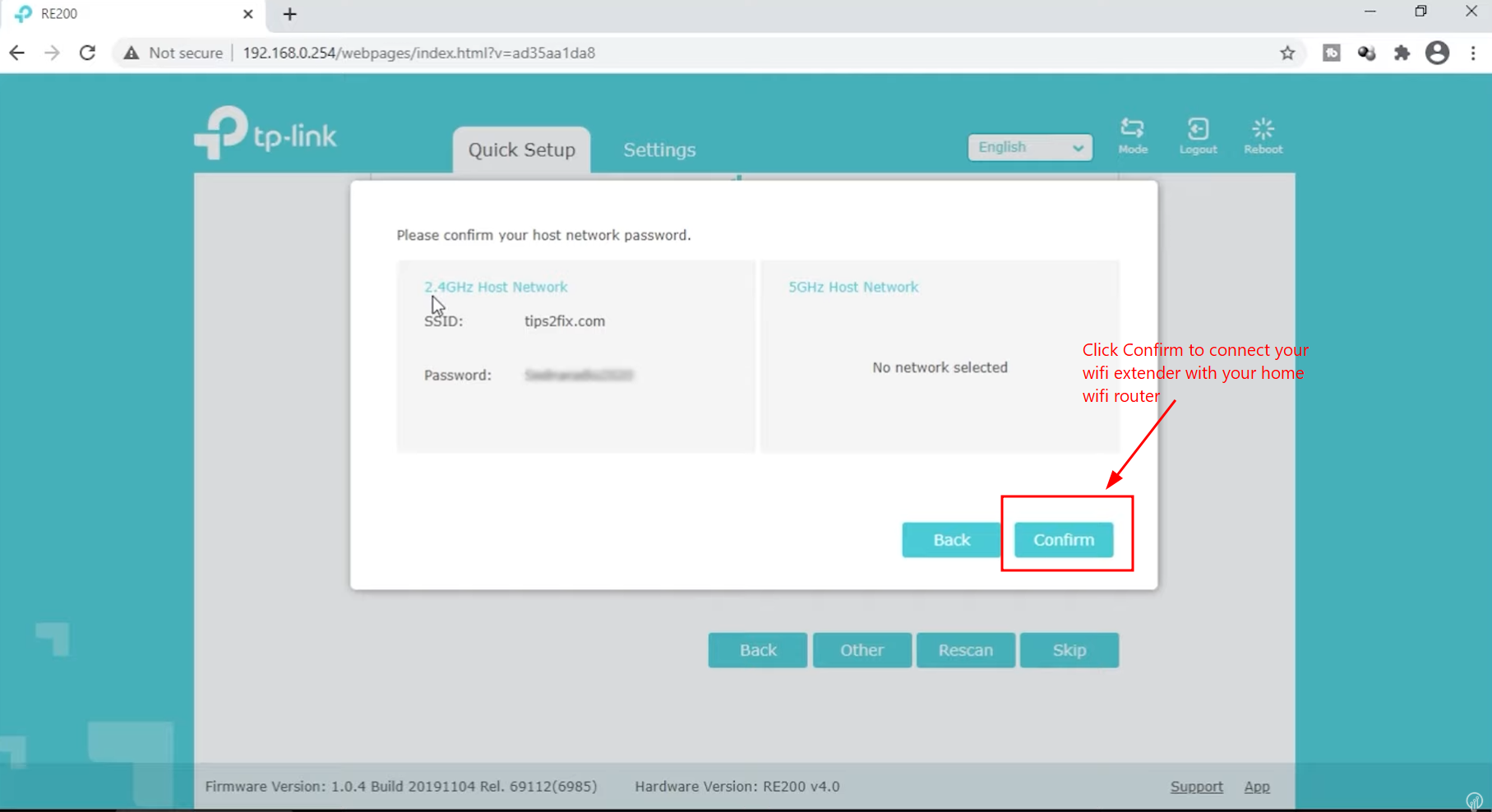
Step 5: Confirm your WiFi password
- Check the network name and password.
- Click Confirm to connect the extender to your home WiFi router.
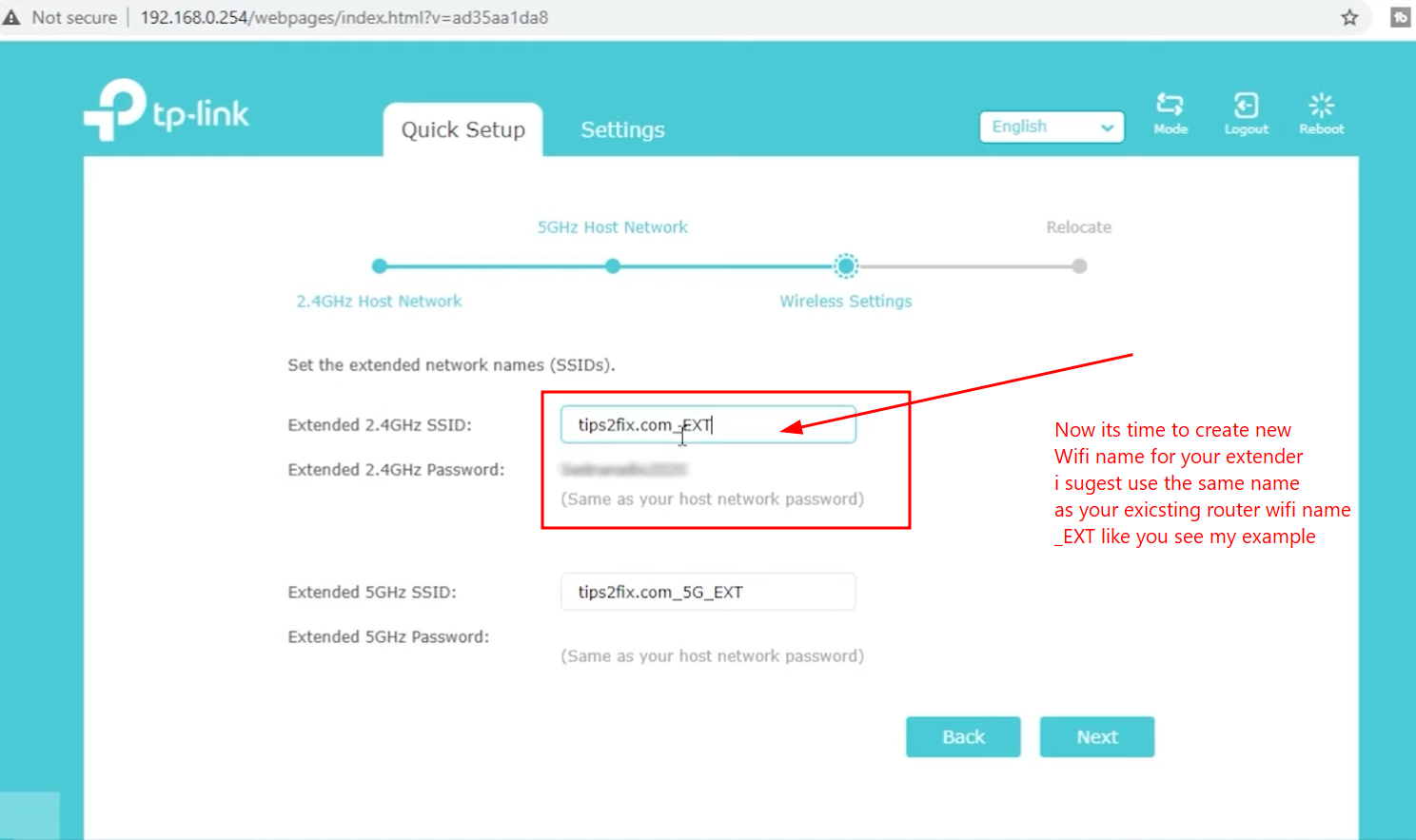
Step 6: Name your extended networks
Now choose the WiFi names (SSIDs) of your extender. I suggest you keep your router’s WiFi name and add _EXT, like in my example. You will then see:
- YourWiFi_EXT
- YourWiFi_5G_EXT
They use the same password as your main WiFi. Click Next.
Step 7: Wait for the restart
The extender restarts to apply the settings. Wait until it finishes.
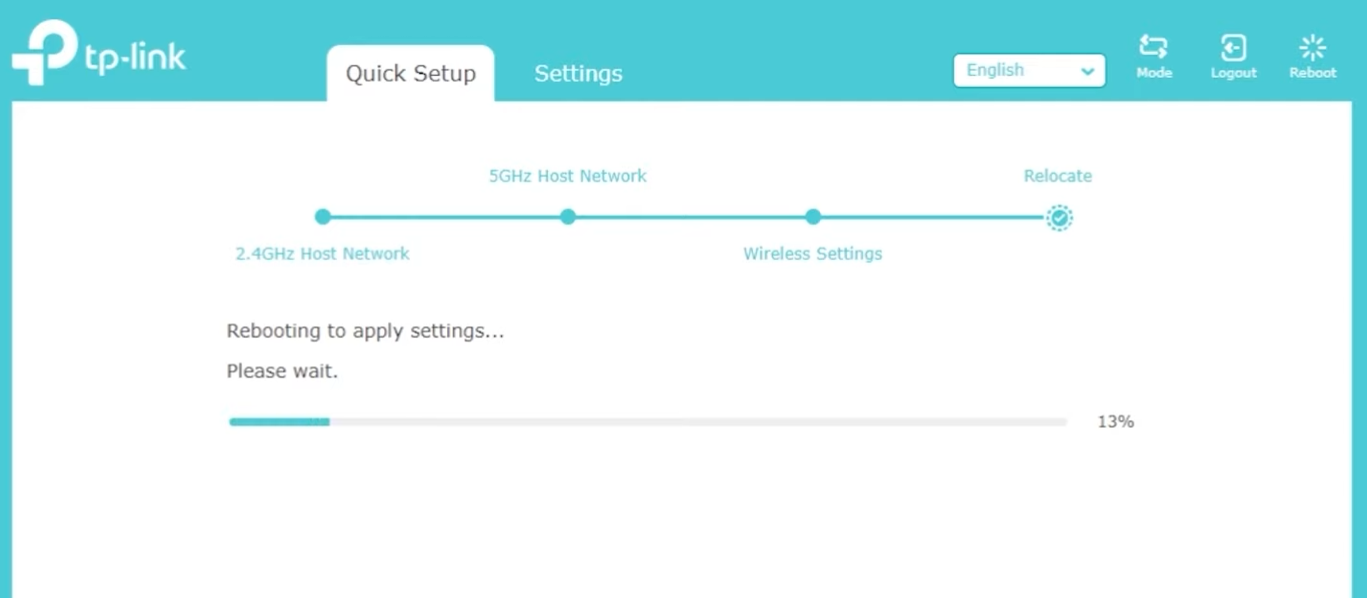
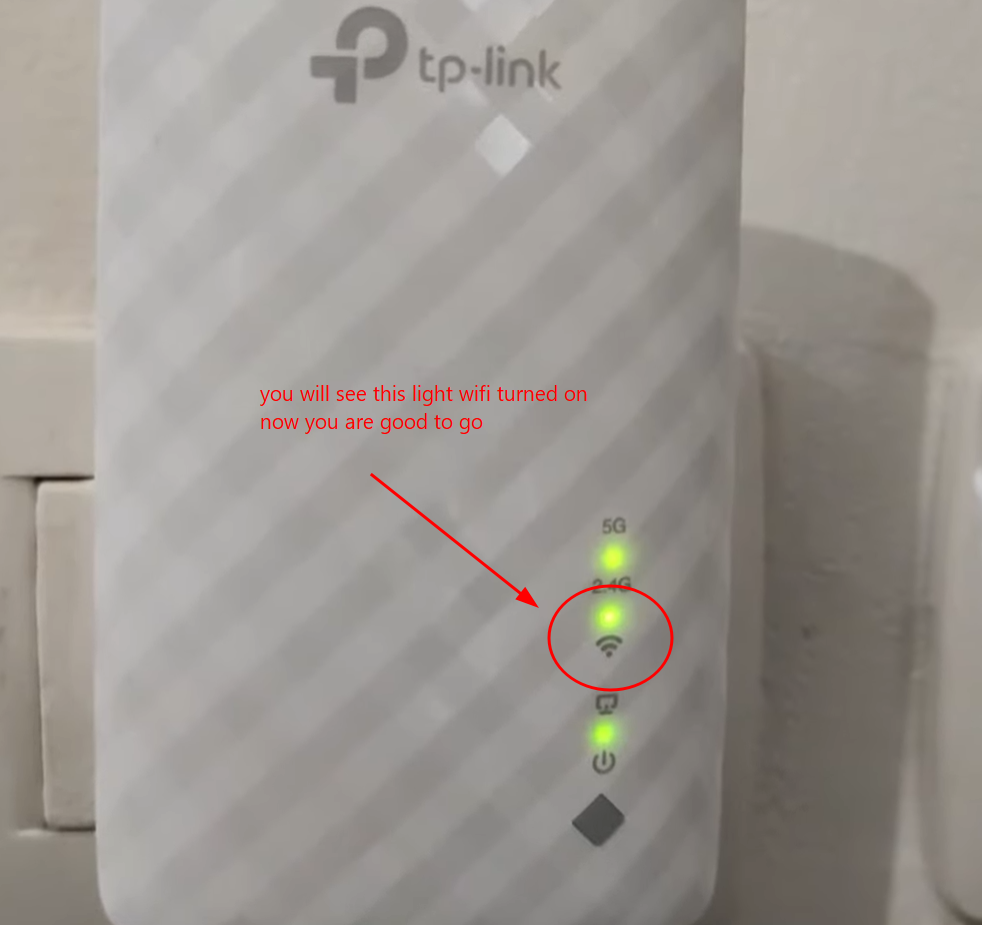
That’s it, you are done. When the WiFi light on the extender is on, you are good to go. Enjoy!
Method 2: Set Up the Extender with the Mobile App
Step 1: Install the app
- Open the Play Store or the App Store.
- Search for your extender’s app (for example TP-Link Tether) and install it.
Step 2: Create an account
- Register with your email address.
- Verify your account.
Step 3: Connect to the extender
- Open the WiFi settings on your phone.
- Connect to the extender’s network.
- Open the app.
Step 4: Find your device
- Tap Refresh.
- Select your extender.
Step 5: Configure it
- Create a password for the device.
- Select your home WiFi.
- Enter your WiFi password.
- Tap Apply.
Done! The extender is configured and uses the same WiFi password as your router.
Method 3: Set Up the Extender with the WPS Button (Fastest)
Step 1: Press WPS on the router
- Find the WPS button on your router.
- Press it once.
Step 2: Press WPS on the extender
- Within 2 minutes, press the WPS button on the extender.
- Both devices start blinking.
Step 3: Wait about 2 minutes
- The devices connect to each other automatically.
- The LED becomes solid (no longer blinking).
Done! The extender is now connected, and you don’t need to set up any password.
How to Connect to the Extended Network
On your phone or PC, look for:
- YourWiFi_EXT
- YourWiFi_5G_EXT
Use the same password as your router. If your PC still has trouble connecting, see how to reset Wi-Fi and network adapters on Windows.
How to Reset the WiFi Range Extender
If something goes wrong, reset the extender to its factory settings and start again:
- Press the Reset button once, or hold it for about 3 seconds.
- Watch the lights: they change and the WiFi light starts blinking.
- The device restarts and is ready for a new setup.
Pro Tips
- Place the extender about halfway between your router and the area with the weak signal.
- Avoid thick walls and sources of interference.
- Use 5GHz for speed and 2.4GHz for range. To turn on 5GHz on your router, see how to enable 5G Wi-Fi on your router.
Summary
Now you know 3 ways to set up a WiFi extender:
- Browser method: gives you the most control.
- App method: easy for beginners.
- WPS method: the fastest.