

Some users reported that after a Windows update, the spacing between their desktop icons suddenly became huge. Others noticed that the desktop icons themselves became large. If the desktop icon spacing on your Windows 11 or Windows 10 PC has changed and messed up your desktop, the methods below restore it to its original state.
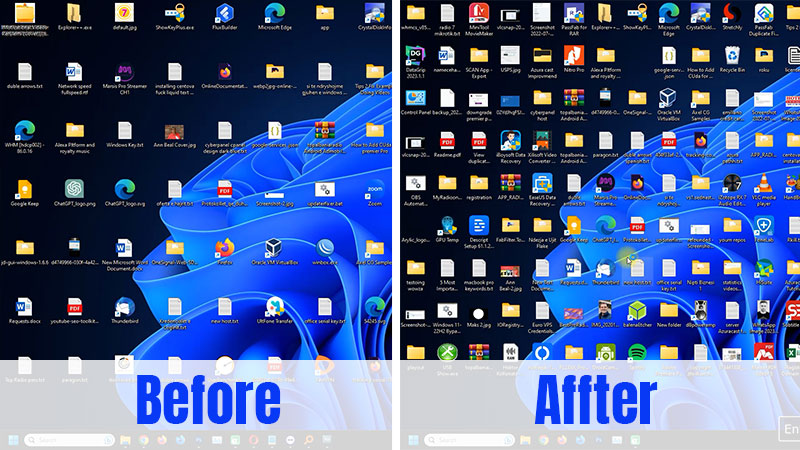
In this article
Quick Checks First
- Icons too big? Right-click an empty spot on the desktop, choose View and select Medium icons. You can also hold
Ctrland turn the mouse wheel on the desktop to change the icon size. - Everything looks bigger? Go to Settings > System > Display and check that Scale is set to the recommended value.
If only the space between the icons is wrong, use one of the two methods below.
Method 1: Restore the Default Icon Spacing in the Registry Editor
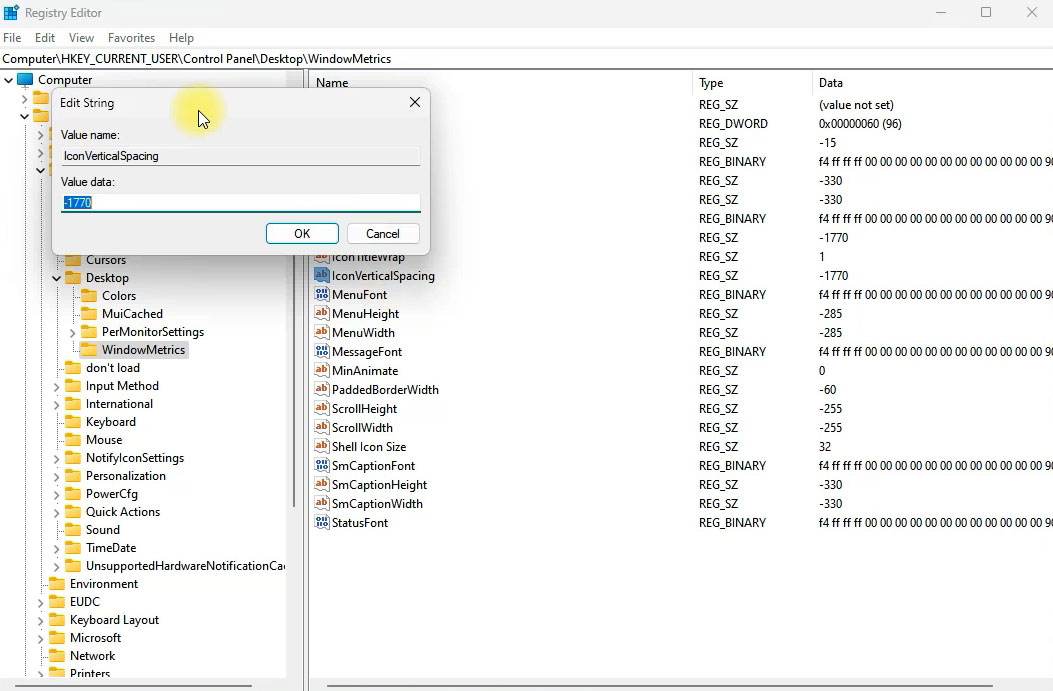
- Press
Windows + R, type regedit and press Enter. - Go to the following registry key:
HKEY_CURRENT_USER\Control Panel\Desktop\WindowMetrics- Check the values of IconSpacing and IconVerticalSpacing. In the screenshot above, IconVerticalSpacing is set to -1770, which causes the huge gaps.
- Double-click each value and enter the default value. On my PC, the default for both is -1125, but I have also seen -1128 on some PCs.
- Restart your computer to apply the change.
Tip: Before you change anything, right-click the WindowMetrics key and choose Export to save a backup.
Method 2: Use My Ready-Made Registry Files
Download Tips2Fix Icon Spacing Reg KeysDirect link: https://downloads.tips2fix.com/iconspacing-tips2fix-pc-keys.zip
The ZIP file contains two registry files:
- Fix icon desktop size.reg sets IconSpacing and IconVerticalSpacing to -1128. This is the one most people need.
- tips 2 fix pc IconSpacing.reg is a copy of all the WindowMetrics settings from my PC. Besides the icon spacing (-1130), it also changes other values in this key, such as fonts, borders and scroll bar sizes.
- Download the ZIP file and extract it.
- Before you run a file, right-click it and open it with Notepad to check that the values are the ones explained in the video.
- Double-click the .reg file and confirm with Yes and OK.
- Restart your computer.
Looking for more Windows 11 tweaks? See how to enable the old right-click menu by default on Windows 11.





