

When a MacBook Pro keyboard stops working, sometimes no key responds at all, and sometimes only a few keys fail. If only the Touch Bar stops working, the cause is almost always software. This guide walks you through every fix, from cleaning the keyboard to resetting the SMC. Most of these fixes also work for MacBook Air keyboards.
Tip: While you troubleshoot, connect a USB or Bluetooth keyboard. This way you can still log in, type commands and install updates.
In this article
- What Causes a MacBook Keyboard to Stop Working?
- How to Fix a MacBook Pro Keyboard That Stopped Working
- 1. Clean your keyboard
- 2. Plug in your MacBook
- 3. Update macOS
- 4. Quit and remove recently installed apps
- 5. Restart the Touch Bar
- 6. Turn off Slow Keys
- 7. Turn off Mouse Keys
- 8. Check your keyboard layout
- 9. Delete keyboard and trackpad .plist files
- 10. Reset NVRAM (PRAM)
- 11. Reset the System Management Controller (SMC)
- 12. Restore your Mac from a Time Machine backup
- How to Fix a MacBook Trackpad That’s Not Working
- How to Prevent Software Issues on Your Mac
- What If Your MacBook Keyboard Still Doesn’t Work?
- FAQ
What Causes a MacBook Keyboard to Stop Working?
Dust and other contaminants are the most common cause. Food crumbs and spilled liquids can also stop a Mac keyboard from working. Here are the most common reasons:
- Dust and other contaminants
- Incorrect software settings
- Problematic apps
- Bugs and glitches
- Broken hardware
Why butterfly keyboards fail so often
Many MacBook Air and MacBook Pro owners have had keyboard problems at least once, especially with the older butterfly keyboards. Part of what made those MacBooks so thin was the butterfly mechanism. Most keyboards use a scissor mechanism that pushes each key back up after you press it. Apple designed a much thinner switch instead, shaped like a butterfly, hence the name.
Unfortunately, the butterfly keyboard is very fragile. If even one speck of dust gets under a key, the key can repeat, stick or stop registering presses. After many attempts to fix these problems, including a dedicated Keyboard Service Program, Apple decided in 2019 to drop the butterfly keyboard and switch to the scissor-switch Magic Keyboard.
Newer keyboards can still have problems, though. Dust builds up over time, and apps or faulty hardware can also cause trouble. The fixes below cover all of these causes.
How to Fix a MacBook Pro Keyboard That Stopped Working
Start with cleaning, because dust is the most common cause. If that doesn’t help, connect a spare keyboard and work through the other fixes in order. Don’t try advanced repairs or take the MacBook apart yourself. If nothing here helps, contact Apple (see the last section).
1. Clean your keyboard
Apple recommends cleaning the keyboard with a can of compressed air:
- Hold your MacBook so the base is at a 75-degree angle to the table (not quite vertical).
- Use the straw on the can to guide the air. Spray between the keys from left to right and from top to bottom.
- Rotate the MacBook so its right side faces down, still at about 75 degrees. Spray again in the same pattern.
- Rotate the MacBook so its left side faces down, still at about 75 degrees, and spray in the same pattern one more time.
If you can still see debris, finish with a vacuum cleaner with a soft-bristled brush attachment, or use a special keyboard cleaning brush.
Note: Don’t turn the can upside down while you spray. Apple also suggests keeping the end of the straw about half an inch (about 1 cm) away from the keyboard.
2. Plug in your MacBook
If the battery is very low, the keyboard may stop working, and you may not see a low-battery warning. Plug in the charger, let the MacBook charge for a while, then test the keyboard again.
3. Update macOS
Sometimes a macOS update is needed for the keyboard to work properly. Connect an external keyboard if you need one, then:
- Open the Apple menu and choose About This Mac.
- In the Overview section, click Software Update.
- If an update is waiting, click Update Now.
On macOS Ventura and later, go to Apple menu > System Settings > General > Software Update instead.
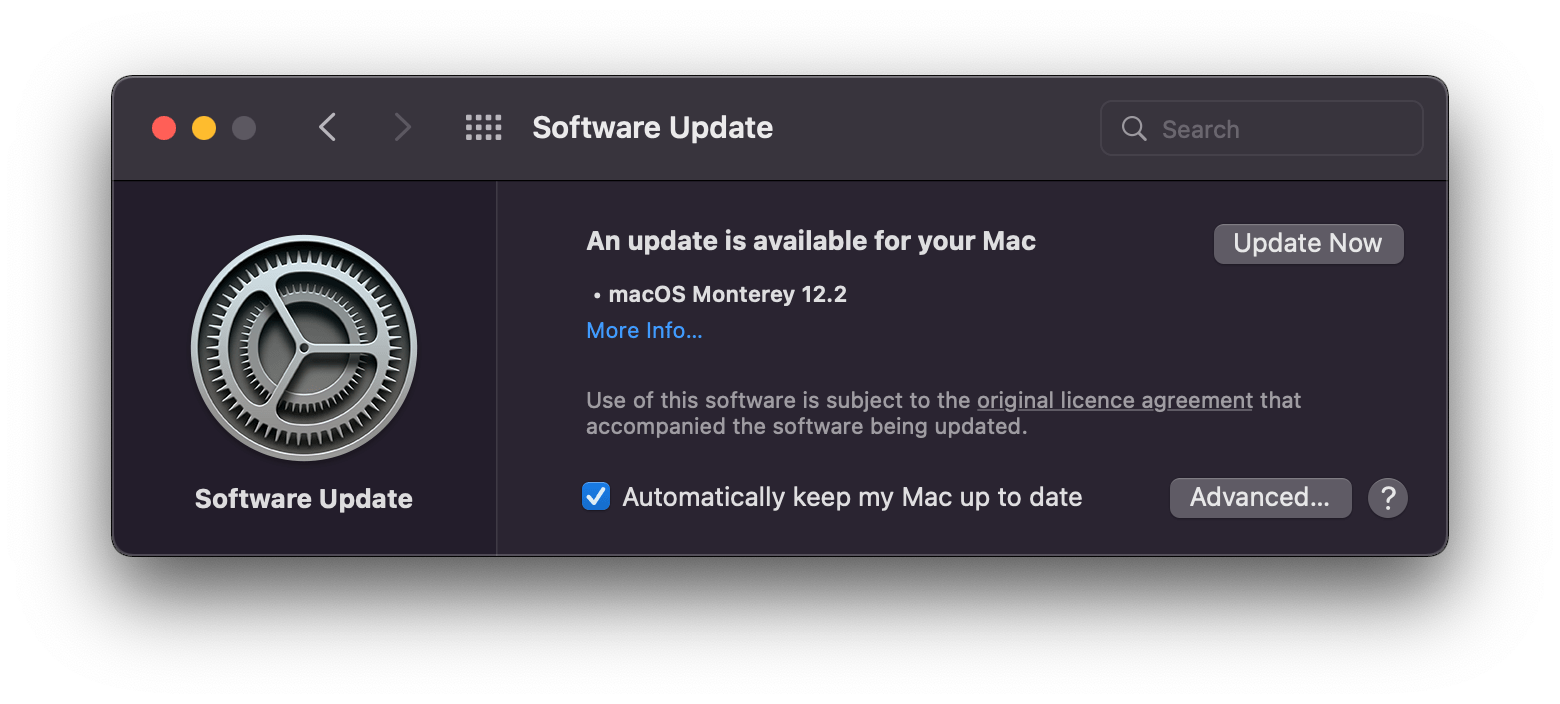
If the update you need doesn’t show up, see my guide on how to download macOS when it doesn’t appear in Software Update.
4. Quit and remove recently installed apps
It sounds strange, but some apps can affect your keyboard. To test this, quit all running apps, including background apps. The Quit All app does this with one click: click the Quit All button in the menu bar and make sure background apps are selected too.
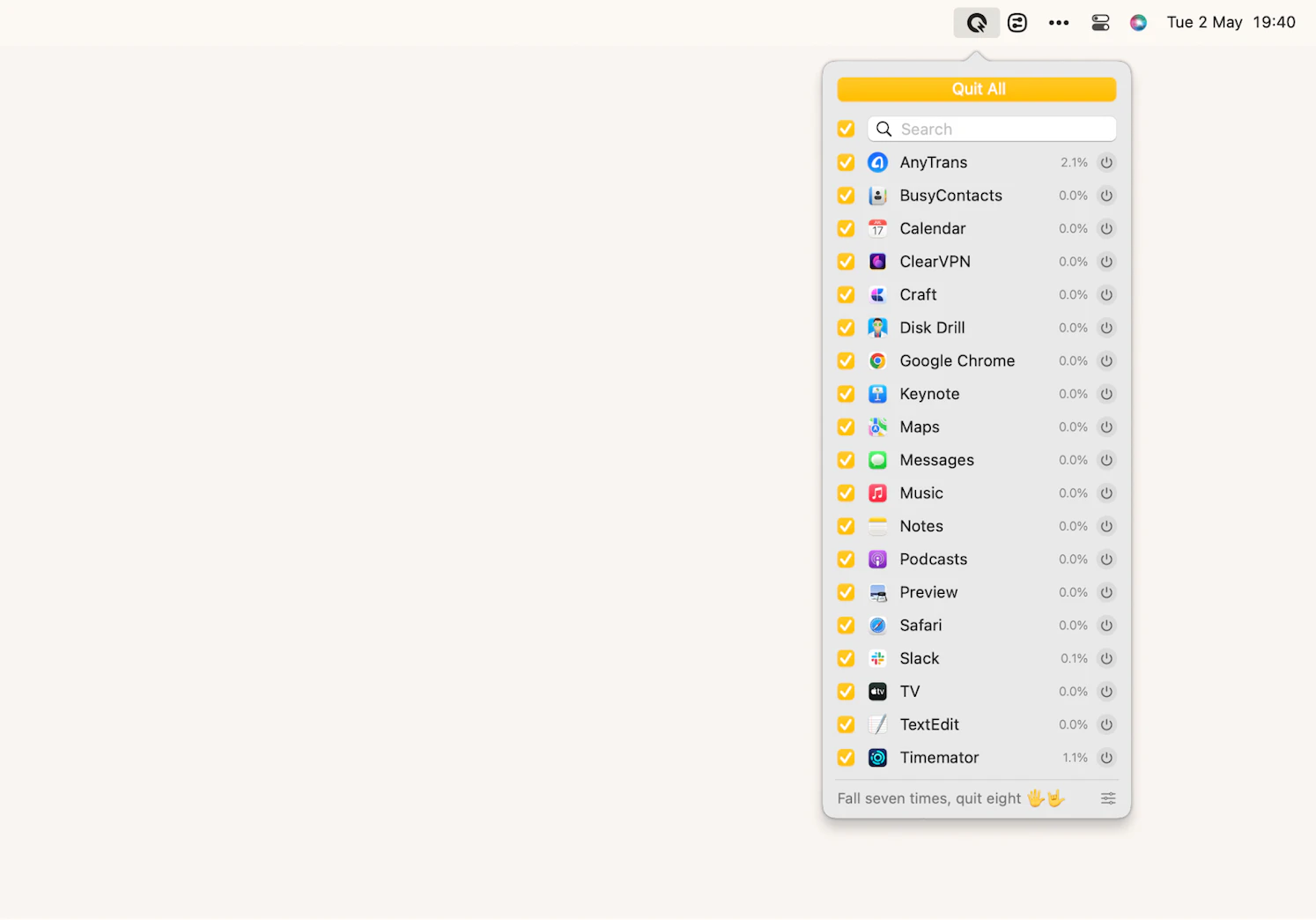
If the keyboard works again, one of your apps is causing the problem. Find it and uninstall it:
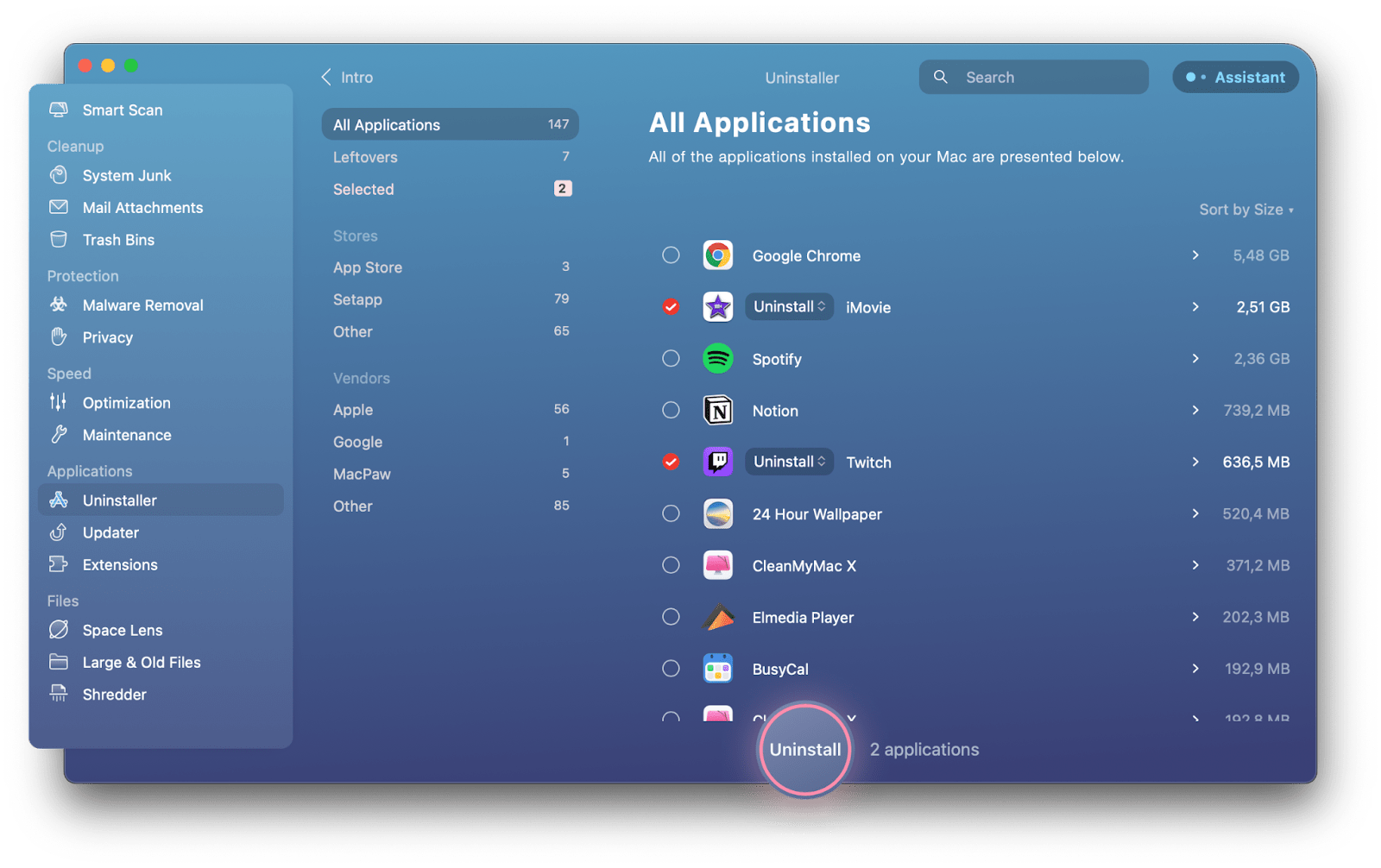
- Open Finder > Applications.
- Sort the apps by Date Added to see the newest ones first.
- Uninstall the apps you installed right before the problem started.
- Restart your Mac and test the keyboard.
An uninstaller such as CleanMyMac X (now called CleanMyMac) also removes the leftover files an app leaves behind, so the same problem doesn’t come back.
5. Restart the Touch Bar
If only the Touch Bar stopped working, you can usually restart it from Terminal:
- Open Terminal: type terminal in Spotlight, or go to Finder > Applications > Utilities.
- Type this command and press Return:
sudo pkill TouchBarServer - Enter your Mac password when asked and press Return. Nothing appears on the screen while you type the password, this is normal.
- Type this command and press Return:
sudo killall ControlStrip - The Touch Bar shuts down and restarts.
6. Turn off Slow Keys
With Slow Keys turned on, you have to hold each key longer than usual before it registers. If you only tap the keys, it can look like the keyboard doesn’t work at all. To turn it off:
- Open the Apple menu > System Preferences.
- Go to Accessibility > Keyboard > Hardware.
- Make sure Slow Keys is turned off.
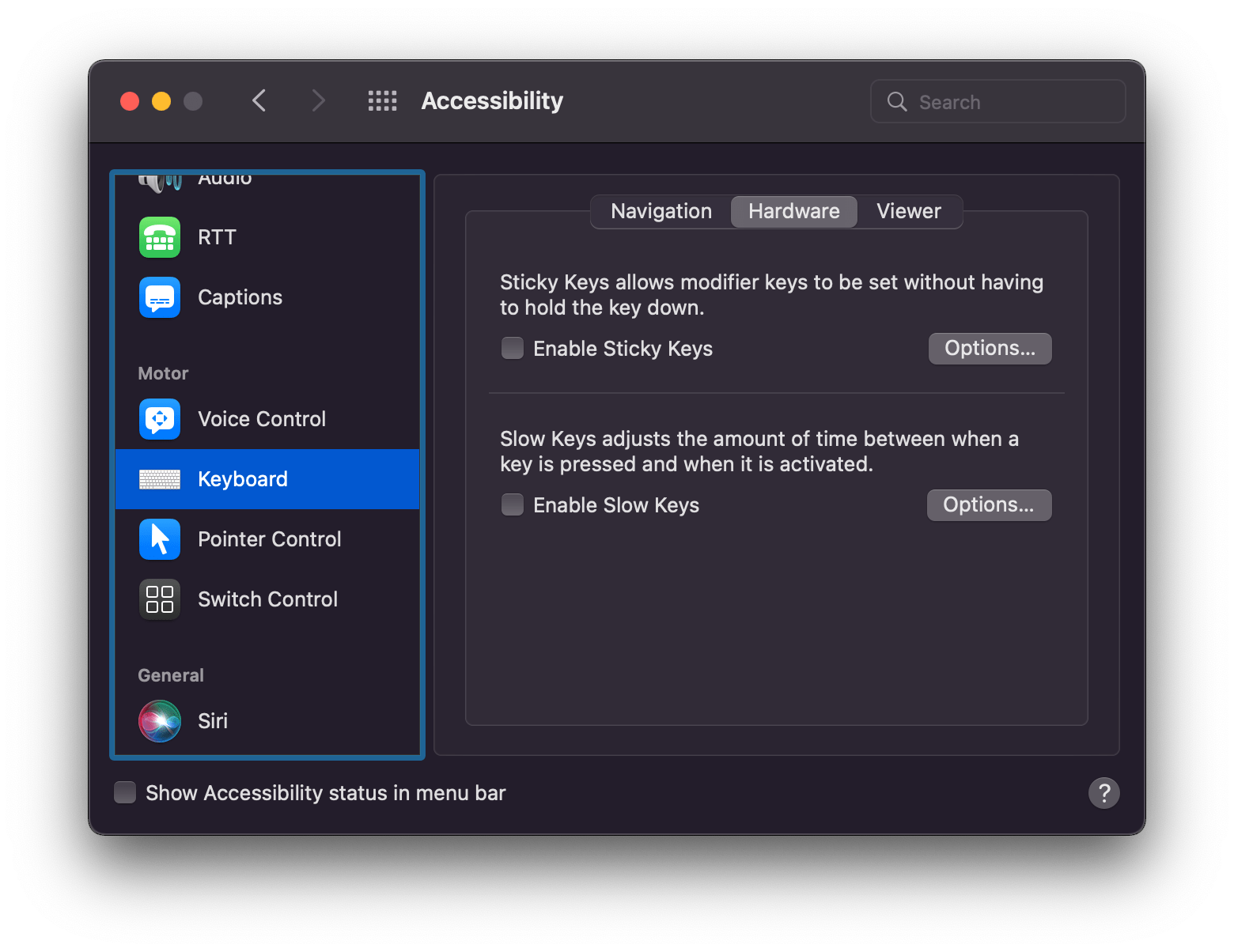
Note: On macOS Ventura and later, System Preferences is called System Settings.
7. Turn off Mouse Keys
Mouse Keys lets you move the pointer with the keyboard. If it gets turned on by accident, some keys stop typing letters. To turn it off:
- Open the Apple menu > System Preferences.
- Go to Accessibility > Pointer Control > Alternate Control Methods.
- Make sure Mouse Keys is turned off.
8. Check your keyboard layout
If the keys don’t type what you expect, the wrong keyboard layout may be selected. Here’s how to check:
- Open the Apple menu > System Preferences.
- Go to Keyboard > Input Sources.
- Select Show Input menu in menu bar.
- Click the Input menu icon in the menu bar and choose the correct layout for your language and region.
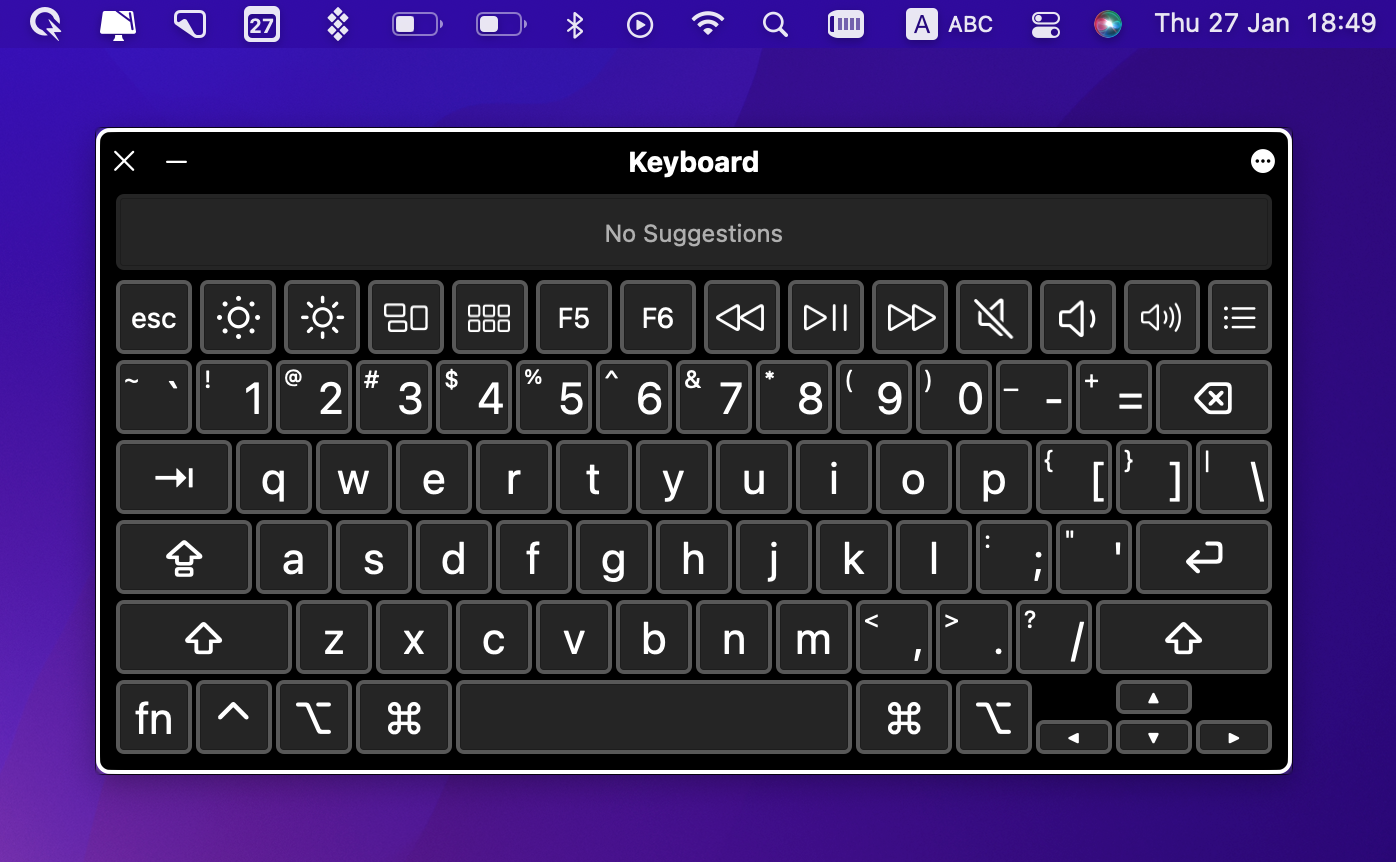
- To see what each key types, choose Show Keyboard Viewer from the same menu.
9. Delete keyboard and trackpad .plist files
If a settings file got damaged, deleting it resets those settings to the factory defaults. These settings live in .plist (“property list”) files:
- Back up your Mac first, for example with Time Machine or Get Backup Pro.
- Open Finder and press Command + Shift + G.
- Type
~/Library/Preferences/and click Go. - Find and select these files:
com.apple.driver.AppleBluetoothMultitouch.trackpad.plist com.apple.driver.AppleBluetoothMultitouch.mouse.plist com.apple.driver.AppleHIDMouse.plist com.apple.AppleMultitouchTrackpad.plist com.apple.preference.trackpad.plist - Delete them and restart your Mac.
10. Reset NVRAM (PRAM)
Resetting NVRAM (also called PRAM) can clear stubborn glitches in settings your Mac stores in this small memory. This only applies to Intel-based Macs. Macs with Apple silicon don’t need it.
- Shut down your Mac.
- Turn it on, then immediately press and hold Option + Command + P + R.
- Release the keys after about 20 seconds. Your Mac might appear to restart during this time.
11. Reset the System Management Controller (SMC)
The SMC manages power and some hardware features, including the keyboard backlight. If something is wrong with the SMC, the keyboard may not work correctly, and a reset usually fixes it. The steps depend on your Mac.
Mac with Apple silicon: Plug in the charger and restart your Mac, or shut it down and turn it on again. The SMC resets automatically.
Intel MacBook with the Apple T2 Security Chip (Intel models from 2018 to 2020):
- Shut down your Mac. Press and hold the power button (Touch ID) for 10 seconds, release it, wait a few seconds and turn the Mac on. If the problem is still there, continue.
- Shut down your Mac again.
- Press and hold Control (left side), Option (left side) and Shift (right side) for 7 seconds. Your Mac might turn on.
- Keep holding the three keys and also press and hold the power button for another 7 seconds.
- Release all keys, wait a few seconds, then press the power button to turn on your Mac.
Older Intel MacBook with a non-removable battery:
- Shut down your MacBook.
- Press and hold Shift + Control + Option on the left side of the built-in keyboard, then press and hold the power button too.
- Keep holding all four keys for 10 seconds.
- Release all keys, then press the power button to turn on your Mac.
Older MacBook with a removable battery:
- Shut down the MacBook.
- Remove the battery and unplug the power adapter.
- Press and hold the power button for 5 seconds.
- Put the battery back, then turn on your Mac.
An SMC reset can change a few options, such as how long your MacBook waits before it goes to sleep, but it doesn’t change any important settings or touch your files.
12. Restore your Mac from a Time Machine backup
If the keyboard or trackpad problems started recently, a change in software or settings may be the cause. You can roll your Mac back to an earlier Time Machine backup:
- Restart your Mac and open macOS Recovery. On an Intel Mac, press and hold Command + R while it starts. On a Mac with Apple silicon, press and hold the power button until you see the startup options, then click Options.
- Choose Restore from Time Machine Backup.
- Follow the on-screen instructions.
How to Fix a MacBook Trackpad That’s Not Working
The MacBook trackpad is one of the best on the market: responsive and precise, when it works correctly. If your trackpad stops working, try these steps.
Turn it off and on again
Restarting is an old joke, but it’s also good advice. Restart your MacBook and check if the problem is gone. Many Mac users also report that shutting down the laptop and closing the lid for a moment fixes a trackpad that stopped working.
Disable Force Click
On some MacBook Pro models, turning off Force Click fixes trackpad problems:
- Open System Preferences (or System Settings).
- Click Trackpad.
- Open the Point & Click tab.
- Uncheck Force Click.
Note: This option only exists on MacBooks with a Force Touch trackpad.
Reset the SMC
Many bugs and performance issues, including trackpad problems, can be solved by resetting the SMC. Follow the steps for your Mac in step 11 above.
How to Prevent Software Issues on Your Mac
Not every problem with your MacBook is a hardware problem. Sometimes software conflicts cause annoying issues that are hard to track down. A maintenance app can find the cause for you.
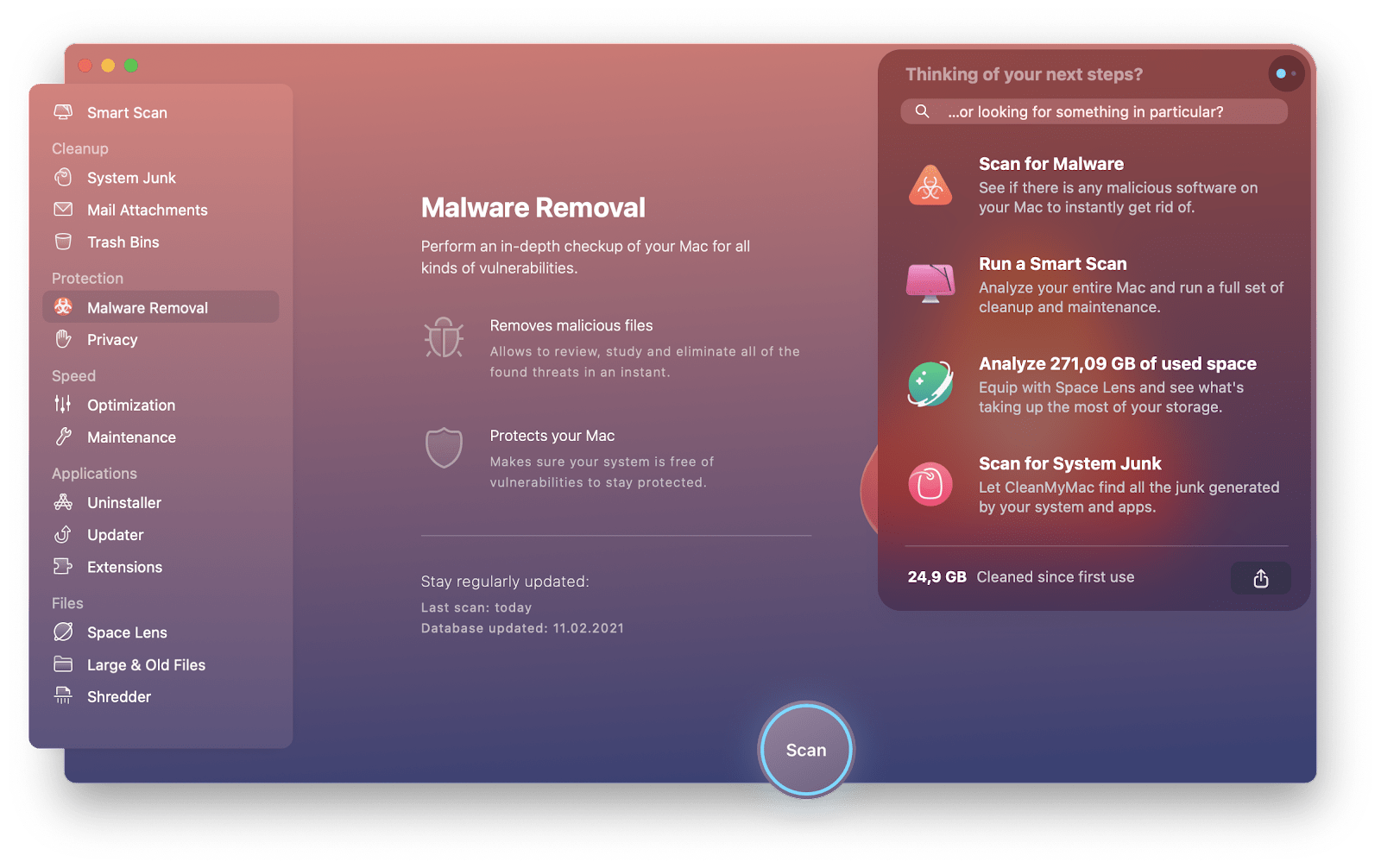
CleanMyMac X is a Mac maintenance app with a full-system cleanup, an uninstaller, a malware scanner, a file shredder and a set of optimization tools. If you think malware is behind your Mac’s problems:
- Open CleanMyMac X.
- Click Malware Removal in the sidebar.
- Click Scan and remove anything suspicious it finds.
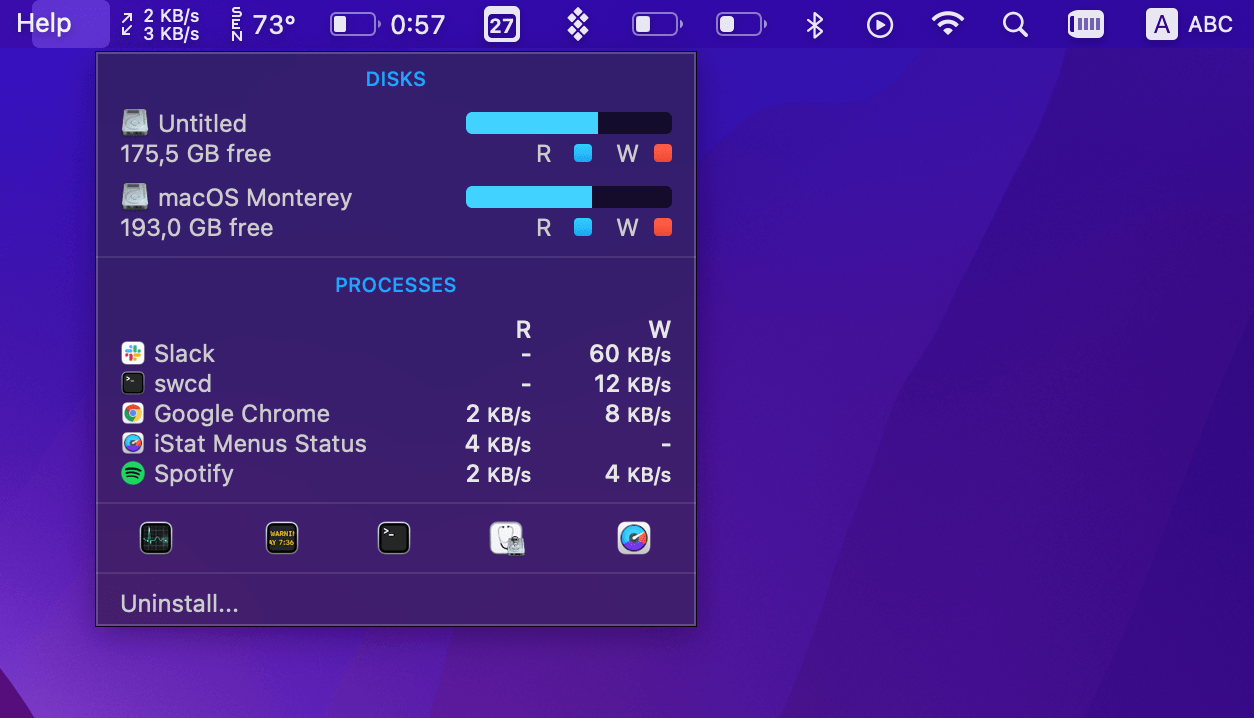
Prevention is the best treatment, so it also helps to watch your Mac’s performance. iStat Menus sits in your menu bar and shows details such as CPU load and fan speeds at a glance, so you see right away when your computer starts slowing down.
CleanMyMac X, iStat Menus and Quit All are all part of Setapp, a subscription with hundreds of Mac apps. Setapp has a free 7-day trial, which you can start here.
What If Your MacBook Keyboard Still Doesn’t Work?
If the keyboard still doesn’t work after all of these fixes, or only some keys fail, you need professional help. Contact Apple or find an Apple Authorized Service Provider near you. They can tell you what’s wrong and what the repair costs.
Update (October 2026): Apple’s Keyboard Service Program for butterfly keyboards has ended, so you can no longer get a free keyboard repair through that program. Apple still repairs these keyboards, but you have to pay unless your Mac is covered by warranty or AppleCare.
If your MacBook Pro shows a black screen instead, see my guide MacBook Pro Black Screen of Death: Fixed.
FAQ
How do I reset an external keyboard on my MacBook Pro?
macOS sets up a new external keyboard with the Keyboard Setup Assistant, so you usually don’t need to do anything. If the layout is wrong or the keyboard doesn’t work, reset it manually:
- Disconnect the external keyboard from your MacBook.
- In Finder, choose your hard drive (Macintosh HD).
- Open the Library folder > Preferences.
- Find the file
com.apple.keyboardtype.plistand delete it. - Empty the Trash.
- Reconnect the external keyboard and let the Keyboard Setup Assistant set it up.
How do I fix the keyboard backlight?
If the backlight doesn’t work or is very dim, check the brightness first. Open Control Center > Keyboard Brightness and drag the slider up. If the backlight still doesn’t work, try the fixes in this article. Resetting the SMC is the best place to start.
Can I lock the keyboard?
You lock the keyboard the same way you lock your Mac. You can put your Mac to sleep from the Apple menu, or press Option + Command + Power on keyboards without Touch ID. To lock the screen so nobody can use your Mac without your password, press Control + Command + Q (on keyboards with Touch ID, you can also just press the Touch ID button). You can also simply close the lid of your MacBook.





