

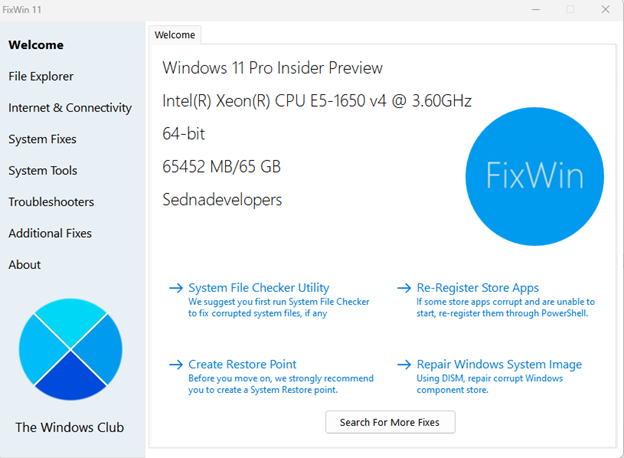
FixWin 11 is a free Windows repair tool from The Windows Club. It fixes common Windows 11 and Windows 10 problems with a single click: File Explorer issues, internet and network problems, broken Store apps, a disabled Task Manager and much more. It is a portable program, so there is nothing to install.
In this article
What FixWin 11 can fix
FixWin 11 is made for Windows 11 and Windows 10. Its fixes are organized into 6 categories:
- File Explorer: fixes for problems with Windows File Explorer.
- Internet & Connectivity: fixes for internet problems that can appear after you upgrade Windows.
- System Fixes: solutions for common Windows problems, plus options to reset the thumbnail cache, re-register all system DLL files and fix Windows activation problems.
- System Tools: repairs built-in tools that don’t work correctly. The Advanced System Information tab shows details about your PC, such as the number of processor threads, logical processors, maximum display resolution and maximum refresh rate.
- Troubleshooters: direct access to the built-in Windows troubleshooters, plus download links for other Microsoft troubleshooters.
- Additional Fixes: several other fixes for Windows 11 and Windows 10.
How to repair Windows 11 with FixWin 11
- Download FixWin11.zip with the button above, extract it and run FixWin as administrator.
- Create a System Restore point with the button on the Welcome page. Do this before you make any system changes, so you can go back if something goes wrong.
- Run the System File Checker with the button on the Welcome page. It runs the
sfc /scannowcommand, which checks your Windows system files and replaces corrupted ones. This can take 5 to 10 minutes, and you may need to restart. - If Microsoft Store apps don’t work, use the one-click button on the Welcome page to re-register the Store apps.
- For serious Windows 11 or 10 problems, run the DISM tool to repair the Windows system image. There is a button for it on the Welcome page as well.
- Apply one fix at a time and restart your computer. Check if the problem is solved. If you’re not happy with the result, restore your system right away with the restore point.
- To see what a fix does, click the ? (Help) button next to its Fix button. A pop-up explains the fix. Double-clicking copies the command to your clipboard, which is useful if you want to run the fix manually.
- Some problems can’t be fixed with one click. In that case, click Search For More Fixes on the Welcome page and search for the solution you need.
Note: A few fixes are for features that only exist in older Windows versions, such as Internet Explorer and HomeGroup. On Windows 11 you can ignore those.
Full list of fixes in FixWin 11
File Explorer
- Restore the missing Recycle Bin icon on the desktop
- Fix WerMgr.exe or WerFault.exe application errors
- Bring back disabled or missing Folder Options / File Explorer Options
- Fix a Recycle Bin icon that doesn’t refresh
- Make sure Explorer starts when Windows starts
- Show missing thumbnails in File Explorer
- Reset a corrupted Recycle Bin
- Fix CD/DVD drives that Windows doesn’t recognize
- Fix the “Class not registered” error in File Explorer or Internet Explorer
- Restore the “Show hidden files, folders, and drives” option in Folder Options
- Fix a grayed-out Recycle Bin in Desktop Icon Settings
Internet & Connectivity
- Re-enable the disabled right-click context menu in Internet Explorer
- Fix internet connection problems caused by Internet Protocol (TCP/IP) issues
- Fix DNS resolution problems by clearing the DNS resolver cache
- Clear the Windows Update history to fix failed and installed updates
- Reset Windows Firewall settings
- Reset Internet Explorer to its default settings
- Fix runtime errors in Internet Explorer
- Optimize Internet Options for more simultaneous downloads
- Restore missing Internet Options settings in the Advanced tab
- Repair Winsock (reset catalog)
- Fix the “Telnet is not recognized” command error
System Fixes
- Repair a corrupt Windows Component Store
- Reset the Settings app when it doesn’t open
- Disable OneDrive background syncing
- Fix an unresponsive Start menu
- Fix Wi-Fi problems after upgrading
- Fix Windows Updates that are stuck after upgrading
- Remove duplicate OneDrive entries in File Explorer
- Fix Windows Sandbox startup problems
- Fix Windows Update errors
- Fix WslRegistrationDistribution errors
- Show the remaining battery time
- Clear and reset the Store cache when apps don’t download
- Fix error code 0x8024001e when installing Store apps
- Re-register Windows Store apps that don’t open
- Reset the thumbnail cache
- Re-register all system DLL files
- Fix Windows activation problems
System Tools
- Re-enable a disabled Task Manager, Command Prompt or Registry Editor
- Enable MMC snap-ins for tools such as Group Policy (gpedit.msc)
- Reset Windows Search to its default settings
- Re-enable a disabled System Restore
- Fix Device Manager when it doesn’t work
- Repair Windows Defender and reset its settings to default
- Fix Action Center and Windows Security Center conflicts with antivirus or firewall software
- Reset Windows Security settings
- Open Advanced System Information: processor threads, logical processors, display resolution, refresh rate and more
Troubleshooters
FixWin opens the built-in Windows troubleshooters directly for:
- Audio playback and recording
- Power, printer and shared folder problems
- HomeGroup, internet performance and internet safety
- Windows Media Player settings, library and DVD playback
- Internet connections and hardware devices
- Incoming connections and system maintenance
- Network adapters and Windows Update
- Search and indexing
- Plus links to more troubleshooters for Mail and Calendar app crashes, Settings app launch problems, Windows 10 printer problems and Windows 10 Store app problems
Additional Fixes
- Bring back the missing Hibernate option
- Restore the Sticky Notes delete warning dialog
- Fix Aero Snap, Aero Peek or Aero Shake when they don’t work
- Repair corrupted desktop icons and rebuild the icon cache
- Restore a missing taskbar jump list or recent files (MRU) list
- Re-enable disabled notifications
- Re-enable disabled Windows Script Host access
- Open Office documents after upgrading Windows
- Fix error code 0x8004230c when writing a recovery image
- Fix internal application errors in Windows Media Player
- Reset many system settings and components, including Group Policy, the catroot2 folder, Notepad, Data Usage, WMI Repository, Recycle Bin, Winsock, Windows Store cache, DNS cache and TCP
Related guides
- How to fix Task Manager not opening on Windows 10 or 11
- How to fix “Some settings are managed by your organization” (reset all Group Policy settings)
Source of this post: www.thewindowsclub.com





