

Is your Wi-Fi not working on Windows, or do you have other network connection problems? Resetting your network settings often fixes them. A reset restores your computer’s networking setup to its default state, whether the problem is with Wi-Fi, Ethernet or the network in general.
In this guide you will learn 3 ways to reset Wi-Fi and network settings on Windows: the built-in Network reset, a few Command Prompt commands, and the free NetAdapter Repair tool.
In this article
When should you reset Wi-Fi and network settings?
A network reset is useful when:
- You can’t connect to Wi-Fi or Ethernet.
- You keep getting connection problems, like “Limited connectivity” or “No Internet” errors.
- Your network adapters don’t work, or your computer can’t detect any network.
- You need to refresh your network configuration (such as DNS or the IP address).
In many cases, a reset fixes the problem without reinstalling drivers or software.
Method 1: Reset the network in Windows Settings
Windows 11
- Press Windows + I to open Settings.
- Go to Network & internet > Advanced network settings.
- Click Network reset.
- Click Reset now and confirm with Yes.
- Windows restarts your PC to finish the reset. Save your work first.
Windows 10
- Press Windows + I to open Settings.
- Click Network & Internet.
- Click Status on the left, then scroll down and click Network reset.
- A message tells you that this removes and reinstalls all your network adapters and sets other networking components back to their original settings. Click Reset now and confirm.
- Restart your computer when Windows asks you to.
Note: After the reset, connect to your Wi-Fi network again. You may need to type the Wi-Fi password again, so have it ready. If you use VPN software, you may need to set it up again too.
Method 2: Reset the network with Command Prompt
If you prefer command-line tools, you can reset the network settings manually.
- Type cmd in the search bar, right-click Command Prompt and select Run as administrator.
- Run these commands one by one. Press Enter after each line.
netsh winsock reset
netsh int ip reset
ipconfig /release
ipconfig /renew
ipconfig /flushdns
What each command does:
netsh winsock reset: resets the Winsock catalog.netsh int ip reset: resets the TCP/IP stack.ipconfig /releaseandipconfig /renew: release your current IP address and get a new one.ipconfig /flushdns: clears the DNS resolver cache.
When you are done, restart your PC to apply the changes.
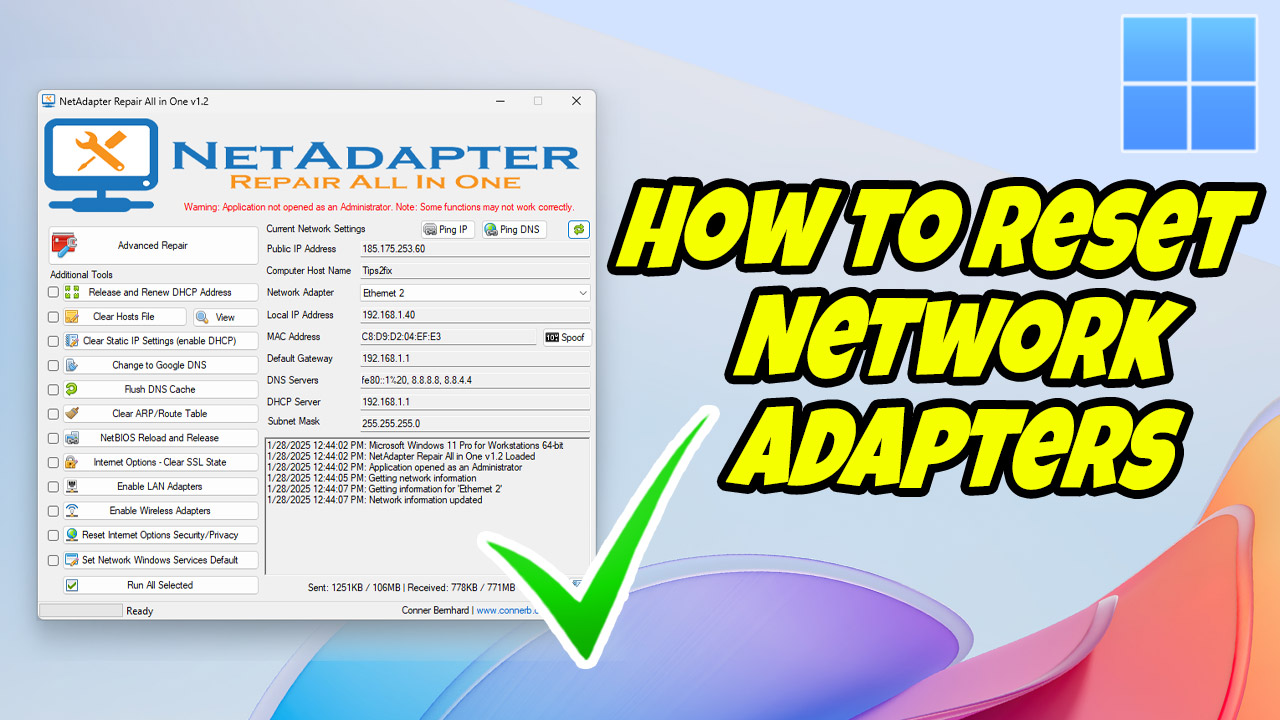
Method 3: Reset Wi-Fi and network settings with NetAdapter Repair
NetAdapter Repair All In One is a free all-in-one utility for network-related Windows tasks. It fixes common networking and Winsock problems with a few clicks, and it also includes tools and diagnostics to change various network settings. It needs the .NET Framework 4.0 or higher, and you must run it as administrator.
How to use NetAdapter Repair
- Download NetAdapter Repair with the button above.
- Run it as administrator: right-click the program and select Run as administrator, so it has permission to change system settings.
- Choose Advanced Repair: on the main screen, click Advanced Repair and confirm to start the repair. It repairs Winsock and the TCP/IP stack, clears all proxy and VPN settings, and resets the Windows Firewall configuration.
- Restart your computer when the repair is finished.
Every tool you run saves its output to a log file in the same folder as the program.
What else NetAdapter Repair can do
- Advanced Repair (Winsock/TCP IP repair, clear all proxy/VPN settings, Windows Firewall repair)
- Release and renew the DHCP address
- Clear the hosts file
- Clear static IP settings (enable DHCP)
- Change to Google DNS
- Flush the DNS cache
- Clear the ARP/route table
- NetBIOS reload and release
- Clear the SSL state in Internet Options
- Enable LAN adapters
- Enable wireless adapters
- Reset Internet Options security/privacy
- Set network Windows services to default
- Spoof your MAC address (for privacy or troubleshooting)
Note: NetAdapter Repair is an older tool. If it does not start on your PC, use Method 1 or Method 2, which do the same core resets.
More troubleshooting tips
If resetting the network settings doesn’t solve the problem, try these:
- Check your router: sometimes the problem is the router or modem, not your PC. Restart the router and check that other devices can connect.
- Update your network drivers: outdated or corrupted drivers can cause problems. Open Device Manager, expand Network adapters, right-click your adapter and select Update driver.
- Run the network troubleshooter: on Windows 11, go to Settings > System > Troubleshoot > Other troubleshooters and run Network and Internet. On Windows 10, go to Settings > Update & Security > Troubleshoot > Additional troubleshooters and run Network Adapter.
Did your Wi-Fi stop working right after a Windows update? Read WiFi not working after a Windows 11 update: the real fixes. If the signal is just too weak in some rooms, see how to set up a WiFi range extender.
FAQ
Will a network reset delete my files?
No. It only resets network adapters and network settings. Your files and apps are not touched.
Do I need to reinstall my network drivers after a reset?
No. Windows reinstalls your network adapters automatically when the PC restarts.
Summary
Resetting your Wi-Fi and network settings on Windows is quick and fixes many connection problems, like Wi-Fi not connecting or network adapter errors. Start with the built-in Network reset, try the Command Prompt commands if needed, or use NetAdapter Repair for more options. Always restart your computer after a reset so the changes take effect.





