Go back is a Windows feature that returns your computer to the previous version of Windows after an upgrade, for example from Windows 11 back to Windows 10, or back to the earlier version of Windows 10 or 11 that you had before. If your system crashes, your apps are not compatible, or you have other problems after upgrading Windows, try going back to the previous version. If you changed your password after the upgrade, you may need the password you used with the previous version.
Microsoft guide: Recovery options in WindowsBefore you start
Note: the Go back option is only available for 10 days after you upgrade Windows. After 10 days, Windows deletes the old files to free up space, and the Go back option disappears from Settings. Want more time? See how to extend the 10-day period to 60 days before the windows.old folder is deleted.
Even within the 10 days, Go back is not available if:
- You reset your PC.
- You used Disk Cleanup to remove the windows.old or $windows.~bt folder.
- Files were deleted manually from the windows.old or $windows.~bt folder, or the whole folder was deleted.
- You created a new user account (switching a local account to a Microsoft account does not count).
If you can no longer use Go back, you can reinstall the older Windows version, or restore your PC to factory settings with your manufacturer’s recovery tool. ASUS laptops, for example, can be restored to factory settings with the ASUS Cloud Recovery feature.
Note: Windows 10 support ended on October 14, 2025. If you go back to Windows 10, enroll in the ESU program (free if you back up your settings) to keep getting security updates. See how to extend Windows 10 security updates for free.
How to go back on Windows 11
-
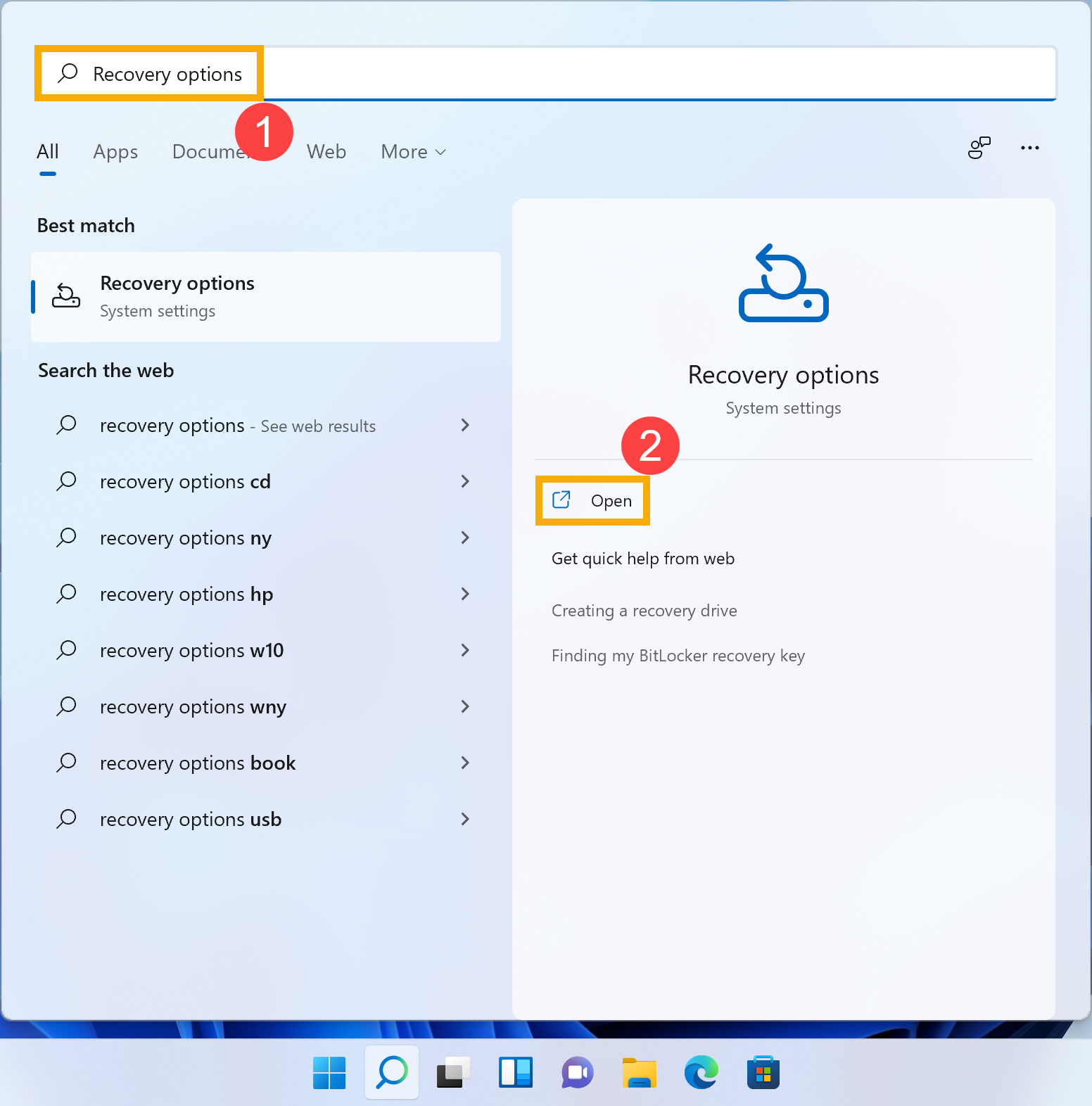
Type Recovery options in the Windows search bar, then click Open.
-
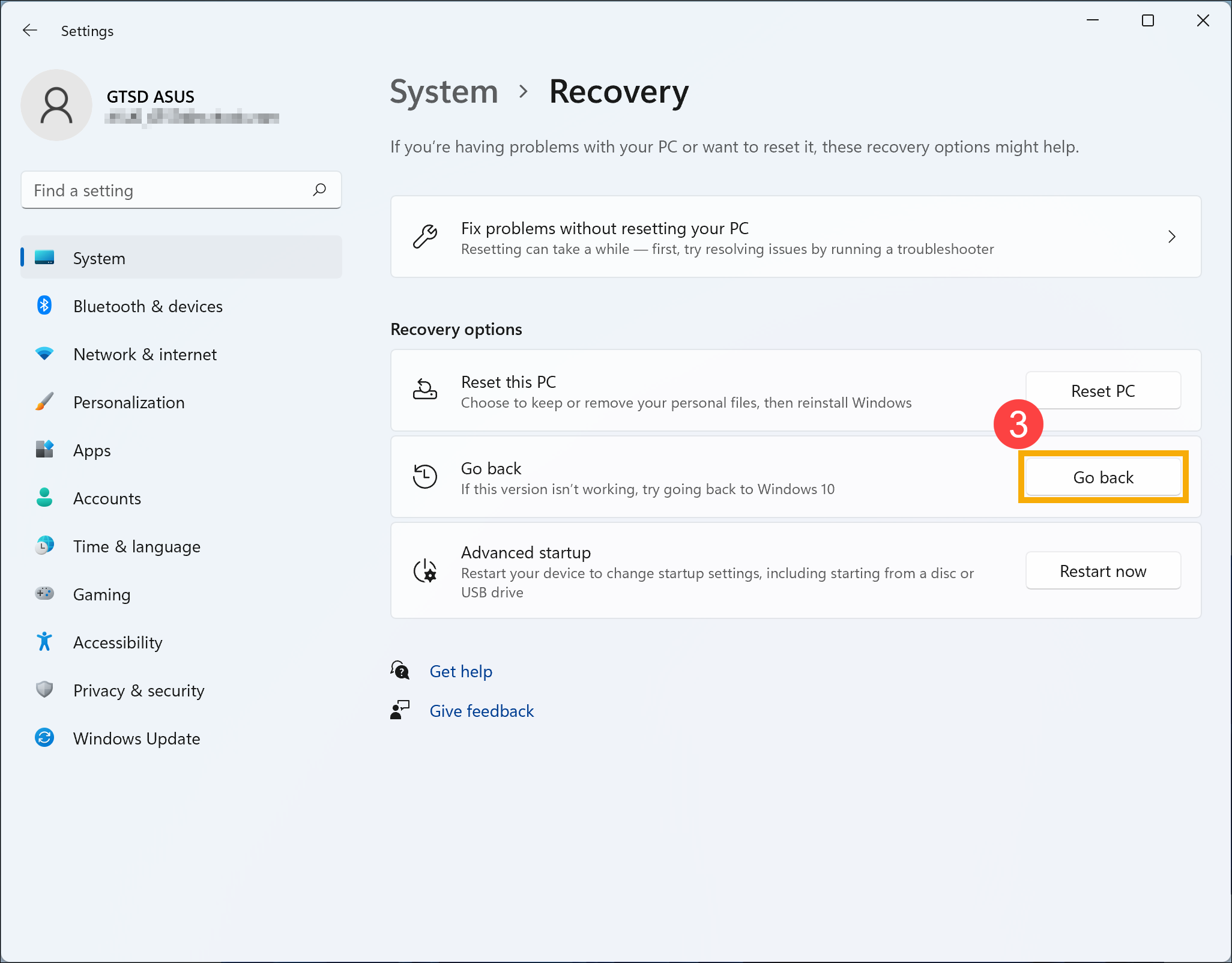
In Recovery options, click Go back. If this option is not available, the 10 days may have passed, or one of the conditions above applies.
-
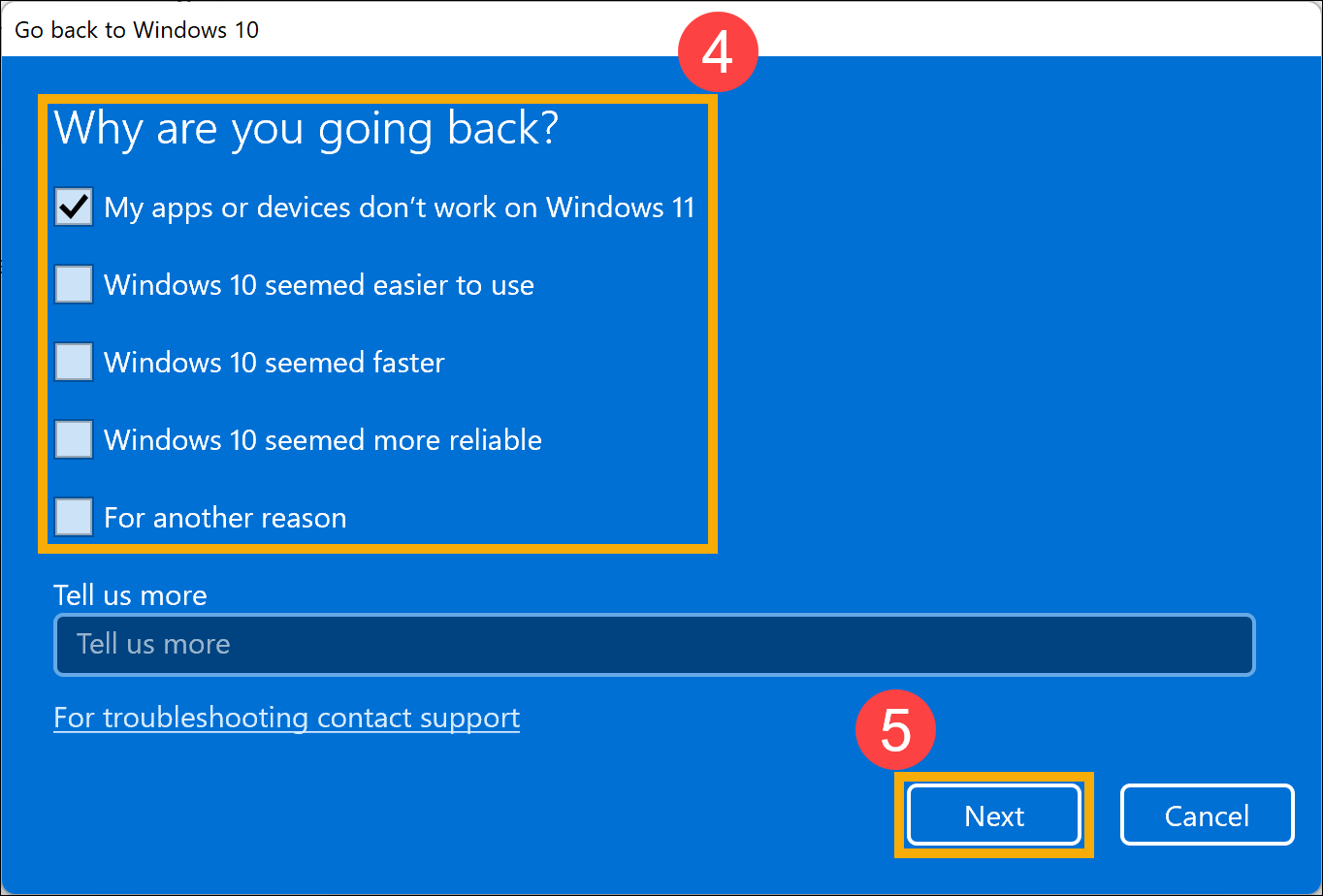
Select a reason or type more details, then click Next.
-
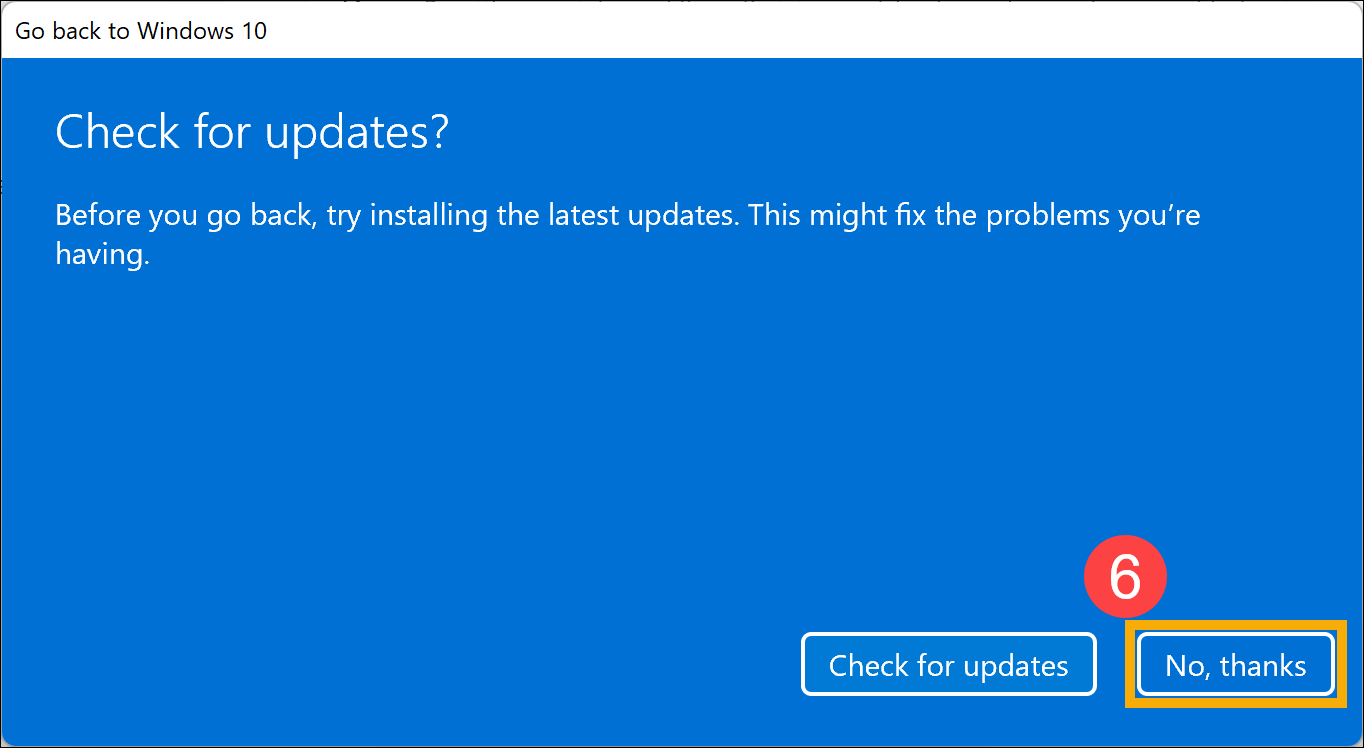
Click No, thanks to continue. If you want to try updates first, click Check for updates instead: it opens Windows Update and checks for the latest updates.
-
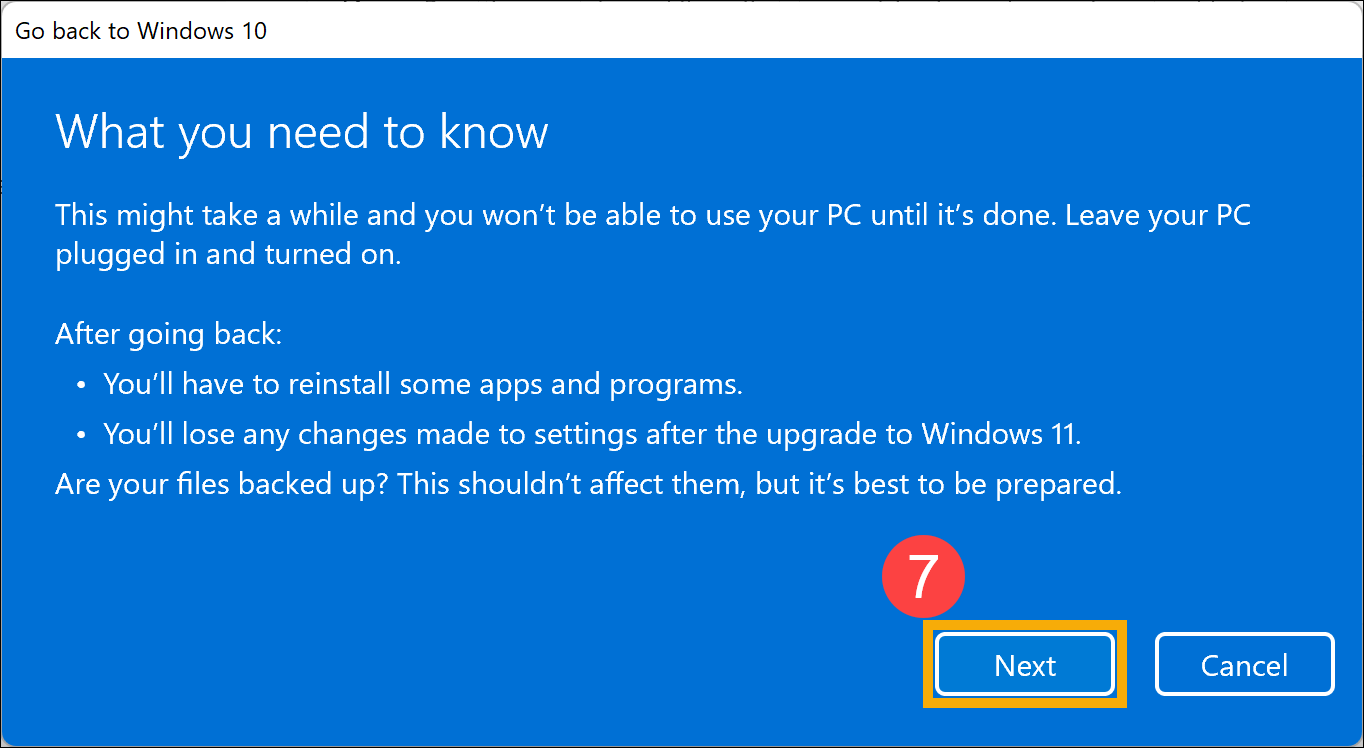
Read What you need to know, leave your PC plugged in and turned on, then click Next.
-
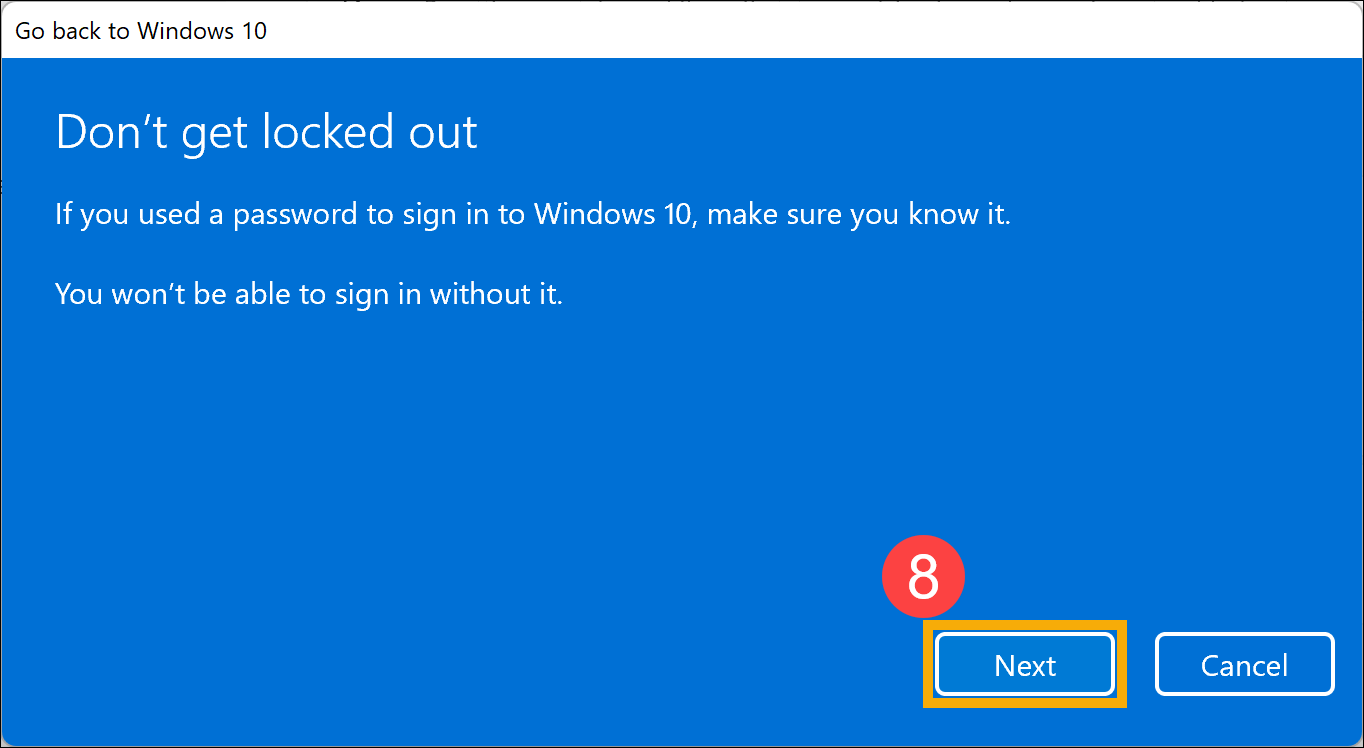
If you changed your password, you need the password you used with the previous version. Click Next to continue.
-
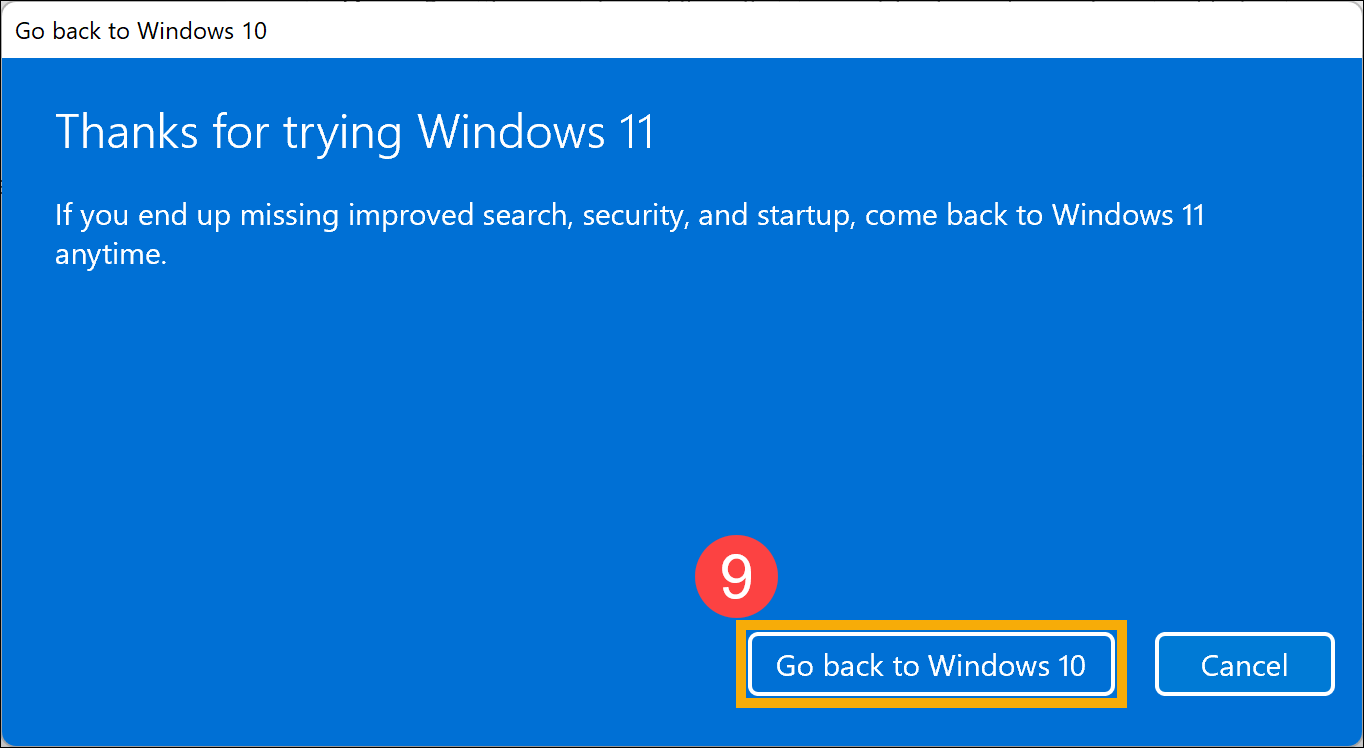
Click Go back to earlier build. The PC starts the process and opens Windows again when it is finished. During this time, keep the AC adapter plugged in and do not force a shutdown.
Note: the picture below shows Windows 11 going back to Windows 10.
How to go back on Windows 10
-
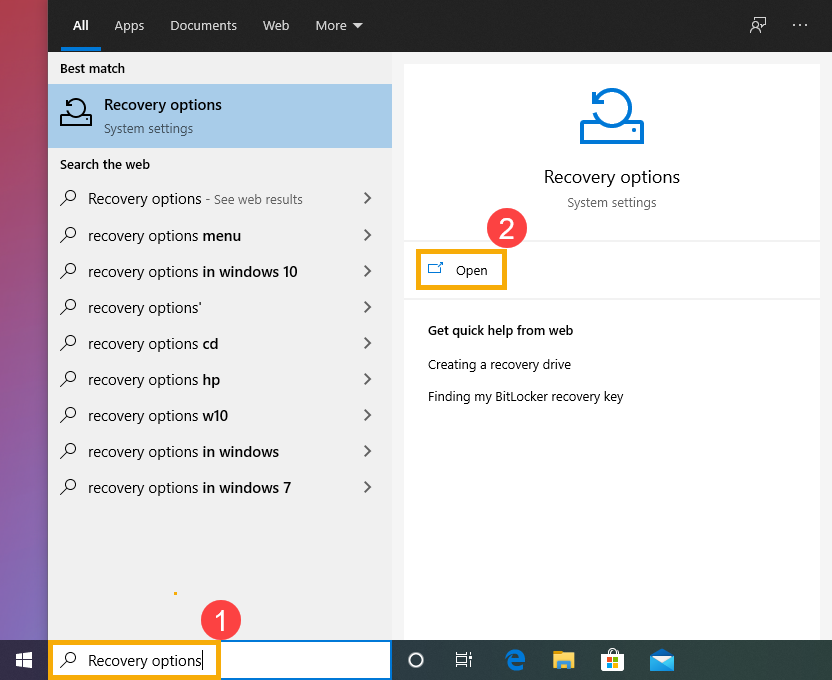
Type Recovery options in the Windows search bar, then click Open.
-
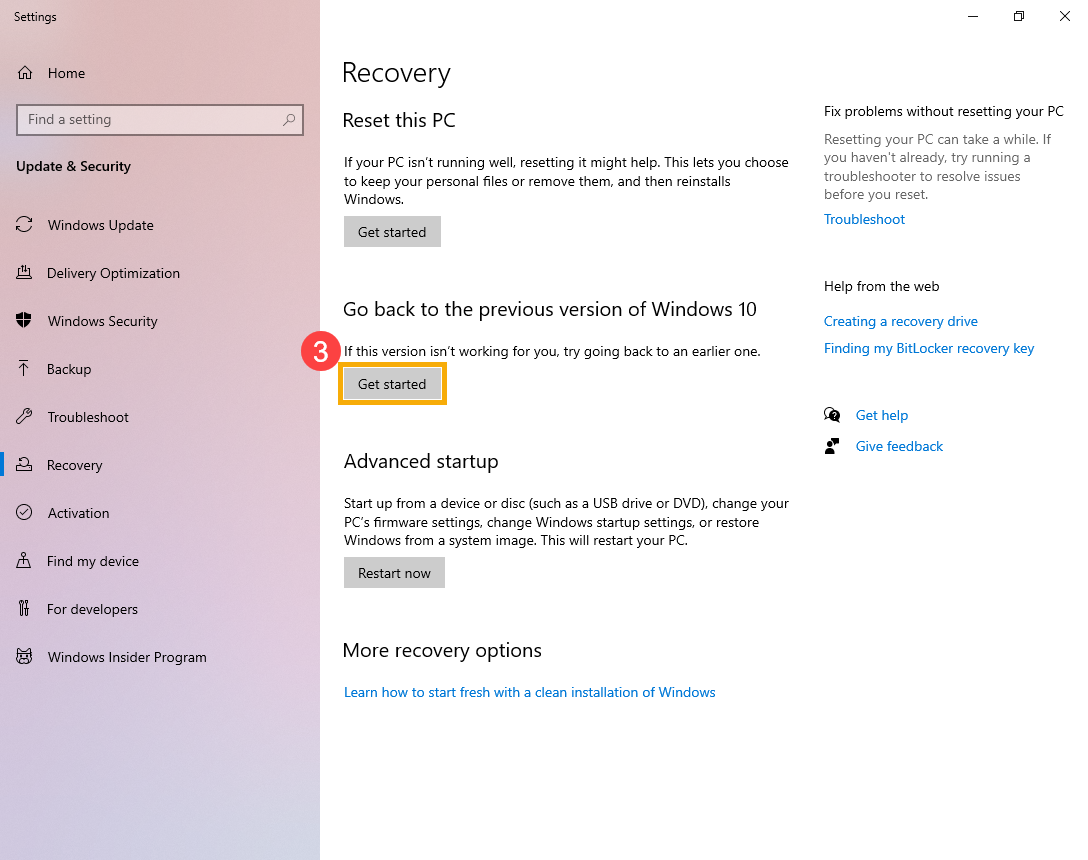
Under Go back to the previous version of Windows 10, click Get started. If this option is not available, the 10 days may have passed, or one of the conditions above applies.
-
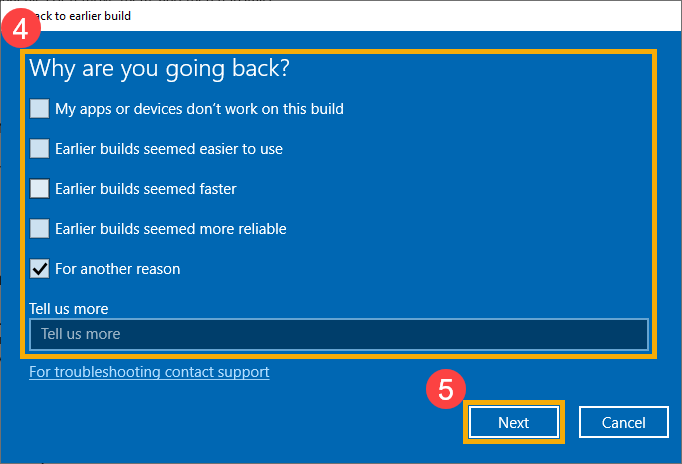
Select a reason or type more details, then click Next.
-
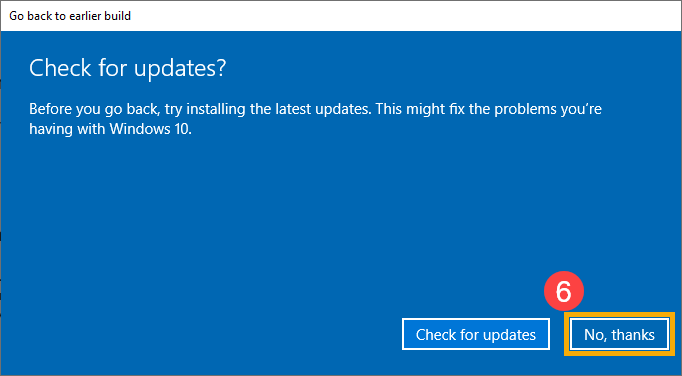
Click No, thanks to continue. If you want to try updates first, click Check for updates instead: it opens Windows Update and checks for the latest updates.
-
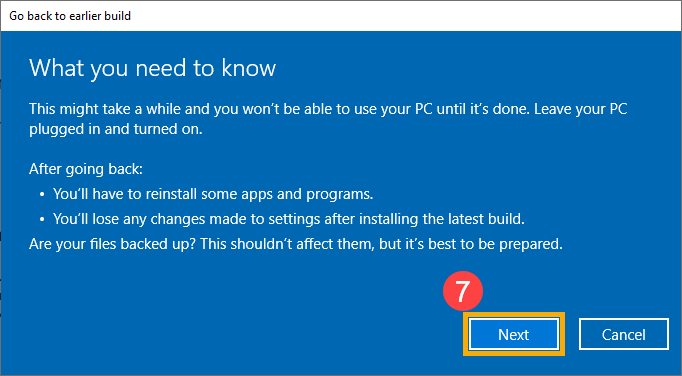
Read What you need to know, leave your PC plugged in and turned on, then click Next.
-
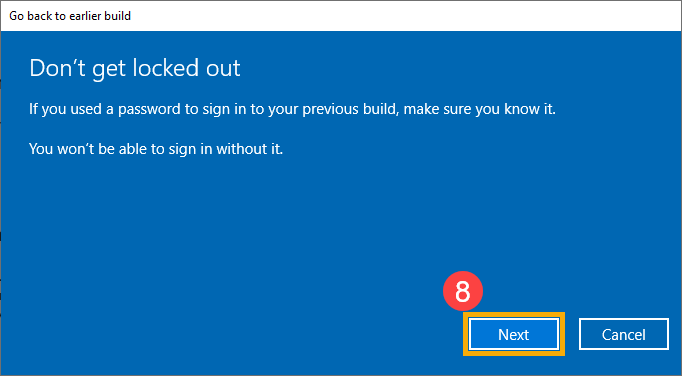
If you changed your password, you need the password you used with the previous version. Click Next to continue.
-
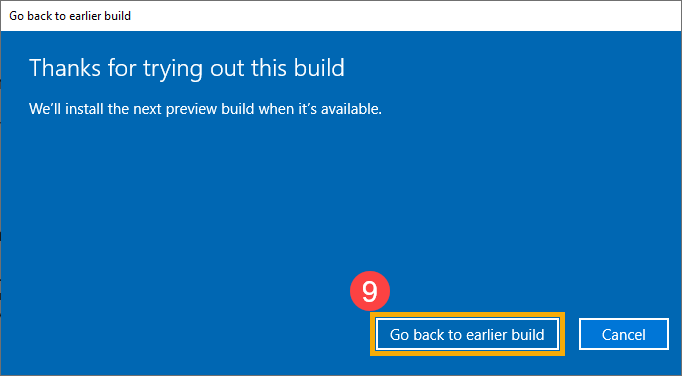
Click Go back to earlier build. The PC starts the process and opens Windows again when it is finished. During this time, keep the AC adapter plugged in and do not force a shutdown.
Source of this guide: ASUS support (asus.com)