After you upgrade from Windows 10 to Windows 11, Windows gives you only 10 days to go back. After that, it deletes the Windows.old folder and the Go back option disappears. Are 10 days not enough to decide if Windows 11 is better than Windows 10? Here is how to extend the rollback period to up to 60 days, with a DISM command or with the Registry Editor.
Update (October 2026): Windows 10 reached end of support on October 14, 2025. If you go back to Windows 10 today, your PC no longer gets regular security updates, so think twice before you roll back. The DISM command below also works after other Windows upgrades that create a Windows.old folder, for example an in-place upgrade to a new Windows 11 version.
Important: Do this within the first 10 days after the upgrade, while the Go back option still works. Do not delete the Windows.old folder.
In this article
1. How to Check and Extend the Rollback Limit with DISM
DISM (Deployment Image Servicing and Management) is a command-line tool built into Windows. You can use it to check the rollback period and to extend it from 10 days to up to 60 days.
- Press Win + X to open the quick link menu.
- Click Terminal (Admin) (called Windows Terminal (Admin) on older versions) to open the terminal with administrator rights.
- The terminal opens PowerShell by default, and the commands work there. If you prefer Command Prompt, click the drop-down arrow in the toolbar and select Command Prompt.
- Type the following command and press Enter to see the current time limit for the Go back feature:
DISM /Online /Get-OSUninstallWindow- The output shows the number of days currently set on your PC (by default, 10).
- If you see Error 1168: Element not found, the old backup has already been deleted, and you cannot go back to the previous version from your current installation.
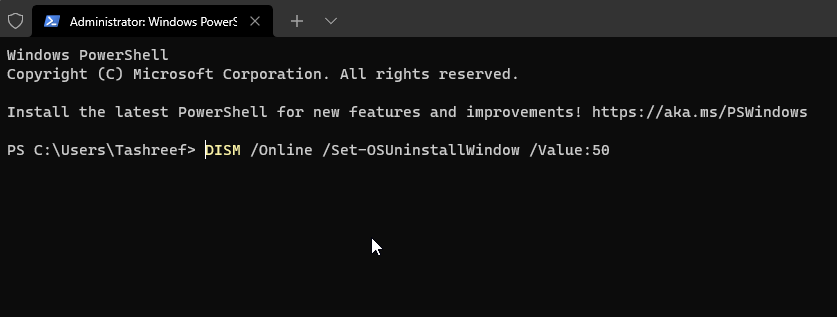
- Type the following command to extend the 10-day limit:
DISM /Online /Set-OSUninstallWindow /Value:NDays - Replace NDays with the number of days you want. For example, to extend the limit to 50 days, the command is:
DISM /Online /Set-OSUninstallWindow /Value:50 - Press Enter and wait. When it is done, you see the message The operation completed successfully.
That’s it. Windows now keeps the files of your previous version for the number of days you set, counted from the day of the upgrade. Run the Get command again to check the new value.
Note: The value must be between 2 and 60 days. According to Microsoft, if you enter a number lower than 2 or higher than 60, Windows uses the default of 10 days.
2. Extend the Go Back Period Using the Registry Editor
You can also set the limit without the command line. The rollback period is saved in a registry value called UninstallWindow, and you can create or change it in the Registry Editor yourself.
- Press Win + R to open the Run dialog.
- Type regedit and click OK to open the Registry Editor.
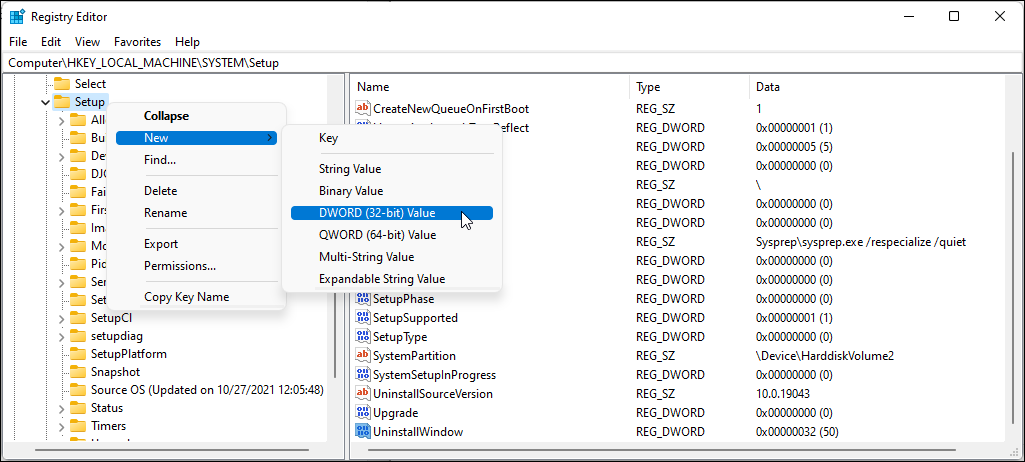
- Go to the following key:
HKEY_LOCAL_MACHINE\SYSTEM\Setup - In the right pane of the Setup key, look for the UninstallWindow value. If it is already there, skip to step 6.
- If it is not there, right-click the Setup key, select New > DWORD (32-bit) Value and name it UninstallWindow.
- Right-click the UninstallWindow value and select Modify.
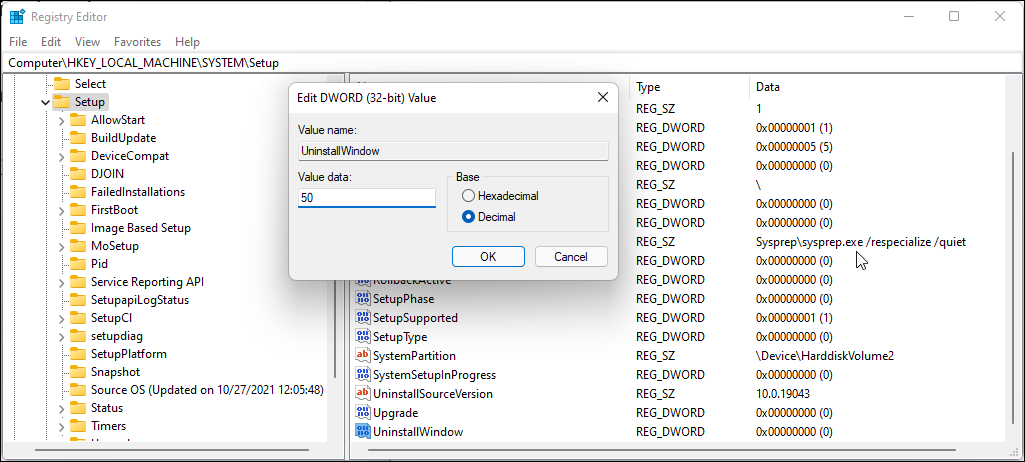
- In the Edit dialog, select Decimal under Base. Then type 50 in the Value data field. To extend the limit to 60 days, type 60 instead.
- Click OK to save the change.
- Close the Registry Editor and restart your PC.
After the restart, you have 50 days (or the number you entered) before the Go back option in Windows 11 is greyed out.
Download the registry key
Note: This .reg file is an export of the complete HKEY_LOCAL_MACHINE\SYSTEM\Setup key from my PC, not only the UninstallWindow value. If you want to change only the rollback period, use the DISM command or the manual steps above, or save this text in Notepad as a .reg file and double-click it. It sets the limit to 60 days (3c in hexadecimal):
Windows Registry Editor Version 5.00

[HKEY_LOCAL_MACHINE\SYSTEM\Setup]
"UninstallWindow"=dword:0000003c
How to go back to Windows 10
When you are ready to roll back, open Settings > System > Recovery and click Go back. For the full steps, read How to go back to the previous version of Windows.