

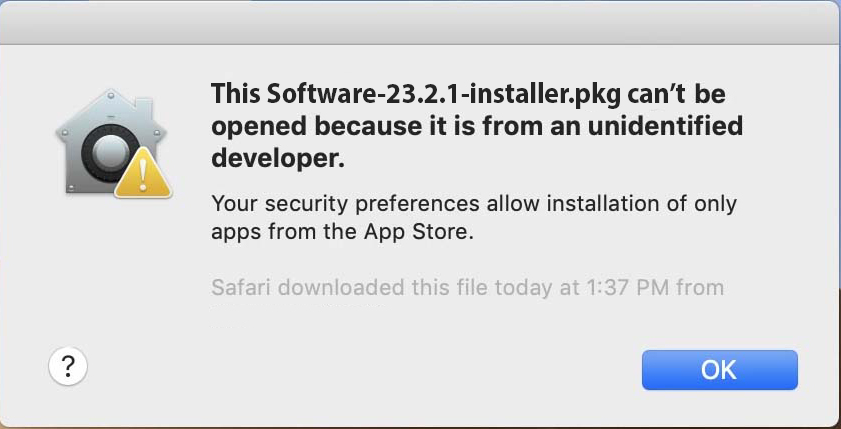
macOS is a sophisticated operating system with a high level of security. By default, it does not let you open apps from unidentified developers. Some apps in that category are malicious, but many are good, useful apps. If you trust an app and want to run it anyway, here are all the steps to open an app that “can’t be opened because it is from an unidentified developer” on your Mac.
In this article
Allow a single app from an unidentified developer
When you see this message, do the following:
- Click the Apple logo in the menu bar and choose System Preferences.
- Open Security & Privacy and click the General tab.
-
Next to the message about the blocked app, click Open Anyway. Then open the app again. Done!
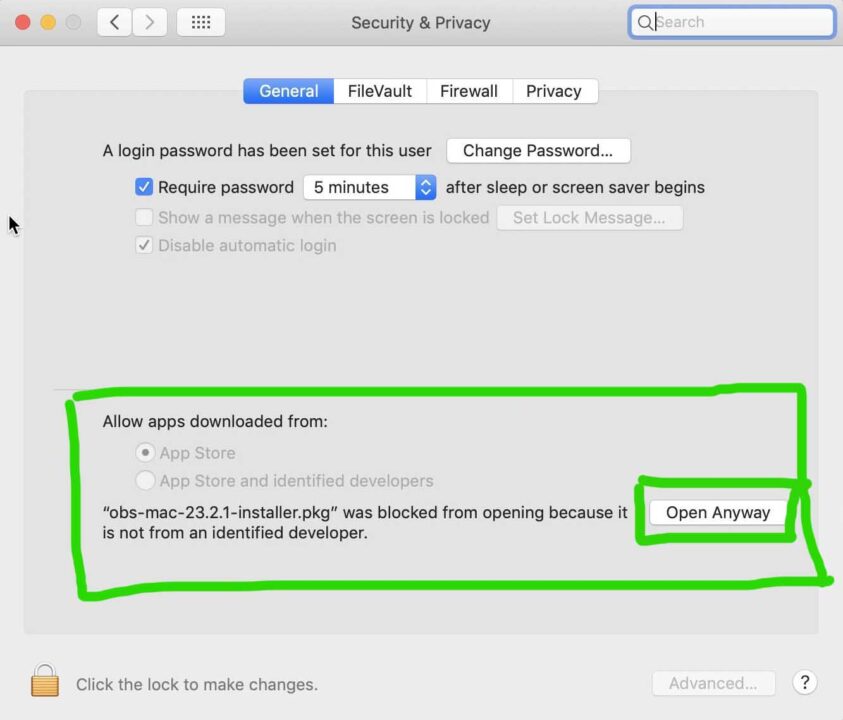
On macOS Ventura and later: System Preferences is now called System Settings. Open the Apple menu > System Settings > Privacy & Security, scroll down to the Security section and click Open Anyway. The button is available for about an hour after you try to open the app. Enter your login password and click OK.
Allow apps from Anywhere (when the option is missing)
Since macOS Sierra (and also on Mojave and later), the third Gatekeeper option, Anywhere, is hidden. If you want it back, follow these steps:
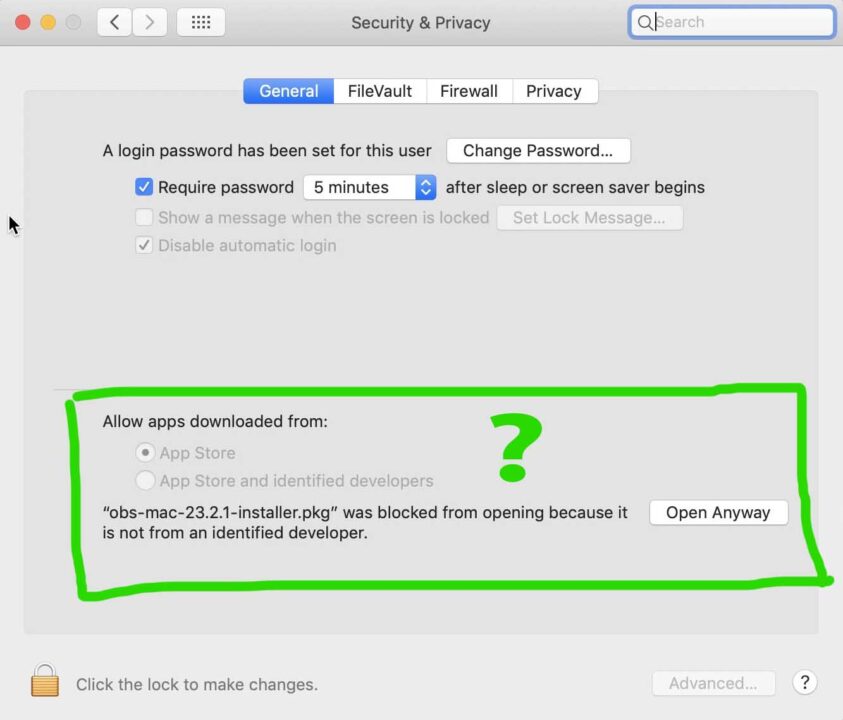
- Quit System Preferences.
-
Open the Terminal app from the /Applications/Utilities/ folder and enter this command:
sudo spctl --master-disable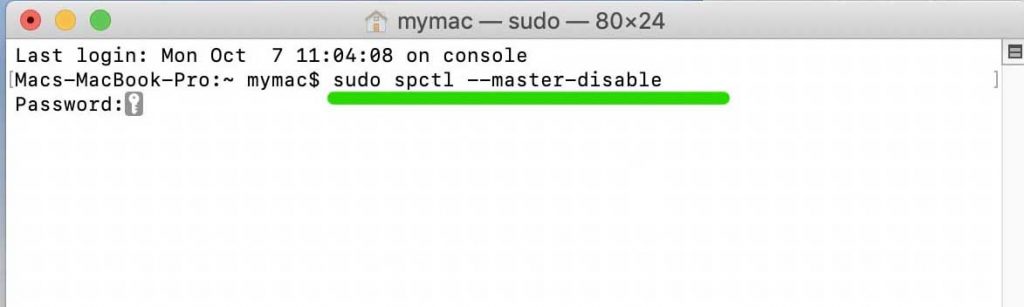
- Press Return and enter your administrator password.
- Open System Preferences again and go to Security & Privacy > General.
- You now see the Anywhere option under Allow apps downloaded from.
- Click the lock icon in the bottom-left corner of the window.
-
Enter your username and password and click Unlock. Now you can change the options in this window.
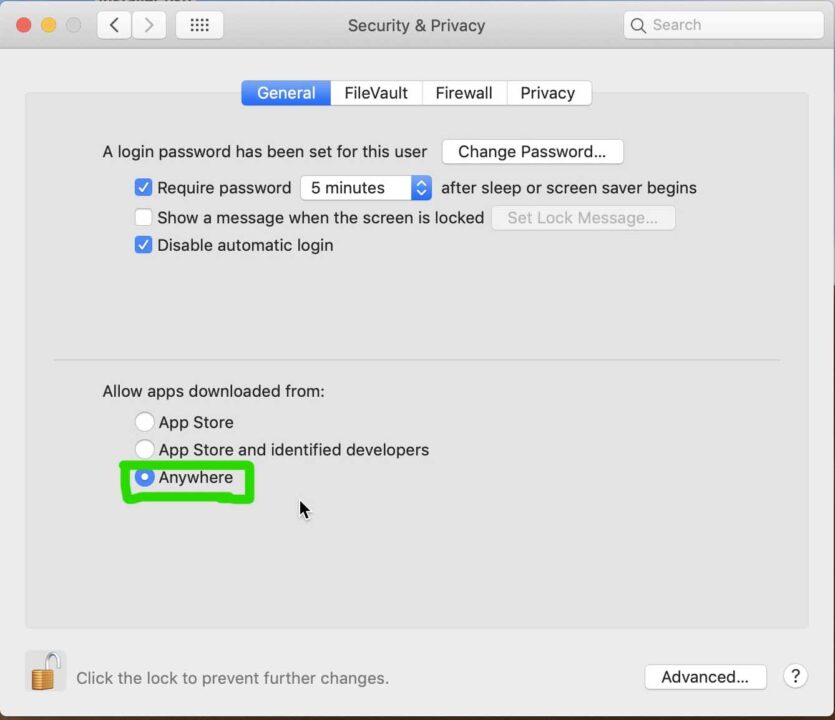
- Under Allow apps downloaded from, choose Anywhere. Now you can install apps from any source.
On macOS Ventura and later: after the Terminal command, go to System Settings > Privacy & Security and choose Anywhere in the Security section.
Warning: allowing apps from anywhere lowers the security of your Mac. When you no longer need it, turn Gatekeeper back on with this Terminal command:
sudo spctl --master-enableFAQ
Terminal does not let me type my password. What can I do?
When you type your password in Terminal, nothing appears on the screen: no dots and no stars. This is normal. Type your password anyway and press Return. Your account must be an administrator account with a password.
Is it safe to open apps from unidentified developers?
Only open apps that you trust and that you downloaded from the developer’s official website. Apple warns that overriding these security settings is a common way for Macs to get infected with malware. Read more in Apple’s guide Safely open apps on your Mac.
Thank you for following this guide on Tips2Fix. If you have any questions, leave a comment below.





What if it dont let me put my password in ?
[…] unidentified developers. However, For more detailed explaining follow the link in tips2fix website. https://staging.tips2fix.com/cant-be-opened-because-it-is-from-an-unidentified-developer-fixed-allow-apps-fr… ——– 1. Open Up “Security & Privacy” and the “General” tab You will […]