

Does your USB flash drive show that it’s full of data, but when you open it you don’t see your files? Then a virus, often called the “shortcut virus”, has probably hidden them. Don’t worry: in most cases nothing is deleted and the files are still on the drive. Here is how to get them back.
In the video I use USB Show, a small free program that makes hidden files visible again with one click. It doesn’t need to be installed: it’s a single .exe file. Below I also show a second method with Command Prompt that needs no download at all.
In this article
Before you start
- Don’t double-click any shortcuts on the infected drive. The virus often creates a shortcut with the name of your drive or your folders, and opening it can run the virus again.
- Scan the USB drive with Microsoft Defender or your antivirus before and after you recover your files. In File Explorer, right-click the drive and choose Scan with Microsoft Defender (on Windows 11 it is under Show more options). USB Show makes all hidden files visible, including hidden virus files.
Method 1: Recover hidden files with USB Show
Step 1: Download and open USB Show
Download USB Show with the button below, extract usbshow.zip and double-click USB Show.exe.
Other download page (Softonic): https://usb-show.en.softonic.com
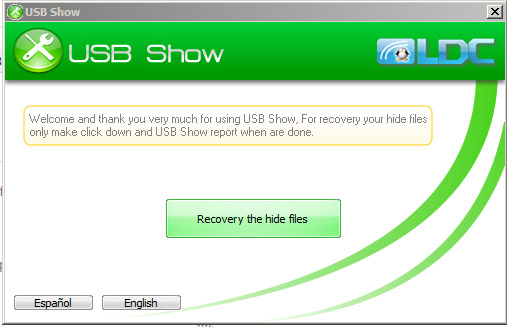
Step 2: Choose your language and start
Choose your language (English or Español), then click Recovery the hide files.
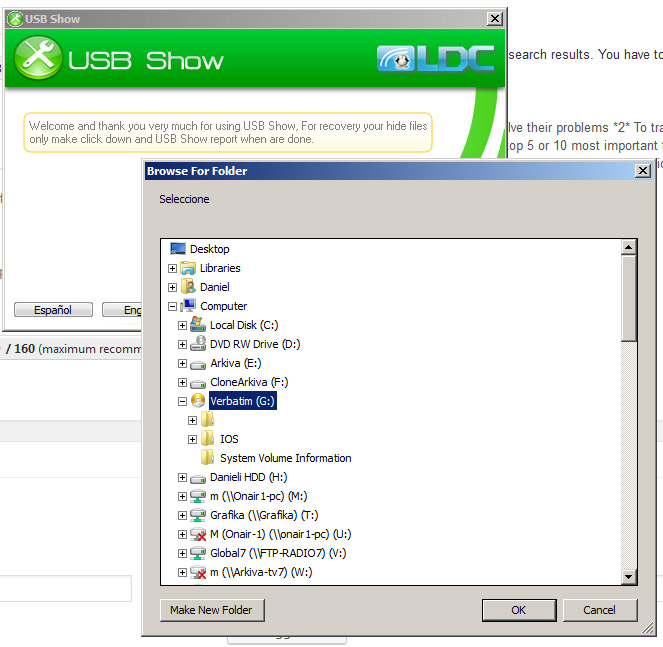
Step 3: Select your USB drive
In the Browse For Folder window, select your infected USB drive (in my case Verbatim (G:)) and click OK.
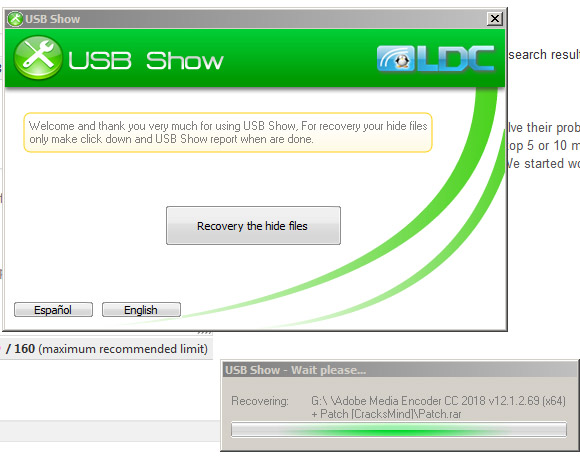
Step 4: Wait until USB Show has finished
If you have many files, this takes a few minutes. You can follow the progress in the Wait please window.
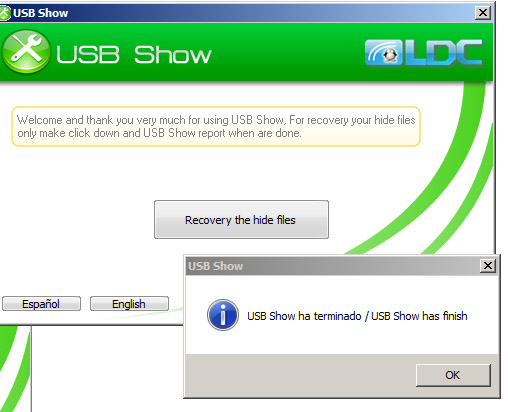
When it’s done, you see the message USB Show has finish. Click OK.
Step 5: Open the folder with no name
Open This PC (My Computer) and double-click your USB drive. You will see an extra folder with no name. Double-click it: inside are all your files and folders.
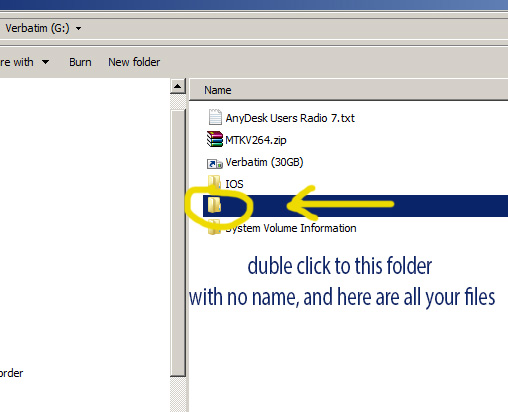
Copy your files to your computer right away.
Method 2: Unhide your files with Command Prompt (no download)
Windows can do the same job with the built-in attrib command.
- Open This PC and note the letter of your USB drive, for example G:.
- Open Command Prompt as administrator: search for cmd and select Run as administrator.
- Type the command below and press Enter. Replace
G:with the letter of your USB drive.
attrib -h -r -s /s /d G:\*.*The command removes the hidden, read-only and system attributes from all files and folders on the drive, including the subfolders. When it has finished, open the drive again. Your files are visible again, often inside a folder with no name.
After the recovery: clean the USB drive
- Copy all your files to your computer.
- Delete the fake shortcuts on the USB drive, for example the shortcut with the name of your drive (in my screenshot: Verbatim (30GB)).
- Scan the drive and the recovered files with Microsoft Defender or your antivirus.
- To be completely sure that the virus is gone, format the USB drive and then copy your files back.
Related guides
- Were your files really deleted, not just hidden? See how to recover deleted photos and files from a USB drive.
- USB connection not recognized in Windows? Here is how to fix it





