

Do you have a work email address on your own domain, for example with a cPanel web host? In this guide I show you how to add it to Microsoft Outlook on your computer and in the Outlook app on your phone, with IMAP or POP3, and which ports to use.
In this article
Before you start: find your mail server settings
You need a few settings from your email provider: the incoming and outgoing mail server, the ports and your username. If your website uses cPanel, you find all of them in one place:
- Log in to cPanel and open Email Accounts.
- Next to your email address, click Connect Devices.
- Note the incoming server, the outgoing (SMTP) server and the ports. On most cPanel hosts both servers are
mail.yourdomain.com, and your username is your full email address.
If your company does not use cPanel, ask your email provider or your IT department for these settings.
Tip: On cPanel hosting, the fastest way to check your email is webmail. Open yourdomain.com/webmail in your browser and sign in with your email address and password.
IMAP or POP3: which one should you choose?
POP3 downloads your emails to your computer, and then they are deleted from the server. IMAP keeps your emails on the server and shows them on every device you use. I use IMAP for myself and for my clients, because most people want their emails on the server and on their computer. Choose POP3 only if you do not want your emails to stay on the server, for example for privacy reasons.
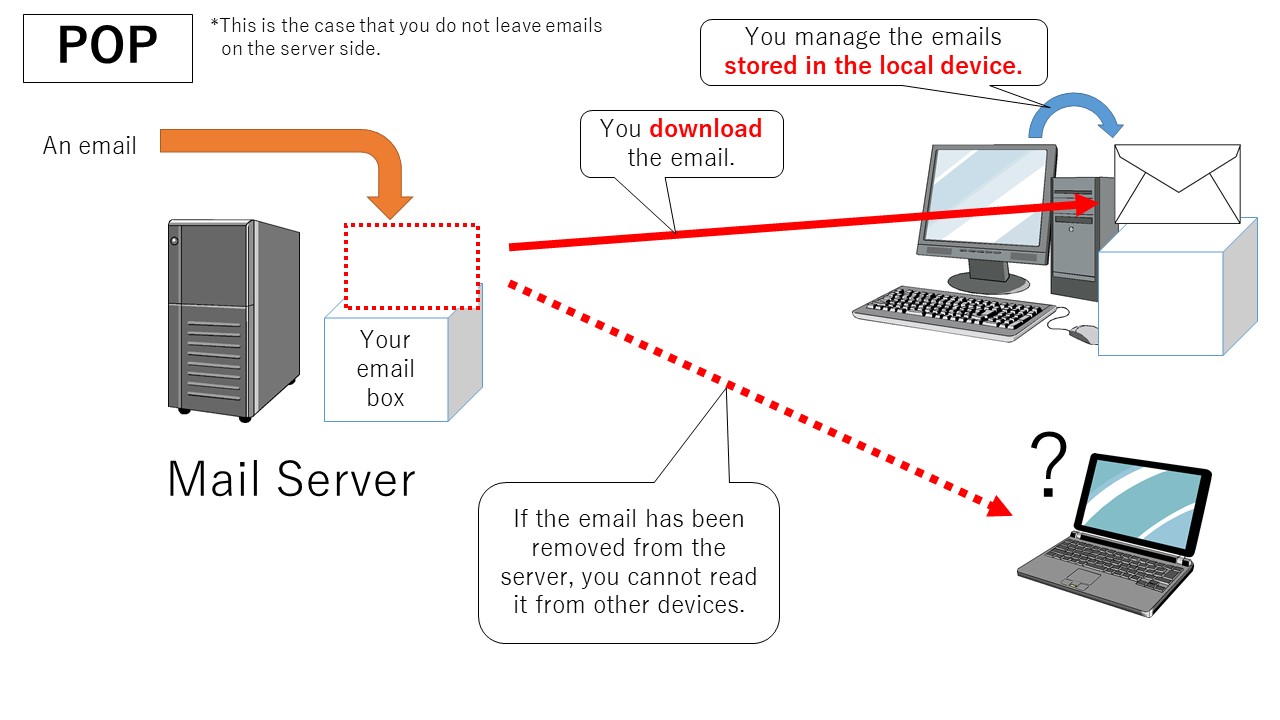
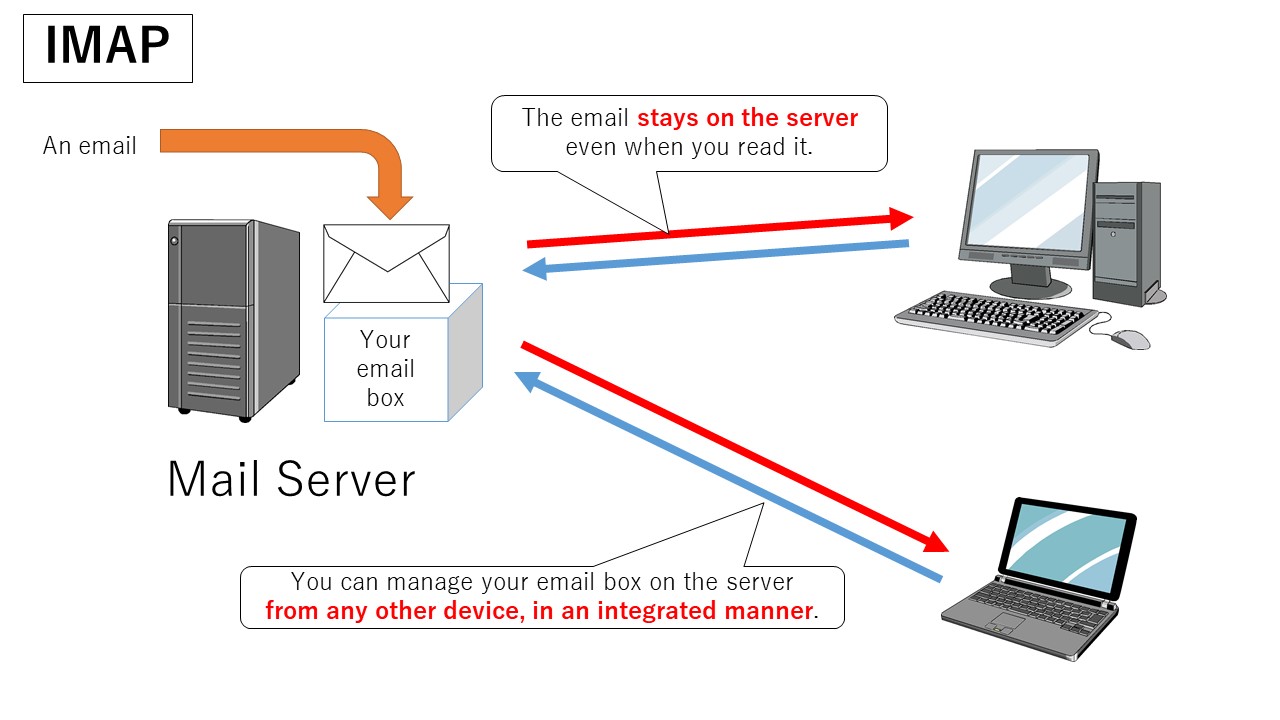
The main differences between POP3 and IMAP
- Email retrieval: POP3 downloads emails from the server to your computer. IMAP stores emails on the server and lets your email app access and manage them there.
- Email management: With POP3, everything you do (deleting or moving messages) happens only on your computer. With IMAP, it happens on the server, so several devices can use and manage the same email account.
- Email storage: With POP3, emails are stored on your computer and may be deleted from the server. With IMAP, emails stay on the server, so you can read them from any device.
- Synchronization: IMAP syncs both ways between your devices and the server, so a change on one device shows up on all the others. POP3 does not sync.
Note: The choice between POP3 and IMAP depends on your needs. Some people like the simplicity of POP3, others prefer IMAP because it keeps every device in sync.
Email ports you need to know
| Protocol | Port | Security |
|---|---|---|
| IMAP (incoming) | 993 | SSL/TLS (recommended) |
| IMAP (incoming) | 143 | Not encrypted |
| POP3 (incoming) | 995 | SSL/TLS |
| POP3 (incoming) | 110 | Not encrypted |
| SMTP (outgoing) | 465 | SSL/TLS (Secure SMTP) |
| SMTP (outgoing) | 587 | Encrypted with STARTTLS (also called Submission) |
| HTTPS | 443 | SSL/TLS, for secure websites. You do not need it for IMAP or POP3 settings. |
Note: These ports can be different in your company, depending on its network and security rules. Always check the correct ports with your email provider or network administrator.
How to add your business email to Outlook on Windows or Mac (IMAP)
These are the steps I show in the video, with the secure settings I recommend:
- Open Outlook and go to File > Add Account.
- Type your email address. Click Advanced options, tick Let me set up my account manually and click Connect.
- Choose IMAP.
- Under Incoming mail, enter your mail server (for example
mail.yourdomain.com), port 993 and encryption method SSL/TLS. - Under Outgoing mail, enter the same server, port 465 and encryption method SSL/TLS.
- Click Next, type your email password and click Connect.
- When Outlook says the account was added successfully, click Done.
- Send a test email to yourself to check that sending and receiving work.
Outlook for Mac uses the same server settings. Only the screens look a little different.
Older Outlook versions
In older versions of Outlook, the setup screens are different:
- Go to File > Add Account.
- Choose Manual setup or additional server types and click Next.
- Select POP or IMAP and click Next.
- Fill in your name, email address, account type (IMAP or POP3), incoming mail server, outgoing mail server, user name (your full email address) and password.
- Click More Settings and open the Outgoing Server tab.
- Tick My outgoing server (SMTP) requires authentication and choose Use same settings as my incoming mail server.
- Click OK, then Next and Finish. Your business email account is now set up in Outlook.
What if you want POP3?
In the video, I also set up the same account with POP3. It worked with incoming port 110 (not encrypted) and outgoing port 465 (SSL/TLS). With the encrypted POP3 port 995, Outlook showed “Something went wrong” on my mail server.
Warning: Port 110 sends your emails and password without encryption. Use IMAP on port 993 whenever you can. If POP3 is a must for you, ask your email provider which secure settings their server supports.
How to add your business email to the Outlook app on iPhone or Android
- Install Microsoft Outlook from the App Store (iPhone) or Google Play (Android), or update it if you already have it.
- Open Outlook and tap Add account. If the app asks you to sign in with a Microsoft account, close that screen and tap Skip.
- Tap Add an account and choose IMAP at the bottom of the list.
- Enter your email address, your display name (people see this name when they receive your emails) and a description.
- Fill in the IMAP settings: server
mail.yourdomain.com, port 993, security SSL, username (your full email address) and password. - Fill in the SMTP settings: server
mail.yourdomain.com, port 465, security SSL, username (your full email address) and password. - Tap Sign in, follow the remaining screens and open your inbox. Send a test email to check that everything works.
You can watch every step in my video on YouTube. If you have trouble setting up your work email, leave a comment and I will help.






hi,
once I setup my business email. after that can I login using email password or I need to fill these port and mail settings all the time?
I will appreciate your reply.
Hi Vish, you only enter the server names and ports once. Outlook saves them with the account, so from then on you just open Outlook and your mail syncs, and if you tick Remember password it won’t ask for the password either. You’d only need those settings again on a new computer or phone, or if your email provider changes its servers.