Can’t type in the Windows 10 search bar? The SearchUI.exe file runs the search feature of Cortana. Many users report that it stops responding a few minutes after Windows 10 starts. When this file has a problem, you can’t use Cortana’s search. Another common cause is that the text input service ctfmon.exe is not running.
Below are the fixes that work, starting with the quickest.
Update (October 2026): Windows 10 support ended on October 14, 2025. These fixes still work on Windows 10, and ctfmon.exe, the troubleshooter and DISM also work on Windows 11.
In this article
Why does SearchUI.exe go from Suspended to Running?
The cause can be missing or corrupted system files, a stopped input service, or a problem with the Cortana app itself. First, restart your PC and check if that helps. If it doesn’t, try these fixes:
- Run ctfmon.exe
- Restart the Cortana process in Task Manager
- Run the Search and Indexing troubleshooter
- Run the DISM tool
- Reinstall Cortana
- Troubleshoot in a clean boot state
Fix 1: Run ctfmon.exe
CTFMON.EXE controls the keyboard, speech recognition, handwriting recognition and similar input services in Windows 10. If it is not running, you can’t type in Windows Search.
- Press Windows + R to open the Run window. You can also right-click the Start button and choose Run.
- Copy and paste
C:\Windows\System32\ctfmon.exeinto the Run box and press Enter. - Try typing in Windows Search again. In most cases it works right away.
Start ctfmon.exe automatically with Windows
If the problem comes back after every restart, add ctfmon.exe to your Startup folder:
- Press Windows + R, type
shell:startupand click OK. This opens the Startup folder. - Right-click an empty area in the folder and select New > Shortcut.
- Type
C:\Windows\System32\ctfmon.exeas the location and click Next. - Name the shortcut (for example, ctfmon) and click Finish.
Windows now starts ctfmon.exe every time you sign in.
Fix 2: Restart the Cortana process in Task Manager
- Press Ctrl + Alt + Del to open the security options screen, then select Task Manager.
- Find the Cortana process (on newer Windows 10 versions it is called Search), right-click it and select End task.
- The process restarts on its own. Try the search bar again.
If Task Manager does not open, see how to fix Task Manager not opening on Windows 10 or 11.
Fix 3: Run the Search and Indexing troubleshooter
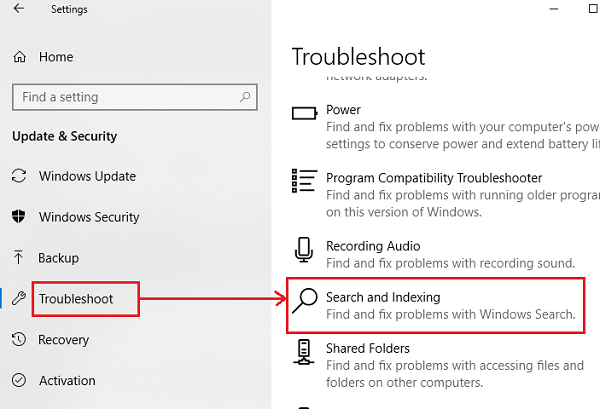
- Click the Start button and select Settings > Update & Security > Troubleshoot.
- If you see Additional troubleshooters, click it.
- Select Search and Indexing and click Run the troubleshooter.
- Restart your PC when it is done.
Fix 4: Run the DISM tool
The DISM tool repairs a corrupted Windows system image. It replaces corrupted or missing system files with good ones.
- Right-click the Start button and select Windows PowerShell (Admin) or Command Prompt (Admin).
- Type this command and press Enter:
DISM.exe /Online /Cleanup-image /RestorehealthBe patient: the process can take several minutes.
If your Windows Update client is already broken, DISM can’t download the repair files. In that case, use a running Windows installation or a Windows side-by-side folder from a network share as the repair source, and run this command instead:
DISM.exe /Online /Cleanup-Image /RestoreHealth /Source:C:\RepairSource\Windows /LimitAccessReplace C:\RepairSource\Windows with the location of your repair source.
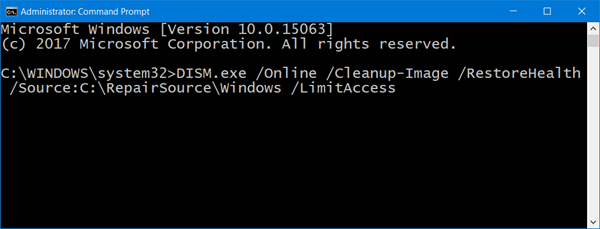
When DISM finishes, it saves a log file to %windir%\Logs\CBS\CBS.log with any problems it found or fixed. After DISM, you can also run sfc /scannow in the same window to check the system files. Then close the window, restart your PC and test the search bar.
Fix 5: Reinstall Cortana
If nothing else works, reinstall (re-register) Cortana.
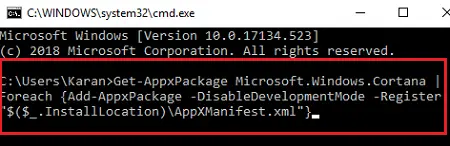
- Right-click the Start button and select Windows PowerShell (Admin).
- Type this command in the PowerShell (Admin) window and press Enter:
Get-AppxPackage Microsoft.Windows.Cortana | Foreach {Add-AppxPackage -DisableDevelopmentMode -Register "$($_.InstallLocation)\AppXManifest.xml"}Be patient here too: it can take several minutes. Restart your PC when it is done.
Fix 6: Troubleshoot in a clean boot state
A clean boot starts Windows with only Microsoft services. This shows if another program is blocking Windows Search.
- Press Windows + R, type
msconfigand press Enter. - On the Services tab, check Hide all Microsoft services and click Disable all.
- On the Startup tab, click Open Task Manager and disable all startup items.
- Restart your PC and test the search bar. If it works now, turn the services back on a few at a time to find the program that causes the problem.
- When you are done, open
msconfigagain, select Normal startup on the General tab and restart.
Open Windows Search again. You should now be able to search for your files and documents without any problem. If your PC is also slow because the disk is always at 100%, read my guide on how to fix 100% disk usage in Windows 10/11.