

Your Android phone charges when you plug it into your PC, but it does not show up in File Explorer, so you cannot copy your photos and files. In this guide I first show the quick driver fix that worked for my Google Pixel and Nexus phones (the one from the video above). After that you will find 14 more solutions that work for most Android phones on Windows 10 and Windows 11.
The button opens Google’s official Google USB Driver page. Google says this driver is needed for ADB debugging with Google devices (Pixel and Nexus). You can also download the ZIP file directly from Google’s server: latest_usb_driver_windows.zip. For Samsung, Xiaomi, Motorola and other brands, the USB driver comes from the phone maker. Google lists their download pages on its OEM USB drivers page.
In this article
- Quick fix for Google Pixel and Nexus phones (MTP mode)
- Why Windows does not recognize your Android phone
- Solution 1: Restart your Android phone and your Windows computer
- Solution 2: Use a different USB cable
- Solution 3: Choose File Transfer (MTP) mode on the phone
- Solution 4: Turn on USB debugging
- Solution 5: Install the correct USB driver
- Solution 6: Turn on Airplane mode
- Solution 7: Reinstall the Android drivers
- Solution 8: Update the MTP USB Device driver
- Solution 9: Install the Media Feature Pack (Windows N and KN editions)
- Solution 10: Start a Samsung phone in Download (Odin) mode
- Solution 11: Install your phone maker’s PC software
- Solution 12: Use a third-party app
- Solution 13: Delete unwanted files from your phone
- Solution 14: Reinstall the Android Composite ADB Interface
- Which fix worked for you?
Quick fix for Google Pixel and Nexus phones (MTP mode)
To get USB MTP (file transfer) mode working on all my Nexus and Google Pixel phones, I did the following:
- Unplug the phone from the PC.
- On the phone, turn off USB debugging, but leave Developer options turned on.
- Plug the phone into a USB port on your PC.
- Open Device Manager: click Start, type Device Manager and open it.
- Expand Android Device, right-click Android Composite ADB Interface and choose Update driver (Update Driver Software on older versions of Windows 10).
- Select Browse my computer for drivers.
- Select Let me pick from a list of available drivers on my computer.
- You will see two options: Android Composite ADB Interface and USB Composite Device (or an option with MTP in its name). Select USB Composite Device or the MTP option and click Next. Do not select the ADB Interface.
- Your Nexus or Pixel should now connect in MTP mode, also on 64-bit Windows. Open File Explorer and you will see your phone.
If this did not fix it, or you have a phone from another brand, try the solutions below one at a time.
Why Windows does not recognize your Android phone
This is one of the most common problems when you connect an Android phone to a Windows 10 or Windows 11 computer. It is frustrating when you want to copy photos and files from your phone to your PC, or recover deleted Android data with data recovery software on your computer. Bluetooth works for a few small files, but for large files you need a USB cable. The good news is that one of the solutions below usually fixes the problem in a few minutes.
Solution 1: Restart your Android phone and your Windows computer
Sometimes the most obvious solution is the best one. A simple restart fixes many software problems and even some hardware ones. Many users report that their phone was detected by Windows after they restarted the phone or the computer, so it does not hurt to try.
Solution 2: Use a different USB cable
Are you using the original cable that came with your phone? If not, the cable might be the problem. Some USB cables are made for charging only, and you cannot transfer files with them. Try a different USB cable, preferably a data cable you know works. It also helps to try another USB port on the computer.
Solution 3: Choose File Transfer (MTP) mode on the phone
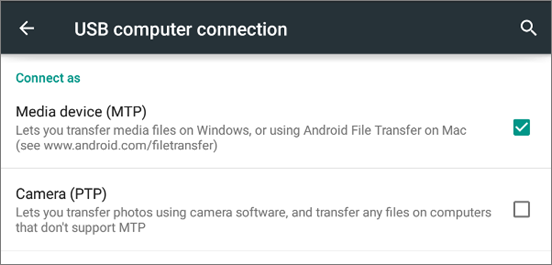
To manage your Android files on your computer, the phone must be connected as a media device (MTP).
- On most phones, connect the cable, swipe down from the top of the screen, tap the USB notification and choose File transfer (on some phones it is called Transfer files or MTP).
- On older Android versions, go to Settings > Storage, tap the More icon, select USB computer connection and choose Media device (MTP). Then connect the phone to the computer again.
- Sometimes you have to switch between the connection options a few times before the phone shows up on the computer.
Solution 4: Turn on USB debugging
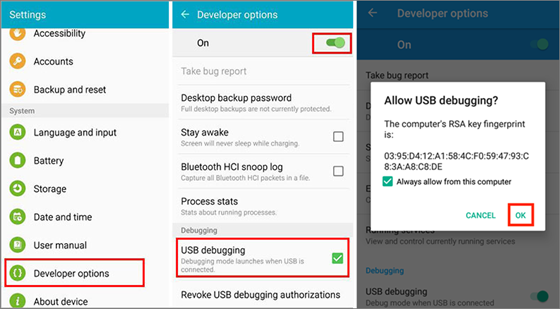
Many Android users report that turning on USB debugging can help with this problem. Here is how to do it on Android 4.2 to Android 8.0 (on many newer phones, Developer options is under Settings > System):
- Open Settings and tap About phone.
- Tap Build number seven times to enable Developer options.
- Go back and open Developer options.
- Turn on Developer options and USB debugging.
- Tap OK when the warning message appears.
- Check if your computer now recognizes the phone.
Solution 5: Install the correct USB driver
When you connect your phone, Windows normally installs the right USB driver automatically, so the phone works properly with the computer. Sometimes this fails. In that case, download and install the correct USB driver manually: the Google USB Driver (button at the top of this page) for Pixel and Nexus phones, or the driver from your phone maker for other brands.
Solution 6: Turn on Airplane mode
Some users turned on Airplane mode on their Android phone, and the computer recognized it right away, so they could transfer their files without any problem. Try this trick, and turn Airplane mode off again when the file transfer is finished.
Solution 7: Reinstall the Android drivers
An old or damaged driver can also cause this problem, so try to reinstall your Android drivers.
- Connect your Android phone to the computer.
- Open Device Manager and find your Android device.
- Right-click the device, choose Uninstall device and then disconnect your phone.
- Reconnect your phone and wait for Windows to install the drivers again.
- Check if the computer now detects your phone.
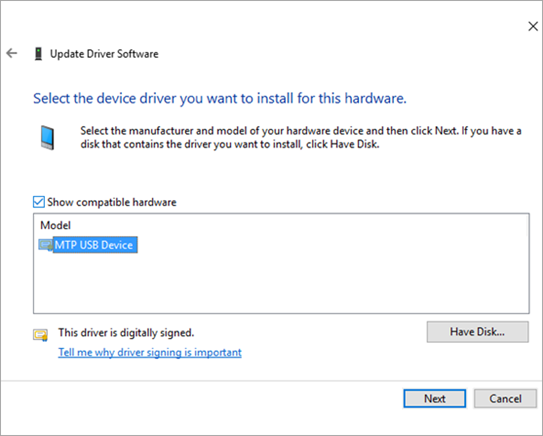
Solution 8: Update the MTP USB Device driver
Driver problems are a common reason why the phone is not recognized, so try to update the MTP USB driver. In most cases this solves the problem.
- Press Windows + X and select Device Manager.
- Right-click your Android device and select Update driver.
- Choose Browse my computer for drivers.
- Choose Let me pick from a list of available drivers on my computer.
- Select MTP USB Device and click Next.
- After the MTP USB driver is installed, your phone should be detected.
Solution 9: Install the Media Feature Pack (Windows N and KN editions)
To transfer files from your phone, Windows connects to it in MTP mode, and MTP support comes with the Windows media features (Windows Media Player). The N and KN editions of Windows do not include these features, so you have to install the Media Feature Pack from Microsoft.
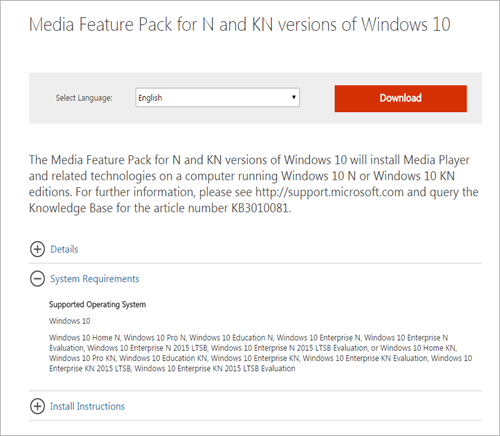
Update (October 2026): On Windows 10 version 1909 and later you no longer download the pack. Go to Settings > Apps > Apps & features > Optional features > Add a feature and select Media Feature Pack. On Windows 11 N, go to Settings > Apps > Optional features, select View features and choose Media Feature Pack. Microsoft explains it on its Media Feature Pack page.
Solution 10: Start a Samsung phone in Download (Odin) mode
This solution only works on Samsung phones, because only Samsung phones have Odin mode, also known as Download mode. To enter Download mode:
- Turn off your Samsung phone completely.
- Press and hold Volume Down + Power + Home together until the Download mode screen appears.
- Press Volume Up to enter Download mode, then connect the phone to the computer.
- The computer should now install the correct drivers for your phone automatically.
- Restart your Samsung phone and check if the computer detects it normally.
Note: These buttons are for older Samsung phones with a physical Home button. Newer Galaxy models use a different key combination.
Tip: If your Samsung phone gets stuck in Download mode, press and hold Volume Down + Power for about 10 seconds until it restarts.
Solution 11: Install your phone maker’s PC software
Many Android phone makers have their own PC software (often called a PC suite) for connecting the phone to a computer. Install the software for your phone on your computer, then connect the phone.
This does not fix the problem in every case, but many users found that the computer recognized their phone after they installed the manufacturer’s PC software. For example, Samsung made the Kies software for connecting Samsung phones to a PC.
Update (October 2026): Kies only supports older Samsung models. For current Galaxy phones, Samsung’s PC software is Smart Switch.
Solution 12: Use a third-party app
Many users install a third-party app on their computer when it does not recognize the phone. This works in some cases, because these apps include several functions that help sync a phone with a computer.
One app you can try is Syncios, a free app that connects your phone to a PC. It works with both Android phones and iPhones, so the brand and model of your phone do not matter. There are also other free apps that connect a phone to a PC, and you can easily find them online.
Solution 13: Delete unwanted files from your phone
When the phone memory or the SD card is completely full, the phone can also have trouble connecting to a computer. Delete the files you do not need from your phone.
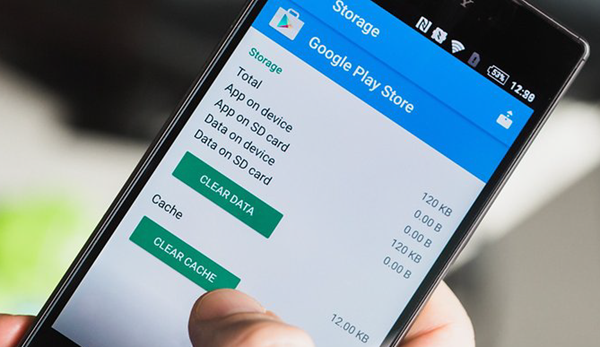
Clearing the cache and data of the storage apps on your phone can also help, because it frees some space right away. Follow these steps:
- Open Settings on your phone and go to Apps.
- Tap the menu in the top-right corner and choose Show system apps.
- Open External Storage and Media Storage, and clear the cache and data of each one.
- Restart your phone.
- Connect the phone to the PC and check if the computer recognizes it.
Solution 14: Reinstall the Android Composite ADB Interface
If Windows still does not recognize your Android phone, the problem may be the Android Composite ADB Interface driver. Reinstall it and check if that helps:
- Open Device Manager on your PC.
- Find Android Composite ADB Interface, right-click it and choose Uninstall device.
- Restart the computer and connect your phone again. If the computer now recognizes the phone, Windows has reinstalled the driver correctly and you are done. If not, continue with the next steps.
- Download the USB driver for your phone (see Solution 5).
- Extract the driver into a folder. Remember this folder, because you will need it later.
- Open Device Manager again and click Action > Scan for hardware changes.
- Find Composite ADB Interface, right-click it and select Update driver.
- Click Browse my computer for drivers, select the folder where you extracted the driver, tick Include subfolders and click Next.
- Press Windows + X and choose Command Prompt (Admin) (on Windows 11: Terminal (Admin)).
- Type these commands and press Enter after each one:
adb kill-server
adb start-server
adb devices
Note: The adb commands only work if Google’s Android SDK Platform-Tools are on your PC. Run the commands from the platform-tools folder.
This solution works for most devices with Android 5.0 and above. Some users say that the first three steps are enough, and that they did not need to download the USB driver again.
Which fix worked for you?
These are the methods that help when a Windows computer does not recognize an Android phone. There are many possible reasons for this problem, so the fix can be different for every user. If this guide helped you, share it with friends who have the same problem. And if you know a fix that is not in this list, tell me in the comments.
More guides that can help:
- How to Fix Google Pixel Not Recognized by Windows 11
- How to Transfer Files from Android to MacBook Pro
Video hashtags: #mtpconnection #googlepixel #androidpcconecction





