

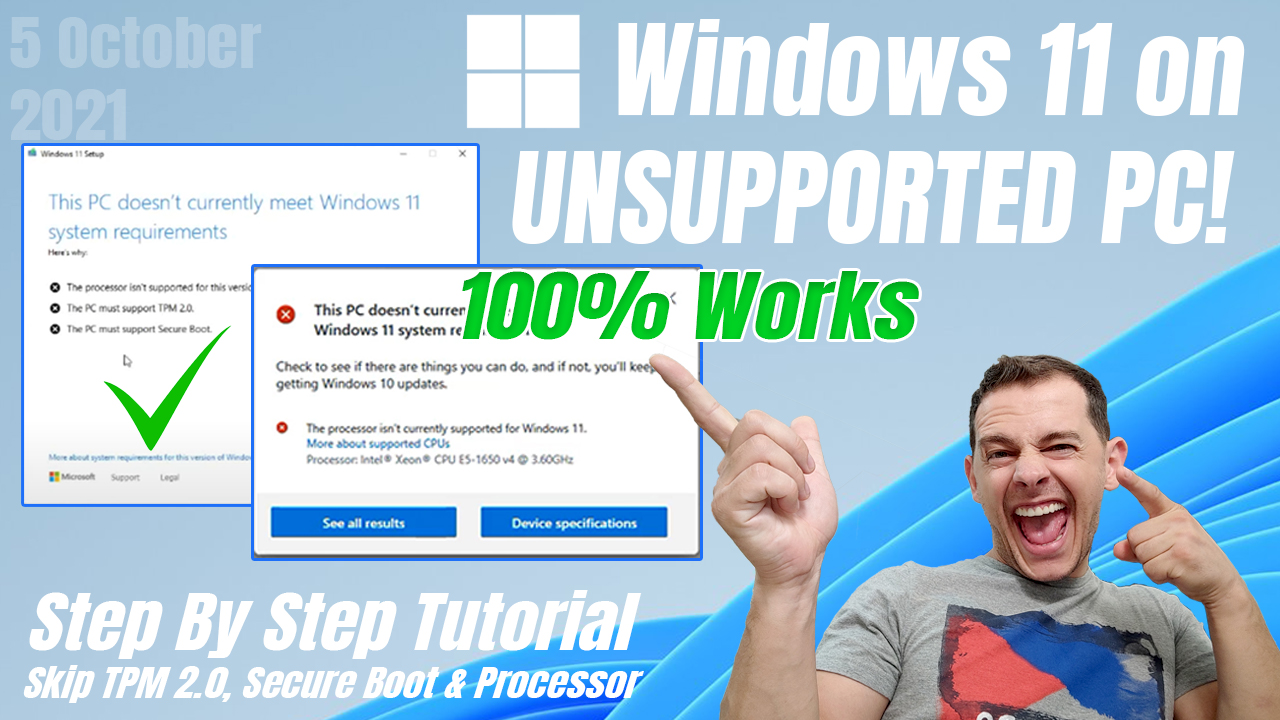
In this video tutorial I show you a new method to install Windows 11 22H2 on an unsupported PC with a small CMD script, the bypasser. I also show two other methods: replacing appraiserres.dll and using Rufus. All of these methods work well.
Update (October 2026): Windows 11 22H2 Home and Pro reached the end of servicing on October 8, 2024, and Microsoft’s download page now gives you a newer version. For the latest release, follow my newer guide: How to Install Windows 11 26H2 on Unsupported PC.
In this article
Download the Windows 11 Bypasser
The bypasser is a CMD script made by AveYo (Skip TPM Check on Dynamic Update). Choose one of these download links:
Google Drive link
Download Windows 11-22H2 Bypasser
Direct download link
OneDrive link
Download Windows 11 23H2 Bypasser
Original script by the author (GitHub)
Visit GitHub Original Post/Script
Download the Windows 11 ISO file
Download Windows 11 ISO File Official Web
Download PC Health Check
How to install Windows 11 with the bypasser
- Download the bypasser with one of the buttons above and extract the archive (for example with 7-Zip or WinRAR).
- Right-click the
.cmdfile and choose Run as administrator. After a few seconds the window shows Skip TPM Check on Dynamic Update with the word INSTALLED. - Download the Windows 11 ISO (button above), right-click it and select Mount.
- Open the mounted drive and run setup.exe. The setup window now says Windows Server. This is normal: it is how the script skips the requirement checks, and it still installs Windows 11.
- If setup offers to download updates, choose Not right now.
- Select Keep personal files and apps and click Install. Your PC restarts several times.
According to its author, the script also works when the Windows 11 upgrade starts from Windows Update.
Note: Run the script only once. The same script turns the bypass on and off: if you run it a second time, it removes the bypass again and the window says REMOVED. A reader confirmed this in the comments: it did not work for him after running it twice, and it worked after he ran it again.
If Keep personal files and apps is greyed out, see why “Keep personal files and apps” is greyed out. For a full walkthrough of every setup screen, see my Moment 3 guide.
What Microsoft says about unsupported PCs
Microsoft’s official page explains the different ways to install Windows 11. It used to show a registry value for upgrading PCs with an unsupported TPM or CPU. Today that part is gone, and Microsoft recommends against installing Windows 11 on a PC that doesn’t meet the minimum requirements.
Microsoft: Ways to Install Windows 11
[…] New Method to Install windows 11 22H2 Click Here […]
it’s not downloading the bypasser. it brings me to a Url. and its nothing. please fix thanks
The Google Drive button can be confusing: it opens a preview page first, and you need to click Download on that page to get the file. The Direct Download button is easier, it saves the file right away (I just checked it). If you’re installing Windows 11 today, though, this 22H2 script is old, so use my 26H2 guide instead: https://staging.tips2fix.com/how-to-install-windows-11-26h2-on-unsupported-pc/
Its Working.. Dont run multiple time.. the same script used for activate and deactivate. unknowingly i ran 2 times and it was not working first. I did it again and its working.
Good tip, Prashanth, thanks for sharing it. The script works like an on/off switch: the first run shows INSTALLED and the next one shows REMOVED, so run it once and then start the upgrade.
[…] https://www.microsoft.com/software-download/windows11 […]
great it working well
Woow .. It works great!
Thank you very much!
Great to hear it worked for you, Niels, and thanks for taking a moment to let me know!
Hi, I used this method on 3 workstations and it works. Thanks. But in 4th console cmd file ,right after opening, says:
“Filename, directory or volume label syntax is incorrect.
The system cannot find the path specified.”
What should I do to rectify this matter? Thanks in advence.
Since it worked on three PCs, the difference is probably where the file runs from on the fourth one. Extract the .cmd to a simple local folder like C:\Temp, then right-click it and choose Run as administrator. Running it straight from inside the archive or from a mapped network drive often gives exactly that path error, because the administrator window can’t see the original location.