

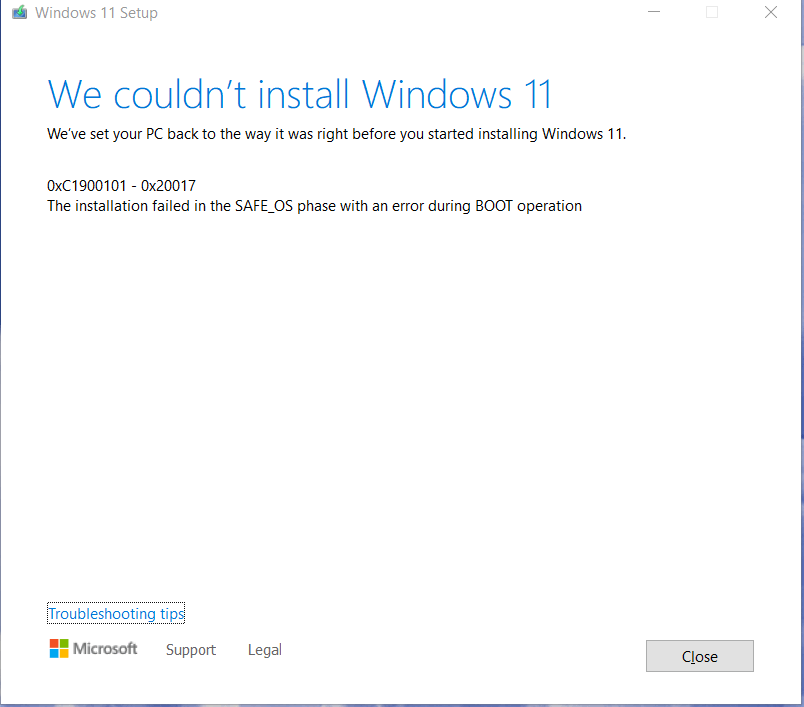
When you upgrade Windows 11 or Windows 10 to a newer version, Setup can stop, undo everything and show this message: “We couldn’t install Windows 11. 0xC1900101 – 0x20017. The installation failed in the SAFE_OS phase with an error during BOOT operation.” In most cases a driver is the cause. This guide shows you how to find that driver and fix the error.
In this article
What does error 0xC1900101-0x20017 mean?
0xC1900101 is a generic rollback code. It can appear at different stages of the upgrade, and it usually means that an incompatible driver is present. The second part, 0x20017, tells you when it happened: in the SAFE_OS phase, during the BOOT operation, after the first restart of the upgrade.
In the SAFE_OS phase, Setup checks that everything, including drivers, behaves as expected. If a driver performs an illegal operation, or Windows can’t migrate it to the new version, Setup stops and rolls back to your previous Windows. According to Microsoft, this is typically caused by drivers or by non-Microsoft disk encryption software, and it can also be caused by a hardware failure.
Forcing an upgrade on an incompatible PC can also end with this error or with a blue screen (BSOD). Either way, the key is to find the driver that causes the problem, and that is easier than it sounds.
Before you start
- You need administrator rights for all the steps below.
- Disconnect devices you don’t need during the upgrade, such as printers, external drives, card readers and USB hubs. Keep only the mouse, keyboard and display connected. Microsoft recommends this for several 0xC1900101 errors.
- Non-Microsoft antivirus and disk encryption software can block the upgrade. Uninstall the antivirus before you try again (you can reinstall it afterwards). For disk encryption software, follow the vendor’s instructions for Windows upgrades.
Step 1: Find the driver that causes the error
Windows Setup writes log files that show what went wrong.
- Open File Explorer and go to
%windir%\Panther(usuallyC:\Windows\Panther). You can paste the path into the address bar. - Open setuperr.log and setupact.log with Notepad. Setuperr.log lists the errors, and setupact.log has the full details of what Setup did.
- Look for the failure in the logs and note the driver or device it mentions.
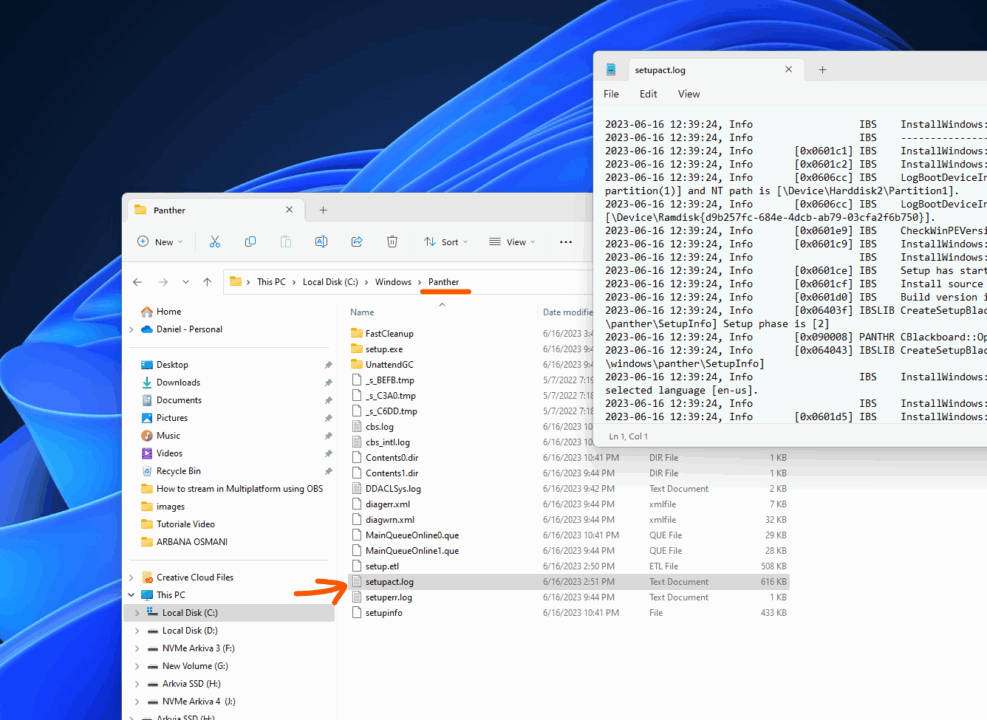
Tip: After an upgrade that rolled back, Setup also keeps logs in C:\$WINDOWS.~BT\Sources\Panther. This folder is hidden, so turn on Hidden items in the File Explorer View menu to see it.
Tip: Microsoft’s free SetupDiag tool reads these log files for you and reports why the upgrade failed.
Step 2: Update or roll back the driver
There are only two ways to fix a problem driver: update it to a compatible version, or roll it back. If you updated the driver just before you tried the upgrade, roll it back. If the upgrade has a problem with your current driver, look for a newer, compatible version. Most drivers are backward compatible, so updating is usually safe.
- Press Win + X, then M to open Device Manager.
- Find the device from the log, right-click it and select Properties.
- Open the Driver tab.
- Click Update Driver to install a newer driver, or Roll Back Driver to go back to the previous one. Roll Back Driver is grayed out when there is no previous driver.
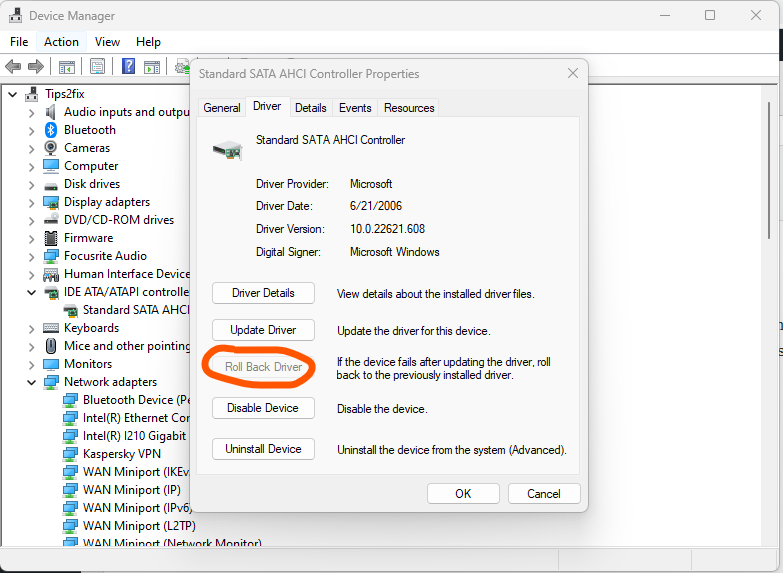
If Windows can’t find a newer driver, download it from the support page of your PC, motherboard or device manufacturer. Third-party tools such as Double Driver or Driver Doctor are another option, but the manufacturer’s website is the safest source.
Step 3: Uninstall the problem driver
If it is a device you can live without for a while, or one that works with a generic Windows driver, uninstall its driver. I suggest this because the upgrade is the priority, and you can install the right driver again afterwards.
- Press Win + X, then M to open Device Manager.
- Find the hardware that causes the problem.
- Right-click it and select Uninstall device.
- When it is removed, click Action > Scan for hardware changes.
- Windows detects the device again and installs a driver for it.
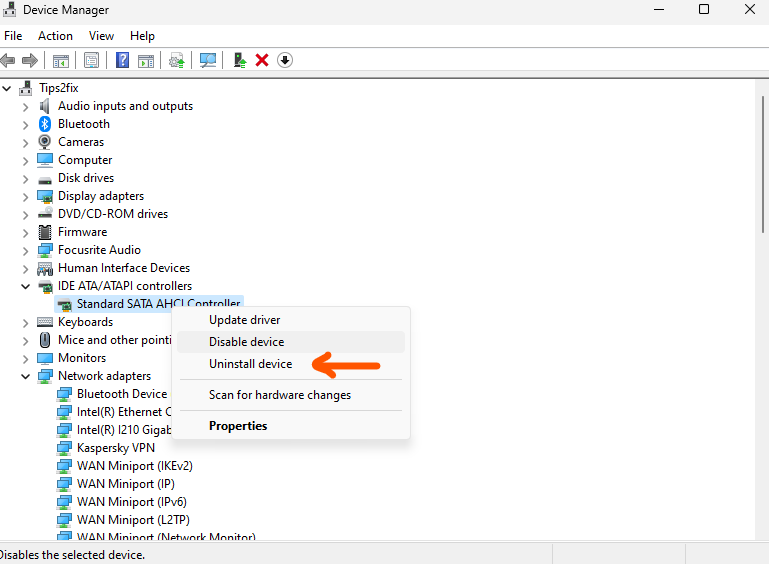
You can also remove the hardware, run the upgrade and connect it again afterwards. This time, use a different driver than the one you downloaded before.
Step 4: Run the upgrade in a clean boot state
Most people know Safe Mode, where Windows starts with a minimal, predefined set of drivers and services. A clean boot is different: Windows starts normally, but all non-Microsoft services and startup programs are turned off. It is used to diagnose problems that you can’t identify, and Microsoft recommends it for rollbacks caused by driver conflicts, because fewer third-party programs can get in the way of Setup.
- Press Win + R, type
msconfigand press Enter to open System Configuration. - On the Services tab, select Hide all Microsoft services, then click Disable all. The General tab now shows Selective startup.
- On the Startup tab, click Open Task Manager and disable every startup app.
- Close Task Manager, click OK in System Configuration and restart your PC.
- Run the Windows upgrade again.
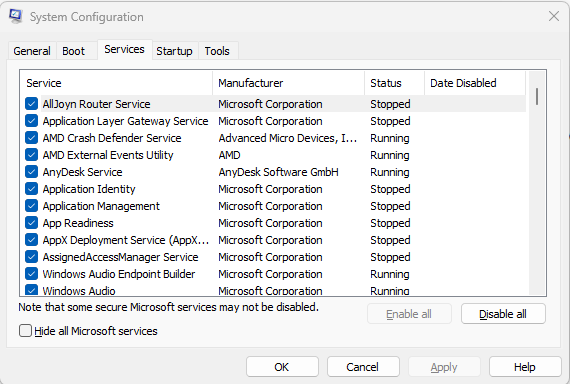
When the upgrade is finished, go back to a normal startup: open msconfig, select Normal startup on the General tab, and turn your startup apps back on in Task Manager. Then update or roll back the problem driver as described above.
Note: On Windows 10 and 11, pressing F8 at startup usually doesn’t open Safe Mode anymore. In Windows 11, go to Settings > System > Recovery > Advanced startup > Restart now, then choose Troubleshoot > Advanced options > Startup Settings > Restart and press 4 for Safe Mode.
Upgrading an unsupported PC?
If you are installing a new Windows 11 version on hardware that Microsoft doesn’t support, follow my current guide: How to install Windows 11 26H2 on an unsupported PC.





