

Is Windows 11 slow on your PC? Here are 15 tricks that make it run faster, from quick settings changes to cheap hardware upgrades. Most of them are free and take only a few minutes.
Note: These tips were written in 2022 for the first versions of Windows 11. They still work in newer versions, but a few menu names have changed. Where that happened, I give the newer name too.
In this article
- 1. Update your system and restart your PC
- 2. Add an SSD and more RAM
- 3. Disable startup programs
- 4. Debloat Windows 11
- 5. Disable animations and visual effects
- 6. Disable notifications and tips
- 7. Disable background apps
- 8. Disable VBS (for gamers) and Game Mode
- 9. Disable restartable apps
- 10. Uninstall unwanted software
- 11. Delete temporary files and free up disk space
- 12. Use Storage Sense to keep Windows 11 clean
- 13. Change the power mode
- 14. Defragment your hard disk
- 15. Scan your PC with AdwCleaner and skip third-party antivirus
- Hardware I recommend
1. Update your system and restart your PC
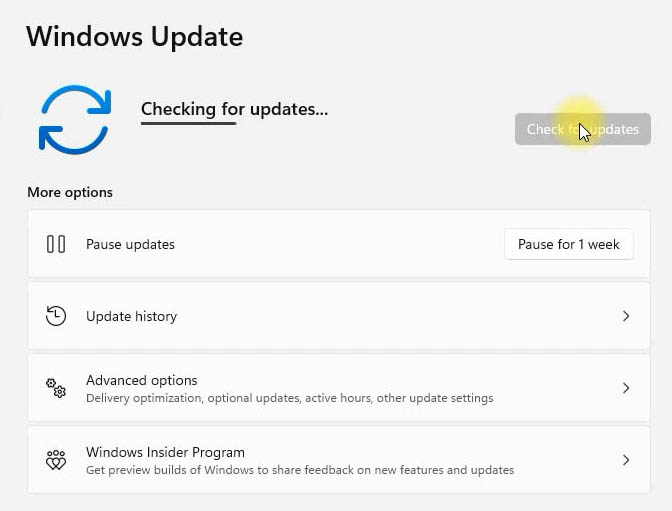
Open Settings > Windows Update, click Check for updates and install everything that is available. Then restart your PC. Updates often include performance fixes and newer drivers, and a restart closes programs that keep running in the background.
2. Add an SSD and more RAM
More RAM helps your computer run more apps at the same time without slowing down. If your PC still uses a hard drive (HDD), switching to an SSD makes the biggest difference of all. Believe me, it is like day and night.
A typical 5400 RPM hard drive reads and writes at about 100 MB/s, while a SATA SSD reaches about 500 MB/s. That is 5 times faster, and you will notice it in boot time, when you open apps and in everyday use. An NVMe SSD is faster still: in my screenshot below it reads at over 3,200 MB/s.
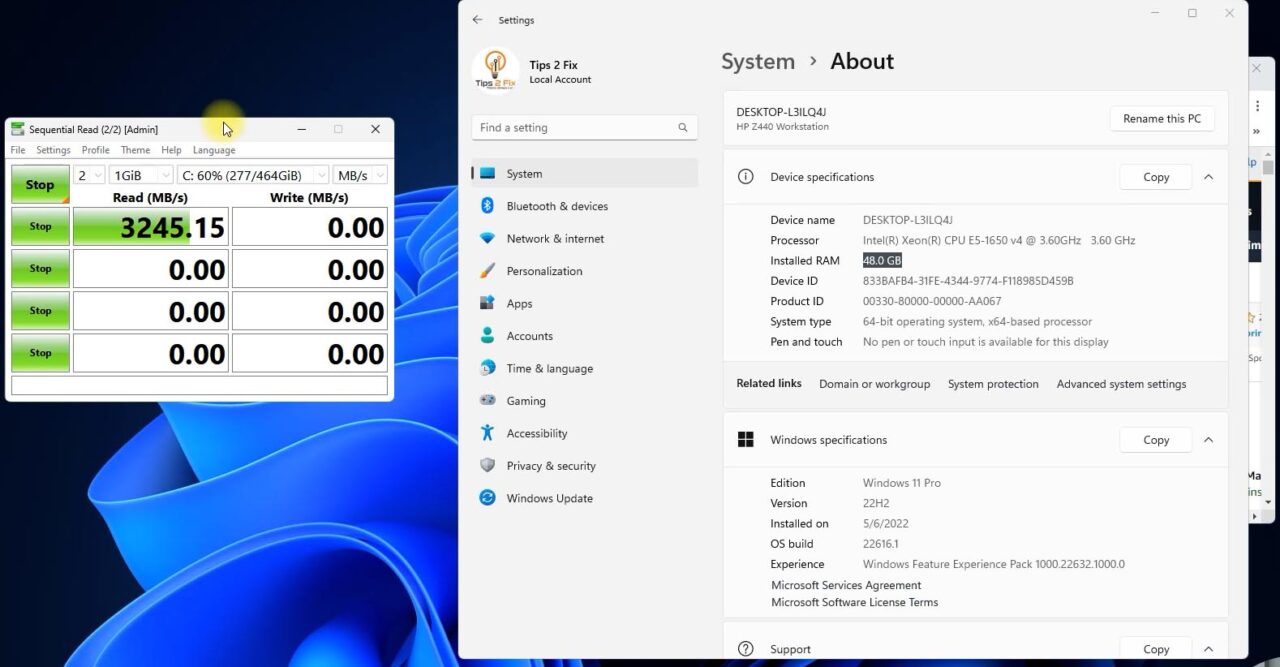
Even on an older processor, an SSD makes Windows 11 feel much faster after all the software tweaks below. I would go as far as to say that you should not use Windows on a hard drive anymore. You can move your current Windows to a new drive without reinstalling: see how to clone Windows to an NVMe M.2 SSD with Clonezilla. The SSD and adapter I recommend are listed at the end of this post.
3. Disable startup programs
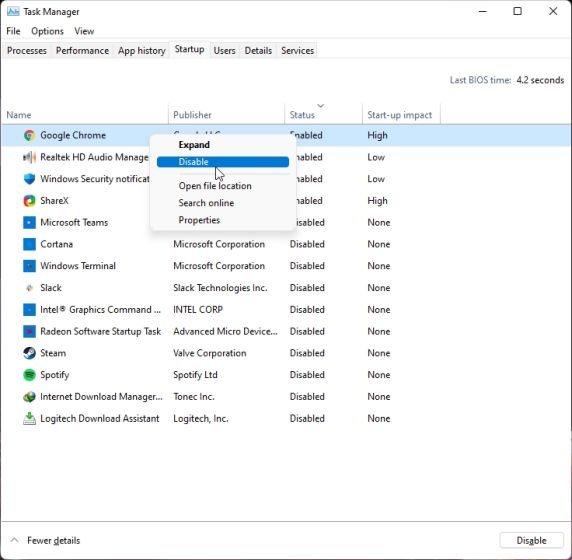
Startup programs open automatically when you turn on your PC and make it start slower. Here is how to disable them in Task Manager:
- Press Ctrl + Shift + Esc, or right-click the Start button and select Task Manager.
- If you see a small window, click More details.
- Open the Startup tab (called Startup apps in newer versions).
- Right-click a program you don’t need at startup and select Disable.
Some apps, such as Microsoft Teams, OneDrive and Skype, can also use a lot of resources during startup. You can turn them off in Settings:
- Press Windows + I to open Settings.
- Go to Apps > Startup.
- Turn off every app that you don’t want to run at startup.
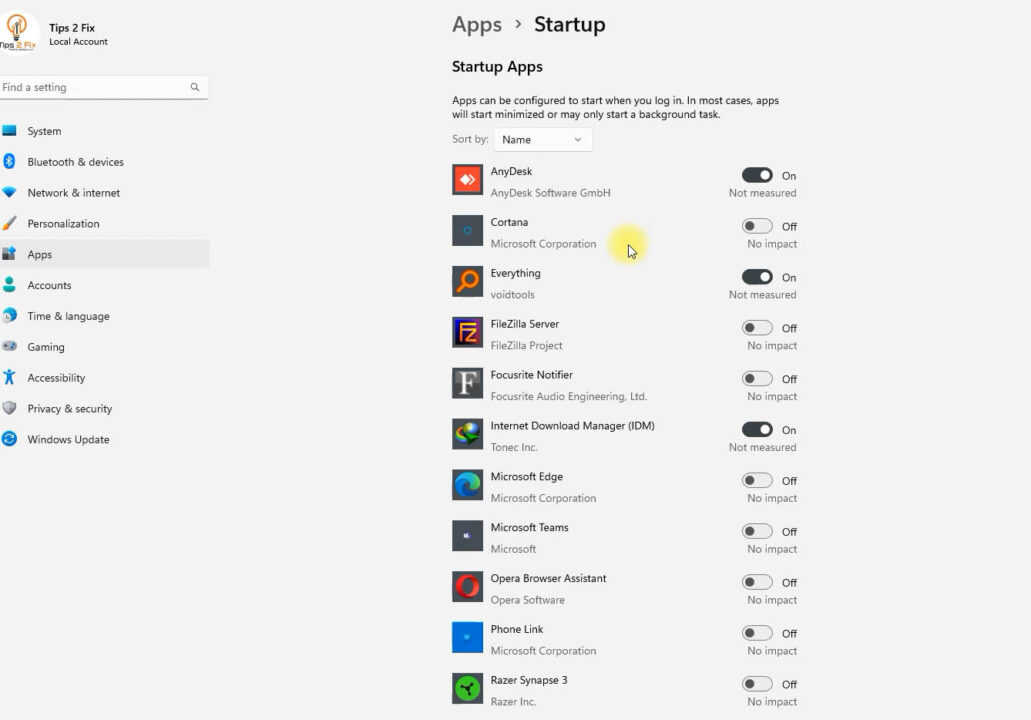
As you install more apps, this list keeps growing. Check it every few months so that no unwanted apps start with Windows.
4. Debloat Windows 11
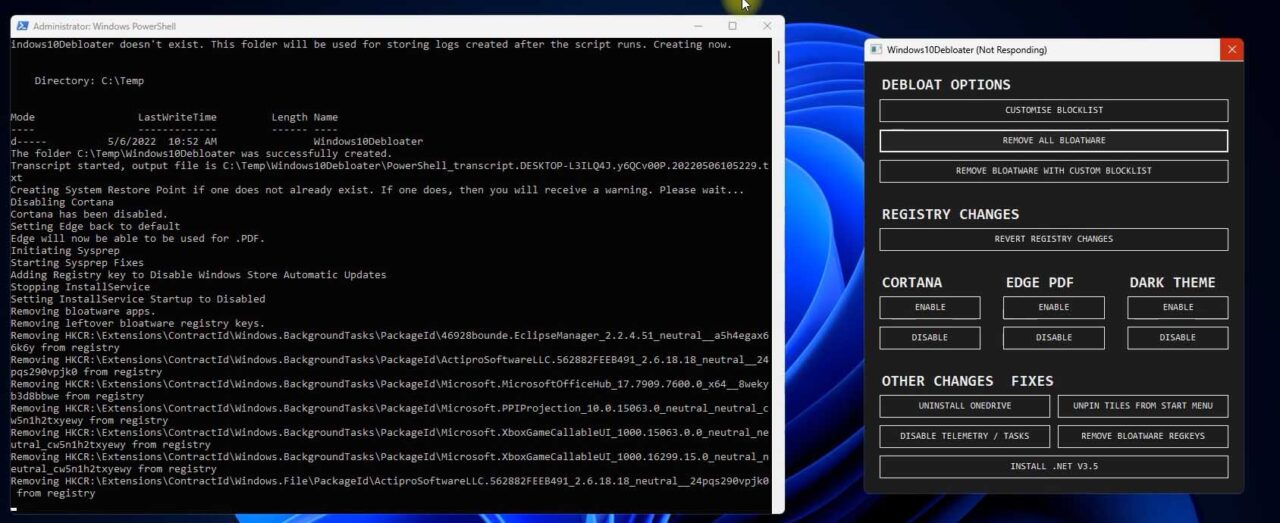
Debloating removes apps and services you don’t need. The free Windows10Debloater script can disable Cortana, uninstall unnecessary packages and apps like OneDrive, and remove services with a few clicks. It also adjusts your privacy settings and stops telemetry tasks that run in the background. The script was made for Windows 10, but as you can see in the screenshot, I used it on Windows 11.
Warning: A debloat script removes apps and changes system settings. The script creates a System Restore point first, but back up your important files anyway.
To use the debloater script:
- Open Windows PowerShell as administrator: search for PowerShell in the Start menu and select Run as administrator.
- Type the command below and press Enter. It downloads the script and automatically creates a System Restore point.
iwr -useb https://git.io/debloat|iex- In the Windows10Debloater window, remove the apps and services you don’t need, then restart your PC.
For details and all options, see the Windows10Debloater project page on GitHub. I also show the tool step by step in my post on how to uninstall pre-installed apps with Windows 10 Debloater. For more ways to remove bloatware, see this guide on how to debloat Windows 11.
5. Disable animations and visual effects
Smooth animations, acrylic blur and transparent elements give Windows 11 its fresh look. But these effects cost performance, especially if you don’t have a dedicated graphics card. If you want Windows 11 to focus on speed rather than looks, change these settings:
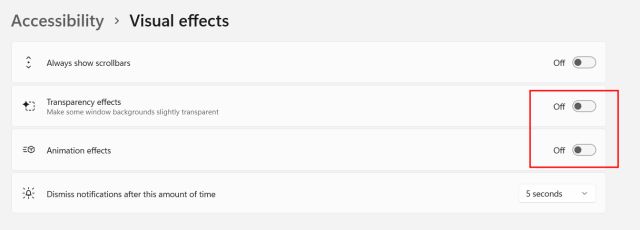
- Open Settings > Personalization > Colors and turn off Transparency effects.
- Go to Accessibility > Visual effects and turn off Transparency effects and Animation effects.
- Press the Windows key, search for View advanced system settings and open it.
- Under Performance, click Settings.
- Choose Adjust for best performance and click OK.
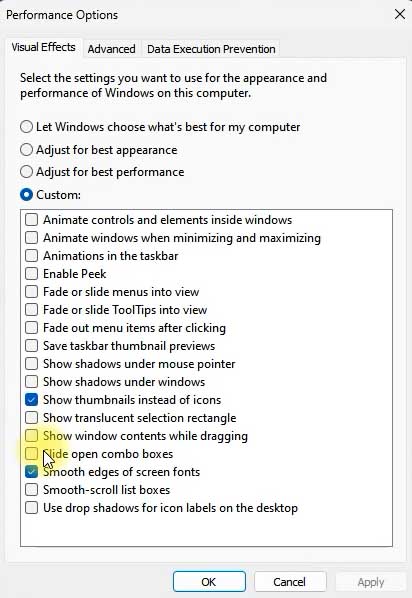
Tip: In my screenshot I chose Custom and kept Show thumbnails instead of icons and Smooth edges of screen fonts turned on, so photos and text still look good.
6. Disable notifications and tips
Windows shows notifications, tips and suggestions, and to create them it looks at how you use your PC. Turning them off can help performance.
- Open Settings (click Start or press Windows + I).
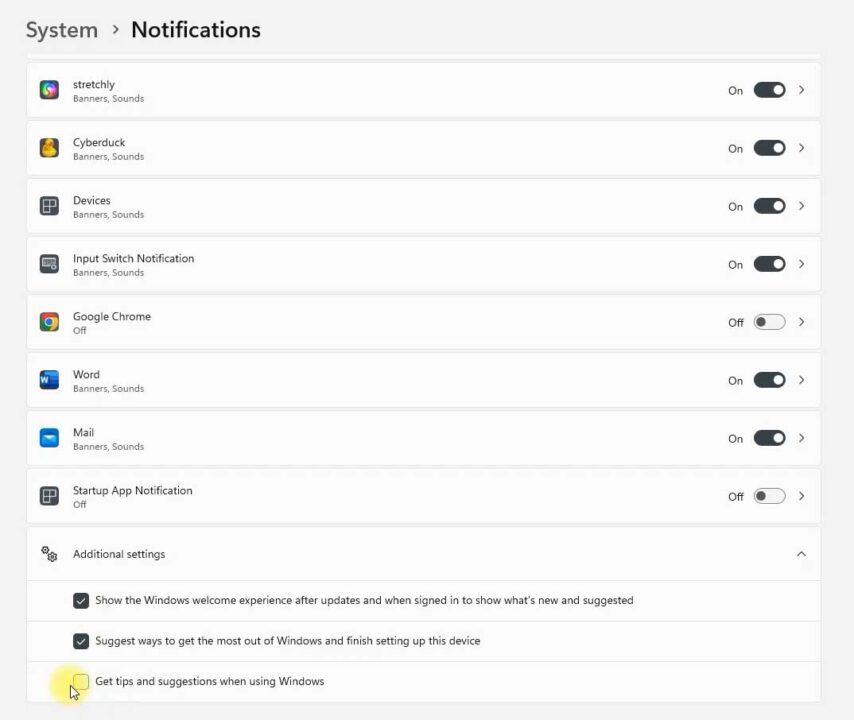
- Go to System > Notifications. In the list you can turn off notifications for apps you don’t need.
- Scroll down and open Additional settings.
- Uncheck Show the Windows welcome experience after updates and when signed in to show what’s new and suggested, Suggest ways to get the most out of Windows and finish setting up this device and Get tips and suggestions when using Windows.
7. Disable background apps
Some apps keep running in the background to stay up to date. Mail and calendar apps are not a problem, but many other background apps can make your PC lag. To stop them:
- Right-click the Start button and select Installed apps (Apps and Features in older versions).
- Click the three-dot menu next to an app you want to stop and select Advanced options.
- Scroll down to Background apps permissions and select Never.
Note: This option only appears for some apps, mostly apps from the Microsoft Store.
To quit an app that is already running in the background, open Task Manager (Ctrl + Shift + Esc), select the app and click End task.
8. Disable VBS (for gamers) and Game Mode
Virtualization-based security (VBS) is a new feature on Windows 11 that protects the system from unsafe code and malware. It is part of the Hypervisor-Enforced Code Integrity (HVCI) layer. When Windows 11 came out, reports showed that this feature could make games run 5% to 25% slower. Even Microsoft said that gaming laptops “may choose to ship with HVCI disabled”. So if you are a gamer and want the best performance, you can disable VBS:
- Press the Windows key and search for Core isolation.
- Open it and turn off Memory integrity.
- Restart your PC.
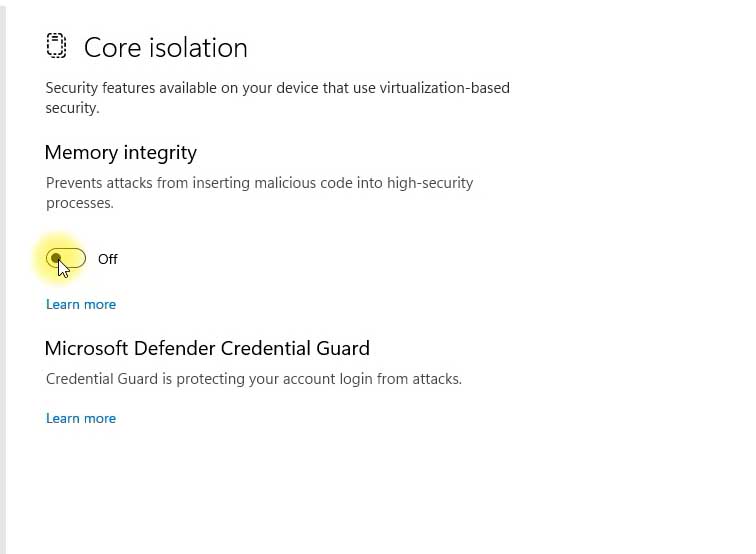
Warning: Memory integrity helps protect Windows against malicious code. Turn it off only if you really need the extra gaming performance.
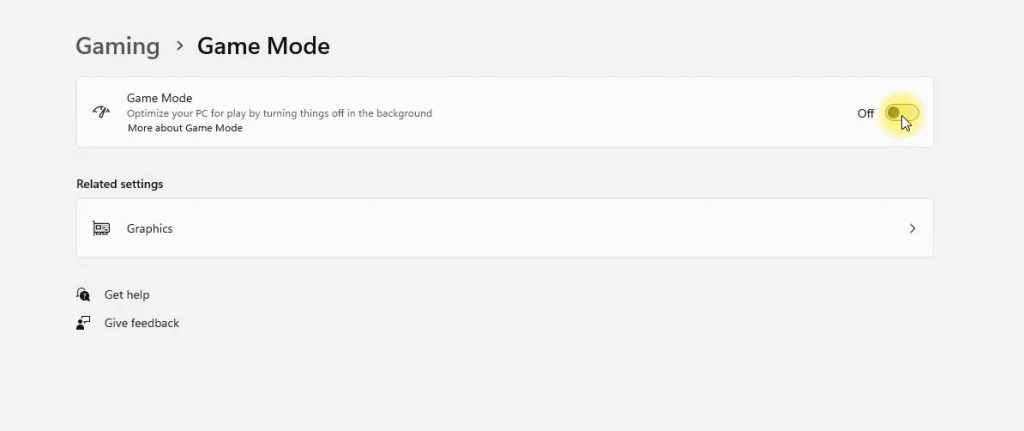
If you are not a gamer, you can turn off Game Mode and the Xbox features completely. This stops game recording (DVR) and other Xbox-related features from running in the background.
- Open Settings and go to Gaming.
- Open Game Mode and turn it off.
- Open Xbox Game Bar and Captures and turn off all the toggles in both menus.
9. Disable restartable apps
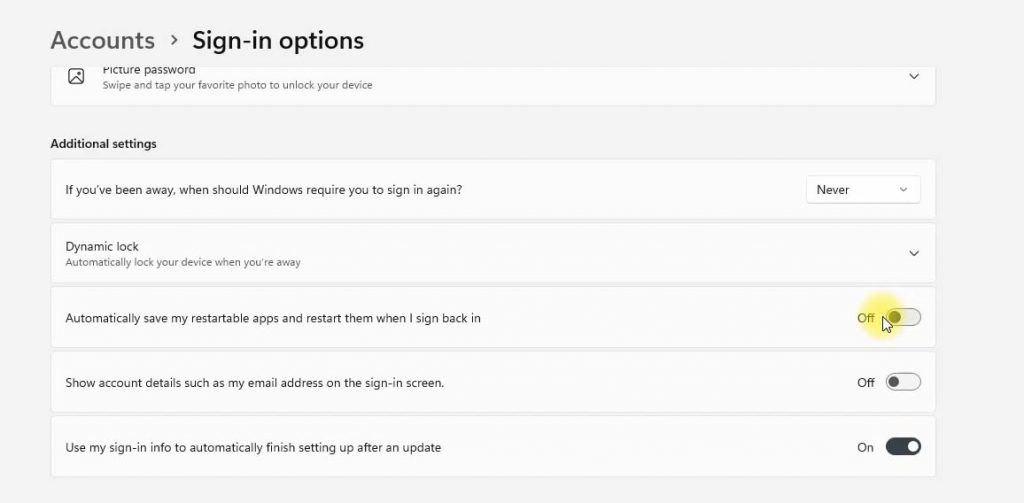
To make your experience smoother, Windows 11 can reopen some apps automatically when you sign in. On a powerful PC this is a useful feature, but on an older computer it is better to turn it off.
- Open Settings > Accounts > Sign-in options.
- Turn off Automatically save my restartable apps and restart them when I sign back in.
10. Uninstall unwanted software
Removing programs and bloatware you don’t use also helps Windows 11 run faster.
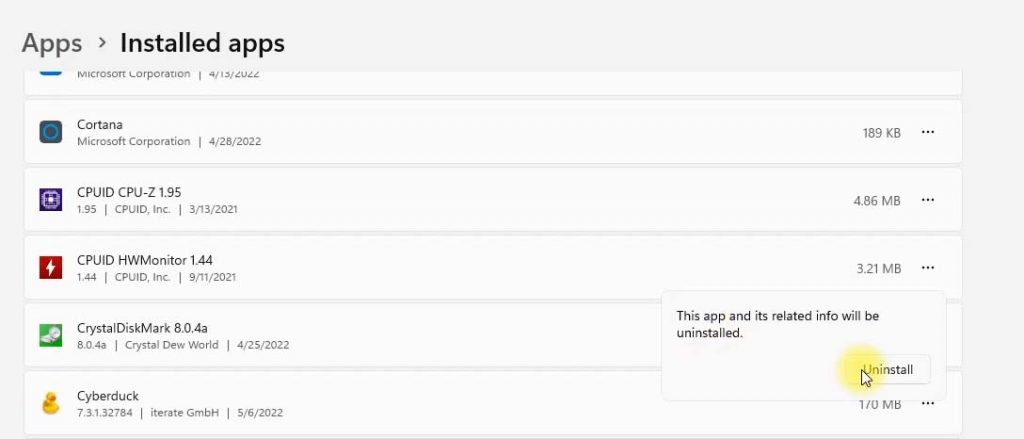
- Open Settings > Apps > Installed apps (Apps and Features in older versions). You can also right-click the Start button to get there.
- Find an app you don’t need, click the three-dot menu next to it and select Uninstall.
11. Delete temporary files and free up disk space
Apps create temporary files while they work. You don’t need these files later, and they can take up a lot of space. To remove them:
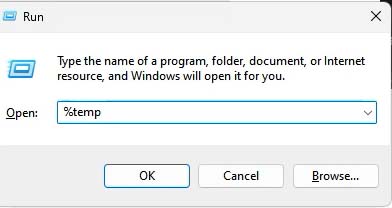
- Press Windows + R to open Run (or press Windows + X and select Run).
- Type
%temp%and click OK. - The temporary files folder opens. Select all files (Ctrl + A) and delete them. If Windows says a file is in use, click Skip.
You can also clean up in Settings > System > Storage > Temporary files. If you upgraded from Windows 10 and want to stay on Windows 11, you can select Previous Windows installation(s) there to delete the old Windows 10 files. After that you can no longer go back to Windows 10.
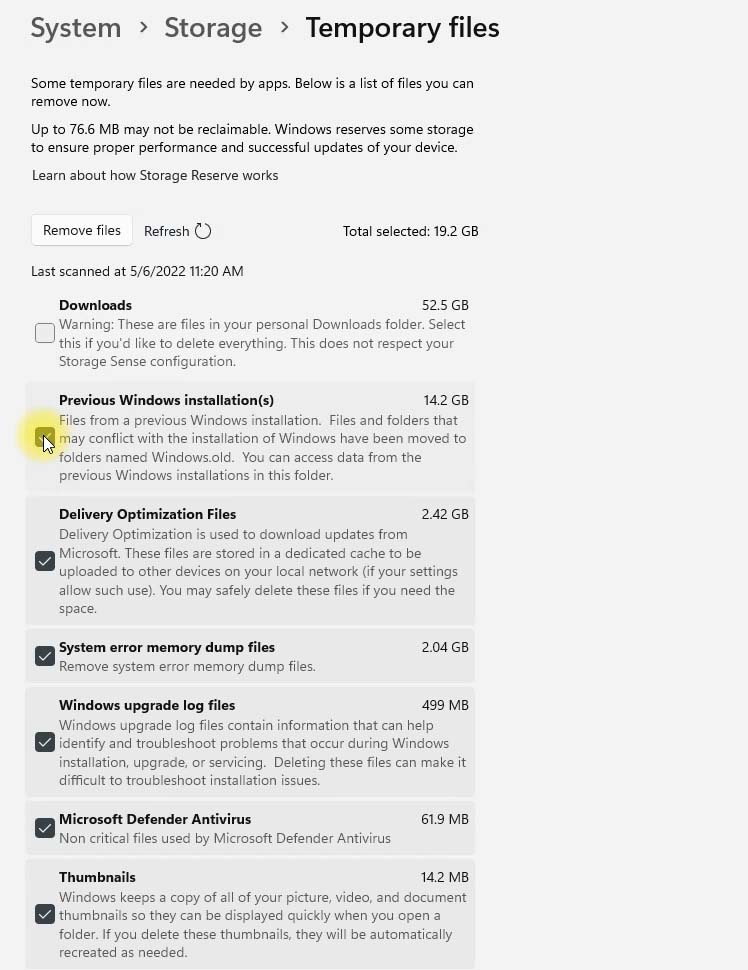
Warning: Leave Downloads unchecked unless you are sure. It deletes the files in your personal Downloads folder.
For more ways to make room, see this guide to free up disk space on Windows 11. If your disk is always busy, my guide on fixing 100% disk usage in Windows 10/11 can also help.
12. Use Storage Sense to keep Windows 11 clean
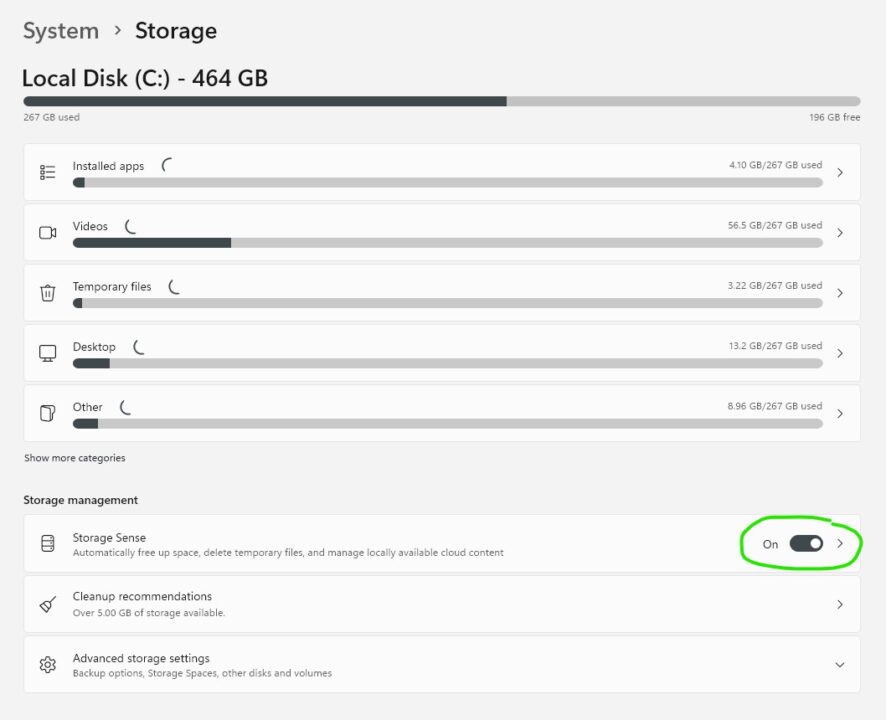
You can also turn on Storage Sense, which cleans up temporary files automatically from time to time.
- Open Settings and click System in the sidebar.
- Select Storage and turn on Storage Sense.
13. Change the power mode
If you want the best performance and don’t mind a shorter battery life, change the power plan:
- Open Control Panel > Hardware and Sound > Power Options.
- Select High performance. If you don’t see it, click Show additional plans.
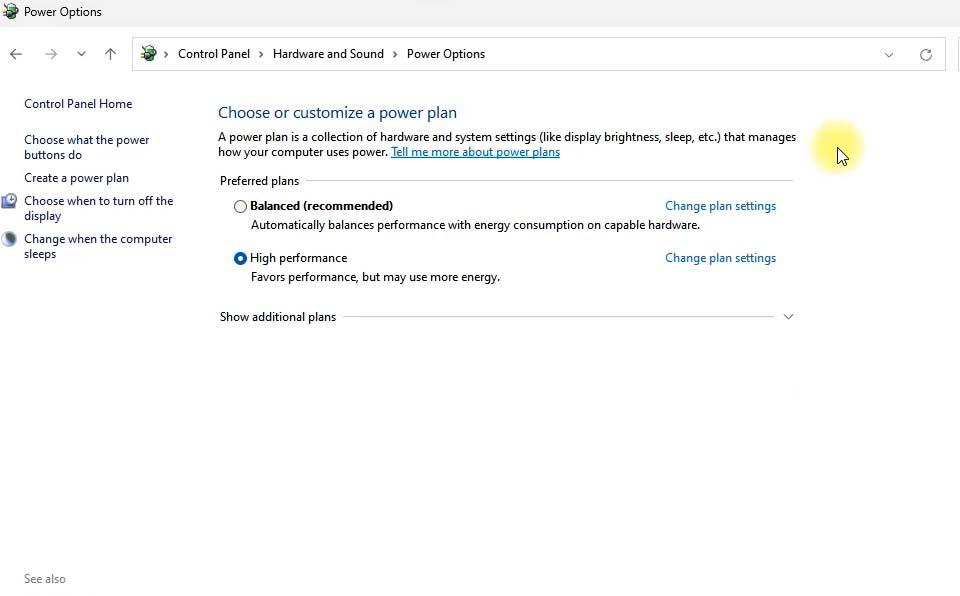
In Settings you can also open System > Power & battery (Power on desktop PCs) and set Power mode to Best performance.
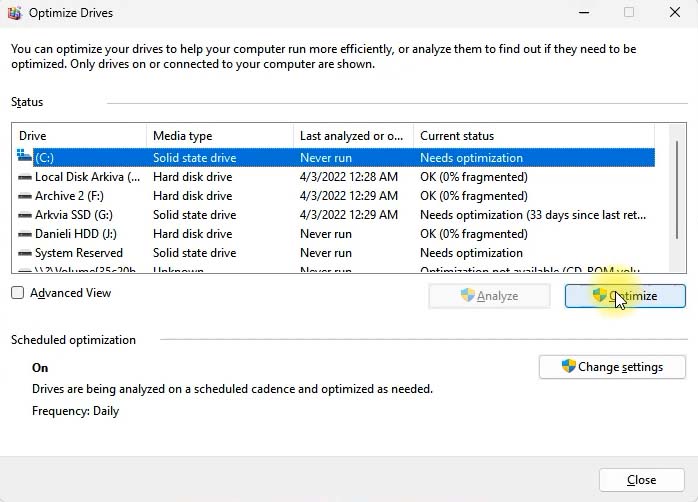
14. Defragment your hard disk
Over time, files on a hard disk get scattered across the drive, and this slows down your system. The built-in defragment tool fixes this.
Note: Only defragment hard disk drives (HDD). An SSD does not need it, and defragmenting it adds wear and reduces its life. For SSDs, Windows runs TRIM instead when you click Optimize, which is fine.
- Press the Windows key, search for Defragment and Optimize Drives and open it.
- Select the drive you want to defragment and click Optimize.
15. Scan your PC with AdwCleaner and skip third-party antivirus
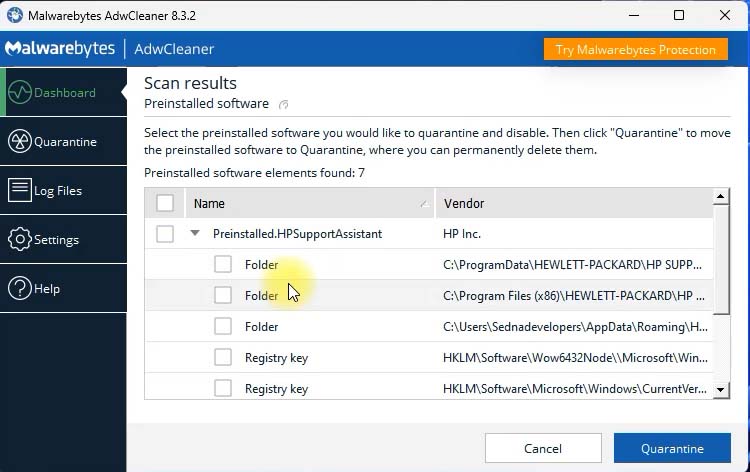
AdwCleaner from Malwarebytes is a free tool that finds adware, unwanted programs and preinstalled bloatware. A scan only takes a few minutes.
- Download AdwCleaner from the official Malwarebytes website (button below) and open it.
- Click Scan now.
- Check the results, select the items you want to remove and click Quarantine.
Download AdwCleaner (official site)
Also, don’t install a third-party antivirus. Windows 11 already includes Microsoft Defender, and a second antivirus mostly slows your PC down.
Hardware I recommend
If you want to upgrade to a fast NVMe SSD, these are the parts I recommend (Amazon affiliate links):





