Xiaomi phones with MIUI 10 show ads in many places: in the app installer, in system apps such as Security, File Manager, Mi Browser, Themes, Mi Music and Mi Video, and as notifications. The good news is that you can turn most of them off yourself. You don’t need root, you don’t need to unlock your bootloader and you don’t need a computer. Below are the 12 settings to change, one by one.
Update (October 2026): Xiaomi replaced MIUI with HyperOS in late 2023. On newer phones some menus have different names or are in a different place. The steps in this guide are for MIUI 10 and are very similar on MIUI 9.
In this article
- Why does MIUI show ads?
- Where MIUI shows ads
- How to disable ads in MIUI 10 (12 settings)
- 1. Revoke the authorization of the MSA app
- 2. Turn off the advertising identifier
- 3. Turn off ads in the app installer (virus scanner)
- 4. Turn off ads in Installed apps
- 5. Turn off ads in App lock
- 6. Turn off ads in File Manager
- 7. Turn off ads in the Security app
- 8. Turn off ads in Mi Browser
- 9. Turn off ads in the Downloads app
- 10. Turn off ads in MIUI Themes
- 11. Turn off ads in Mi Music
- 12. Turn off ads in Mi Video
- After the 12 steps
Why does MIUI show ads?
Ads are part of Xiaomi’s business model. Xiaomi’s founder and CEO Lei Jun has described it as a “triathlon”: the company invests in hardware, sells the products in its online and offline stores, and offers internet services on those devices. The internet services are the part that is supposed to make the money. To get as many people as possible into those services, Xiaomi sells its phones at very aggressive prices, and ads help pay for that.
In September 2018, users even found banner ads inside the Settings app. After strong criticism from customers, Xiaomi rolled them back. In a statement about ads in MIUI, a Xiaomi spokesperson explained why the ads exist:
“Advertising has been and will continue to be an integral part of Xiaomi’s Internet services, a key component of the company’s business model. At the same time, we will uphold user experience by offering options to turn off the ads and by constantly improving our approach towards advertising, including adjusting where and when ads appear. Our philosophy is that ads should be unobtrusive, and users always have the option of receiving fewer recommendations.”
So Xiaomi itself gives you options to turn the ads off. They are just spread over many different apps, and that is why this guide has 12 steps.
Where MIUI shows ads
MIUI makes money in two main ways: preloaded apps and advertisements.
- Preloaded apps (“bloatware”). App makers pay Xiaomi to preinstall their apps. The Redmi Note 7 Pro, for example, came with Amazon Shopping, Facebook, Dailyhunt, Opera News, Opera Mini and the Xiaomi-backed ShareChat. You can uninstall all of them, even with a locked bootloader, but until you do, many of them send ad notifications.
- Ads in Xiaomi’s own apps and services. The most annoying ones are in Mi Music and Mi Video, and to a lesser extent in deeply integrated features such as the App Vault.
Xiaomi says its ads are mostly unobtrusive “recommendations”, often pushed as notifications. The real problem is how often they appear, and how many different sources send them. In some regions, especially India, MIUI 10 shows ads in many places:
- The Security app scans every app you install and shows an ad on the scan screen, even though Google Play Protect already checks your apps.
- The Glance lock screen feature shows “news updates” on the lock screen if you turn it on. Thankfully, it is off by default.
- System apps such as File Manager, Mi Apps and Themes contain ads.
- The Mi Store app sends notifications about upcoming flash sales.
- Mi Browser opens with a big feed of “recommendations”, and some of the recommended content is itself an ad.
None of this is necessary, and in the worst case it is a privacy problem. Here is how to switch it off.
How to disable ads in MIUI 10 (12 settings)
These steps were written on a Redmi Note 7 Pro with MIUI 10 Global Stable 10.2.7.0 (PFHINXM). The menus on other MIUI 10 phones are very similar. If one of the apps is not on your phone, skip that step.
1. Revoke the authorization of the MSA app
MSA stands for “MIUI System Ads”. It is the system app behind most of the ads, and you will not find it on your home screen.
- Go to Settings > Additional settings > Authorization and revocation.
- Find msa in the list and tap its toggle.
- Wait for the 10-second timer to finish, then tap Revoke.
If it doesn’t work the first time, keep trying until it does. Revoking MSA should greatly reduce the number of ads across the system. If you still see ads, continue with the next steps.
2. Turn off the advertising identifier
- Go to Settings > Additional settings > Privacy > User Experience Program.
- Turn off the only toggle on that screen.
This doesn’t reduce the number of ads. According to Xiaomi, it stops the phone from collecting information to personalize them.
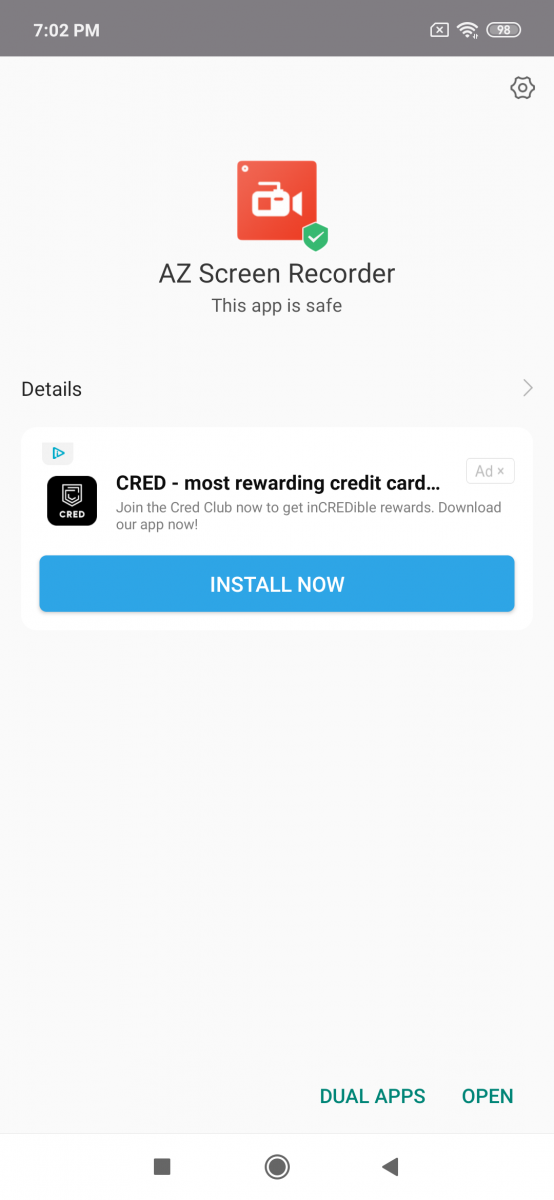
3. Turn off ads in the app installer (virus scanner)
- Install any app from the Play Store. The MIUI installer will “scan” it.
- While the scan screen is open, tap the gear icon (Settings) in the top-right corner.
- Turn off Receive recommendations.
On the same screen you can also turn off the security scan itself if you don’t want it.
4. Turn off ads in Installed apps
- Go to Settings > Installed apps.
- Tap the three-dot menu in the top-right corner and open Settings.
- Turn off Recommendations.
5. Turn off ads in App lock
- Go to Settings > App lock.
- Tap the gear icon (Settings) and turn off Receive recommendations.
6. Turn off ads in File Manager
- Open File Manager and open the menu on the left side.
- Go to Settings > About.
- Turn off Recommendations.
7. Turn off ads in the Security app
- Open the Security app, tap the gear icon (Settings) and turn off Receive recommendations.
- In the same settings, open Cleaner and turn off Receive recommendations.
- Go back, open Boost speed and turn off Receive recommendations there as well.
8. Turn off ads in Mi Browser
- Open the Browser app and tap the menu button in the bottom-right corner.
- Go to Settings > Privacy & security.
- Turn off Recommended for you.
9. Turn off ads in the Downloads app
- Open the Downloads app and tap the three-dot menu in the top-right corner.
- Turn off Show recommended content.
10. Turn off ads in MIUI Themes
- Open the Themes app and tap the profile button in the bottom-right corner.
- Open Settings and turn off Recommendations.
- Optional: also turn off Personalized wallpaper selection.
11. Turn off ads in Mi Music
- Open Mi Music and tap the icon in the top-left corner to open the side menu.
- Go to Settings > Advanced settings.
- Turn off Receive recommendations.
On the same Advanced settings page you can also change how the app updates.
12. Turn off ads in Mi Video
- Open Mi Video and go to Account > Settings.
- Turn off Online recommendations.
- Optional: also turn off Push notifications.
After the 12 steps
These changes should remove the system ads and most ad notifications from MIUI. The options are hidden in many different apps and are easy to miss, so take your time and check each one. You don’t need to unlock your bootloader or connect your phone to a computer for any of this.
Tip: Ad notifications from preloaded apps such as Amazon Shopping, Facebook, Dailyhunt or Opera News stop when you uninstall the apps you don’t use. You can remove them like any normal app, even with a locked bootloader.
Do you have a Xiaomi phone? You may also like my guide on how to remove the dual camera watermark on Xiaomi phones.