Does Windows 10 keep showing the “Your Windows license will expire soon” message? Below are five methods that users have reported to fix it, from restarting Windows Explorer to a small registry change. The video at the top of this page shows the steps.
Update (October 2026): Microsoft ended support for Windows 10 on October 14, 2025. If your PC can run Windows 11, upgrading is the best long-term fix. My guide How to Install Windows 11 26H2 on Unsupported PC also covers older computers.
In this article
Before You Start
- You need an account with administrator rights.
- Check your activation status first: Settings > Update & Security > Activation.
- Try the solutions one at a time, and check if the message is gone after each one.
Solution 1: Restart Windows Explorer and Reset the Activation Timer
You can often fix the alert with Task Manager and one command.
Step 1: Restart Windows Explorer
- Press Ctrl + Alt + Del and select Task Manager. If that doesn’t work, press Ctrl + Shift + Esc to open Task Manager directly.
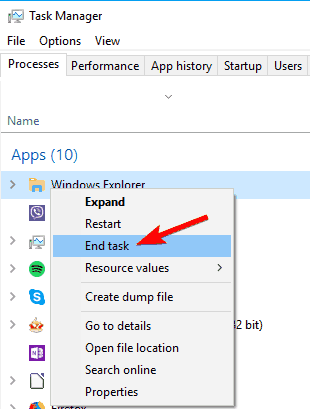
- Open the Processes tab, right-click Windows Explorer and choose End task.
- Click File and choose Run new task.
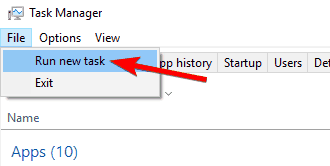
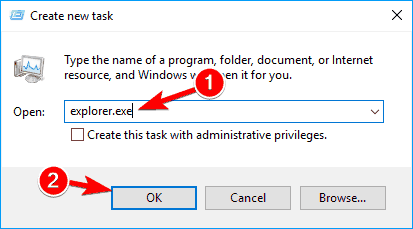
- Type explorer.exe and press Enter or click OK. Your taskbar and desktop appear again.
Step 2: Run one command in Command Prompt
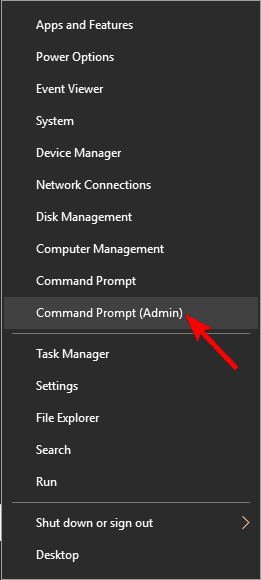
- Press Windows Key + X and choose Command Prompt (Admin). On newer Windows 10 versions this menu shows Windows PowerShell (Admin) instead, which works too.
- Type this command, press Enter and restart your PC:
slmgr /rearm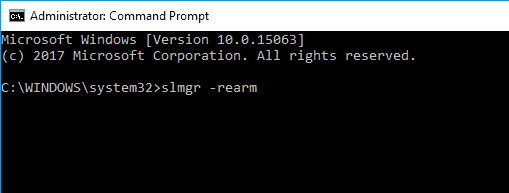
The /rearm option resets the Windows activation timers. After the restart, the message should be gone.
Several users fixed the problem with slmgr /upk instead.
Warning: slmgr /upk uninstalls your product key. After a restart, Windows is not activated until you enter a valid key again. Only use it if you have your product key (see Solution 4).
Solution 2: Change Your Group Policy
Several users say a Group Policy change fixes the Your Windows license will expire soon error.
Note: The Group Policy Editor (gpedit.msc) is only included in Windows 10 Pro, Enterprise and Education, not in Windows 10 Home.
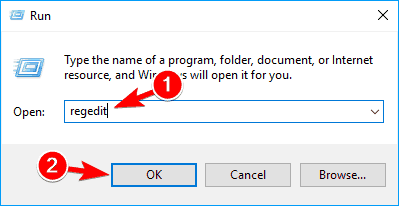
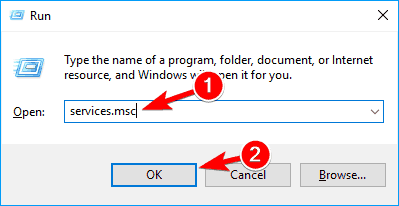
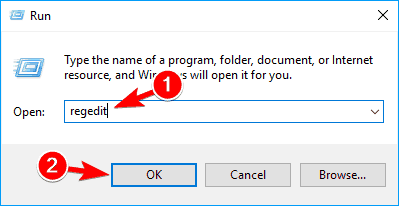
- Press Windows Key + R, type gpedit.msc and press Enter or click OK. (The screenshot shows the same Run box with regedit typed in.)
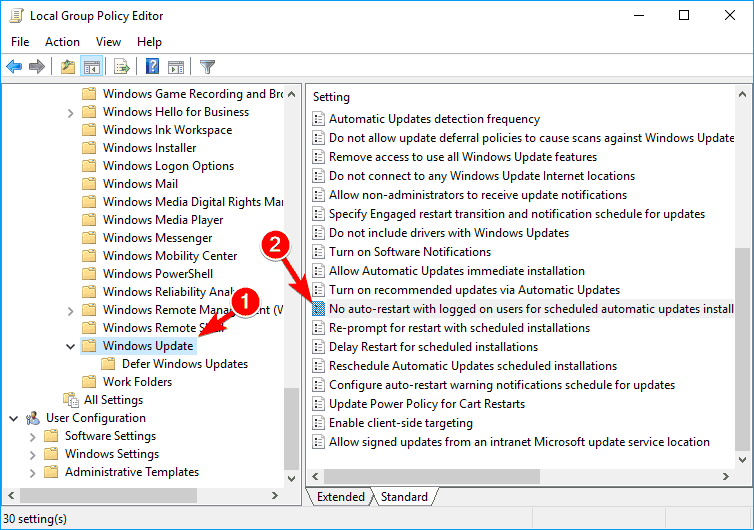
- The Local Group Policy Editor opens. In the left pane, go to Computer Configuration > Administrative Templates > Windows Components > Windows Update.
- In the right pane, double-click No auto-restart with logged on users for scheduled automatic updates installations.
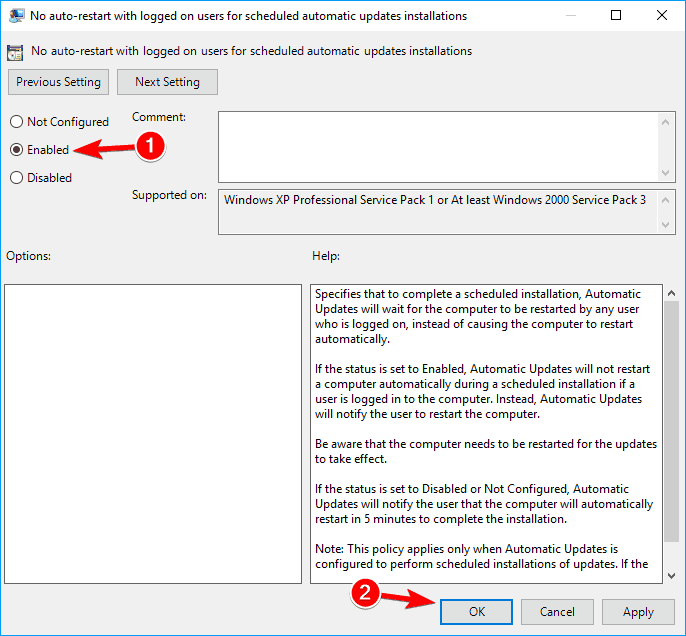
- Select Enabled, then click Apply and OK to save the change.
Solution 3: Disable Two Services
If the message appears often, you may be able to stop it by disabling two services.
Warning: With the Windows Update service disabled, your PC gets no updates at all, including security fixes. Microsoft Store apps may also stop working without the Windows License Manager Service. Use this only as a last resort, and undo it if you notice any problems.
- Press Windows Key + R, type services.msc and press Enter or click OK.
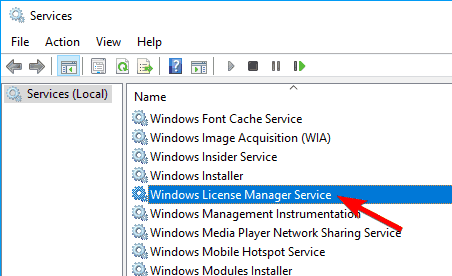
- In the Services window, find Windows License Manager Service and double-click it to open its properties.
- Set the Startup type to Disabled. If the service is running, click Stop. Then click Apply and OK.
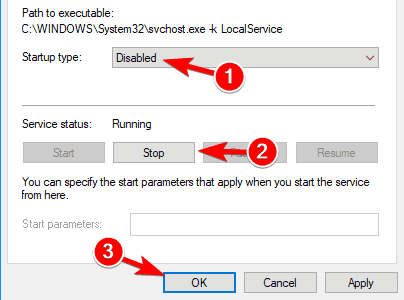
- Find the Windows Update service and double-click it. Stop the service and set its Startup type to Disabled.
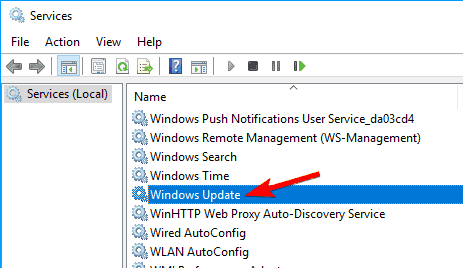
After this, the error message should stop. If you have any problems after this change, set both services back to their original startup type.
Solution 4: Find Your Product Key and Activate Windows
Command Prompt can show the product key that is stored in your PC’s firmware. With that key, you can activate Windows again.
- Open Command Prompt as administrator.
- Run this command:
wmic path SoftwareLicensingService get OA3xOriginalProductKey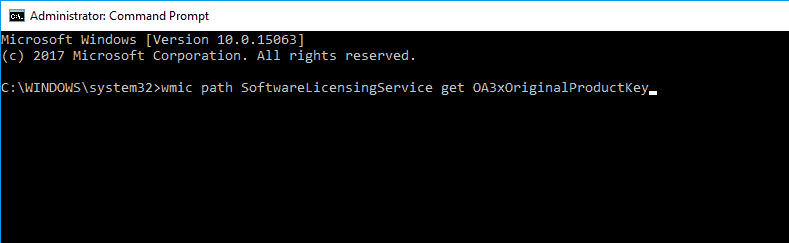
- Your product key appears. Write it down or copy it to a safe place.
- Open the Settings app with Windows Key + I.
- Go to Update & Security.
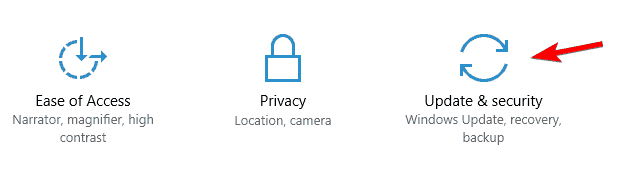
- Click Activation in the left menu, then click Change product key on the right.
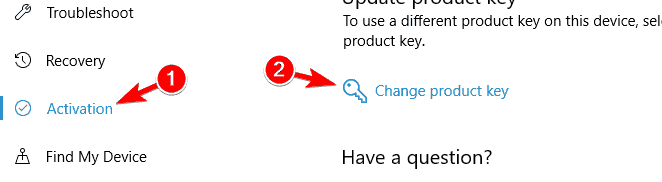
- Enter the product key from step 3 and click Next.
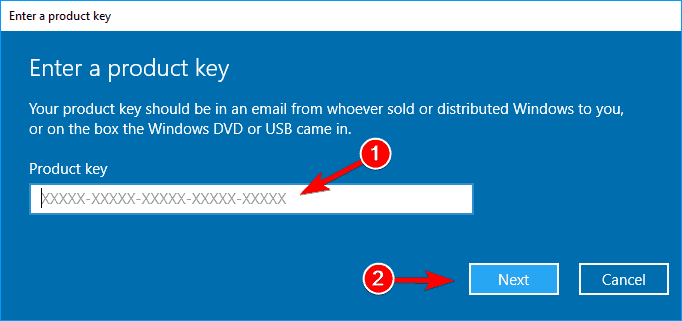
Windows should now be activated and the error message gone.
Note: If the command shows an empty line, no product key is stored in your PC’s firmware. If wmic is not available on your system, run this command in PowerShell instead:
(Get-CimInstance -ClassName SoftwareLicensingService).OA3xOriginalProductKeySolution 5: Modify Your Registry
According to users, if your copy of Windows 10 is genuine and activated, a small registry change stops the Your Windows license will expire soon message from appearing.
Step 1: Back up your registry
- Press Windows Key + R, type regedit and press Enter or click OK.
- Before you change anything, export a backup: click File > Export.
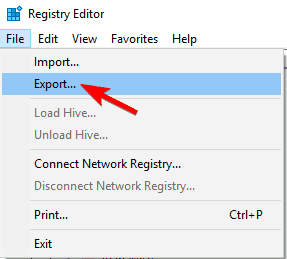
- Select All as the Export range, enter a file name, choose a safe location and click Save.
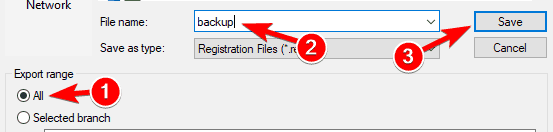
If anything goes wrong later, double-click the file you saved to restore your registry to its original state.
Step 2: Run the registry command
- Open Command Prompt as administrator.
- Type this command and press Enter:
reg add "HKLM\Software\Policies\Microsoft\Windows NT\CurrentVersion\Software Protection Platform" /v NoGenTicket /t REG_DWORD /d 1 /f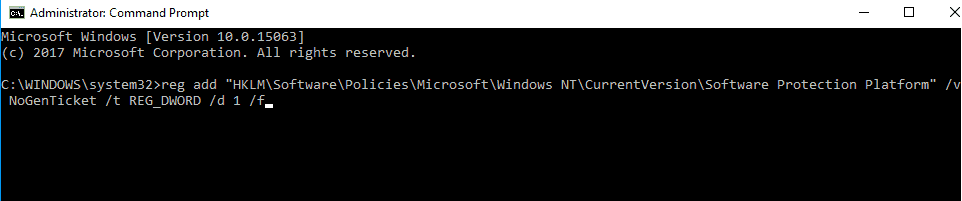
This command changes your registry and stops the Your Windows license will expire soon message from appearing. If you have any issues afterwards, run the registry backup file to restore the original state.
Did It Work?
With one of these methods, you should be able to get rid of the Your Windows License Will Expire Soon alert on Windows 10. Tell me in the comments which solution worked for you. If you still have problems, write them there too and I will try to help.
If you want to keep Windows 10 for now, LTSC editions get security updates for longer than normal Windows 10. See How to Upgrade Windows 10 to LTSC Without Losing ANY Data.