

A Blue Screen of Death (BSOD) with the stop code SYSTEM_SERVICE_EXCEPTION can have many causes, but a bad or corrupted driver is the most common one. In this guide you will repair your Windows system files, find the faulty driver with Driver Verifier, and see what to do if the blue screens still don’t stop.
In this article
What SYSTEM_SERVICE_EXCEPTION (0x3B) Means
The bug check code that usually comes with this error is 0x3B. That number has seven different matches in the Microsoft Error Lookup Tool, so it is better to search for the text stop code (SYSTEM_SERVICE_EXCEPTION) on its own or together with 0x3B.
Microsoft’s bug check page for this error explains the cause like this: “This indicates that an exception happened while executing a routine that transitions from non-privileged code to privileged code.” In simple words, a program or driver crashed while it was switching to protected system code.
Before You Start
- You need an account with administrator rights.
- Create a current image backup of your PC before you use Driver Verifier (Step 3). Driver Verifier causes blue screens on purpose when it finds a bad driver.
- If the blue screens started right after a Windows update, try removing that update first: How to Uninstall a Bad Windows 11 Update.
Step 1: Check the Blue Screen for a Driver Name
Microsoft also notes on the bug check page that “If a driver that is responsible for the error can be identified, its name is printed on the blue screen”. Write down any file name you see, usually a file that ends in .sys.
For example, the blue screen may name Ntfs.sys, the Windows NTFS file system driver. That tells you a file system error happened. It is only partly helpful, because you cannot (and should not) replace a core Windows driver the way you would update a driver for a graphics card or another device. Repairs like this are a job for the DISM and SFC commands in Step 2.
Step 2: Repair Windows Files with DISM and SFC
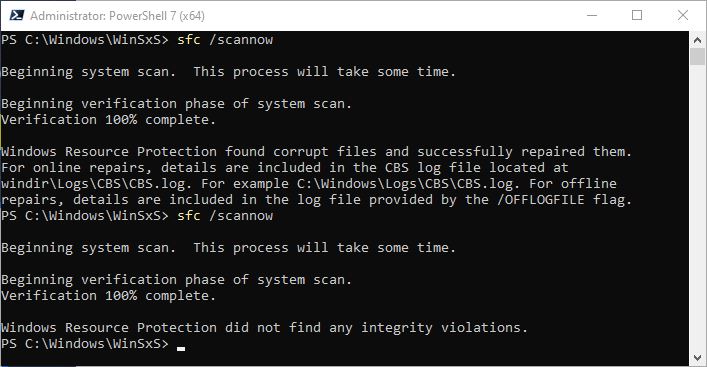
After a restart, open Command Prompt or PowerShell as administrator and run these two commands, one after the other:
DISM /Online /Cleanup-Image /RestoreHealth
sfc /scannow- DISM checks the Windows component store (usually
C:\Windows\WinSxS) and replaces corrupted or missing files. It usually takes 3 to 5 minutes. - SFC (System File Checker) checks all Windows system files and replaces any damaged or missing files it finds. It can take longer, especially when it makes repairs.
If SFC finds and fixes errors, run sfc /scannow again until the final message says that it “did not find any integrity violations”.
Step 3: Find the Faulty Driver with Driver Verifier
Windows 10 and Windows 11 include a driver checking tool called Driver Verifier (verifier.exe in C:\Windows\System32). Drivers are often behind SYSTEM_SERVICE_EXCEPTION because, like Windows itself, they are allowed to access protected system code. Almost any device driver can cause this error, so it often appears after you install new hardware or plug in a removable storage device (usually through a USB or Thunderbolt port).
If DISM and SFC did not stop the blue screens, Driver Verifier can help you find the driver that causes them.
Warning: Make a current image backup of your PC before you continue. Driver Verifier checks your drivers and deliberately causes a BSOD when it finds a driver that is corrupt, damaged or cannot be verified.
The details you need are saved in a crash dump every time a BSOD happens. Windows writes it either to MEMORY.DMP in the Windows folder (usually C:\Windows) or as small .dmp files in C:\Windows\Minidump. To read the minidump files, I recommend NirSoft’s free BlueScreenView. It lists every crash and the driver that probably caused it.
Turn On Driver Verifier
- Open Command Prompt or PowerShell as administrator, type
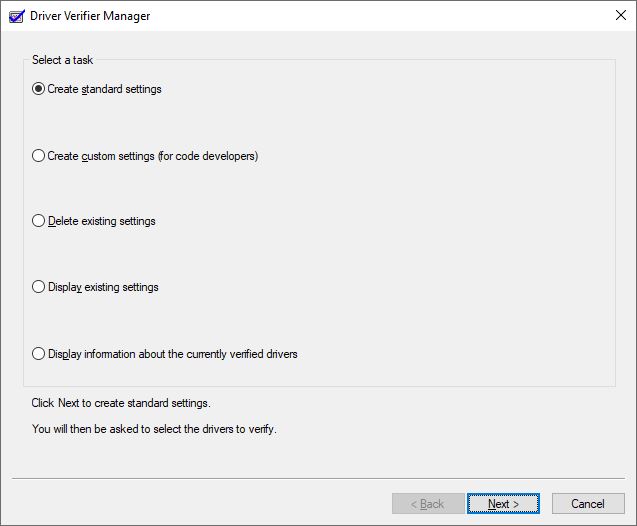
verifierand press Enter. The Driver Verifier Manager opens. - Leave the default option Create standard settings selected and click Next.
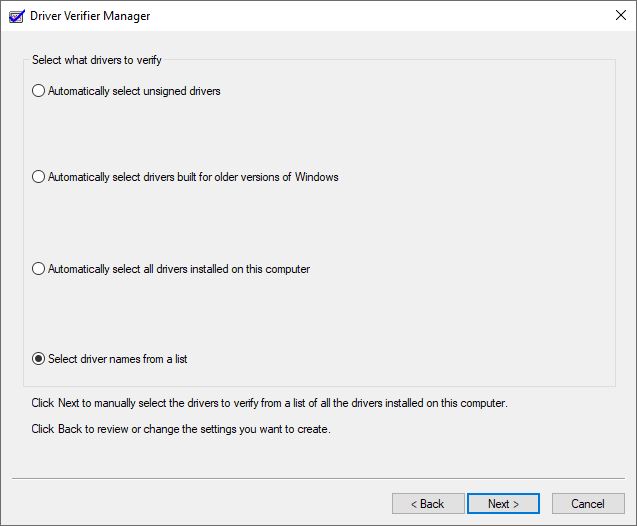
- Select Automatically select all drivers installed on this computer. If you want to check only certain drivers, choose Select driver names from a list instead (see the tips below). Click Next.
Checking every driver can take hours, because a PC can have hundreds of them. These two tips help you shorten the list and pick the suspects.
Tip 1: Use DriverStore Explorer to see driver names and details. DriverStore Explorer is a free GitHub project for inspecting and managing Windows drivers. On the test PC used for the screenshots in this guide, it showed more than 200 drivers, and removing old ones only brought the count down to 195. That is why checking all drivers takes so long. It is faster to look up the driver names in DriverStore Explorer and focus on categories, for example Network adapters, Human Interface Devices or Display adapters.
Tip 2: Check only the suspect categories or drivers. Say you just replaced the Lenovo video driver with the Intel DCH video driver, and the SYSTEM_SERVICE_EXCEPTION error started after that. DriverStore Explorer shows that the driver’s file is iigd_dch.inf, so look for a close match in the Driver Verifier Manager list. “igd” usually stands for Intel graphics driver, so in this case you would tick igdkmd64.sys.
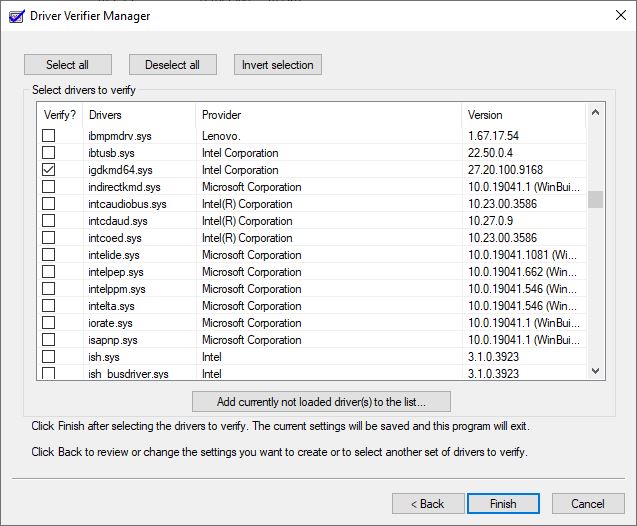
- Click Finish. Driver Verifier Manager warns you that you must restart the PC before the checks start.
- Click OK and restart your PC. The next start can take a little longer while Driver Verifier does its work, so be patient. When it finds an unsigned or suspect driver, it causes a BSOD.
- Write down every blue screen message you see (a photo with your phone is the easiest way), so you can investigate later.
Every BSOD that appears now points to a driver that needs attention. In most cases, updating or replacing the drivers named in the crash dumps fixes the problem.
Turn Off Driver Verifier (or Escape a Boot Loop)
If Driver Verifier causes repeated blue screens and Windows can no longer start (a boot loop), start your PC in Safe Mode. Microsoft explains how in its Windows startup settings guide.
- In Safe Mode, open Command Prompt or PowerShell as administrator, type
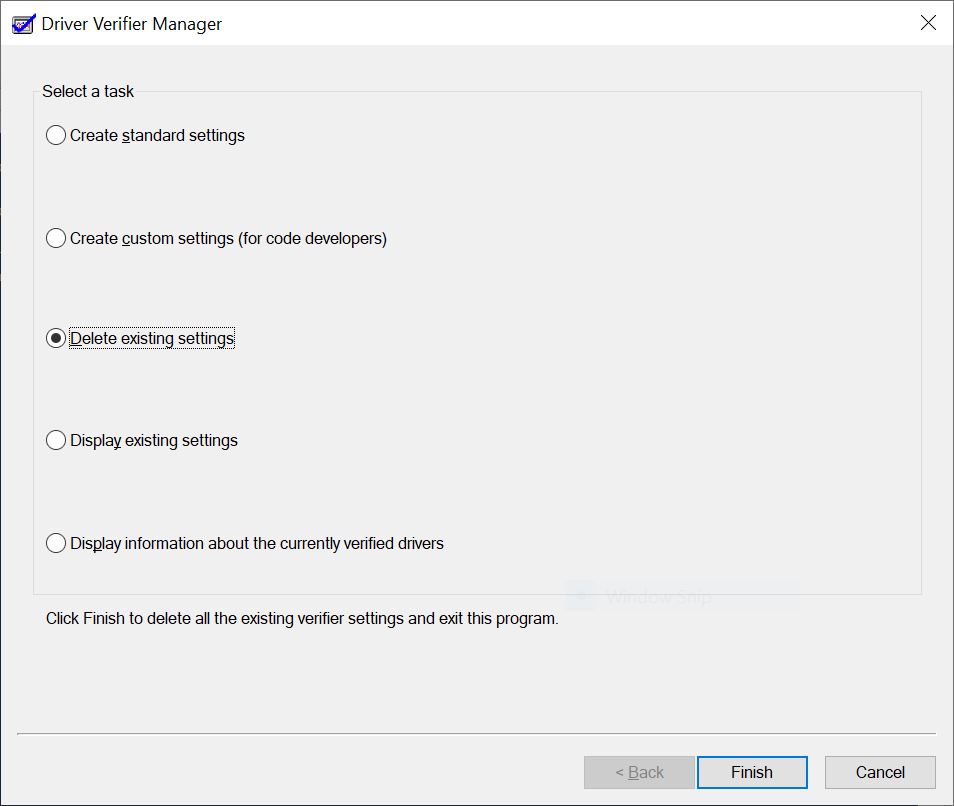
verifierand press Enter. - Choose Delete existing settings and click Finish.
- Restart the PC. The blue screens caused by Driver Verifier stop after this restart.
You can also run verifier /reset in the same administrator window and then restart.
Last Resort: Restore, Repair or Reset Windows
If you still can’t get out of the BSOD loop, you need stronger measures:
- Restore your image backup. The backup you made before using Driver Verifier puts the PC back to where you started.
- Do a repair install of Windows. It takes about 30 minutes and reinstalls Windows while keeping your files and apps. If the option to keep them is greyed out, see Why is Keep personal files and apps greyed out.
- Reset Windows completely. This is the same as a clean install, so use it only when nothing else works. If the reset fails, see Fix “Could Not Find the Recovery Environment” in Windows 11.





